> ## Documentation Index
> Fetch the complete documentation index at: https://docs.goguardian.com/llms.txt
> Use this file to discover all available pages before exploring further.
# Track Device Repairs
> How to start, update, and complete device repair tickets in GoGuardian Fleet, including cost tracking, filtering by repair type, and viewing repair history.
GoGuardian Fleet's Repairs tab lets IT teams log and track every device repair from start to finish. Each device can have multiple repair tickets over its lifetime, and each ticket tracks repair type, status, costs, time spent, and images.
## Start a Repair Ticket
1. Go to [fleet.goguardian.com](https://fleet.goguardian.com) and select the **Repairs** tab.
2. Click **Create New Repair**.
3. Enter the device's serial number, asset ID, user, or location in the search field and select the device.
4. Select the type of damage from the **Type of Damage** dropdown. Select **Other Issue** if the damage type is not listed, and use the Notes field to describe the issue.
5. Select the initial repair status — typically **Needs Repair** or **Destroyed**.
6. Enter any relevant notes.
7. Optional: Select **Assign a Loaner** to assign an available loaner device to the student while the device is being repaired.
8. Optional: Select **Send notification email** to notify a specified email address that the repair has started.
9. Click **Create Repair**.
10. Verify the result: A repair ticket appears in the Repairs tab.
 ## Update a Repair Ticket
Use these repair status options to reflect the current state of a device in the repair process:
| Status | When to use |
| -------------- | --------------------------------------------------- |
| Needs Repair | The device still needs to be repaired |
| On Hold | Repair work is paused — use Notes to explain why |
| Awaiting Parts | Repair is suspended until new parts arrive |
| Destroyed | The device is beyond repair or too expensive to fix |
| Replaced | The device has been replaced by a new device |
| Repaired | The repair is complete |
| Completed | The repair process is fully closed |
| Other | None of the above statuses apply |
**To update a repair ticket:**
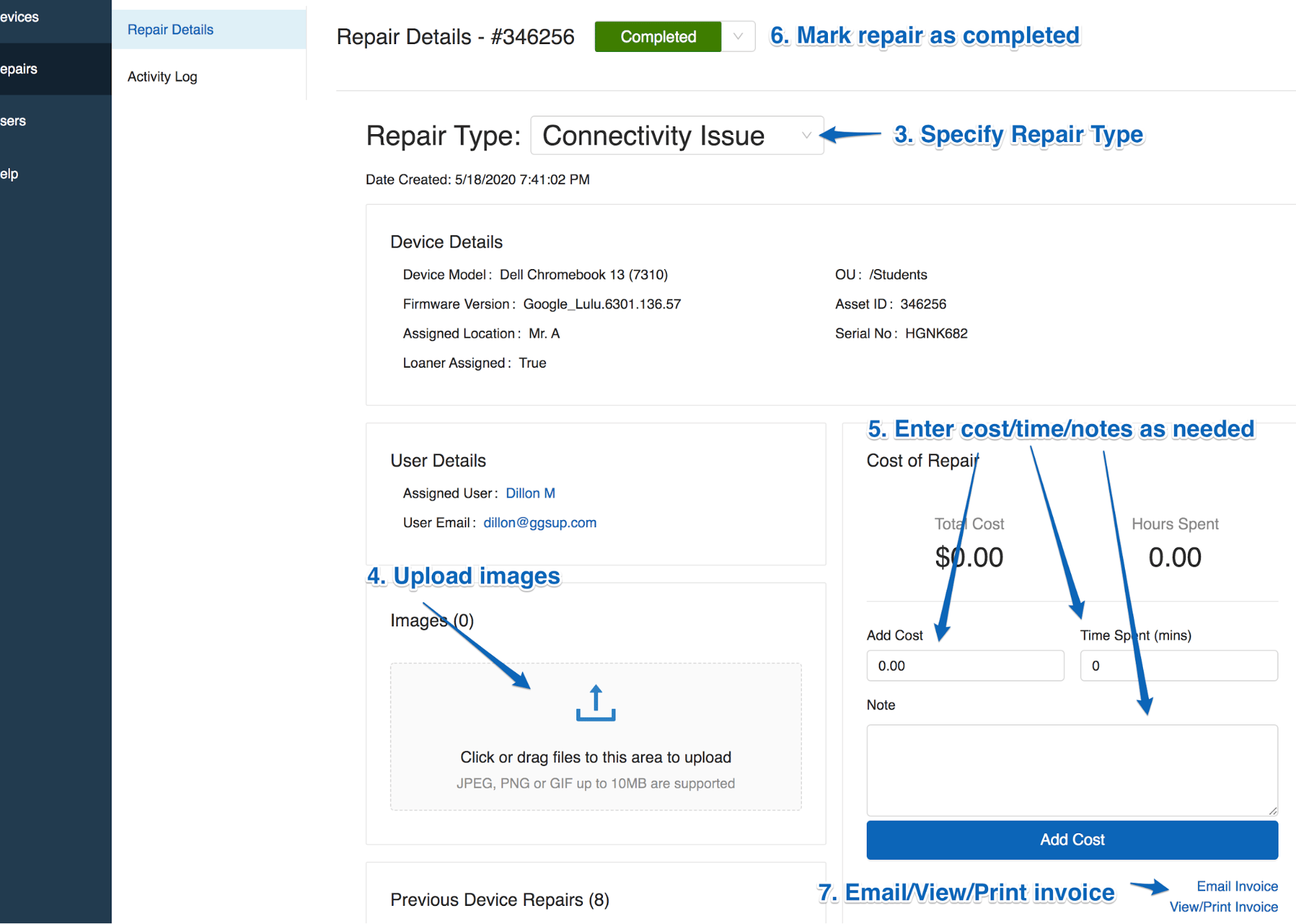
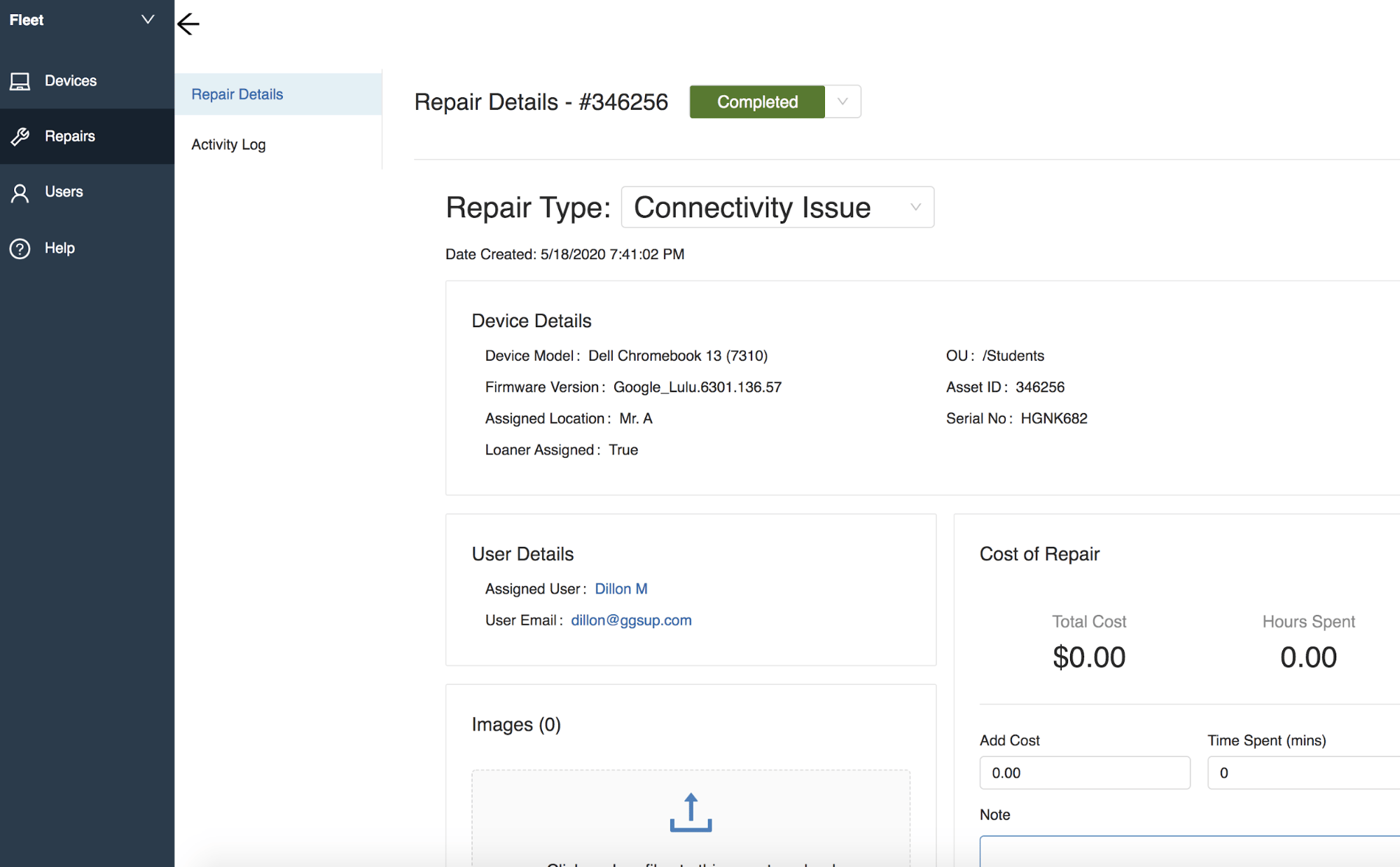
1. Select the **Repairs** tab and click **View More** to the right of the device. Use Search or filters to find it.
2. Use the **Repair Type** dropdown to change the type of repair if needed.
3. Use the **Images** section to upload photos of the device or repair process (JPEG, PNG, or GIF, max 10 MB each).
4. Use the **Status** dropdown to set the current repair status.
5. Verify the result: The status updates immediately.
## Record Repair Costs and Time
Tracking costs per repair ticket gives you a running total of what each device has cost to maintain over its lifetime.
1. Open a repair ticket by clicking **View More** next to the device.
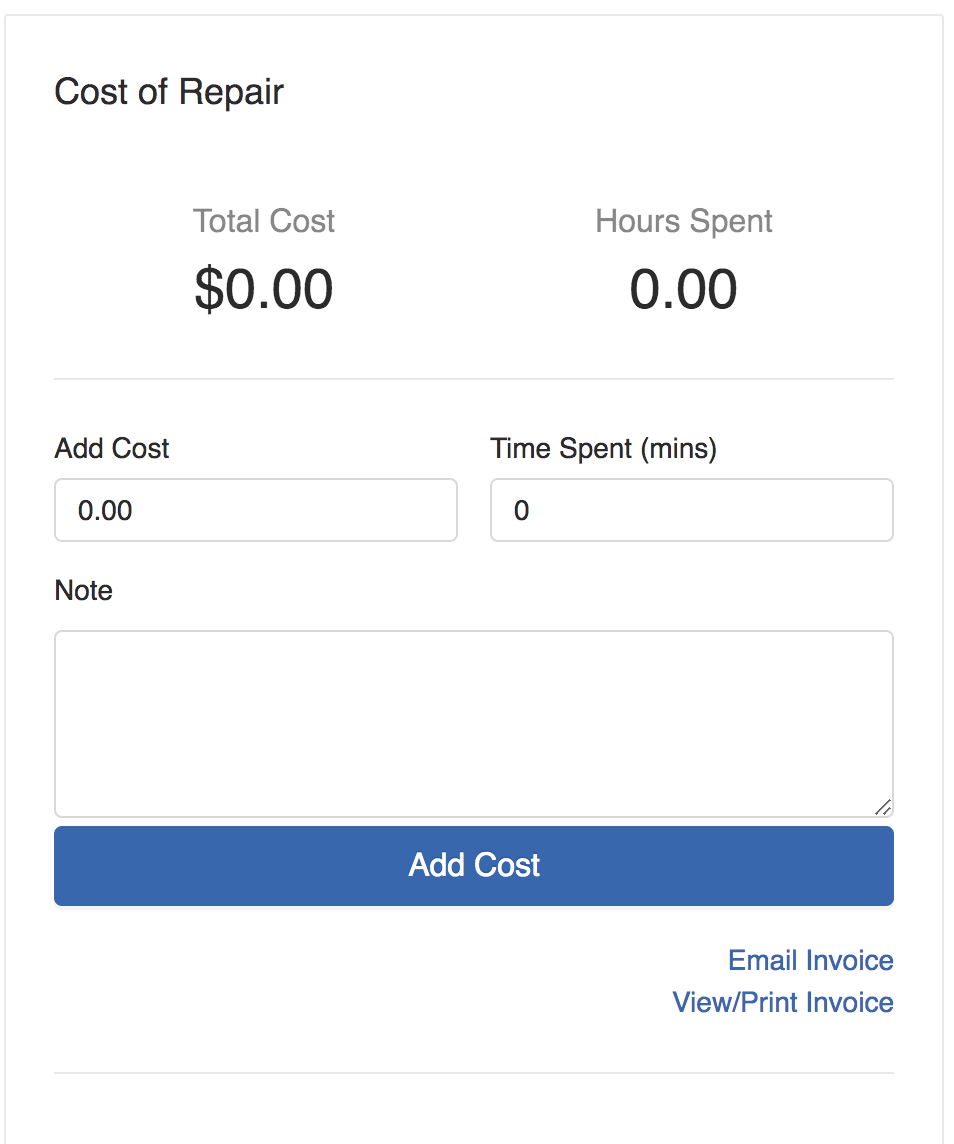
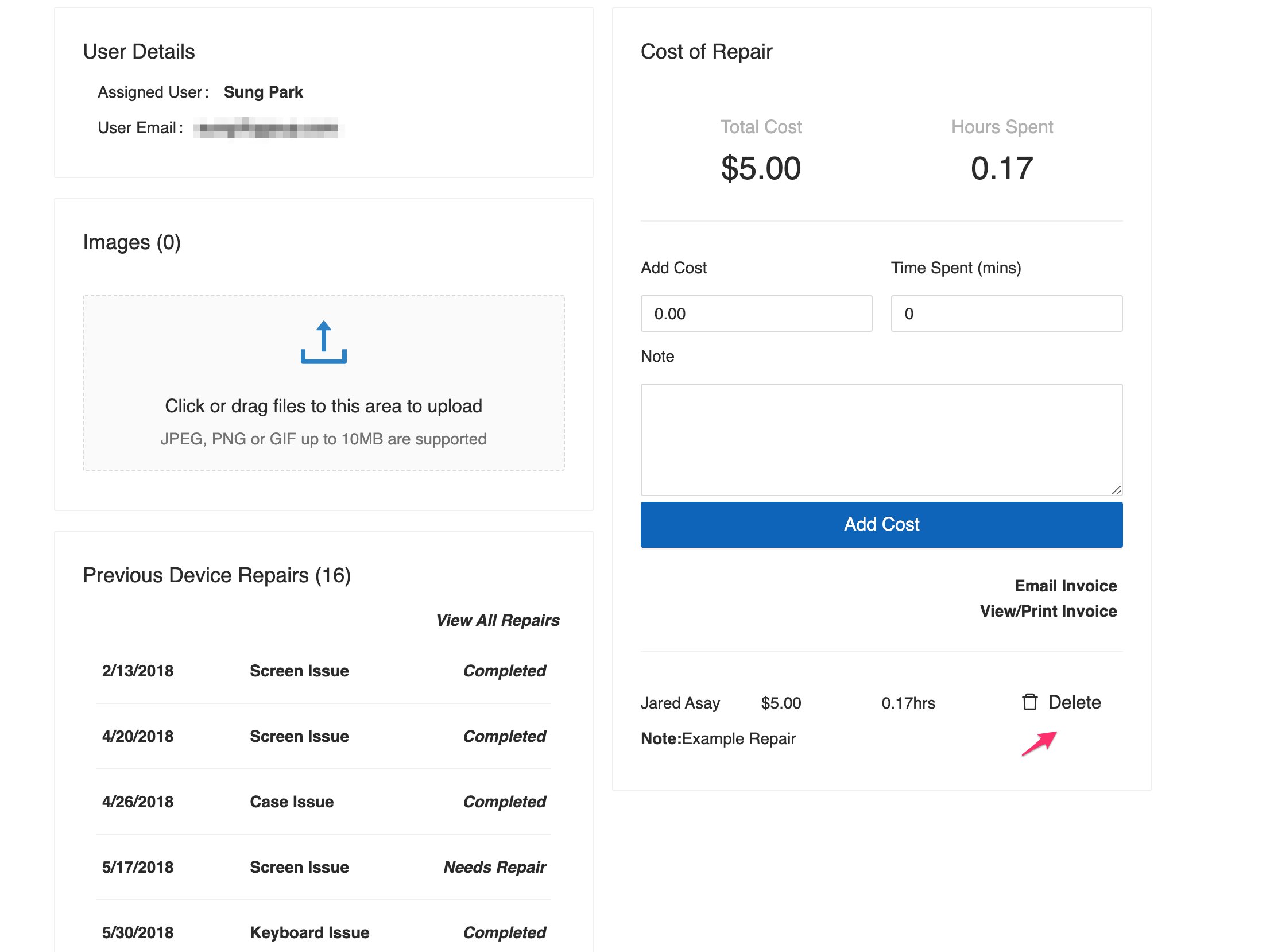
2. In the **Cost of Repair** section, enter the cost amount, time spent (in minutes), and any notes about the expense.
3. Click **Add Cost**.
4. Verify the result: A cost line item appears in the Cost panel with the running total for this ticket.
To delete a cost line item, click **Delete** on the entry.
Optional: Click **View/Print Invoice** or **Email Invoice** to send or print a record for billing or documentation.
## Complete a Repair
1. Open the repair ticket and set the **Repair Type** to what was fixed.
2. Upload any repair photos.
3. Enter the final repair cost, time spent, and notes, then click **Add Cost**.
4. Set the **Status** dropdown to **Completed** or **Repaired**.
5. Verify the result: The ticket shows Completed status and the device can be reassigned to a student or location.
## Update a Repair Ticket
Use these repair status options to reflect the current state of a device in the repair process:
| Status | When to use |
| -------------- | --------------------------------------------------- |
| Needs Repair | The device still needs to be repaired |
| On Hold | Repair work is paused — use Notes to explain why |
| Awaiting Parts | Repair is suspended until new parts arrive |
| Destroyed | The device is beyond repair or too expensive to fix |
| Replaced | The device has been replaced by a new device |
| Repaired | The repair is complete |
| Completed | The repair process is fully closed |
| Other | None of the above statuses apply |
**To update a repair ticket:**
1. Select the **Repairs** tab and click **View More** to the right of the device. Use Search or filters to find it.
2. Use the **Repair Type** dropdown to change the type of repair if needed.
3. Use the **Images** section to upload photos of the device or repair process (JPEG, PNG, or GIF, max 10 MB each).
4. Use the **Status** dropdown to set the current repair status.
5. Verify the result: The status updates immediately.
## Record Repair Costs and Time
Tracking costs per repair ticket gives you a running total of what each device has cost to maintain over its lifetime.
1. Open a repair ticket by clicking **View More** next to the device.
2. In the **Cost of Repair** section, enter the cost amount, time spent (in minutes), and any notes about the expense.
3. Click **Add Cost**.
4. Verify the result: A cost line item appears in the Cost panel with the running total for this ticket.
To delete a cost line item, click **Delete** on the entry.
Optional: Click **View/Print Invoice** or **Email Invoice** to send or print a record for billing or documentation.
## Complete a Repair
1. Open the repair ticket and set the **Repair Type** to what was fixed.
2. Upload any repair photos.
3. Enter the final repair cost, time spent, and notes, then click **Add Cost**.
4. Set the **Status** dropdown to **Completed** or **Repaired**.
5. Verify the result: The ticket shows Completed status and the device can be reassigned to a student or location.

 ## View All Repairs for a Device
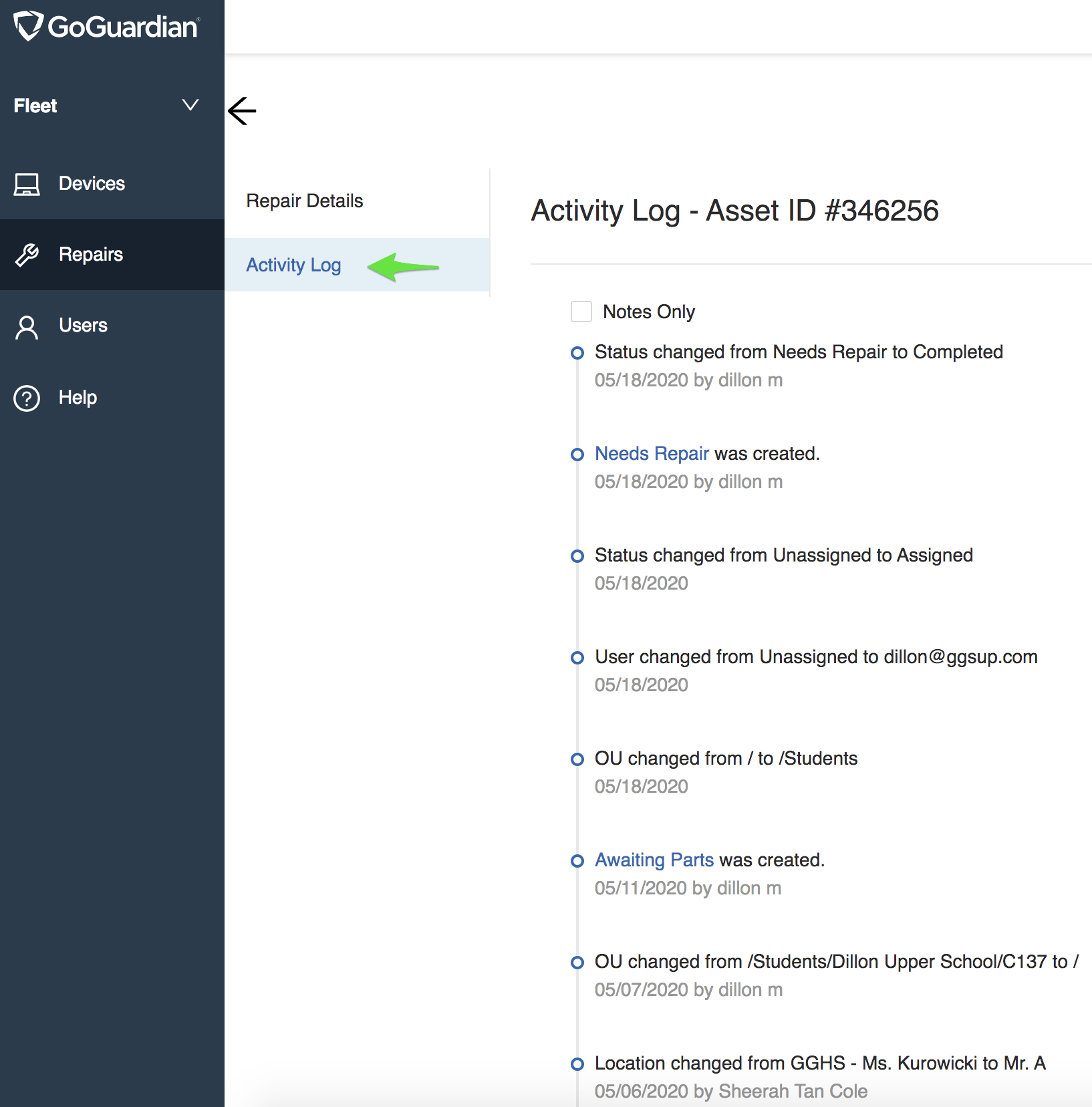
Each repair ticket in the Repairs tab represents a single repair event. A device with multiple repairs will have multiple entries.
1. Select the **Repairs** tab and find any repair ticket for the device.
2. Click **View More** to open the repair detail panel.
3. Scroll to **Previous Device Repairs** at the bottom of the panel to see all historical repairs for that device.
4. Click any previous repair to review its details.
## View All Repairs for a Device
Each repair ticket in the Repairs tab represents a single repair event. A device with multiple repairs will have multiple entries.
1. Select the **Repairs** tab and find any repair ticket for the device.
2. Click **View More** to open the repair detail panel.
3. Scroll to **Previous Device Repairs** at the bottom of the panel to see all historical repairs for that device.
4. Click any previous repair to review its details.

 ## Filter Repairs by Type or Status
1. Select the **Repairs** tab.
## Filter Repairs by Type or Status
1. Select the **Repairs** tab.
 2\. Click the filter icon in the **Status** column and select the status you want — for example, **Needs Repair**.
 3\. Click the filter icon in the **Repair Type** column and select the repair type — for example, **Screen Issue**.
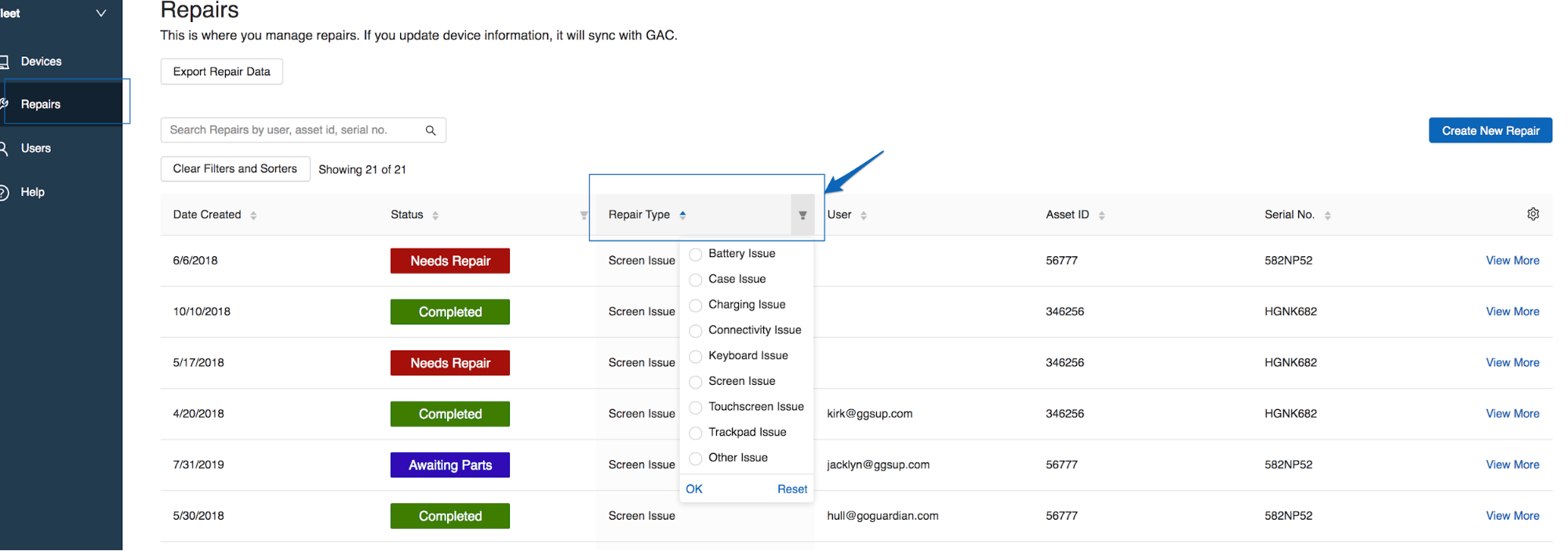 4\. Verify the result: The table shows only repair tickets that match both filters.
## Resources
* [Export Repair Data](/products/fleet/export-repair-data)
* [Search and Filter Devices](/products/fleet/search-and-filter-devices)
4\. Verify the result: The table shows only repair tickets that match both filters.
## Resources
* [Export Repair Data](/products/fleet/export-repair-data)
* [Search and Filter Devices](/products/fleet/search-and-filter-devices)