> ## Documentation Index
> Fetch the complete documentation index at: https://docs.goguardian.com/llms.txt
> Use this file to discover all available pages before exploring further.
# Troubleshoot a Fleet Authorization Error
> Why an authorization error appears in GoGuardian Fleet and two ways to fix it — enabling Fleet access for a user or creating a new user with Fleet access.
An authorization error means the account you are signed in to does not have access to GoGuardian Fleet. This happens in two ways:
* During initial Fleet setup, all users in an organization can have their Fleet access set to Disabled. Fix this with Method 1.
* An account other than the one used to administer your Google Admin Console or GoGuardian account was used to sign up for Fleet. Fix this with Method 2.
## Method 1: Enable Fleet Access for a User
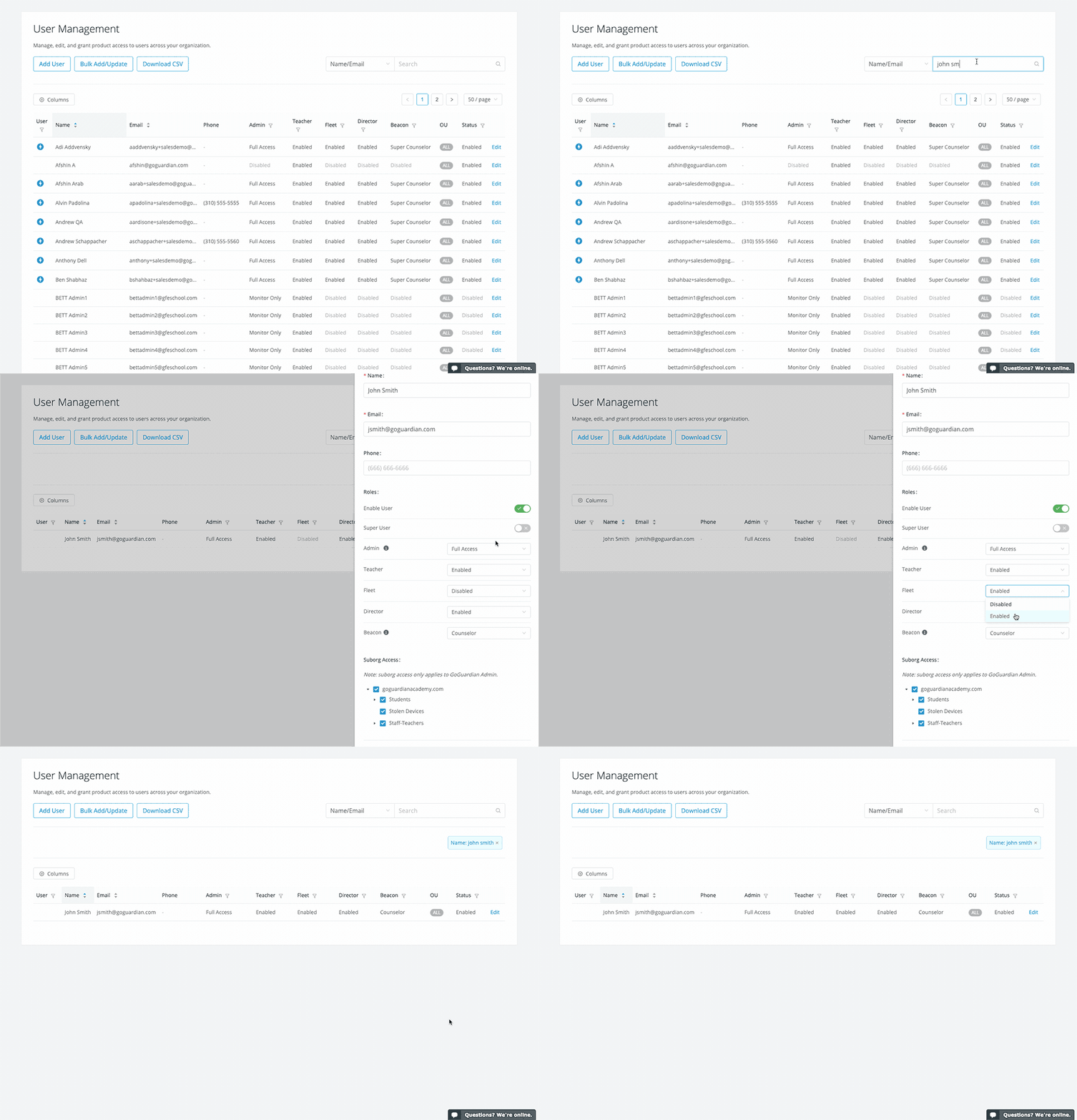
1. Go to [manage.goguardian.com](https://manage.goguardian.com/), sign in to your administrator-level account, and click the **User Management** tab.
2. Find the user who cannot access Fleet and click **Edit**.
3. Click the drop-down next to **GoGuardian Fleet** and select **Enabled**.
4. Click **Save User**. Repeat for any other users who need Fleet access.
 ## Method 2: Create a New User with Fleet Access
This lets you access Fleet using a different account. You can also grant your primary Google Admin Console administrator account access using Method 1.
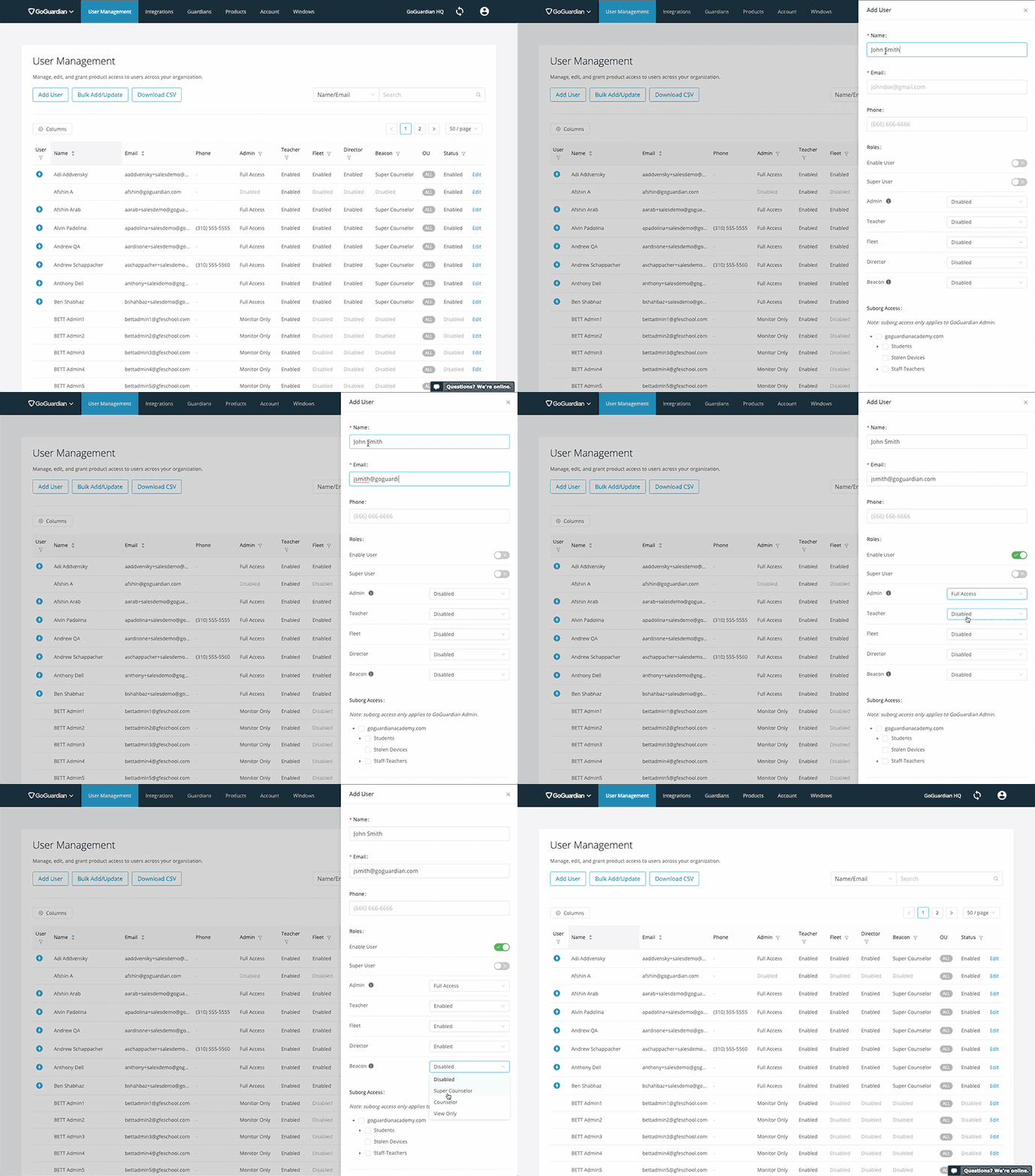
1. Go to [manage.goguardian.com](https://manage.goguardian.com/), sign in to your administrator-level account, and click **User Management**.
2. Click **Add User**.
3. Enter your name and email address. Under **Roles**, click the drop-down next to **GoGuardian Fleet** and select **Enabled**.
4. Click **Add User**.
## Method 2: Create a New User with Fleet Access
This lets you access Fleet using a different account. You can also grant your primary Google Admin Console administrator account access using Method 1.
1. Go to [manage.goguardian.com](https://manage.goguardian.com/), sign in to your administrator-level account, and click **User Management**.
2. Click **Add User**.
3. Enter your name and email address. Under **Roles**, click the drop-down next to **GoGuardian Fleet** and select **Enabled**.
4. Click **Add User**.