> ## Documentation Index
> Fetch the complete documentation index at: https://docs.goguardian.com/llms.txt
> Use this file to discover all available pages before exploring further.
# Update Device Status
> How to update device inventory status, edit device fields, and check which devices are assigned or unassigned in GoGuardian Fleet.
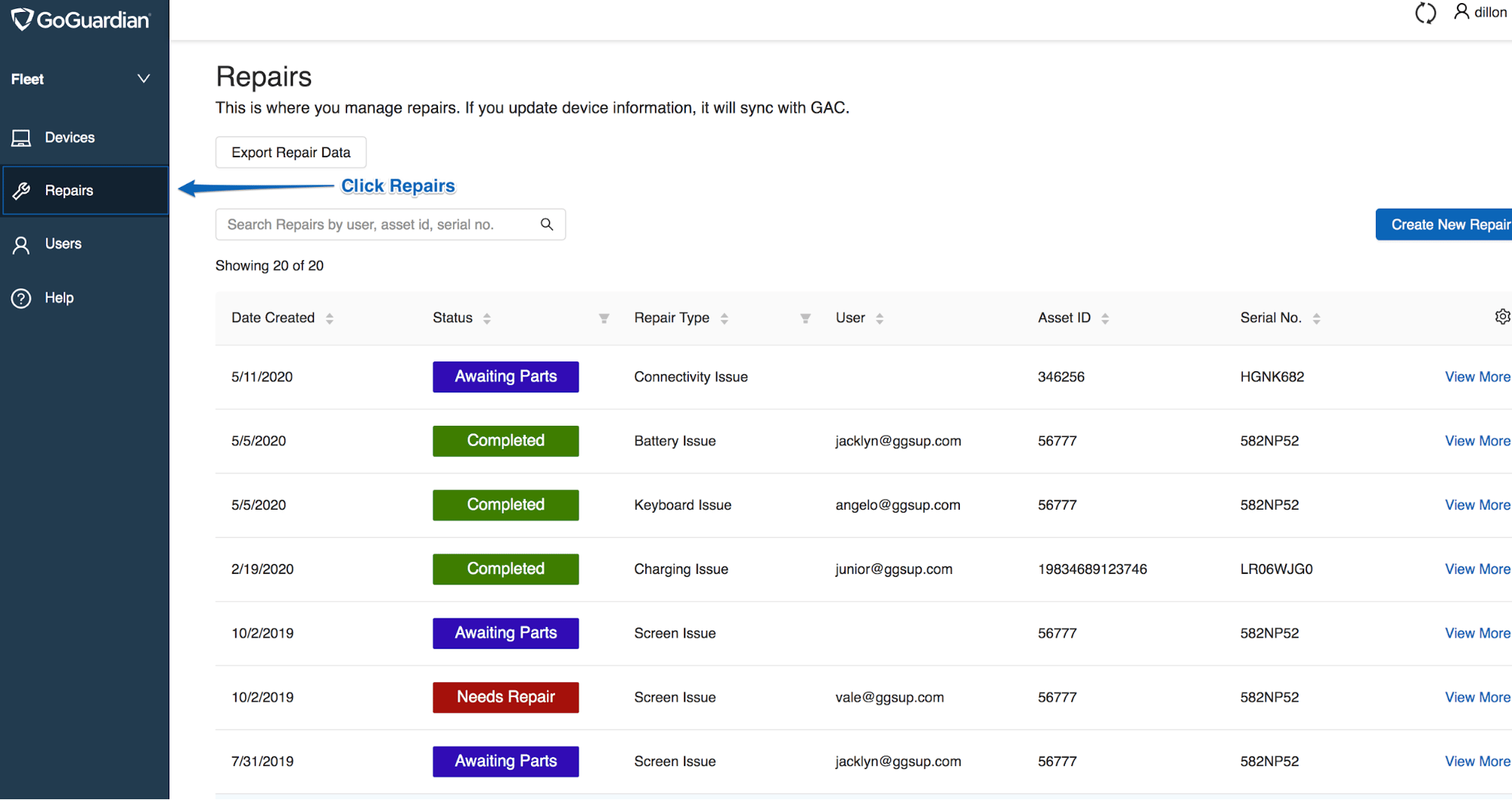
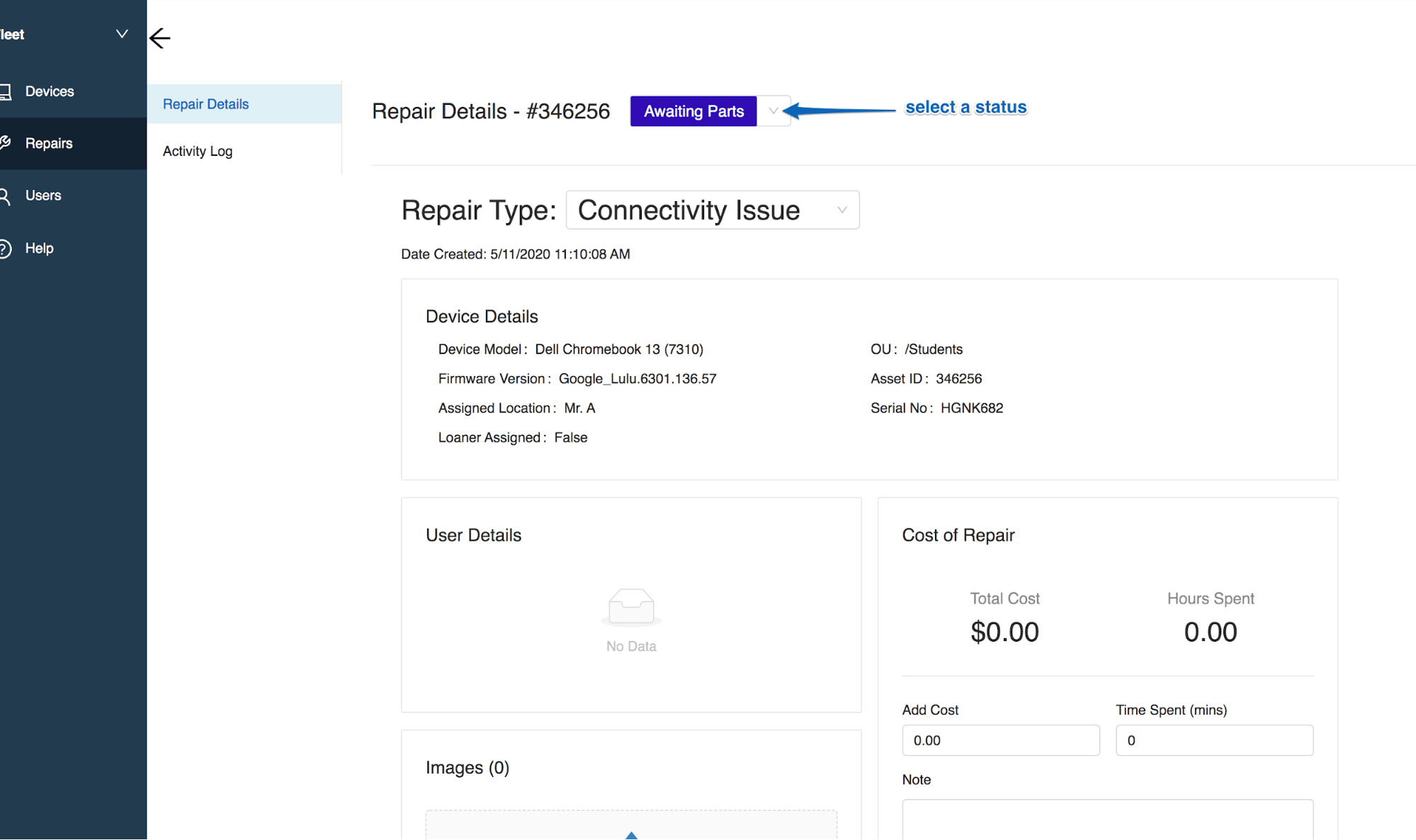
GoGuardian Fleet tracks 2 types of device status: inventory status (whether a device is assigned or unassigned) and repair status (the current state of an open repair ticket). This article covers inventory status updates. For repair status, see [Track Device Repairs](/products/fleet/track-device-repairs).
## Understand Inventory Status
**Assigned** — the device has a user linked to it in Fleet.
**Unassigned** — the device has no assigned user.
## Update Inventory Status for One or More Devices
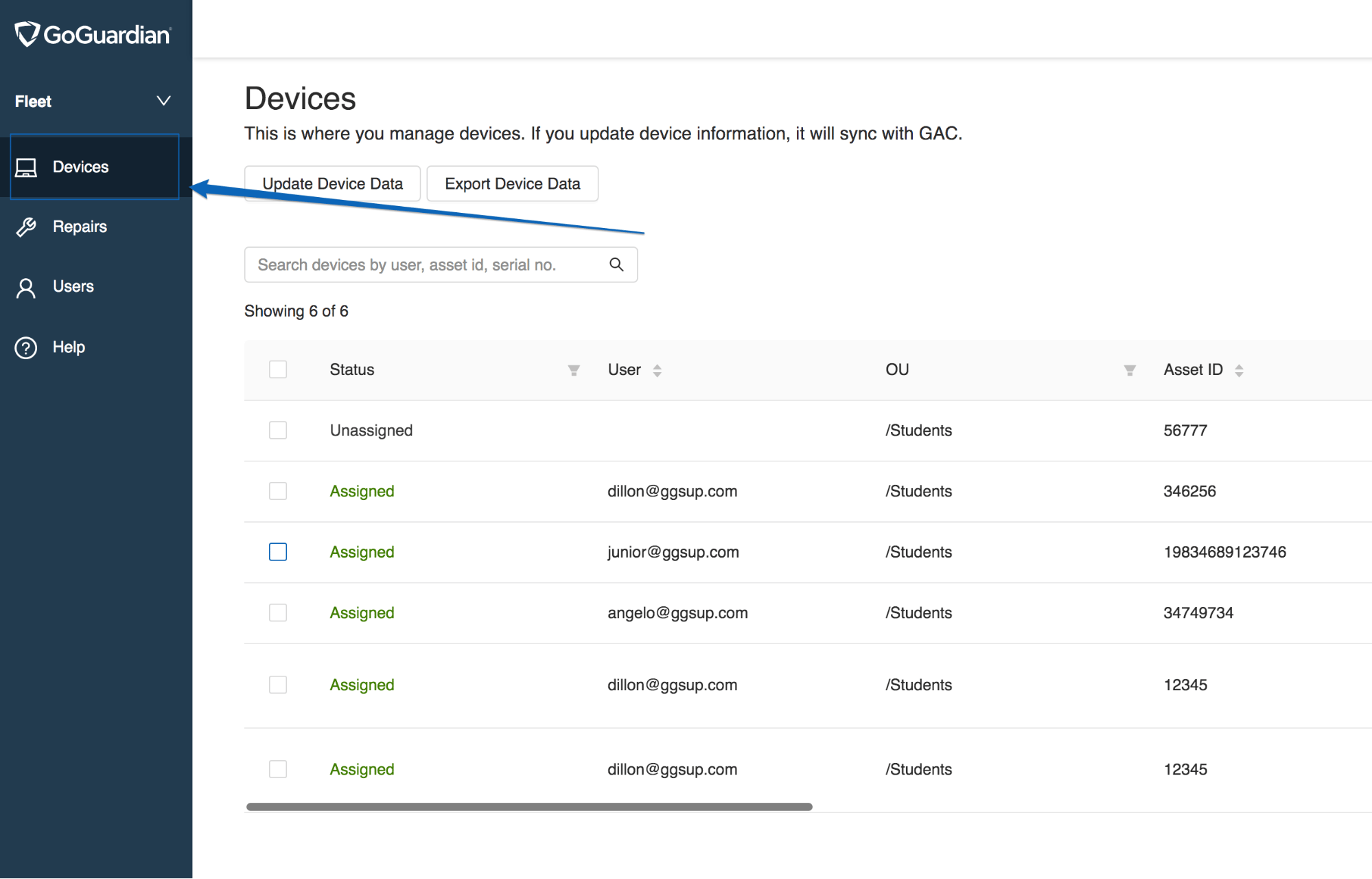
1. Go to [fleet.goguardian.com](https://fleet.goguardian.com) and select the **Devices** tab.
2. Click on the device you want to update. Use Search or filters to find it quickly.
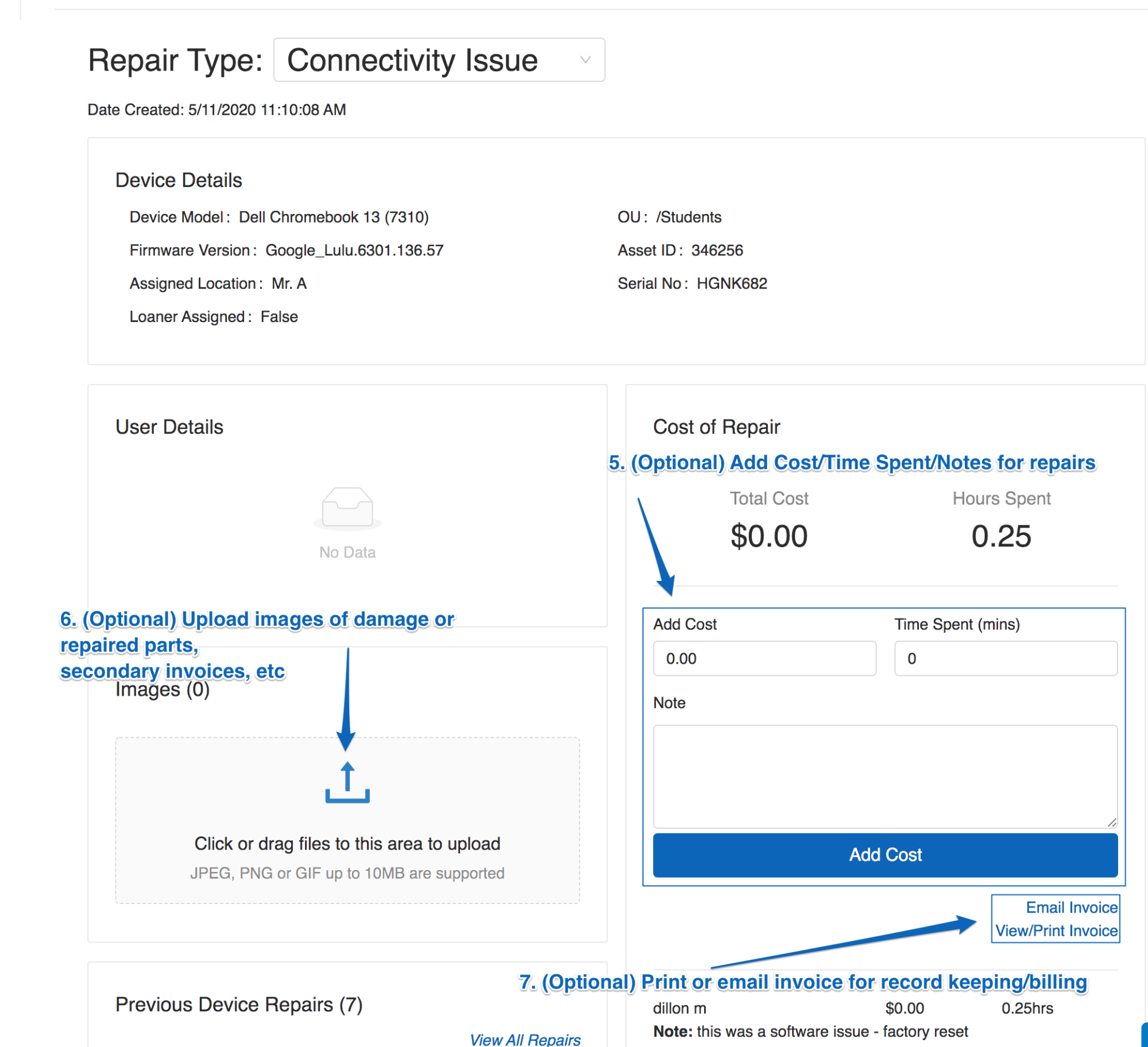
3. Edit the desired fields in the device detail panel.
4. Optional: Click **Unassign All** to set the device to Unassigned.
5. Click **Bulk Edit** to save changes.
 6\. Verify the result: The device status and field values update in the Devices table.
 ## Check Which Student a Device Is Assigned To
Click on the device in the Devices tab. The assigned user's name and email appear in the **User Details** card in the side panel.
## Check Device OS and Firmware Versions
1. In the **Devices** tab, click the cog icon in the table header.
2. Select **OS Version** and **Firmware Version** from the column options, then click **Update**.
3. Click the **OS Version** or **Firmware Version** column header to sort devices by version number.
4. Verify the result: Devices are sorted so you can identify which ones have older version numbers.
Fleet displays OS and firmware version numbers but does not indicate whether a device is out of date or requires a security update. Update devices through Google Admin Console or enable automatic updates — see Google's documentation on [deploying auto-updates for Chrome devices](https://support.google.com/chrome/a/answer/3168106).
## Resources
* [Search and Filter Devices](/products/fleet/search-and-filter-devices)
* [Track Device Repairs](/products/fleet/track-device-repairs)
* [Import Devices](/products/fleet/import-devices)
## Check Which Student a Device Is Assigned To
Click on the device in the Devices tab. The assigned user's name and email appear in the **User Details** card in the side panel.
## Check Device OS and Firmware Versions
1. In the **Devices** tab, click the cog icon in the table header.
2. Select **OS Version** and **Firmware Version** from the column options, then click **Update**.
3. Click the **OS Version** or **Firmware Version** column header to sort devices by version number.
4. Verify the result: Devices are sorted so you can identify which ones have older version numbers.
Fleet displays OS and firmware version numbers but does not indicate whether a device is out of date or requires a security update. Update devices through Google Admin Console or enable automatic updates — see Google's documentation on [deploying auto-updates for Chrome devices](https://support.google.com/chrome/a/answer/3168106).
## Resources
* [Search and Filter Devices](/products/fleet/search-and-filter-devices)
* [Track Device Repairs](/products/fleet/track-device-repairs)
* [Import Devices](/products/fleet/import-devices)