> ## Documentation Index
> Fetch the complete documentation index at: https://docs.goguardian.com/llms.txt
> Use this file to discover all available pages before exploring further.
# Sync Rosters with Clever or ClassLink
> How to connect Clever or ClassLink to GoGuardian Org Management to import teacher accounts, class rosters, and guardian relationships automatically.
Connecting Clever or ClassLink to GoGuardian imports teacher accounts, class rosters, and guardian relationships directly from your student information system. After the initial sync, data updates automatically each night.
Only one integration source can be active at a time. If your organization uses Google Admin Console for organizational unit (OU) sync, connecting Clever or ClassLink for OU sync will replace it. Teacher accounts, class rosters, and guardian relationships sync independently and do not conflict with Google Admin Console.
## Understand What Syncs and What Does Not
| Data type | Syncs from Clever/ClassLink | Notes |
| -------------------------- | --------------------------- | ----------------------------------------------------------------------------------------------------------------------------------------------------------- |
| Teacher accounts | Yes | Created or updated on each sync. Not archived when a teacher is removed. |
| Student accounts | No | Students appear in GoGuardian when they sign in with the extension or app installed. |
| Class rosters | Yes | Classes appear in GoGuardian Teacher for teachers to accept. |
| Guardian relationships | Yes | Guardians gain access to GoGuardian Parent if the app is enabled. |
| Organizational units (OUs) | Optional | Requires enabling OU sync separately. Teacher OUs are excluded by default, but can be assigned with the **Restrict Teacher Monitoring by Org Unit** option. |
| Admin accounts | Optional | Requires Admin Provisioning and a GoGuardian Admin license. |
Teachers removed from Clever or ClassLink lose GoGuardian Teacher access on the next sync but their account is not archived. Manually adjust product access in Org Management if needed.
Syncing is one-way. GoGuardian pulls data from Clever, ClassLink, or OneRoster, but never writes data back to the source. Changes made in GoGuardian do not appear in your student information system.
Manual changes made in Org Management persist through future syncs. Both individual edits and bulk CSV changes to product access or permissions are retained on subsequent syncs. If the integration source and GoGuardian disagree, treat the manual change in Org Management as the source of truth.
## Prepare Before Connecting
Before linking Clever or ClassLink, verify that email addresses match across systems.
* **Teachers:** The email address for each teacher in Clever or ClassLink must match the email address already in GoGuardian Org Management. A mismatch creates a second, separate GoGuardian account.
* **Students:** Each student's email address in Clever or ClassLink must match the email address used to deploy the GoGuardian extension or The GoGuardian App.
Once an integration is connected and teachers are included in the shared data, those teacher accounts gain GoGuardian Teacher access and receive an email notifying them. If you are not ready for teachers to receive that notification, configure sharing rules to exclude teachers until you are ready to go live.
## Connect Clever
### Step 1: Add GoGuardian in the Clever Portal
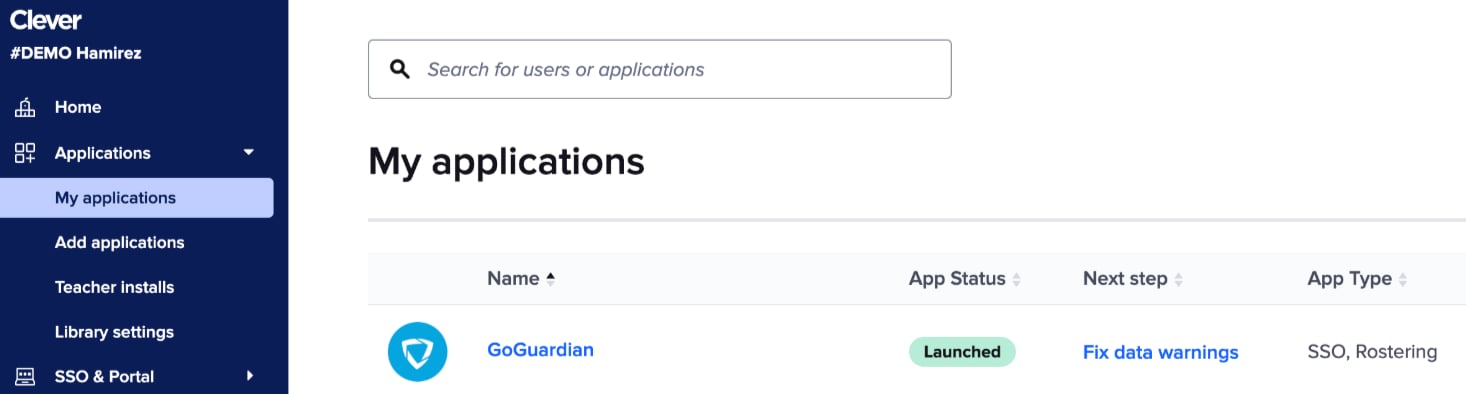
1. Sign in to your Clever district dashboard at [schools.clever.com](https://schools.clever.com).
2. Go to **Applications**, then click **Request Applications**.
3. Search for **GoGuardian** and click **Request App**.
4. Verify the result: GoGuardian appears in your Applications list. If approval takes more than a few business days, contact [support@goguardian.com](mailto:support@goguardian.com) to expedite.
### Step 2: Configure Sharing Rules in Clever
1. In the Clever portal, open the GoGuardian application settings.
2. Choose sharing rules for GoGuardian. GoGuardian recommends **Custom sharing rules**, which lets you choose specific schools, teachers, and enrolled classes rather than sharing all district data.
Use the **Field Access** settings in Clever to control which guardian fields are shared for each student, including contact information and relationships.
### Step 3: Link Clever in GoGuardian Org Management
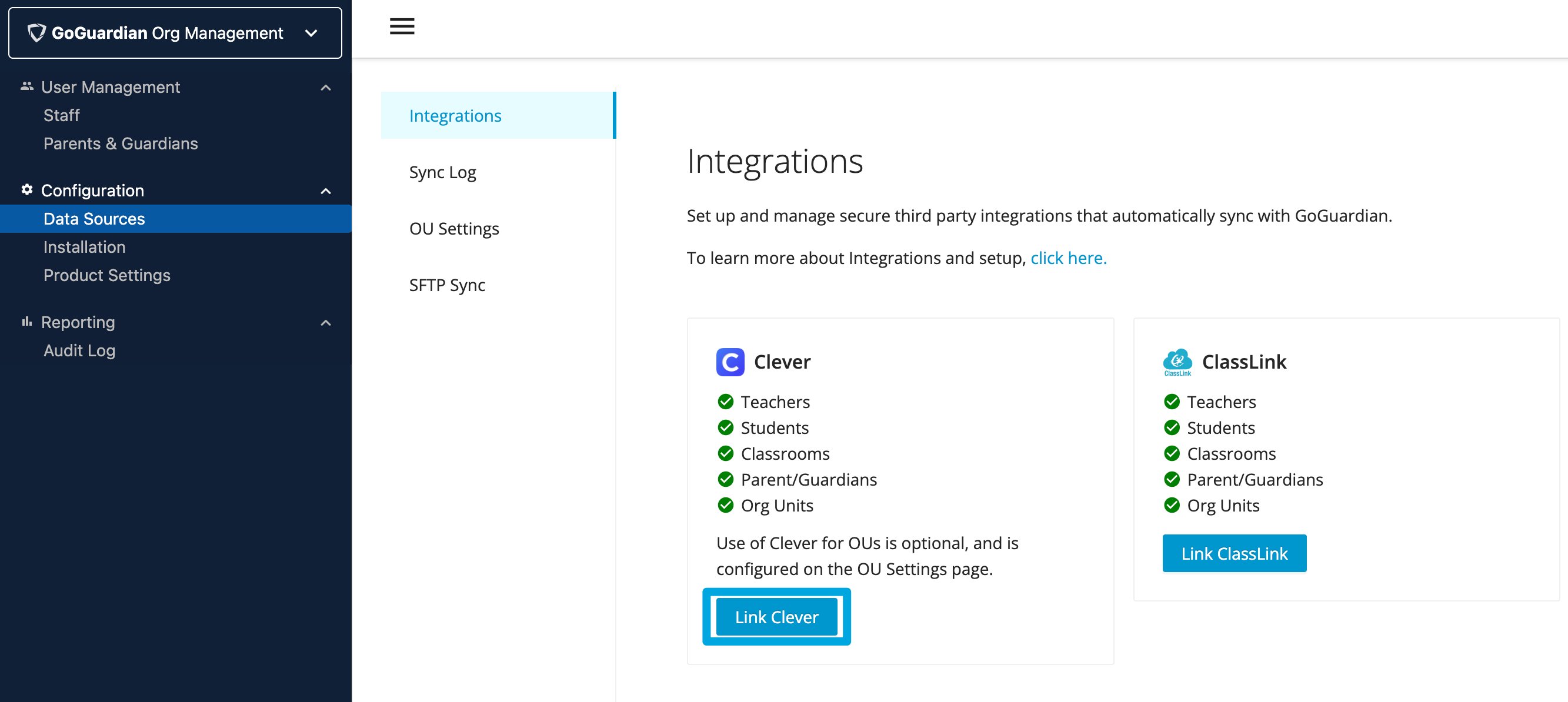
1. Go to [manage.goguardian.com/integrations](https://manage.goguardian.com/integrations).
 2. Click **Link with Clever**.
3. Authenticate with your Clever credentials when prompted. If you are already signed in to Clever, the browser redirects back to `manage.goguardian.com` automatically.
4. Verify the result: The Clever tile shows a connected status on the Integrations page.
### Step 4: Run the Initial Sync
1. On the Integrations page, click **Sync Now** on the Clever tile.
2. Wait for the sync to complete. The tile updates with a completion timestamp and a breakdown of synced records by category: **Teachers**, **Students**, **Classrooms**, **Guardians**, and **OUs** (if Clever is set as your OU source).
3. Verify the result: Each synced category shows a green checkmark. Any categories with a yellow triangle contain errors — see [Troubleshoot Clever and ClassLink Sync Errors](/products/org-management/troubleshoot-clever-classlink-sync) to resolve them.
After the initial sync, GoGuardian syncs with Clever automatically each night. Click **Sync Now** at any time to pull in updates immediately.
2. Click **Link with Clever**.
3. Authenticate with your Clever credentials when prompted. If you are already signed in to Clever, the browser redirects back to `manage.goguardian.com` automatically.
4. Verify the result: The Clever tile shows a connected status on the Integrations page.
### Step 4: Run the Initial Sync
1. On the Integrations page, click **Sync Now** on the Clever tile.
2. Wait for the sync to complete. The tile updates with a completion timestamp and a breakdown of synced records by category: **Teachers**, **Students**, **Classrooms**, **Guardians**, and **OUs** (if Clever is set as your OU source).
3. Verify the result: Each synced category shows a green checkmark. Any categories with a yellow triangle contain errors — see [Troubleshoot Clever and ClassLink Sync Errors](/products/org-management/troubleshoot-clever-classlink-sync) to resolve them.
After the initial sync, GoGuardian syncs with Clever automatically each night. Click **Sync Now** at any time to pull in updates immediately.
 ## Connect ClassLink
### Step 1: Confirm Data in the ClassLink Portal
1. Sign in to your ClassLink portal at [launchpad.classlink.com](https://launchpad.classlink.com/home).
2. Verify that your student information system (SIS) data has been synced to ClassLink. If your data is not yet in ClassLink, contact your ClassLink support representative.
3. Confirm that the current, correct rosters are present before proceeding.
### Step 2: Verify Teacher Email Addresses
In the ClassLink portal, confirm that the email address listed for each teacher matches the email already in GoGuardian Org Management at [manage.goguardian.com](https://manage.goguardian.com). Conflicting emails create duplicate teacher accounts.
### Step 3: Add GoGuardian in the ClassLink Portal
1. In the ClassLink portal, go to **ClassLink Roster Server** and select **Applications**.
2. Search for **GoGuardian** and click **Add Application**.
3. Verify the result: GoGuardian appears in your Applications list.
### Step 4: Configure Sharing Rules in ClassLink
1. In the ClassLink portal, open the GoGuardian application settings.
2. Set sharing rules for GoGuardian. GoGuardian recommends **Custom sharing rules** to select specific schools, teachers, and classes.
After sharing rules are configured, use the **Sanity Check** icon (next to the edit icon in the Applications table) to preview a breakdown of what data will be shared with GoGuardian before running the sync.
### Step 5: Link ClassLink in GoGuardian Org Management
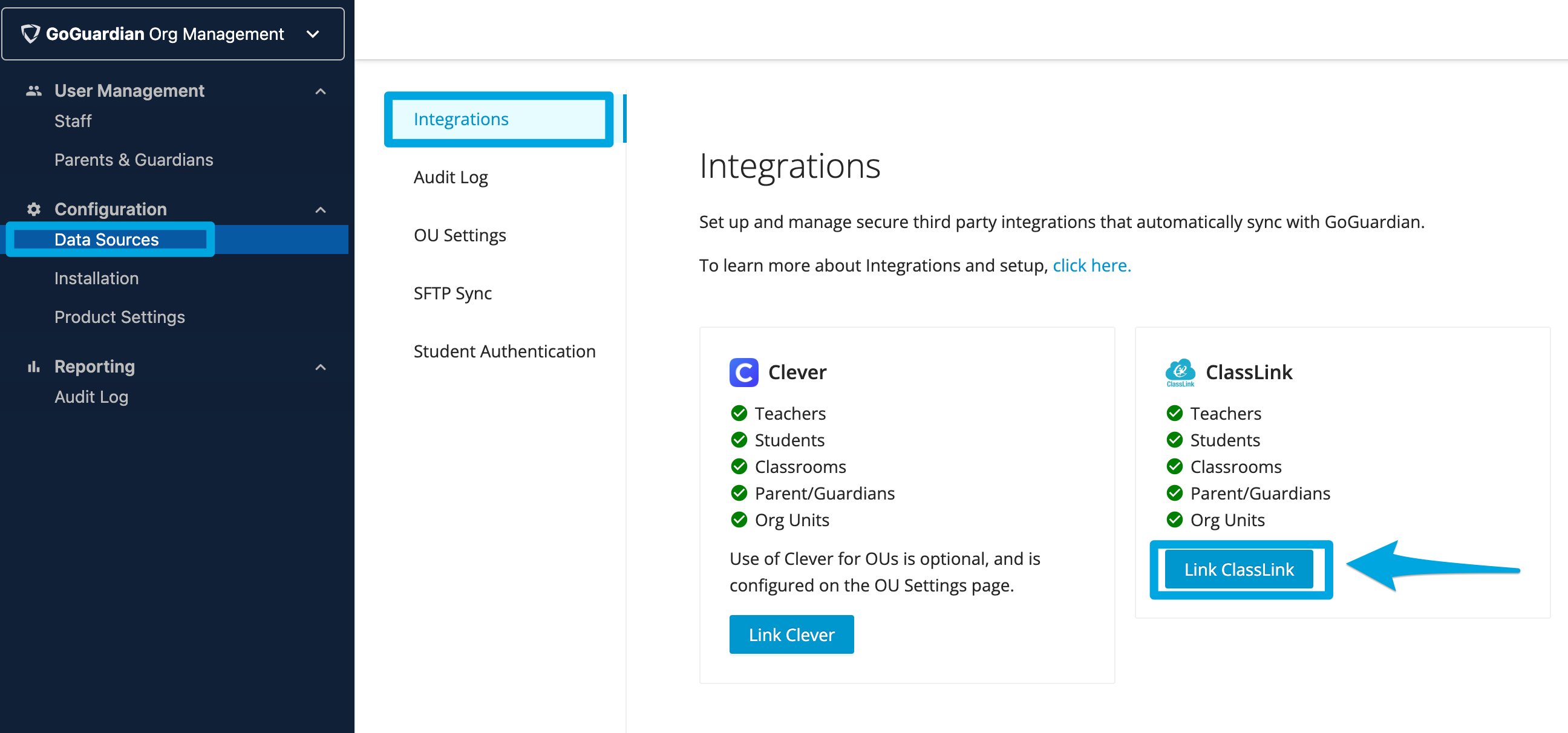
1. Go to [manage.goguardian.com/integrations](https://manage.goguardian.com/integrations).
## Connect ClassLink
### Step 1: Confirm Data in the ClassLink Portal
1. Sign in to your ClassLink portal at [launchpad.classlink.com](https://launchpad.classlink.com/home).
2. Verify that your student information system (SIS) data has been synced to ClassLink. If your data is not yet in ClassLink, contact your ClassLink support representative.
3. Confirm that the current, correct rosters are present before proceeding.
### Step 2: Verify Teacher Email Addresses
In the ClassLink portal, confirm that the email address listed for each teacher matches the email already in GoGuardian Org Management at [manage.goguardian.com](https://manage.goguardian.com). Conflicting emails create duplicate teacher accounts.
### Step 3: Add GoGuardian in the ClassLink Portal
1. In the ClassLink portal, go to **ClassLink Roster Server** and select **Applications**.
2. Search for **GoGuardian** and click **Add Application**.
3. Verify the result: GoGuardian appears in your Applications list.
### Step 4: Configure Sharing Rules in ClassLink
1. In the ClassLink portal, open the GoGuardian application settings.
2. Set sharing rules for GoGuardian. GoGuardian recommends **Custom sharing rules** to select specific schools, teachers, and classes.
After sharing rules are configured, use the **Sanity Check** icon (next to the edit icon in the Applications table) to preview a breakdown of what data will be shared with GoGuardian before running the sync.
### Step 5: Link ClassLink in GoGuardian Org Management
1. Go to [manage.goguardian.com/integrations](https://manage.goguardian.com/integrations).
 2. Click **Link with ClassLink**.
3. Authenticate with your ClassLink credentials when prompted. If you are already signed in to ClassLink, the browser redirects back automatically.
4. Verify the result: The ClassLink tile shows a connected status on the Integrations page.
### Step 6: Run the Initial Sync
1. On the Integrations page, click **Sync Now** on the ClassLink tile.
2. Wait for the sync to complete. The tile updates with a timestamp and a breakdown by category.
3. Verify the result: Each category shows a green checkmark. Categories with a yellow triangle contain errors — see [Troubleshoot Clever and ClassLink Sync Errors](/products/org-management/troubleshoot-clever-classlink-sync) to resolve them.
After the initial sync, GoGuardian syncs with ClassLink automatically each night. Click **Sync Now** at any time to pull in updates immediately.
2. Click **Link with ClassLink**.
3. Authenticate with your ClassLink credentials when prompted. If you are already signed in to ClassLink, the browser redirects back automatically.
4. Verify the result: The ClassLink tile shows a connected status on the Integrations page.
### Step 6: Run the Initial Sync
1. On the Integrations page, click **Sync Now** on the ClassLink tile.
2. Wait for the sync to complete. The tile updates with a timestamp and a breakdown by category.
3. Verify the result: Each category shows a green checkmark. Categories with a yellow triangle contain errors — see [Troubleshoot Clever and ClassLink Sync Errors](/products/org-management/troubleshoot-clever-classlink-sync) to resolve them.
After the initial sync, GoGuardian syncs with ClassLink automatically each night. Click **Sync Now** at any time to pull in updates immediately.
 ## Optional: Sync Organizational Units from Clever or ClassLink
Clever and ClassLink can serve as the source for organizational unit (OU) sync in GoGuardian Admin. GoGuardian can sync OUs from Clever, ClassLink, Google Admin Console, and Active Directory, but only one source can be active at a time. Enabling Clever or ClassLink as your OU source disables Google Admin Console or Active Directory OU sync.
OUs synced from Clever or ClassLink follow the district, school, and grade-level structure in your SIS. Google Admin Console and Active Directory offer more flexible sub-OU segmentation. For example, you can create "restricted" or "no YouTube" sub-OUs that contain only the students who should have more limited internet access, then apply more restrictive policies to those sub-OUs without affecting students outside them. If your filtering strategy depends on that kind of segmentation, use Google Admin Console or Active Directory as your OU source instead.
By default, teacher OUs are not imported from Clever or ClassLink, and teachers receive the filtering policy at the root (topmost) level of the domain. To assign teacher OUs from your SIS instead, use the **Restrict Teacher Monitoring by Org Unit** option described below.
To enable OU sync from Clever or ClassLink:
1. Go to [manage.goguardian.com/integrations](https://manage.goguardian.com/integrations) and select the **OU Settings** tab.
2. Click **Enable** under Clever or ClassLink.
3. Return to the Integrations page and click **Sync Now** to import OUs immediately, or wait for the nightly sync.
4. Verify the result: OUs appear in the user permissions view under **Suborg Access** in Org Management. If expected OUs are missing, review sharing settings in Clever or ClassLink and resync.
### Assign Teacher OUs from Clever or ClassLink
Organizations that use Clever or ClassLink as their OU source can assign GoGuardian Teacher OU access directly from the SIS. On the Clever or ClassLink tile, select the **Restrict Teacher Monitoring by Org Unit** checkbox. When this option is selected, the next sync assigns integrated teachers Teacher OU access based on their Clever or ClassLink OUs.
* Regardless of a teacher's previous OU access, OUs are reassigned to mirror those listed in Clever or ClassLink on each sync.
* You can add extra OUs for a teacher manually or by CSV, and subsequent syncs do not overwrite those additions.
This option is available only when Clever or ClassLink is your OU source. It does not support organizations that use Google Admin Console or Active Directory as their OU source.
### Why a New Student Is Not Yet in Their OU
Clever and ClassLink OUs sync once per day. When a new student is added to your SIS and shared with GoGuardian, the next nightly sync or a manual sync indexes that student into the correct OU. To index a new student immediately, go to [manage.goguardian.com/integrations](https://manage.goguardian.com/integrations) and click **Sync Now**.
## Optional: Provision Admin Accounts from Clever or ClassLink
GoGuardian can automatically create Org Management and GoGuardian Admin accounts for users with administrative roles in Clever or ClassLink.
Admin Provisioning requires a GoGuardian Admin license.
To enable Admin Provisioning:
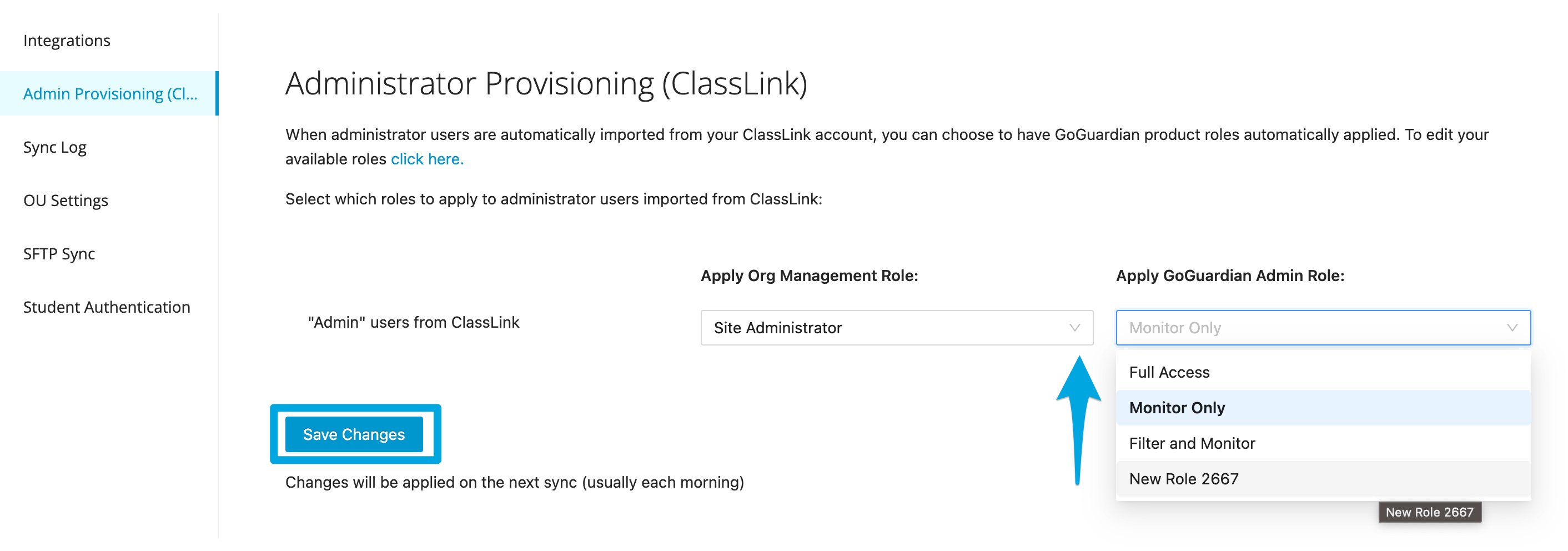
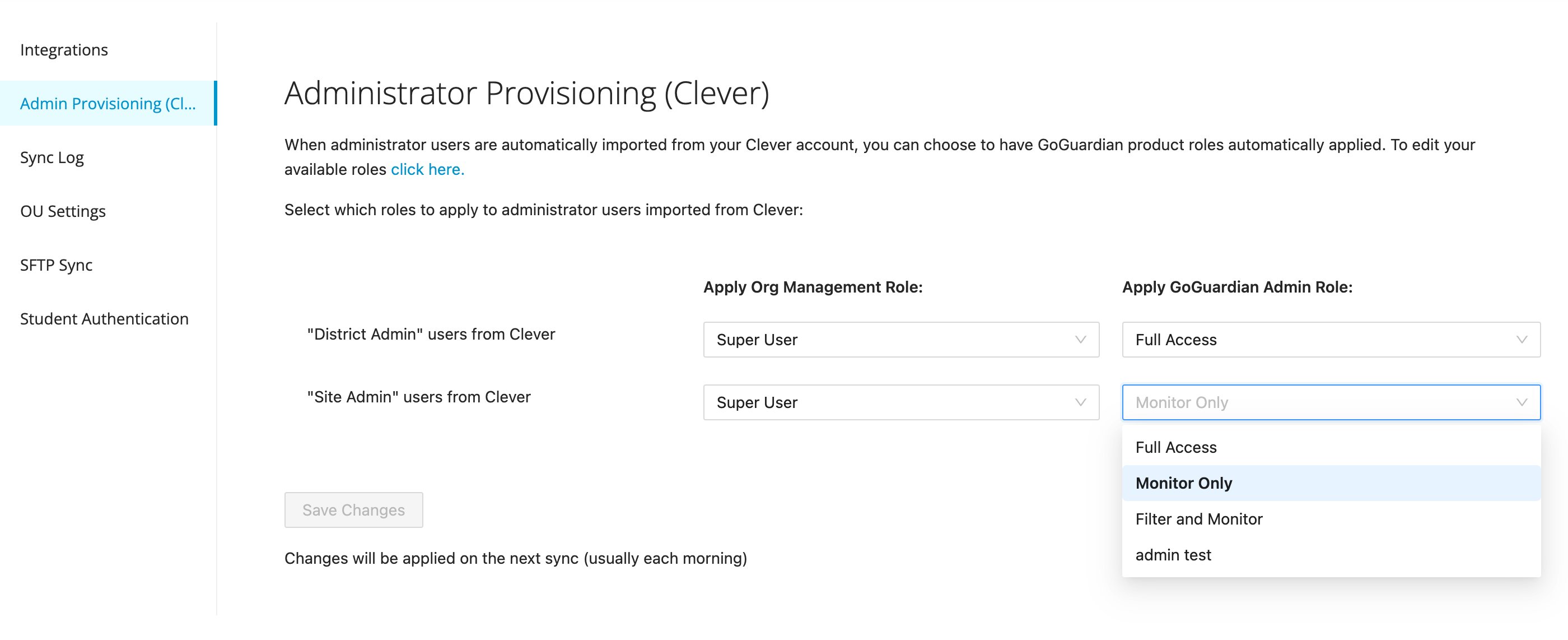
1. Go to [manage.goguardian.com/integrations](https://manage.goguardian.com/integrations) and click **Admin Provisioning Settings** on the Clever or ClassLink tile.
2. Turn on **Admin Provisioning**.
3. Select the Org Management and Admin roles to assign to provisioned accounts, then click **Save**.
4. Verify the result: On the next sync, GoGuardian creates accounts for users with **Site Admin** or **District Admin** status in Clever (or **Admin** status in ClassLink) and assigns the roles you selected.
Assignable roles include Super User (Org Management), Full Access, Filter and Monitor, and Monitor Only (Admin), as well as any custom RBAC roles. For more on custom roles, see [Granular Access Control](/products/org-management/granular-access-control).
## Optional: Sync Organizational Units from Clever or ClassLink
Clever and ClassLink can serve as the source for organizational unit (OU) sync in GoGuardian Admin. GoGuardian can sync OUs from Clever, ClassLink, Google Admin Console, and Active Directory, but only one source can be active at a time. Enabling Clever or ClassLink as your OU source disables Google Admin Console or Active Directory OU sync.
OUs synced from Clever or ClassLink follow the district, school, and grade-level structure in your SIS. Google Admin Console and Active Directory offer more flexible sub-OU segmentation. For example, you can create "restricted" or "no YouTube" sub-OUs that contain only the students who should have more limited internet access, then apply more restrictive policies to those sub-OUs without affecting students outside them. If your filtering strategy depends on that kind of segmentation, use Google Admin Console or Active Directory as your OU source instead.
By default, teacher OUs are not imported from Clever or ClassLink, and teachers receive the filtering policy at the root (topmost) level of the domain. To assign teacher OUs from your SIS instead, use the **Restrict Teacher Monitoring by Org Unit** option described below.
To enable OU sync from Clever or ClassLink:
1. Go to [manage.goguardian.com/integrations](https://manage.goguardian.com/integrations) and select the **OU Settings** tab.
2. Click **Enable** under Clever or ClassLink.
3. Return to the Integrations page and click **Sync Now** to import OUs immediately, or wait for the nightly sync.
4. Verify the result: OUs appear in the user permissions view under **Suborg Access** in Org Management. If expected OUs are missing, review sharing settings in Clever or ClassLink and resync.
### Assign Teacher OUs from Clever or ClassLink
Organizations that use Clever or ClassLink as their OU source can assign GoGuardian Teacher OU access directly from the SIS. On the Clever or ClassLink tile, select the **Restrict Teacher Monitoring by Org Unit** checkbox. When this option is selected, the next sync assigns integrated teachers Teacher OU access based on their Clever or ClassLink OUs.
* Regardless of a teacher's previous OU access, OUs are reassigned to mirror those listed in Clever or ClassLink on each sync.
* You can add extra OUs for a teacher manually or by CSV, and subsequent syncs do not overwrite those additions.
This option is available only when Clever or ClassLink is your OU source. It does not support organizations that use Google Admin Console or Active Directory as their OU source.
### Why a New Student Is Not Yet in Their OU
Clever and ClassLink OUs sync once per day. When a new student is added to your SIS and shared with GoGuardian, the next nightly sync or a manual sync indexes that student into the correct OU. To index a new student immediately, go to [manage.goguardian.com/integrations](https://manage.goguardian.com/integrations) and click **Sync Now**.
## Optional: Provision Admin Accounts from Clever or ClassLink
GoGuardian can automatically create Org Management and GoGuardian Admin accounts for users with administrative roles in Clever or ClassLink.
Admin Provisioning requires a GoGuardian Admin license.
To enable Admin Provisioning:
1. Go to [manage.goguardian.com/integrations](https://manage.goguardian.com/integrations) and click **Admin Provisioning Settings** on the Clever or ClassLink tile.
2. Turn on **Admin Provisioning**.
3. Select the Org Management and Admin roles to assign to provisioned accounts, then click **Save**.
4. Verify the result: On the next sync, GoGuardian creates accounts for users with **Site Admin** or **District Admin** status in Clever (or **Admin** status in ClassLink) and assigns the roles you selected.
Assignable roles include Super User (Org Management), Full Access, Filter and Monitor, and Monitor Only (Admin), as well as any custom RBAC roles. For more on custom roles, see [Granular Access Control](/products/org-management/granular-access-control).


 Resolve teacher, student, classroom, and guardian sync errors.
Set up teacher provisioning from Google Admin Console.
Add and edit user accounts manually in Org Management.
Create custom roles for Org Management and Admin.
Resolve teacher, student, classroom, and guardian sync errors.
Set up teacher provisioning from Google Admin Console.
Add and edit user accounts manually in Org Management.
Create custom roles for Org Management and Admin.