> ## Documentation Index
> Fetch the complete documentation index at: https://docs.goguardian.com/llms.txt
> Use this file to discover all available pages before exploring further.
# Set Up Granular Access Control with RBAC
> Create and assign custom roles in GoGuardian Org Management to control user access to specific pages and features.
Role-Based Access Control (RBAC) lets administrators build and assign custom user roles to tailor a user's GoGuardian Admin and GoGuardian Org Management access to their exact needs. Each role can be granularly customized to allow or restrict access to specific pages and features.
## Review Common Use Cases
### Admin RBAC Use Cases
* Allowing a user to see Smart Alerts without access to filtering options
* Granting counselors access to only Flagged Activity, the Dashboard, or both
* Assigning a network administrator access to DNS
* Allowing teachers to edit certain policies for adding an allowed website, YouTube video, channel, or other content
### Org Management RBAC Use Cases
* Granting access to only User Management for adding, editing, and archiving user accounts
* Assigning User Management access so a user can log in as a teacher and assist with GoGuardian Teacher
* Allowing access to the Guardian tab for managing parent and guardian accounts and access to the Parent App
* Granting access to Integrations for managing Clever, ClassLink, Active Directory, and Google integrations
## Create and Manage Roles
Go to manage.goguardian.com and select **Manage Roles** in the User Management section.

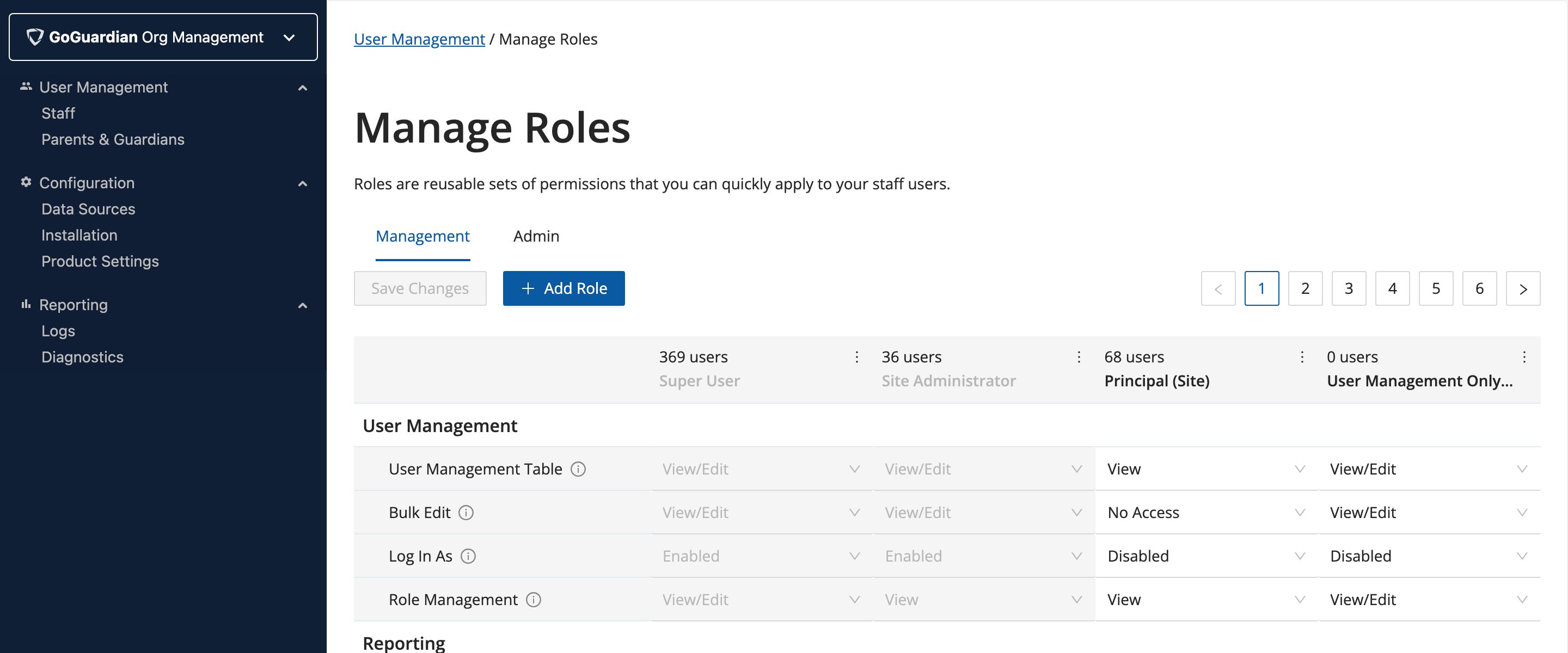 Admin and Org Management roles are created, managed, and assigned separately. From the Manage Roles interface, click **Management** to access the Org Management roles page, or click **Admin** to access the GoGuardian Admin roles page.
Each tab opens a separate interface where new roles can be added using the **+ Add Role** button. Existing roles can be updated, deleted, or duplicated using the three-dot menu.
Default roles provided by GoGuardian cannot be edited and appear greyed out.
## Access Levels
Admin and Org Management roles are created, managed, and assigned separately. From the Manage Roles interface, click **Management** to access the Org Management roles page, or click **Admin** to access the GoGuardian Admin roles page.
Each tab opens a separate interface where new roles can be added using the **+ Add Role** button. Existing roles can be updated, deleted, or duplicated using the three-dot menu.
Default roles provided by GoGuardian cannot be edited and appear greyed out.
## Access Levels
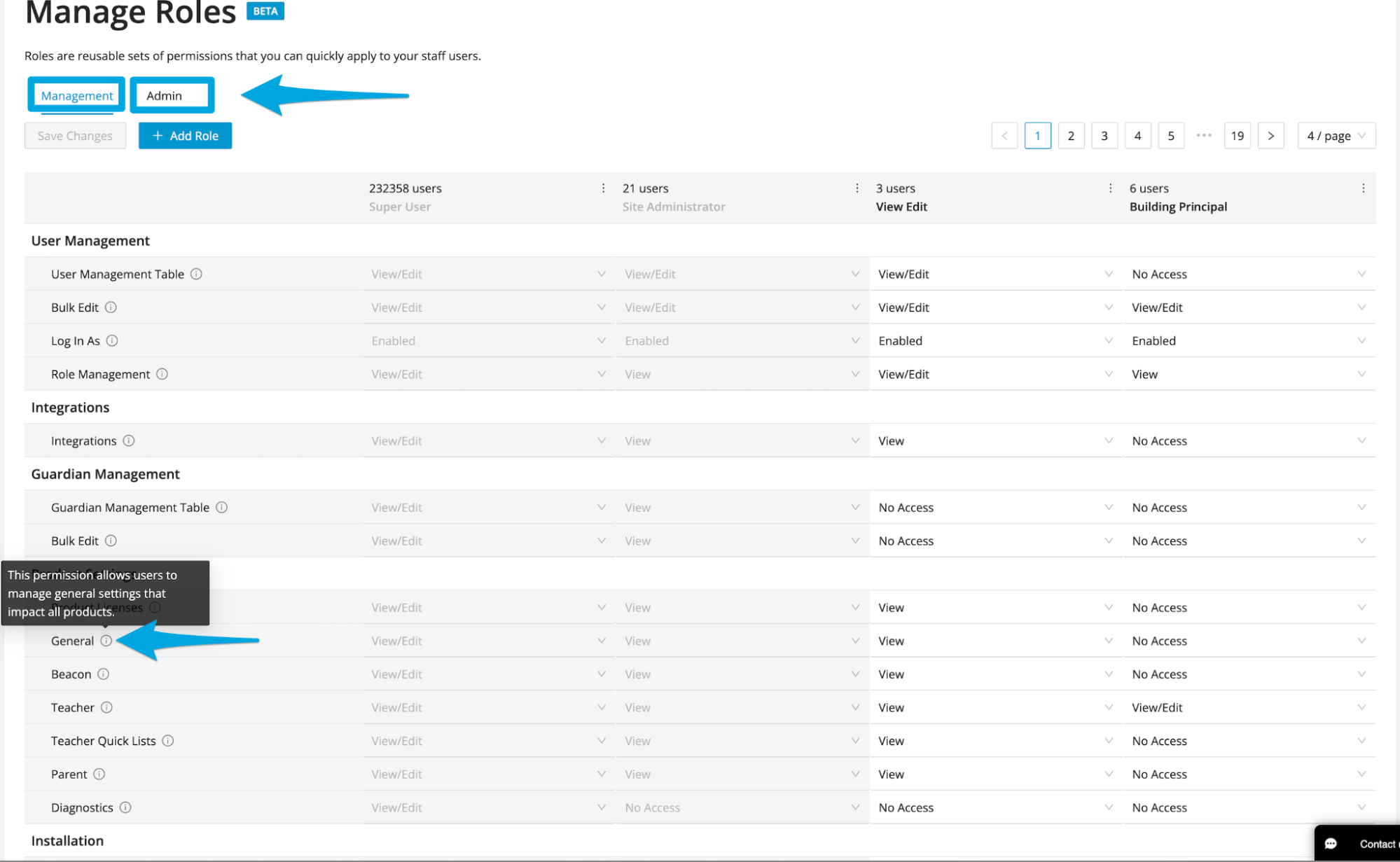 The following access levels are available for both Org Management and Admin roles:
* **No Access**
* **View**
* **View/Edit**
* **Enabled**
* **Disabled**
Hover over the **ⓘ** icon next to any permission to learn more about what it controls.
### Custom Groups Access Levels
GoGuardian Admin's Custom Groups feature has four permission levels:
1. **View, Full Edit, Create** (Super User to Custom Groups): can edit any group without being the owner or co-editor. Allows adding and removing co-editors and adjusting their permissions, adding and removing students (OU access required), changing the group type, applying a policy, renaming a group, deleting any group, and transferring ownership.
2. **View, Co-Edit, Create** (suggested for most admins): can only edit groups as the owner or co-editor. Can only delete groups the user owns.
3. **View, Co-Edit**: can be added as a co-editor to add or remove students. Cannot create, delete, or duplicate groups, and cannot transfer ownership.
4. **No Access**
## Assign Roles
Once a role is created and configured, it can be assigned to users in User Management individually or in bulk via CSV.
### Assign a Role to an Individual User
1. Select **Edit** next to the user's name in User Management.
2. Expand the **GoGuardian Org Management** or **GoGuardian Admin** tab.
3. Select the role from the dropdown.
### Assign Roles in Bulk via CSV
To assign roles to multiple users at once, add the role name under the appropriate column headers in the CSV file. See the Bulk Update Permissions by CSV article for CSV formatting details.
## Access Denied Pages
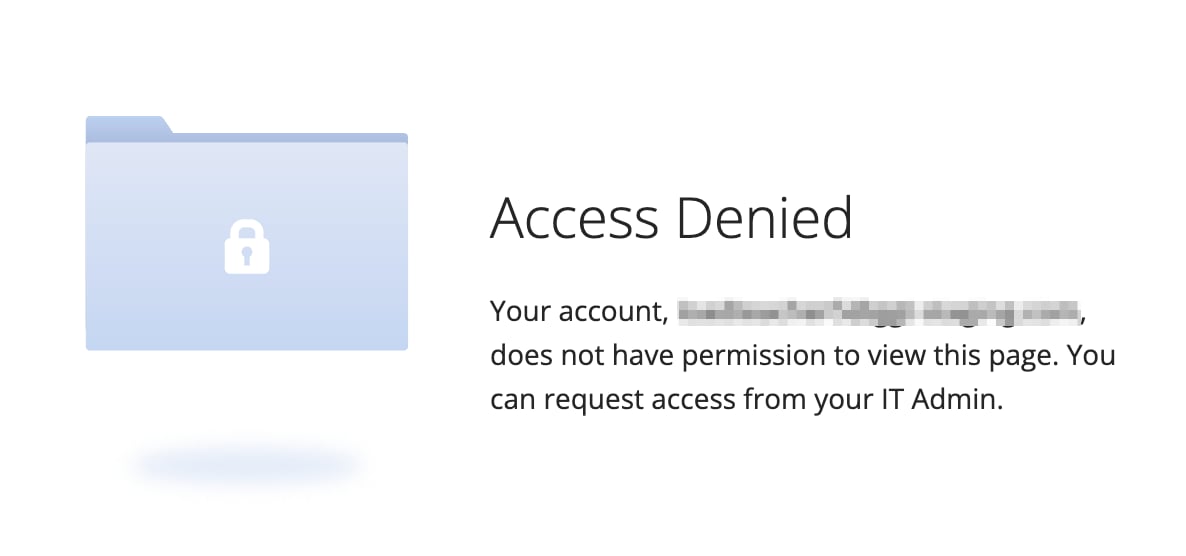
* Users who attempt to access a page their Org Management RBAC role does not allow will see the **Access Denied** page.
* Users who attempt to access a restricted page in Admin RBAC will see the **Page Unavailable** page.
The following access levels are available for both Org Management and Admin roles:
* **No Access**
* **View**
* **View/Edit**
* **Enabled**
* **Disabled**
Hover over the **ⓘ** icon next to any permission to learn more about what it controls.
### Custom Groups Access Levels
GoGuardian Admin's Custom Groups feature has four permission levels:
1. **View, Full Edit, Create** (Super User to Custom Groups): can edit any group without being the owner or co-editor. Allows adding and removing co-editors and adjusting their permissions, adding and removing students (OU access required), changing the group type, applying a policy, renaming a group, deleting any group, and transferring ownership.
2. **View, Co-Edit, Create** (suggested for most admins): can only edit groups as the owner or co-editor. Can only delete groups the user owns.
3. **View, Co-Edit**: can be added as a co-editor to add or remove students. Cannot create, delete, or duplicate groups, and cannot transfer ownership.
4. **No Access**
## Assign Roles
Once a role is created and configured, it can be assigned to users in User Management individually or in bulk via CSV.
### Assign a Role to an Individual User
1. Select **Edit** next to the user's name in User Management.
2. Expand the **GoGuardian Org Management** or **GoGuardian Admin** tab.
3. Select the role from the dropdown.
### Assign Roles in Bulk via CSV
To assign roles to multiple users at once, add the role name under the appropriate column headers in the CSV file. See the Bulk Update Permissions by CSV article for CSV formatting details.
## Access Denied Pages
* Users who attempt to access a page their Org Management RBAC role does not allow will see the **Access Denied** page.
* Users who attempt to access a restricted page in Admin RBAC will see the **Page Unavailable** page.