> ## Documentation Index
> Fetch the complete documentation index at: https://docs.goguardian.com/llms.txt
> Use this file to discover all available pages before exploring further.
# Integrate with OneRoster in GoGuardian Org Management
> Sync teachers, administrators, students, classrooms, guardians, and org units from your SIS to GoGuardian using the 1EdTech OneRoster standard.
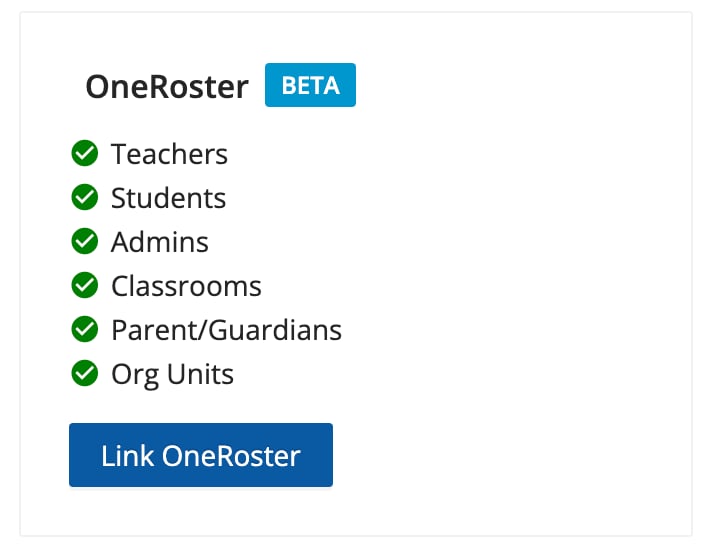
GoGuardian supports data sync integrations with your student information system (SIS) through the 1EdTech OneRoster standard. This integration can sync the following data to GoGuardian:
* Teacher accounts
* Administrator accounts
* Students
* Classrooms (in GoGuardian Teacher)
* Parents and guardians
* Org units
Only one integration source can be active at a time.
## Enable the OneRoster Integration
1. In Org Management, go to the [Integrations tab](https://manage.goguardian.com/integrations).
2. Click **Link OneRoster**.
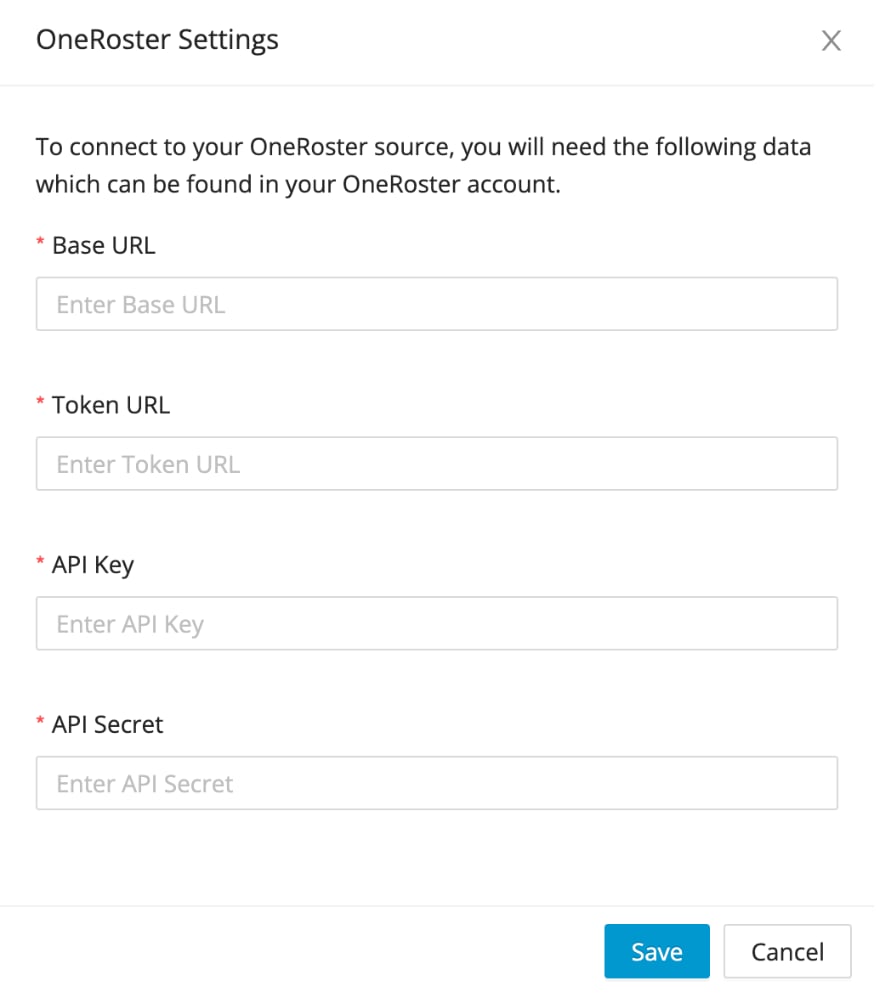
3. Enter your OneRoster settings: **Base URL**, **Token URL**, **API Key**, and **API Secret**.
 ## Provision Administrators (Optional)
Provisioning administrator accounts through OneRoster is optional.
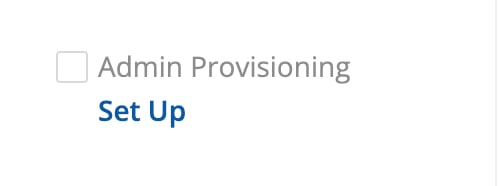
1. On the [Integrations tab](https://manage.goguardian.com/integrations), enable the **Admin Provisioning** toggle.
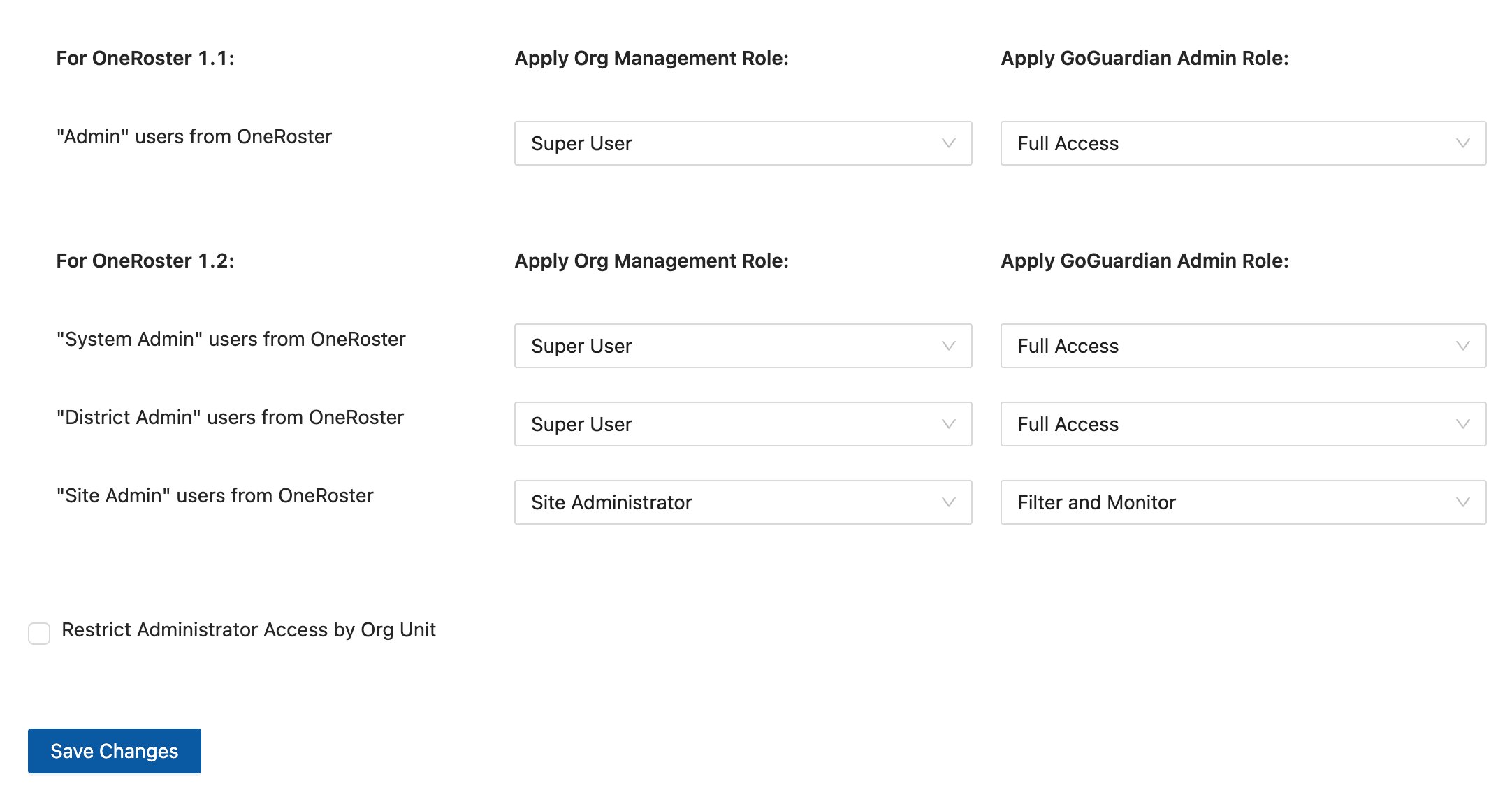
2. On the [Admin Provisioning (OneRoster) tab](https://manage.goguardian.com/integrations/oneroster-admin-provisioning-settings), assign Org Management and GoGuardian Admin roles to administrators based on their OneRoster roles. Both premade roles and custom roles created through Role-Based Access Control are supported.
3. Optionally, enable **Restrict Administrator Access by Org Unit** to assign OU access automatically based on each user's OneRoster OU access, then click **Save Changes**.
Restricting administrator access by org unit requires OneRoster to be set as the OU source for GoGuardian.
## Run a Sync
After you link OneRoster, the **Sync Now** button becomes available to start the first sync. Once the integration succeeds, data syncs automatically each night. You can run a manual sync at any time by clicking **Sync Now** on the OneRoster integration tile.
If a sync returns errors, open the [Sync Log tab](https://manage.goguardian.com/integrations/sync-log), download the error log, and check the entries against your OneRoster database. Sync errors are most often caused by missing or incorrect email addresses.
## Assign GoGuardian Teacher OUs from OneRoster (Optional)
Organizations that use OneRoster as their GoGuardian OU source can assign GoGuardian Teacher OUs directly through the OneRoster sync. When this option is enabled, the next sync assigns integrated teachers their GoGuardian Teacher OU access based on their OneRoster OUs. In GoGuardian Teacher classes, teachers can review and interact with students only if they have access to that student's OU.
Key notes for this optional feature:
* Regardless of a teacher's previous OU access, OUs are reassigned to mirror those listed in OneRoster.
* You can add more OUs for a teacher manually or by CSV file, and later syncs will not override those additions.
* This feature does not support organizations that use Google Admin Console or Active Directory as their OU source.
## Provision Administrators (Optional)
Provisioning administrator accounts through OneRoster is optional.
1. On the [Integrations tab](https://manage.goguardian.com/integrations), enable the **Admin Provisioning** toggle.
2. On the [Admin Provisioning (OneRoster) tab](https://manage.goguardian.com/integrations/oneroster-admin-provisioning-settings), assign Org Management and GoGuardian Admin roles to administrators based on their OneRoster roles. Both premade roles and custom roles created through Role-Based Access Control are supported.
3. Optionally, enable **Restrict Administrator Access by Org Unit** to assign OU access automatically based on each user's OneRoster OU access, then click **Save Changes**.
Restricting administrator access by org unit requires OneRoster to be set as the OU source for GoGuardian.
## Run a Sync
After you link OneRoster, the **Sync Now** button becomes available to start the first sync. Once the integration succeeds, data syncs automatically each night. You can run a manual sync at any time by clicking **Sync Now** on the OneRoster integration tile.
If a sync returns errors, open the [Sync Log tab](https://manage.goguardian.com/integrations/sync-log), download the error log, and check the entries against your OneRoster database. Sync errors are most often caused by missing or incorrect email addresses.
## Assign GoGuardian Teacher OUs from OneRoster (Optional)
Organizations that use OneRoster as their GoGuardian OU source can assign GoGuardian Teacher OUs directly through the OneRoster sync. When this option is enabled, the next sync assigns integrated teachers their GoGuardian Teacher OU access based on their OneRoster OUs. In GoGuardian Teacher classes, teachers can review and interact with students only if they have access to that student's OU.
Key notes for this optional feature:
* Regardless of a teacher's previous OU access, OUs are reassigned to mirror those listed in OneRoster.
* You can add more OUs for a teacher manually or by CSV file, and later syncs will not override those additions.
* This feature does not support organizations that use Google Admin Console or Active Directory as their OU source.
