> ## Documentation Index
> Fetch the complete documentation index at: https://docs.goguardian.com/llms.txt
> Use this file to discover all available pages before exploring further.
# Configure Staff SAML SSO
> Set up SAML single sign-on for staff in GoGuardian Org Management so users can access GoGuardian products with their existing identity provider credentials.
SAML lets users access multiple web applications with one set of credentials by securely exchanging authentication data between an identity provider (IdP) and a service provider. GoGuardian administrators can enable SAML for their staff as an additional sign-in option for GoGuardian Admin, GoGuardian Teacher, GoGuardian Beacon, and Org Management.
## Review Requirements
Before setting up SAML, confirm you have:
* Super User or custom role access to the Staff SAML SSO section of [manage.goguardian.com](https://manage.goguardian.com/integrations/staff-saml-config)
* Access to your organization's identity provider
## Set Up SAML
1. {/* TECH-ACCURACY: Verify nav label — source says "Data Sources > Staff SAML SSO" but current portal may use "Integrations > Staff SAML SSO" */} Go to [manage.goguardian.com](https://manage.goguardian.com) and select **Staff SAML SSO** from the navigation menu.
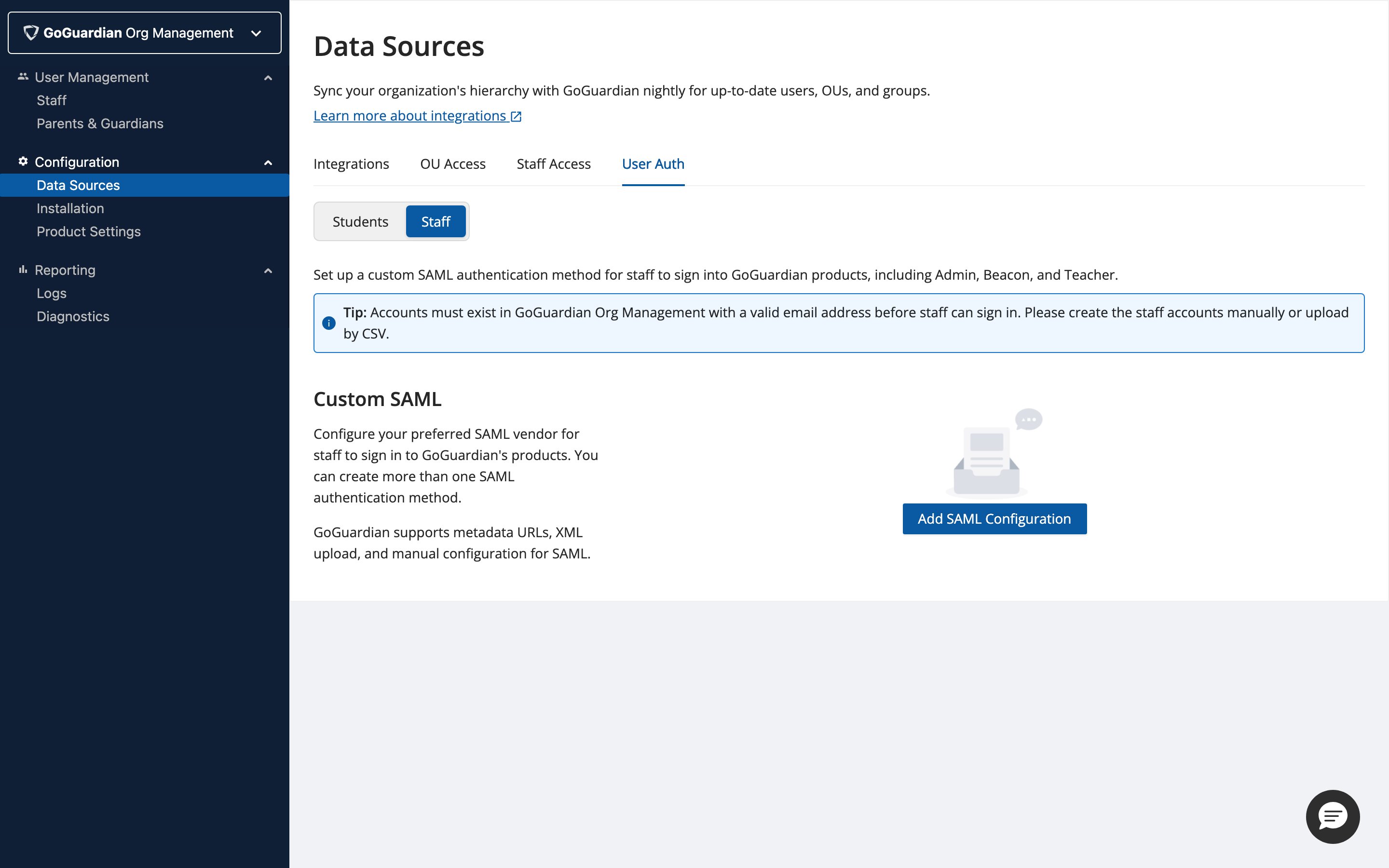 2. Click **Add Additional Provider**.
3. Enter an IdP nickname, select **XML File URL** or **XML File Upload / Manual Configuration**, and fill in the required fields from your IdP.
4. Copy both the **ACS URL** and **Entity ID** and enter them in your IdP configuration.
5. Customize the login button label and styling.
2. Click **Add Additional Provider**.
3. Enter an IdP nickname, select **XML File URL** or **XML File Upload / Manual Configuration**, and fill in the required fields from your IdP.
4. Copy both the **ACS URL** and **Entity ID** and enter them in your IdP configuration.
5. Customize the login button label and styling.
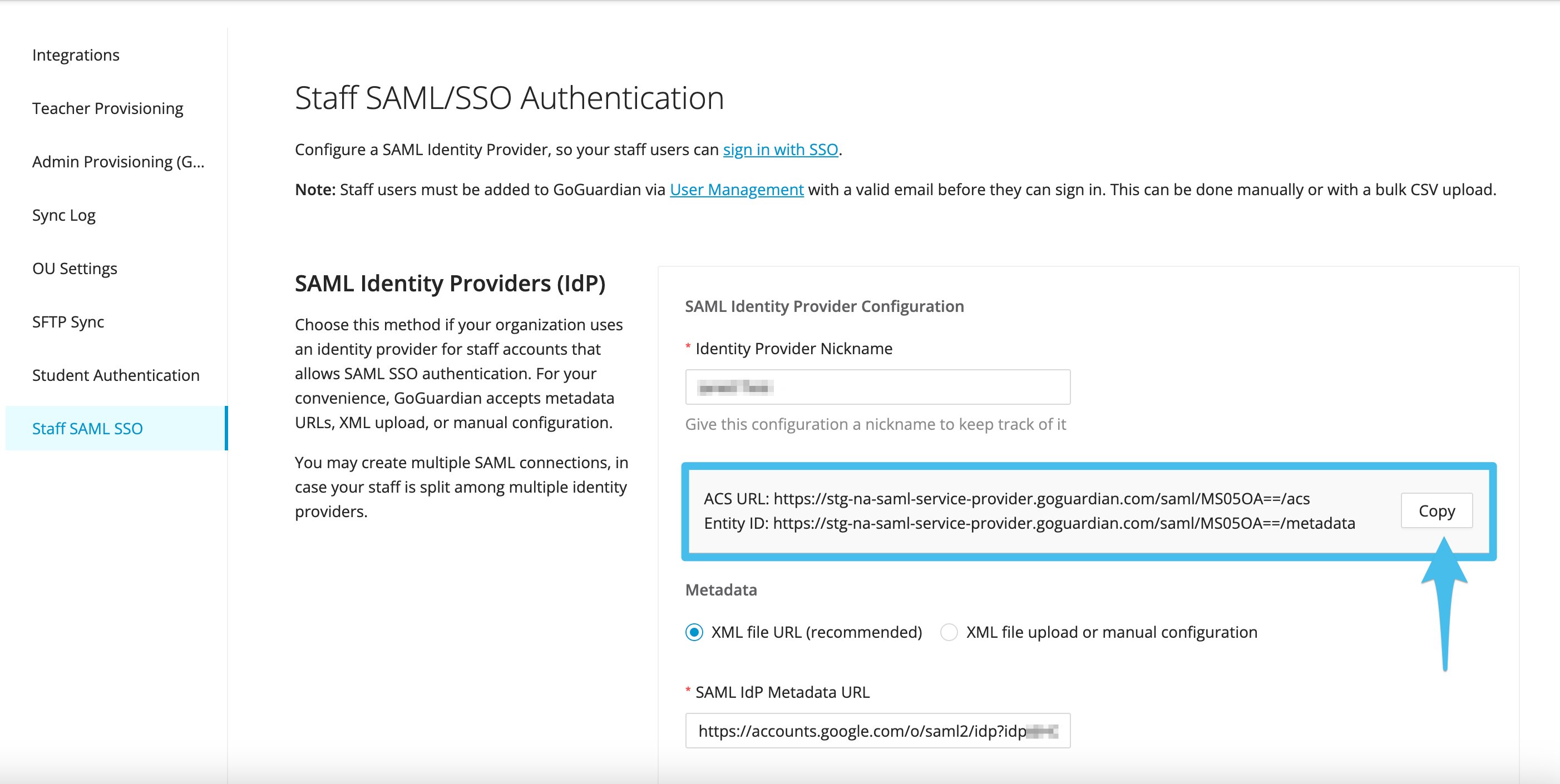 6\. Click **Save Configuration**.
7\. Verify the result: The new SAML provider appears in your list of configured providers.
You can create multiple SAML connections if staff credentials are split across more than one identity provider.
## Sign In with SSO as Staff
1. Go to GoGuardian Admin, GoGuardian Beacon, GoGuardian Teacher, or Fleet.
2. Click **Sign in with Single Sign-On**.
6\. Click **Save Configuration**.
7\. Verify the result: The new SAML provider appears in your list of configured providers.
You can create multiple SAML connections if staff credentials are split across more than one identity provider.
## Sign In with SSO as Staff
1. Go to GoGuardian Admin, GoGuardian Beacon, GoGuardian Teacher, or Fleet.
2. Click **Sign in with Single Sign-On**.
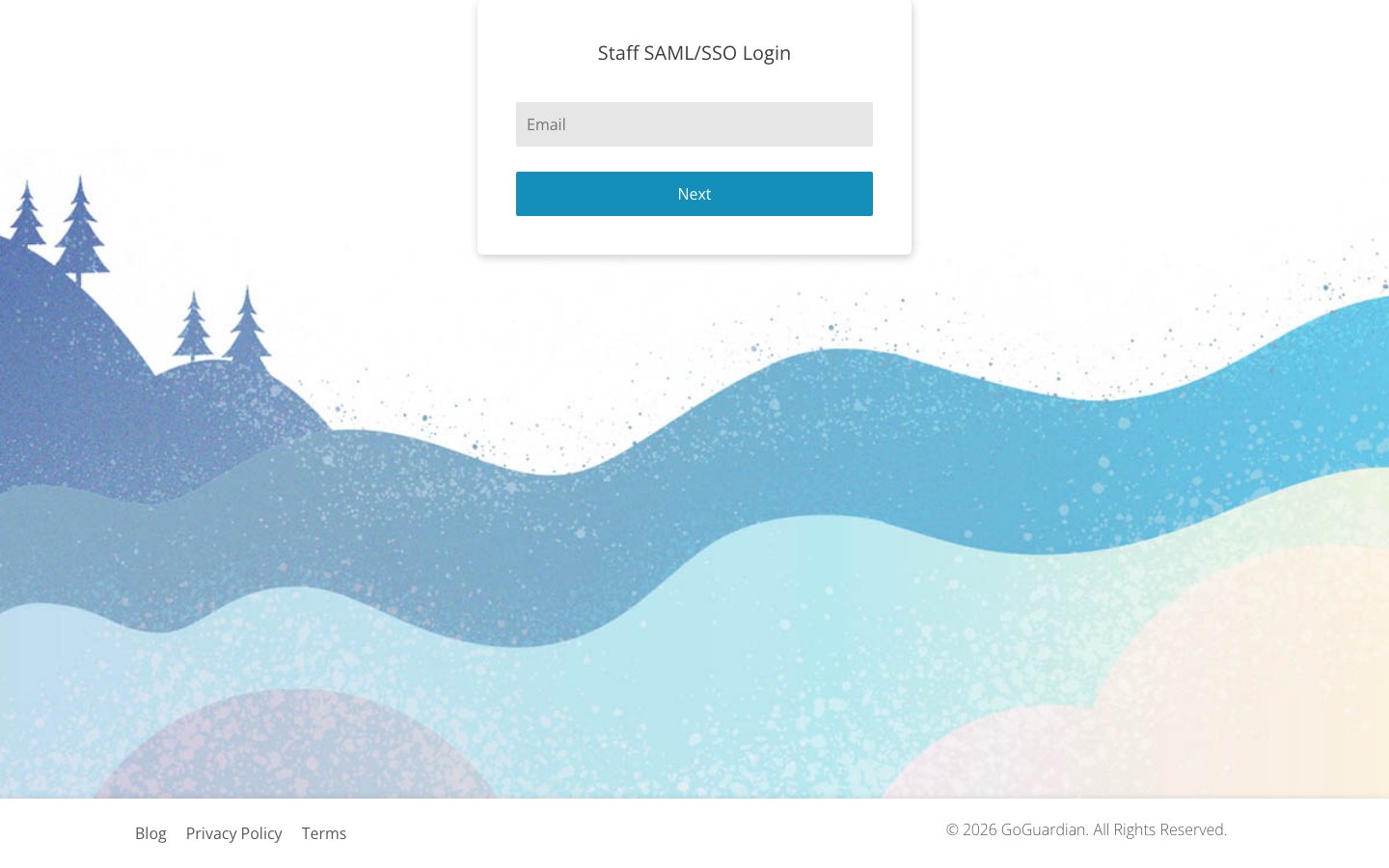 3. Enter your staff email address.
4. Select your account from the list.
SSO sign-in through third-party applications is not currently supported. Use the **Sign in with Single Sign-On** option on GoGuardian's login pages, or use the direct SAML sign-in link: `https://account.goguardian.com/#/staff-saml-login`
## Supported Identity Providers
GoGuardian supports any IdP using SAML 2.0. Verified compatible providers include Google, Azure, OneLogin, and ClassLink.
3. Enter your staff email address.
4. Select your account from the list.
SSO sign-in through third-party applications is not currently supported. Use the **Sign in with Single Sign-On** option on GoGuardian's login pages, or use the direct SAML sign-in link: `https://account.goguardian.com/#/staff-saml-login`
## Supported Identity Providers
GoGuardian supports any IdP using SAML 2.0. Verified compatible providers include Google, Azure, OneLogin, and ClassLink.