> ## Documentation Index
> Fetch the complete documentation index at: https://docs.goguardian.com/llms.txt
> Use this file to discover all available pages before exploring further.
# Set Up Teacher Accounts
> Create GoGuardian Teacher accounts individually, by CSV, or through a Clever or ClassLink integration in GoGuardian Org Management.
To give users access to GoGuardian Teacher, accounts must be created in the User Management section of GoGuardian Org Management at manage.goguardian.com. Accessing Org Management requires GoGuardian Super User permissions.
## Add One Teacher Account
1. Go to manage.goguardian.com.
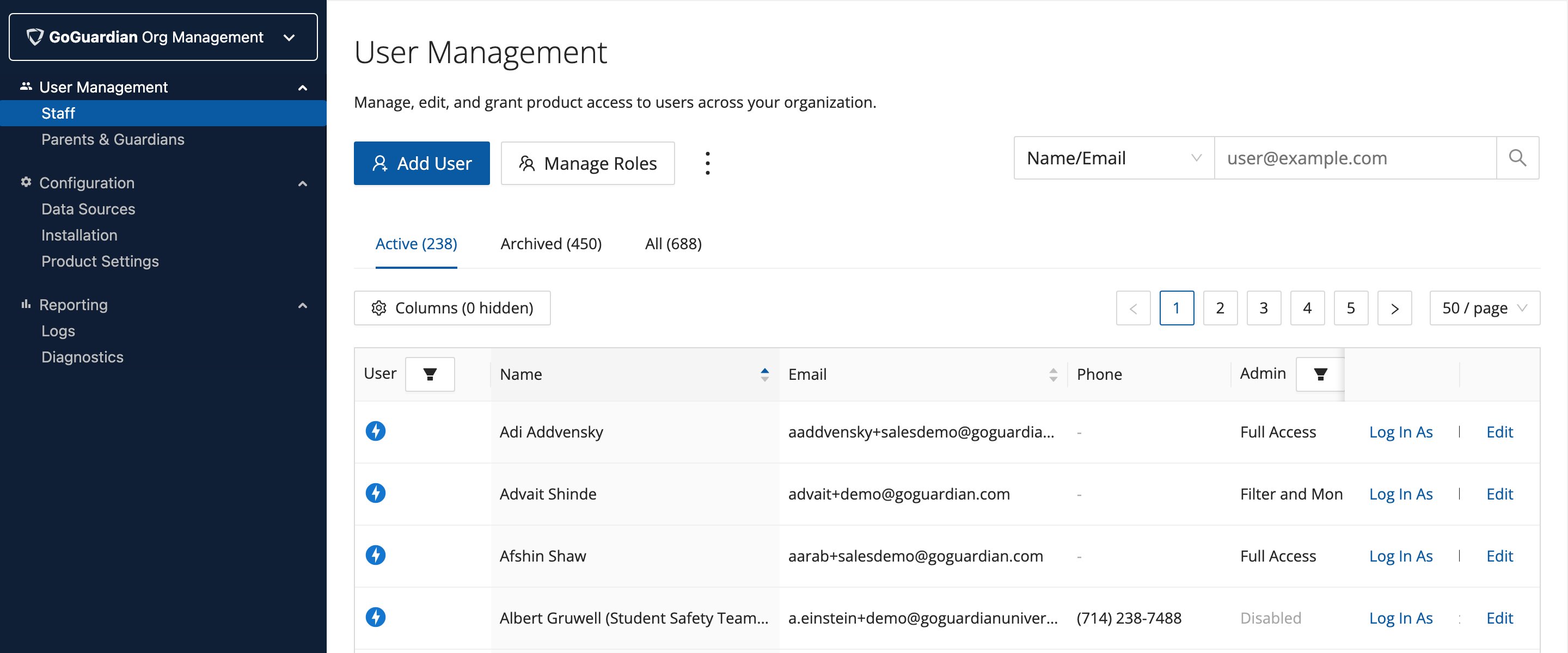 2. Click **Add User**.
3. Enter a first and last name.
4. Enter an email address.
5. Turn on **GoGuardian Teacher**.
6. Assign Teacher OU access if you don't want to grant this user full OU access.
7. Scroll down and click **Save**.
2. Click **Add User**.
3. Enter a first and last name.
4. Enter an email address.
5. Turn on **GoGuardian Teacher**.
6. Assign Teacher OU access if you don't want to grant this user full OU access.
7. Scroll down and click **Save**.
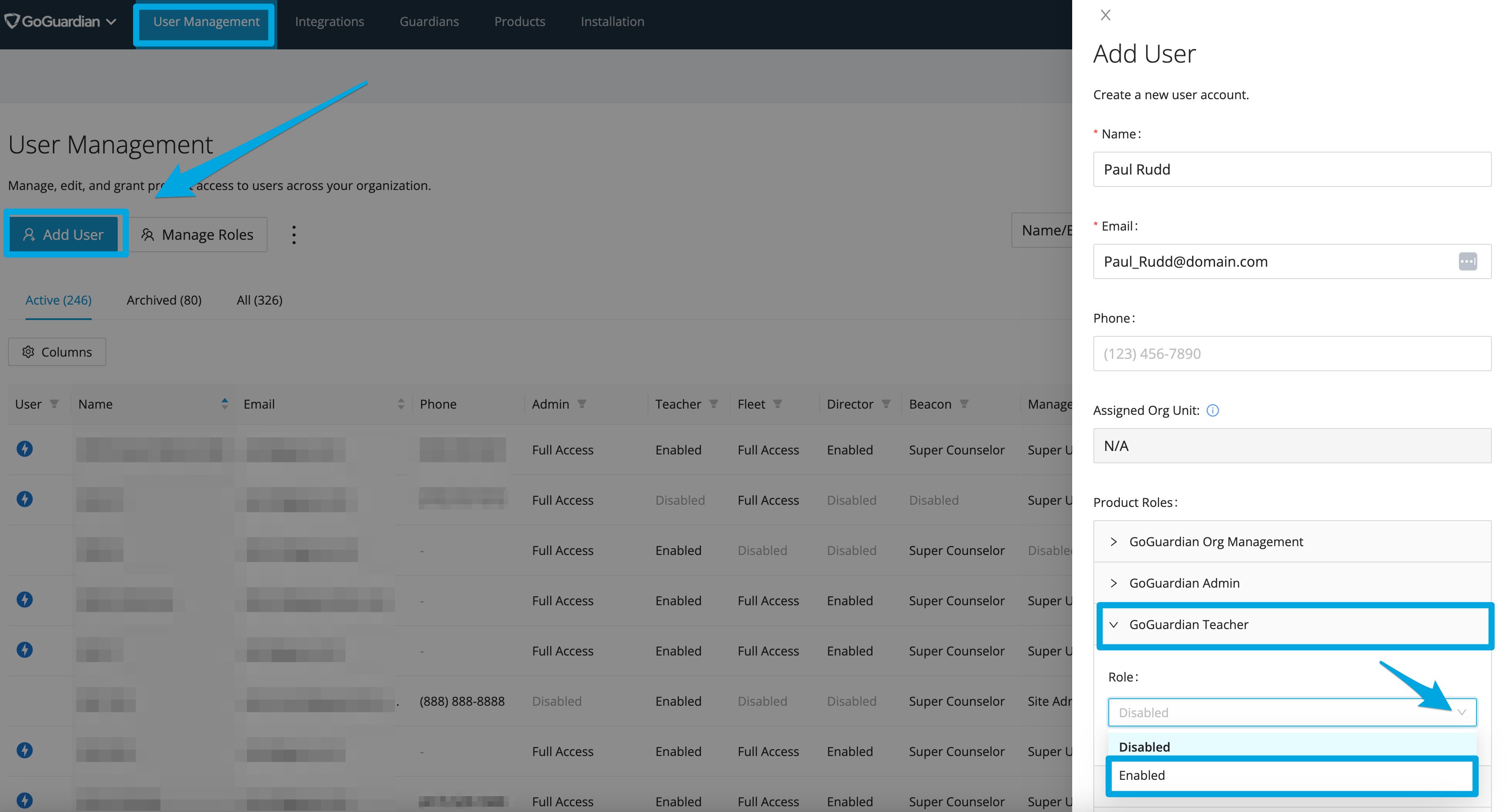 Once added, a welcome email is sent to the user with a link to set up a password. The password link expires within 48 hours. If the link expires, a Super User can send another email using the **Reset Password** link.
The welcome email is sent only to users whose accounts are created individually. Accounts created by any bulk method (CSV or integration) do not receive a welcome email.
## Add Multiple Teacher Accounts via CSV
1. Go to manage.goguardian.com.
2. Click the three-dot menu and select **Download CSV**.
Once added, a welcome email is sent to the user with a link to set up a password. The password link expires within 48 hours. If the link expires, a Super User can send another email using the **Reset Password** link.
The welcome email is sent only to users whose accounts are created individually. Accounts created by any bulk method (CSV or integration) do not receive a welcome email.
## Add Multiple Teacher Accounts via CSV
1. Go to manage.goguardian.com.
2. Click the three-dot menu and select **Download CSV**.
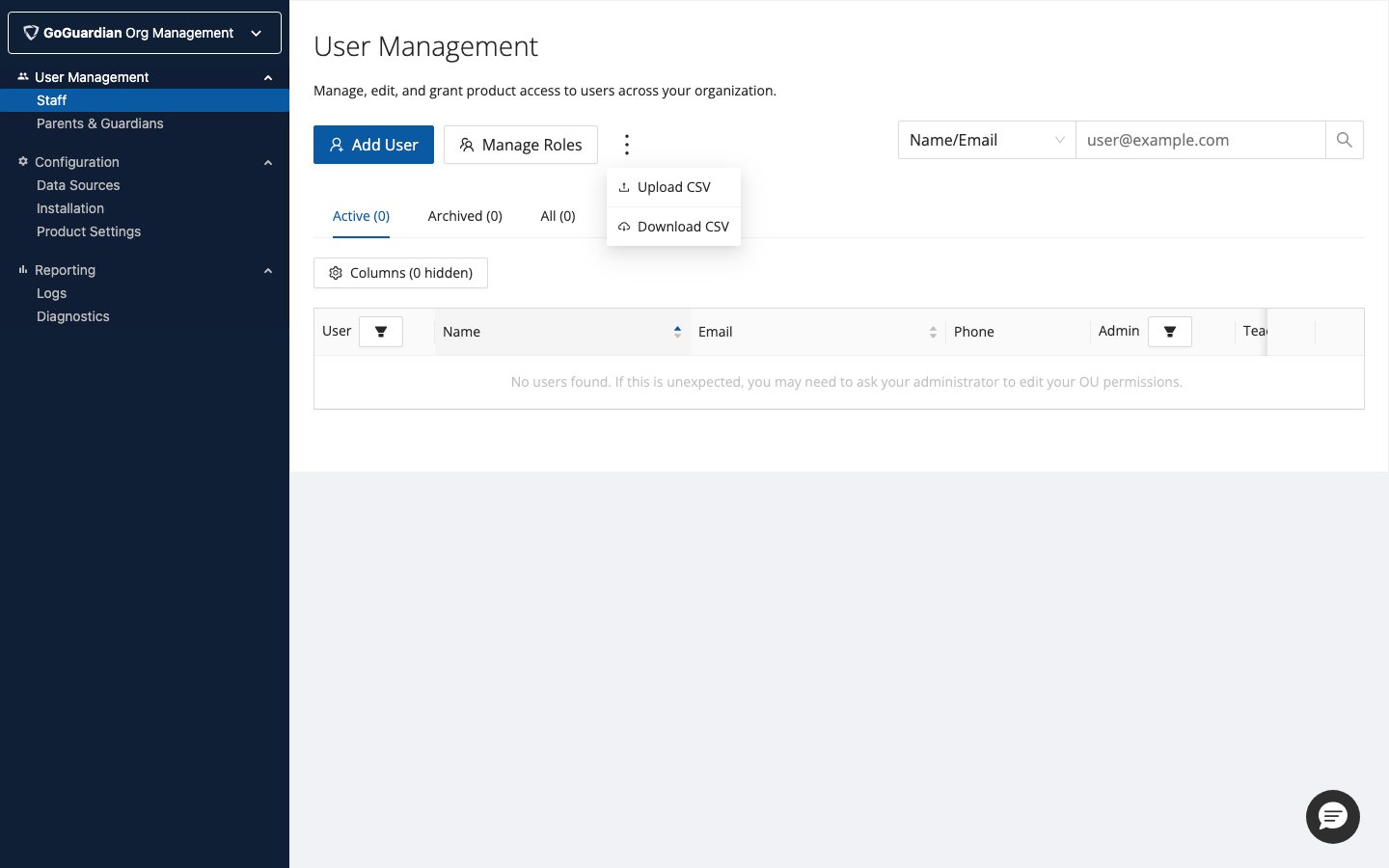 3. Add users to the CSV. See the Bulk Update Permissions by CSV article for formatting details.
4. Set permissions, status, and OU access for each user.
5. Upload the CSV.
## Add Teacher Accounts Through Clever or ClassLink
If your organization uses Clever or ClassLink, integrating with GoGuardian syncs teacher accounts, classes, class rosters, and more. See the following articles for setup instructions:
* [Connect Clever](/products/org-management/clever-classlink-sync#connect-clever)
* [Connect ClassLink](/products/org-management/clever-classlink-sync#connect-classlink)
3. Add users to the CSV. See the Bulk Update Permissions by CSV article for formatting details.
4. Set permissions, status, and OU access for each user.
5. Upload the CSV.
## Add Teacher Accounts Through Clever or ClassLink
If your organization uses Clever or ClassLink, integrating with GoGuardian syncs teacher accounts, classes, class rosters, and more. See the following articles for setup instructions:
* [Connect Clever](/products/org-management/clever-classlink-sync#connect-clever)
* [Connect ClassLink](/products/org-management/clever-classlink-sync#connect-classlink)