> ## Documentation Index
> Fetch the complete documentation index at: https://docs.goguardian.com/llms.txt
> Use this file to discover all available pages before exploring further.
# Set Up Active Directory Sync
> Install the GoGuardian AD Sync application and configure Active Directory as your OU source in GoGuardian Org Management.
Use this procedure to connect GoGuardian to your Active Directory server and import your OU structure. Completing this setup replaces Google Admin Console or Clever as the OU source for your GoGuardian organization.
GoGuardian supports one active OU provider at a time. Enabling Active Directory OU sync disables Google Admin Console and Clever as OU sources. You cannot run Active Directory sync alongside either of those providers.
Active Directory sync is intended for districts that use Windows and Active Directory exclusively and do not use Google Admin Console. If your district uses Google Admin Console to manage users and devices, continue using Google Admin Console for OU sync. Switching to Active Directory sync removes Google Admin Console as your OU source and cannot be reversed without contacting GoGuardian support.
## Review Before You Start
Before beginning, confirm that:
* Active Directory OU sync has been enabled for your account by GoGuardian support
* .NET Framework 4.5 or later is installed on your Domain Controller
* GoGuardian IP addresses, ports, and domains are permitted through your firewall or proxy
## Configure Active Directory Sync
1. Go to [manage.goguardian.com](https://manage.goguardian.com/) and select **Integrations**, then select **OU Settings**.
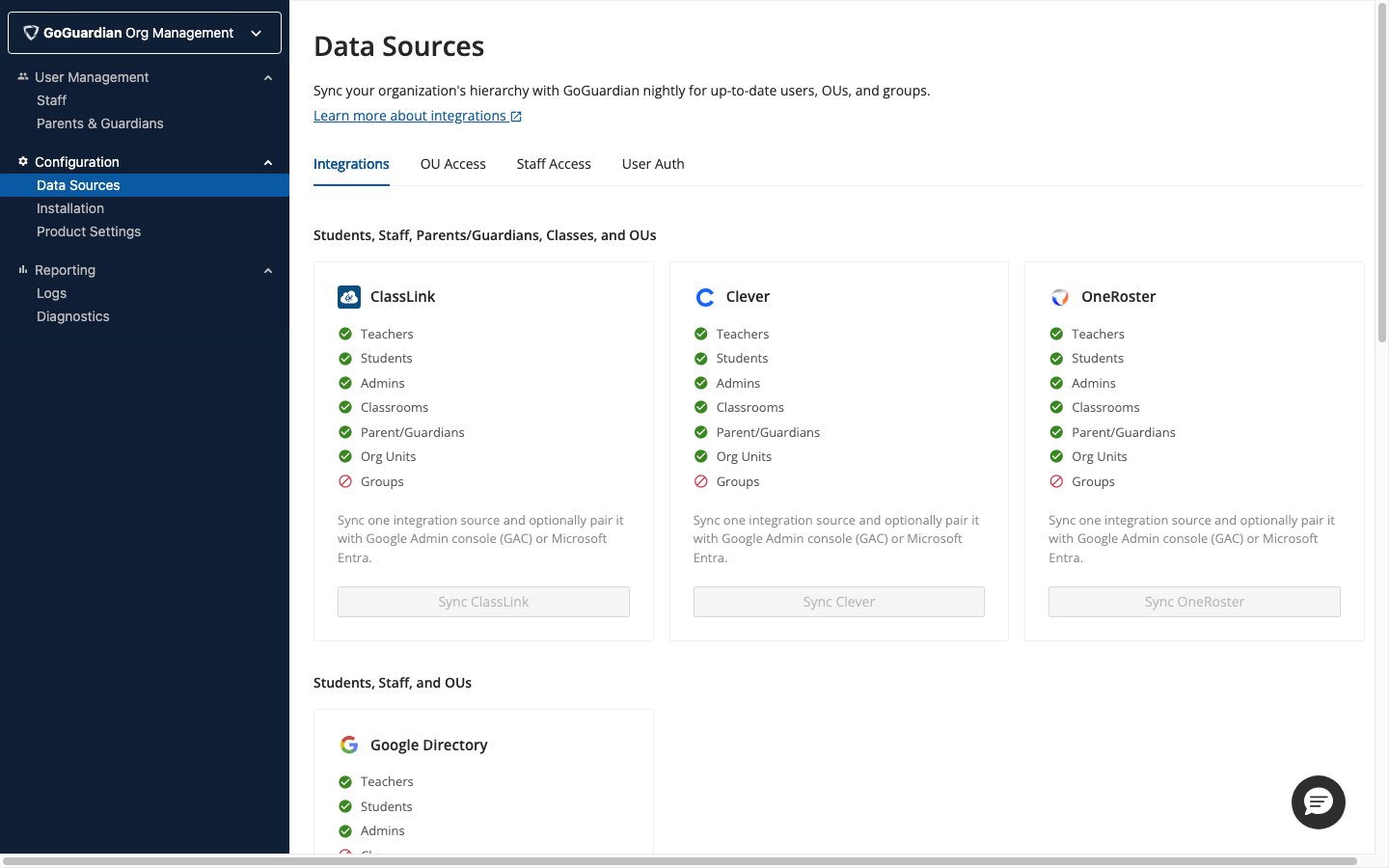 2. Scroll to the **Active Directory** section and select **Link Active Directory**.
The panel updates to show the application download button, the application token, and the OU list (which populates after the first sync).
3. Select **Download Application** and save the file to your Domain Controller. Run the downloaded file and follow the installation wizard to launch the GoGuardian AD Sync application on the server.
4. In the GoGuardian AD Sync application on the server:
1. Enter the desired time for the daily automatic sync.
2. Copy the application token from [manage.goguardian.com/integrations/ou-settings](https://manage.goguardian.com/integrations/ou-settings) and paste it into the token field.
3. Select **Sync Now** and wait for the completion confirmation.
5. After the sync completes, return to [manage.goguardian.com/integrations/ou-settings](https://manage.goguardian.com/integrations/ou-settings) and refresh the page. Select **OU List** to expand the directory tree. Select the OUs you want to import into GoGuardian.
Only OUs that contain user accounts are required, but all OUs can be imported. Sub-OUs of a selected parent OU are included automatically.
6. Select **Sync Selected OUs**. A confirmation message appears in the upper right corner. Allow a few minutes for the changes to apply. Large OU structures with many user accounts can take up to 10 minutes to fully sync.
7. Go to [admin.goguardian.com/policy/assign/in-school](https://admin.goguardian.com/policy/assign/in-school) and confirm the imported OUs are available for policy assignment.
## Manage Ongoing Syncs
GoGuardian syncs Active Directory OUs once per night automatically. To trigger a sync immediately, open the GoGuardian AD Sync application on your Domain Controller and select **Sync Now**.
Sync results and timestamps are visible in two places:
* In the **Integrations** tab in Org Management: select the dropdown next to the Teachers field to see the most recent sync result
* In the Org Management **Audit Log**: filter by Integration source using the cogwheel to see a full history of all previous syncs
## Understand OU Access Behavior
When a synced teacher's account moves to an OU outside of a Sync Group's Teacher Directory in Google Admin Console, that teacher loses GoGuardian Teacher access at the next sync. The same applies if a Sync Group's Teacher Directory is updated to a different OU.
## Resources
Review how Active Directory OU sync works and when to use it instead of Google Admin Console.
Diagnose and resolve sync failures, token errors, and application issues.
2. Scroll to the **Active Directory** section and select **Link Active Directory**.
The panel updates to show the application download button, the application token, and the OU list (which populates after the first sync).
3. Select **Download Application** and save the file to your Domain Controller. Run the downloaded file and follow the installation wizard to launch the GoGuardian AD Sync application on the server.
4. In the GoGuardian AD Sync application on the server:
1. Enter the desired time for the daily automatic sync.
2. Copy the application token from [manage.goguardian.com/integrations/ou-settings](https://manage.goguardian.com/integrations/ou-settings) and paste it into the token field.
3. Select **Sync Now** and wait for the completion confirmation.
5. After the sync completes, return to [manage.goguardian.com/integrations/ou-settings](https://manage.goguardian.com/integrations/ou-settings) and refresh the page. Select **OU List** to expand the directory tree. Select the OUs you want to import into GoGuardian.
Only OUs that contain user accounts are required, but all OUs can be imported. Sub-OUs of a selected parent OU are included automatically.
6. Select **Sync Selected OUs**. A confirmation message appears in the upper right corner. Allow a few minutes for the changes to apply. Large OU structures with many user accounts can take up to 10 minutes to fully sync.
7. Go to [admin.goguardian.com/policy/assign/in-school](https://admin.goguardian.com/policy/assign/in-school) and confirm the imported OUs are available for policy assignment.
## Manage Ongoing Syncs
GoGuardian syncs Active Directory OUs once per night automatically. To trigger a sync immediately, open the GoGuardian AD Sync application on your Domain Controller and select **Sync Now**.
Sync results and timestamps are visible in two places:
* In the **Integrations** tab in Org Management: select the dropdown next to the Teachers field to see the most recent sync result
* In the Org Management **Audit Log**: filter by Integration source using the cogwheel to see a full history of all previous syncs
## Understand OU Access Behavior
When a synced teacher's account moves to an OU outside of a Sync Group's Teacher Directory in Google Admin Console, that teacher loses GoGuardian Teacher access at the next sync. The same applies if a Sync Group's Teacher Directory is updated to a different OU.
## Resources
Review how Active Directory OU sync works and when to use it instead of Google Admin Console.
Diagnose and resolve sync failures, token errors, and application issues.