> ## Documentation Index
> Fetch the complete documentation index at: https://docs.goguardian.com/llms.txt
> Use this file to discover all available pages before exploring further.
# Troubleshoot Active Directory Sync
> Diagnose and resolve GoGuardian Active Directory sync failures, application errors, and expired token issues.
Use this article to resolve issues with the GoGuardian Active Directory (AD) Sync application not completing, returning errors, or showing an expired token.
## Confirm the AD Sync Application Is Running
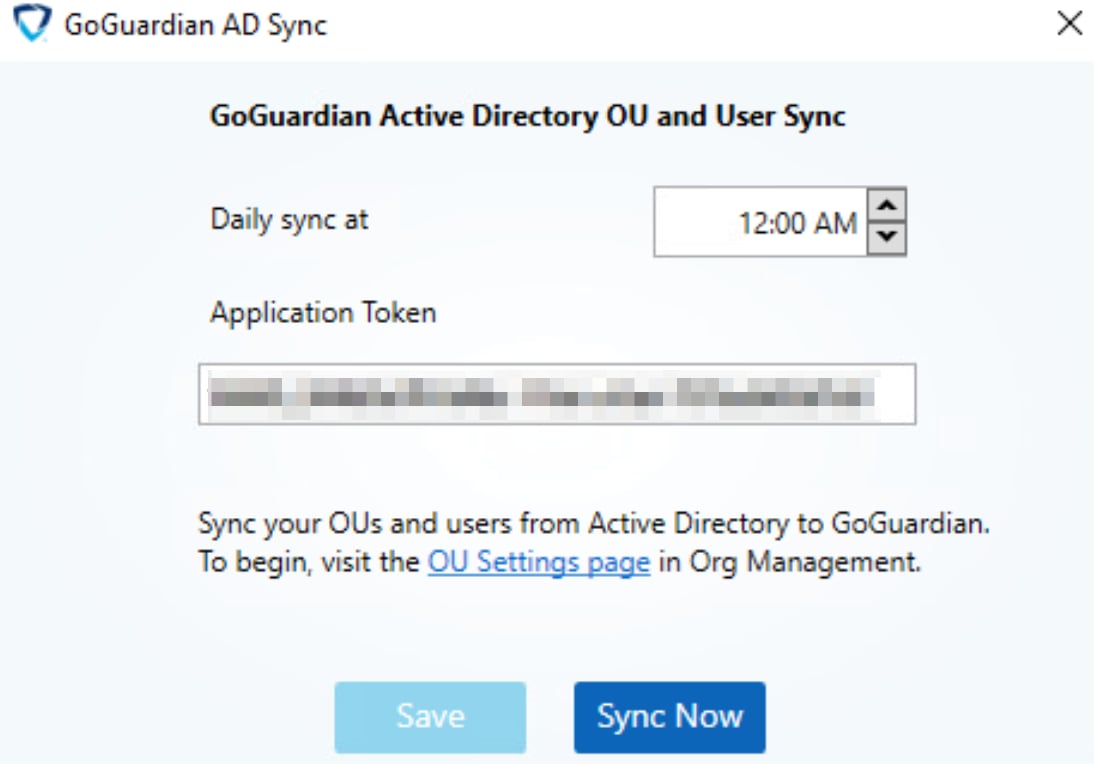
The AD Sync application must be running on your Domain Controller for syncs to complete. Open the application on the Domain Controller and select **Sync Now**. Verify that the sync succeeds both in the application and in Org Management at [Data Sources > OU Settings > Active Directory](https://manage.goguardian.com/integrations/ou-settings).
If the sync still fails or returns errors, continue with the steps below.
 ## Allow GoGuardian in Your Firewall or Proxy
If the sync application is not running or returns no errors but fails silently, your firewall or proxy may be blocking GoGuardian traffic. Confirm that GoGuardian IP addresses, ports, and domains are permitted through your firewall or proxy.
The full list of required IP addresses, ports, and domains is available from GoGuardian Support. To request it, contact [support@goguardian.com](mailto:support@goguardian.com).
## Verify .NET Framework 4.5
The AD Sync application requires .NET Framework version 4.5 or later on the Domain Controller.
To check the installed version:
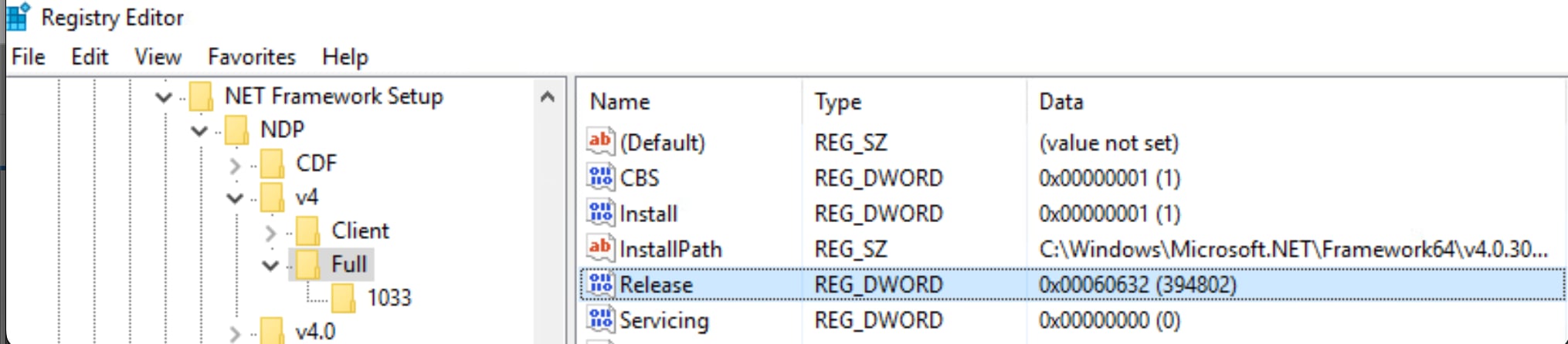
1. Select **Start** > **Run**, then enter `regedit` to open Registry Editor.
2. Navigate to: `Computer > HKEY_LOCAL_MACHINE > SOFTWARE > Microsoft > NET Framework Setup > NDP > v4 > Full`.
3. Select **Full** and look for the **Release** value.
If the `Full` key or `Release` value is missing, .NET 4.5 is not installed. Install it by following the [applicable Microsoft guide](https://learn.microsoft.com/en-us/dotnet/framework/install/).
## Allow GoGuardian in Your Firewall or Proxy
If the sync application is not running or returns no errors but fails silently, your firewall or proxy may be blocking GoGuardian traffic. Confirm that GoGuardian IP addresses, ports, and domains are permitted through your firewall or proxy.
The full list of required IP addresses, ports, and domains is available from GoGuardian Support. To request it, contact [support@goguardian.com](mailto:support@goguardian.com).
## Verify .NET Framework 4.5
The AD Sync application requires .NET Framework version 4.5 or later on the Domain Controller.
To check the installed version:
1. Select **Start** > **Run**, then enter `regedit` to open Registry Editor.
2. Navigate to: `Computer > HKEY_LOCAL_MACHINE > SOFTWARE > Microsoft > NET Framework Setup > NDP > v4 > Full`.
3. Select **Full** and look for the **Release** value.
If the `Full` key or `Release` value is missing, .NET 4.5 is not installed. Install it by following the [applicable Microsoft guide](https://learn.microsoft.com/en-us/dotnet/framework/install/).
 ## Install the Latest Version of the AD Sync Application
If the Domain Controller meets the requirements above, install the latest version of the AD Sync application.
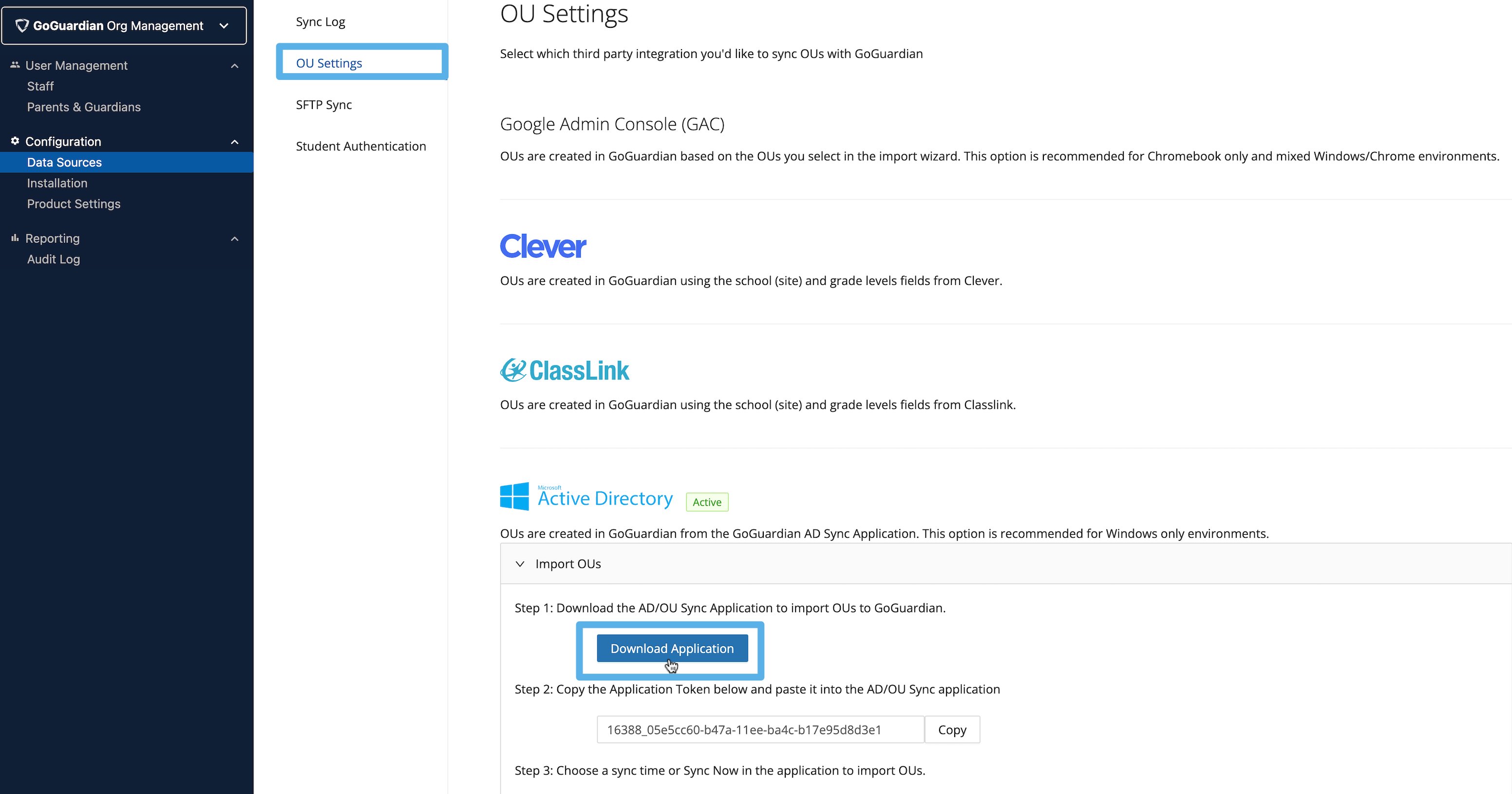
1. In Org Management, go to **Data Sources** > **OU Settings** > **Active Directory** > **Download Application**.
2. Save the file to the Domain Controller.
3. Double-click the downloaded file and follow the on-screen instructions to complete the installation.
## Install the Latest Version of the AD Sync Application
If the Domain Controller meets the requirements above, install the latest version of the AD Sync application.
1. In Org Management, go to **Data Sources** > **OU Settings** > **Active Directory** > **Download Application**.
2. Save the file to the Domain Controller.
3. Double-click the downloaded file and follow the on-screen instructions to complete the installation.
 ## Delete the Integration and Generate a New Token
If the application returns "Your token is invalid or has expired!" or continues to behave unexpectedly, delete the integration to generate a fresh token.
1. Go to [manage.goguardian.com](https://manage.goguardian.com/) and select **Data Sources** > **Integrations**.
2. Under **Active Directory**, select **Delete** > **Delete Integration**.
3. Refresh the page and confirm the integration syncs with the new token.
## Delete the Integration and Generate a New Token
If the application returns "Your token is invalid or has expired!" or continues to behave unexpectedly, delete the integration to generate a fresh token.
1. Go to [manage.goguardian.com](https://manage.goguardian.com/) and select **Data Sources** > **Integrations**.
2. Under **Active Directory**, select **Delete** > **Delete Integration**.
3. Refresh the page and confirm the integration syncs with the new token.
 If the AD Sync application still shows unexpected behavior after following all steps above, contact [support@goguardian.com](mailto:support@goguardian.com) with the status messages from the application and your Windows Server version.
## Resources
Review how Active Directory OU sync works and when to use it.
Re-run the initial setup if you need to reconfigure the integration from scratch.
If the AD Sync application still shows unexpected behavior after following all steps above, contact [support@goguardian.com](mailto:support@goguardian.com) with the status messages from the application and your Windows Server version.
## Resources
Review how Active Directory OU sync works and when to use it.
Re-run the initial setup if you need to reconfigure the integration from scratch.