> ## Documentation Index
> Fetch the complete documentation index at: https://docs.goguardian.com/llms.txt
> Use this file to discover all available pages before exploring further.
# Troubleshoot Rostering and Sync Issues Across GoGuardian
> Identify which roster source is failing — Google Directory, Clever, ClassLink, or CSV/SFTP — and resolve missing users, wrong classes, and sync failures.
Use this article when teachers, students, classrooms, or guardians are not syncing correctly into GoGuardian. Roster data can enter GoGuardian from more than one source, so the first step is to identify which source is failing, then follow the steps for that source.
## Understand How Roster Data Flows into GoGuardian
GoGuardian provisions accounts and rosters from one or more of these sources. Confirm which your organization uses before troubleshooting:
* **Google Directory:** Syncs teacher and administrator accounts from Google Admin Console based on OU paths. Runs automatically each night (approximately 0700–1200 UTC); trigger it manually with **Sync All**. See [Google Directory Teacher Provisioning](/products/org-management/google-directory-provisioning).
* **Clever or ClassLink:** Syncs teachers, students, classrooms, and guardians from your SIS. See [Sync Rosters with Clever or ClassLink](/products/org-management/clever-classlink-sync).
* **CSV via SFTP:** Uploads a CSV overnight from your SFTP server to create, update, and archive accounts. Trigger it manually with **Force Sync**. See [User Provisioning with CSV via SFTP Sync](/products/org-management/user-provisioning-csv-sftp).
* **Manual CSV upload:** A one-time CSV uploaded through the User Management page.
These sources can run together. When CSV data conflicts with Clever or ClassLink data, the CSV takes precedence — for example, if Clever provisions a teacher but the CSV archives them, the account is archived.
## Diagnose the Problem by Symptom
Match what you're seeing to the likely source, then jump to that section:
* **A teacher or admin is missing:** Check Google Directory (was the account moved out of the Sync Group's OU?) or the CSV. Students and guardians come from Clever or ClassLink.
* **Students or classrooms are missing or wrong:** Check Clever or ClassLink sync errors.
* **A teacher has the wrong students or full access unexpectedly:** Check the Google Directory Sync Group's Student Directory restriction.
* **The whole sync didn't run:** This is a sync status failure — see [Understand the Two Types of Sync Failures](#understand-the-two-types-of-sync-failures).
## Find Clever and ClassLink Sync Errors
1. Go to [manage.goguardian.com/integrations](https://manage.goguardian.com/integrations).
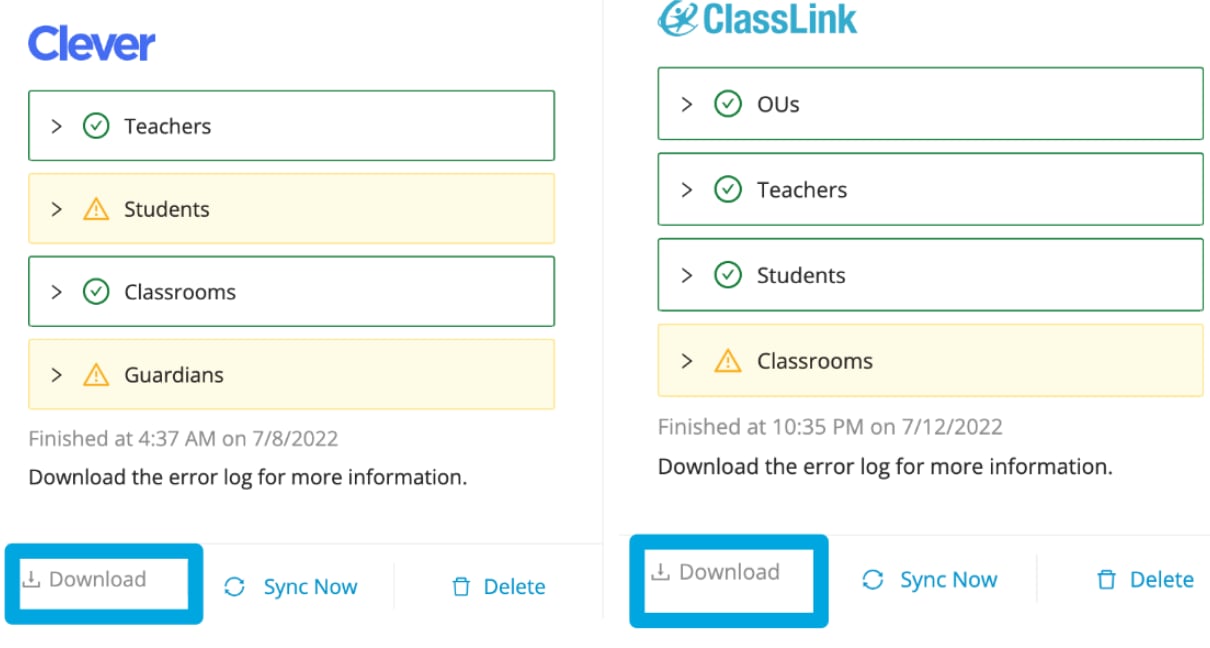
2. Locate the Clever or ClassLink tile. After a completed sync, the tile shows the completion time and a breakdown of results by category: **Teachers**, **Students**, **Classrooms**, **Guardians**, and **OUs**.
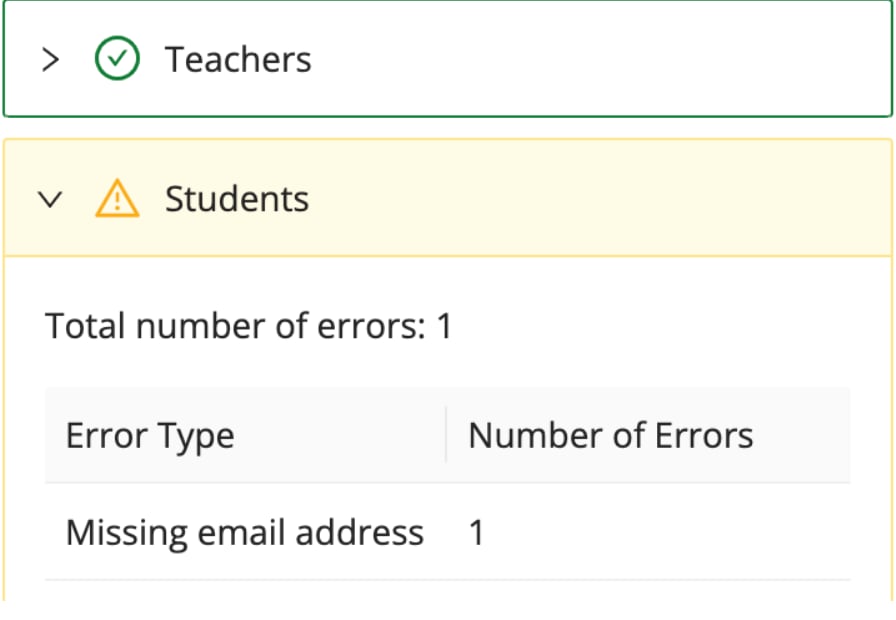
3. Look for a yellow triangle next to any category. A yellow triangle means at least one record in that category failed to sync. A green checkmark means all records synced successfully.
 4. Click the category with a yellow triangle to expand the error details.
## Download the Error Log
For a full list of failed records and their error messages, download the error log from the Clever or ClassLink tile.
1. On the Integrations page, click **Download** on the Clever or ClassLink tile.
2. Open the downloaded zip file. It contains separate CSV files for each sync category (Teachers, Students, Classrooms, Guardians).
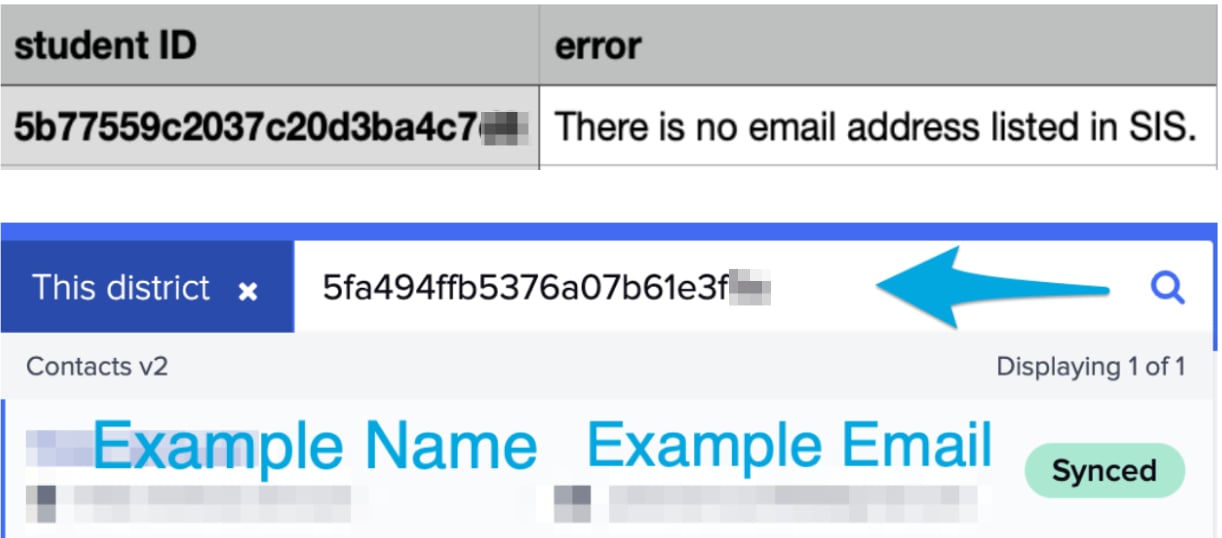
3. Each row in the CSV includes a record ID from Clever or ClassLink. Copy that ID and paste it into your Clever or ClassLink portal to identify the specific person or classroom and its associated error.
4. Click the category with a yellow triangle to expand the error details.
## Download the Error Log
For a full list of failed records and their error messages, download the error log from the Clever or ClassLink tile.
1. On the Integrations page, click **Download** on the Clever or ClassLink tile.
2. Open the downloaded zip file. It contains separate CSV files for each sync category (Teachers, Students, Classrooms, Guardians).
3. Each row in the CSV includes a record ID from Clever or ClassLink. Copy that ID and paste it into your Clever or ClassLink portal to identify the specific person or classroom and its associated error.
 ## Resolve Email and Account Errors
Email errors are the most common cause of sync failures. They affect teacher, student, and guardian records.
### "There is no email address listed in SIS"
The record has no email address in Clever or ClassLink.
1. In Clever or ClassLink, find the user identified by the ID in the error log.
2. Add a valid email address to that user's record.
3. Return to the GoGuardian Integrations page and click **Sync Now** to pull in the update.
### "Invalid email address"
The email address exists but is not formatted correctly.
1. In Clever or ClassLink, find the user with the invalid email address.
2. Correct the email address format. For formatting requirements, refer to standard email address conventions ([local-part@domain.tld](mailto:local-part@domain.tld)).
3. Click **Sync Now** on the GoGuardian Integrations page to resync.
### "Duplicate email address found" or "We found an existing user with this email address"
Two records in Clever or ClassLink share the same email address. Because email addresses are unique identifiers in GoGuardian, duplicate emails cannot be synced.
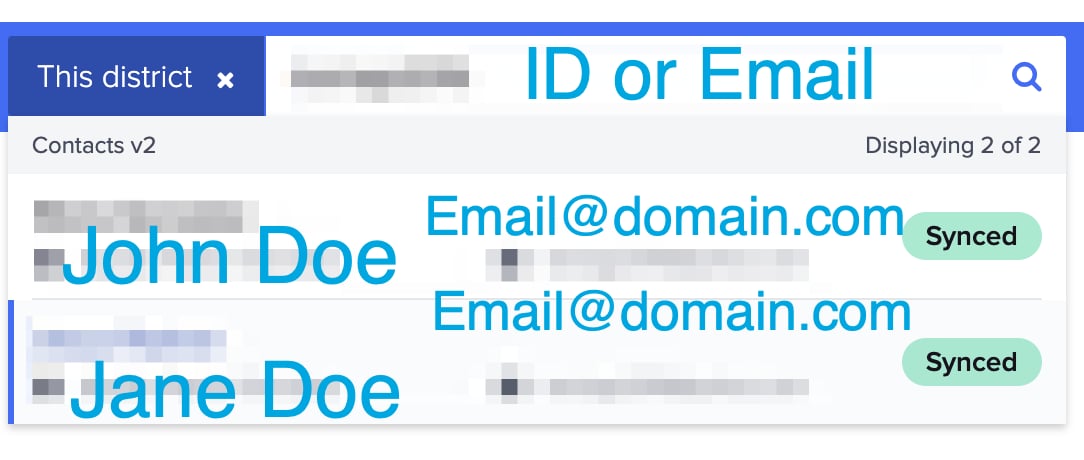
1. In Clever or ClassLink, search for the email address to identify both records.
2. Determine whether the records belong to the same person or two different people sharing an email address.
3. Update one or both records with unique, valid email addresses.
4. Click **Sync Now** to resync.
Email addresses are unique across all of GoGuardian, not just within your organization. If the email you are trying to sync already belongs to another GoGuardian account, the record cannot sync. Contact [support@goguardian.com](mailto:support@goguardian.com) to resolve an email address tied to a different GoGuardian account.
## Resolve Email and Account Errors
Email errors are the most common cause of sync failures. They affect teacher, student, and guardian records.
### "There is no email address listed in SIS"
The record has no email address in Clever or ClassLink.
1. In Clever or ClassLink, find the user identified by the ID in the error log.
2. Add a valid email address to that user's record.
3. Return to the GoGuardian Integrations page and click **Sync Now** to pull in the update.
### "Invalid email address"
The email address exists but is not formatted correctly.
1. In Clever or ClassLink, find the user with the invalid email address.
2. Correct the email address format. For formatting requirements, refer to standard email address conventions ([local-part@domain.tld](mailto:local-part@domain.tld)).
3. Click **Sync Now** on the GoGuardian Integrations page to resync.
### "Duplicate email address found" or "We found an existing user with this email address"
Two records in Clever or ClassLink share the same email address. Because email addresses are unique identifiers in GoGuardian, duplicate emails cannot be synced.
1. In Clever or ClassLink, search for the email address to identify both records.
2. Determine whether the records belong to the same person or two different people sharing an email address.
3. Update one or both records with unique, valid email addresses.
4. Click **Sync Now** to resync.
Email addresses are unique across all of GoGuardian, not just within your organization. If the email you are trying to sync already belongs to another GoGuardian account, the record cannot sync. Contact [support@goguardian.com](mailto:support@goguardian.com) to resolve an email address tied to a different GoGuardian account.
 ## Fix Classroom Errors
### "This classroom has exceeded the maximum number of enrolled students"
GoGuardian Teacher classes have a maximum of 115 students. A classroom with more than 115 enrolled students cannot sync.
1. In Clever or ClassLink, split the oversized class into two or more smaller classes, each with 115 students or fewer.
2. Click **Sync Now** to resync the updated classes.
If teachers need to run sessions with the full group, they can run multiple sessions concurrently or create ad hoc classes directly in GoGuardian Teacher.
### "No students enrolled"
GoGuardian requires at least one student to be enrolled in a class before it can sync.
1. In Clever or ClassLink, either add a student to the class, archive the class so it is no longer shared with GoGuardian, or remove the class from the data shared with GoGuardian.
2. Click **Sync Now** to resync.
## Resolve "We Had Trouble Syncing" Errors
The message "We had trouble syncing some \[records]" can have multiple causes. It often appears alongside another error that is the root cause.
1. Before investigating, click **Sync Now** to run a fresh sync. Transient failures sometimes resolve on resync.
2. Review the error log for any email or account errors listed alongside this message. Resolve those first — a teacher account that fails to sync due to an email error causes that teacher's classrooms to fail as well.
3. If the error persists and the log does not identify a root cause, contact [support@goguardian.com](mailto:support@goguardian.com) with the error log attached.
## Review Sync History in the Audit Log
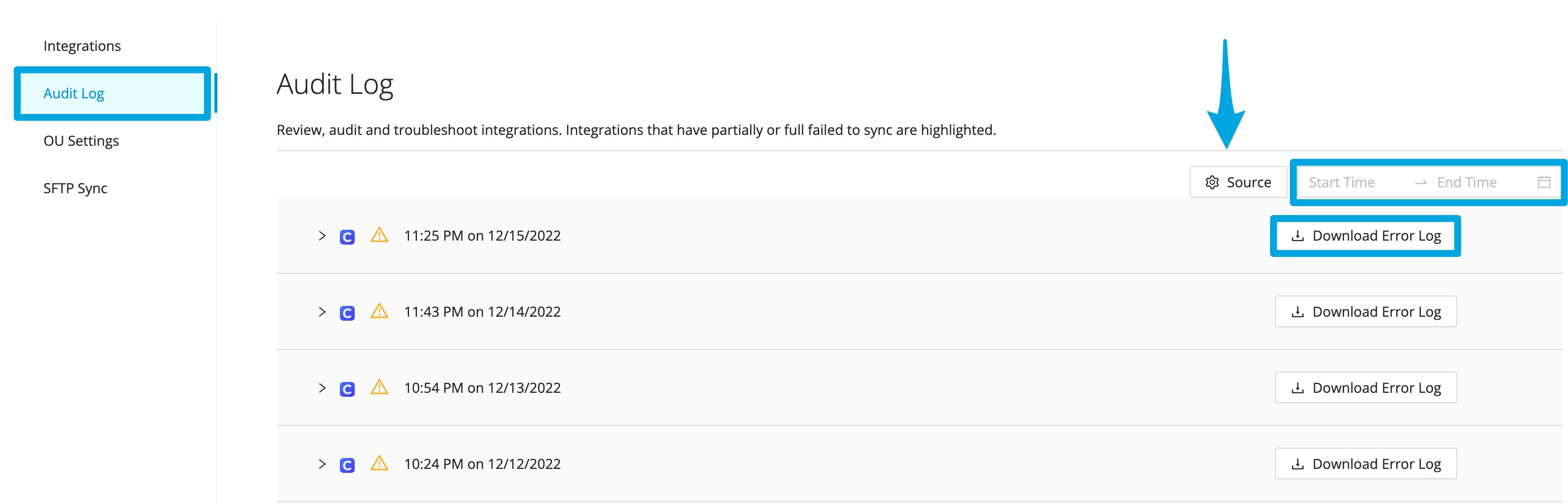
The Integrations page includes an Audit Log that records every sync, its outcome, and the associated error log.
1. Go to [manage.goguardian.com/integrations/audit-log](https://manage.goguardian.com/integrations/audit-log).
2. Find the sync entry you want to review. Each entry shows the date, time, and sync status.
3. Click the entry to download its error log and review specific failures.
Use the Audit Log to identify whether sync failures are isolated to a single run or recurring.
## Fix Classroom Errors
### "This classroom has exceeded the maximum number of enrolled students"
GoGuardian Teacher classes have a maximum of 115 students. A classroom with more than 115 enrolled students cannot sync.
1. In Clever or ClassLink, split the oversized class into two or more smaller classes, each with 115 students or fewer.
2. Click **Sync Now** to resync the updated classes.
If teachers need to run sessions with the full group, they can run multiple sessions concurrently or create ad hoc classes directly in GoGuardian Teacher.
### "No students enrolled"
GoGuardian requires at least one student to be enrolled in a class before it can sync.
1. In Clever or ClassLink, either add a student to the class, archive the class so it is no longer shared with GoGuardian, or remove the class from the data shared with GoGuardian.
2. Click **Sync Now** to resync.
## Resolve "We Had Trouble Syncing" Errors
The message "We had trouble syncing some \[records]" can have multiple causes. It often appears alongside another error that is the root cause.
1. Before investigating, click **Sync Now** to run a fresh sync. Transient failures sometimes resolve on resync.
2. Review the error log for any email or account errors listed alongside this message. Resolve those first — a teacher account that fails to sync due to an email error causes that teacher's classrooms to fail as well.
3. If the error persists and the log does not identify a root cause, contact [support@goguardian.com](mailto:support@goguardian.com) with the error log attached.
## Review Sync History in the Audit Log
The Integrations page includes an Audit Log that records every sync, its outcome, and the associated error log.
1. Go to [manage.goguardian.com/integrations/audit-log](https://manage.goguardian.com/integrations/audit-log).
2. Find the sync entry you want to review. Each entry shows the date, time, and sync status.
3. Click the entry to download its error log and review specific failures.
Use the Audit Log to identify whether sync failures are isolated to a single run or recurring.
 ## Understand the Two Types of Sync Failures
When troubleshooting, it helps to know which type of failure you are dealing with.
**Sync status failure:** The entire sync did not complete. This typically means the connection between GoGuardian and Clever or ClassLink has broken, or there is a service outage on either side. Reconnect the integration and retry. If the problem continues, contact support.
**Entity data failure:** The sync ran but specific records failed. This is almost always caused by missing, invalid, or duplicate email addresses, or by a class roster that exceeds 115 students.
## Troubleshoot Google Directory Provisioning
Google Directory syncs teacher and administrator accounts from Google Admin Console based on OU paths.
* **Teachers are missing after a sync:** Confirm the affected users are still inside the Sync Group's Teacher Directory OU. When a synced teacher is moved to an OU outside the Sync Group, that teacher loses GoGuardian Teacher access on the next sync. Moving the Sync Group to a different OU has the same effect on teachers no longer covered.
* **Students received teacher access by mistake:** The Teacher Directory OU likely contains non-teacher email addresses. Every email in the selected OU (and its sub-OUs) receives GoGuardian Teacher access. Move non-teachers out of that OU and resync.
* **A teacher can see all students instead of a specific group:** Check the Sync Group's **Restrict Access to Student Directories** setting. **No Restrictions** grants full OU access; select a Student Directory OU to scope access.
* **The entire sync stopped working:** The Google account used to set up the integration may have lost Super Admin access. Restore Super Admin access to that account, or delete and recreate the integration with another Google Super Admin account.
* **A change isn't reflected yet:** Google Directory syncs nightly (approximately 0700–1200 UTC). Select **Sync All** to trigger a sync immediately.
## Troubleshoot CSV and SFTP Sync
CSV via SFTP uploads a roster file overnight; a manual CSV can also be uploaded on the User Management page.
* **The sync didn't pick up your file:** GoGuardian syncs the most recently added CSV in the configured directory. Confirm the newest file is the one you intend to sync, and that the SFTP server is reachable during the overnight window (0700–1200 UTC).
* **Records fail to import:** Validate the CSV against the User Management upload format first. Test the file through the manual upload dialog before relying on the scheduled sync. See [Bulk Update Permissions by CSV](/products/org-management/create-manage-user-accounts) for formatting requirements.
* **A change didn't apply in time:** With **Sync Daily** on, the file syncs each early morning. Click **Force Sync** to run a new sync within a few minutes.
* **CSV and Clever or ClassLink disagree:** The CSV takes precedence. If a record is wrong, correct it in whichever source is authoritative for that field.
* **The SFTP connection fails:** GoGuardian Support cannot configure SFTP servers. Confirm the server supports SFTP (FileZilla FTP Server does not), the GoGuardian account has read access to its dedicated directory, and credentials are unique to GoGuardian.
## Contact Support
If the error log does not identify a root cause, or a sync status failure persists after reconnecting the integration, contact [support@goguardian.com](mailto:support@goguardian.com) with the error log attached.
Set up the Clever or ClassLink integration from scratch.
Sync teacher accounts from Google Admin Console.
Automate account provisioning from a daily CSV.
Add and edit user accounts manually in Org Management.
## Understand the Two Types of Sync Failures
When troubleshooting, it helps to know which type of failure you are dealing with.
**Sync status failure:** The entire sync did not complete. This typically means the connection between GoGuardian and Clever or ClassLink has broken, or there is a service outage on either side. Reconnect the integration and retry. If the problem continues, contact support.
**Entity data failure:** The sync ran but specific records failed. This is almost always caused by missing, invalid, or duplicate email addresses, or by a class roster that exceeds 115 students.
## Troubleshoot Google Directory Provisioning
Google Directory syncs teacher and administrator accounts from Google Admin Console based on OU paths.
* **Teachers are missing after a sync:** Confirm the affected users are still inside the Sync Group's Teacher Directory OU. When a synced teacher is moved to an OU outside the Sync Group, that teacher loses GoGuardian Teacher access on the next sync. Moving the Sync Group to a different OU has the same effect on teachers no longer covered.
* **Students received teacher access by mistake:** The Teacher Directory OU likely contains non-teacher email addresses. Every email in the selected OU (and its sub-OUs) receives GoGuardian Teacher access. Move non-teachers out of that OU and resync.
* **A teacher can see all students instead of a specific group:** Check the Sync Group's **Restrict Access to Student Directories** setting. **No Restrictions** grants full OU access; select a Student Directory OU to scope access.
* **The entire sync stopped working:** The Google account used to set up the integration may have lost Super Admin access. Restore Super Admin access to that account, or delete and recreate the integration with another Google Super Admin account.
* **A change isn't reflected yet:** Google Directory syncs nightly (approximately 0700–1200 UTC). Select **Sync All** to trigger a sync immediately.
## Troubleshoot CSV and SFTP Sync
CSV via SFTP uploads a roster file overnight; a manual CSV can also be uploaded on the User Management page.
* **The sync didn't pick up your file:** GoGuardian syncs the most recently added CSV in the configured directory. Confirm the newest file is the one you intend to sync, and that the SFTP server is reachable during the overnight window (0700–1200 UTC).
* **Records fail to import:** Validate the CSV against the User Management upload format first. Test the file through the manual upload dialog before relying on the scheduled sync. See [Bulk Update Permissions by CSV](/products/org-management/create-manage-user-accounts) for formatting requirements.
* **A change didn't apply in time:** With **Sync Daily** on, the file syncs each early morning. Click **Force Sync** to run a new sync within a few minutes.
* **CSV and Clever or ClassLink disagree:** The CSV takes precedence. If a record is wrong, correct it in whichever source is authoritative for that field.
* **The SFTP connection fails:** GoGuardian Support cannot configure SFTP servers. Confirm the server supports SFTP (FileZilla FTP Server does not), the GoGuardian account has read access to its dedicated directory, and credentials are unique to GoGuardian.
## Contact Support
If the error log does not identify a root cause, or a sync status failure persists after reconnecting the integration, contact [support@goguardian.com](mailto:support@goguardian.com) with the error log attached.
Set up the Clever or ClassLink integration from scratch.
Sync teacher accounts from Google Admin Console.
Automate account provisioning from a daily CSV.
Add and edit user accounts manually in Org Management.