> ## Documentation Index
> Fetch the complete documentation index at: https://docs.goguardian.com/llms.txt
> Use this file to discover all available pages before exploring further.
# User Roles and Permissions
> Reference for all GoGuardian user roles, product access tiers, OU permissions, and role-based access control in Org Management.
This article covers user roles and permissions in GoGuardian Org Management (manage.goguardian.com). Org Management can only be accessed by a Super User or a user granted access via a custom RBAC role.
## Super User Role
Users with **Super User** permissions can:
* Access manage.goguardian.com
* Create, disable, and manage all GoGuardian user accounts and permissions
* Manage OU sources and integrations
* Manage all global GoGuardian Admin and GoGuardian Teacher settings, including At Home Mode, In School Hours, GoGuardian Teacher scheduling hours, and more
* Log in to a GoGuardian Teacher account using the Log-in-As feature
## Site Administrator Role
The Site Administrator role has more limited access to Org Management than a Super User. Users with **Site Administrator** permissions can:
* Manage GoGuardian user accounts and permissions
* Log in to a GoGuardian Teacher account using the Log-in-As feature
Site Administrators have **View** or **No Access** permissions to the rest of manage.goguardian.com.
## GoGuardian Admin Access Tiers
### Full Access
Users with **Full Access** can:
* Access all Admin features without restrictions
* View the Dashboard
* View student activity reports
* View and edit policies
* Apply policies to OUs
* Modify filtering settings
* Add or remove students from Custom Groups (requires access to the student's OU)
* View and edit Smart Alerts
* Access Theft Recovery
* Modify their own flagged activity notification preferences
### Filter & Monitor
Users with **Filter & Monitor** access can:
* View the Dashboard
* View student activity reports
* View and edit policies
* Modify filtering settings
* Add or remove students from Custom Groups (requires access to the student's OU)
* View and edit Smart Alerts
* Access Theft Recovery
* Modify their own flagged activity notification preferences
### Monitor Only
Users with **Monitor Only** access can:
* View the Dashboard
* View policies
* View student activity reports
* View Smart Alerts
* Modify their own flagged activity notification preferences
Data in all Admin roles is limited by the OU access assigned to the user.
## GoGuardian Teacher Access
Users with **Enabled** access can:
* Access teacher.goguardian.com
* Create and manage classrooms
* Review enrolled students during live classroom sessions
## GoGuardian Fleet Access Tiers
* **Full Access:** Access all Fleet features without restriction.
* **View Only:** Read-only access to all data in Fleet.
## GoGuardian Director Access
Users with **Enabled** access can use all Director features. Data is limited by OU access assigned to the user.
## GoGuardian Beacon Access Tiers
### Super Counselor
Users with **Super Counselor** access can:
* View and modify all components of Beacon Alerts, including notifications, phases, risk level, actions taken, local authority and hotline information, browsing activity, and previous actions
* Modify all Beacon settings
* Add and remove users within Beacon
* Modify permissions for other Beacon users
* Request updates to parent and guardian contact information for individual students
### Counselor
Users with **Counselor** access can:
* View and modify all components of Beacon Alerts
* View Beacon settings (cannot edit)
* Update their own profile, including phone number and notification preferences
### View Only
Users with **View Only** access can:
* View all components of Beacon Alerts
* View Beacon settings (cannot edit)
## OU Access
Organizational Unit Permissions control which students and student information a user can see in GoGuardian Admin and GoGuardian Teacher. Each product has its own OU access configuration.
* **Admin:** Controls which students, activity reports, policies, Dashboard data, and Smart Alerts can be seen or edited.
* **Teacher:** Controls which students a teacher can see in class sessions. If a student's OU is not in the teacher's access, the student's screen displays "Monitoring not Allowed by Admin." For a full explanation of how Teacher OU access affects class sessions, see [Reviewing Activity Not Allowed By Admin](/products/teacher/reviewing-activity-not-allowed).
* **Fleet and Beacon:** Users can only view information for OUs they have access to.
## Role-Based Access Control
With RBAC, you can create customizable user roles and grant granular access to specific parts of Org Management without providing full Super User access.
### Create a New Role
1. Go to manage.goguardian.com and select **Manage Roles** in the User Management section.
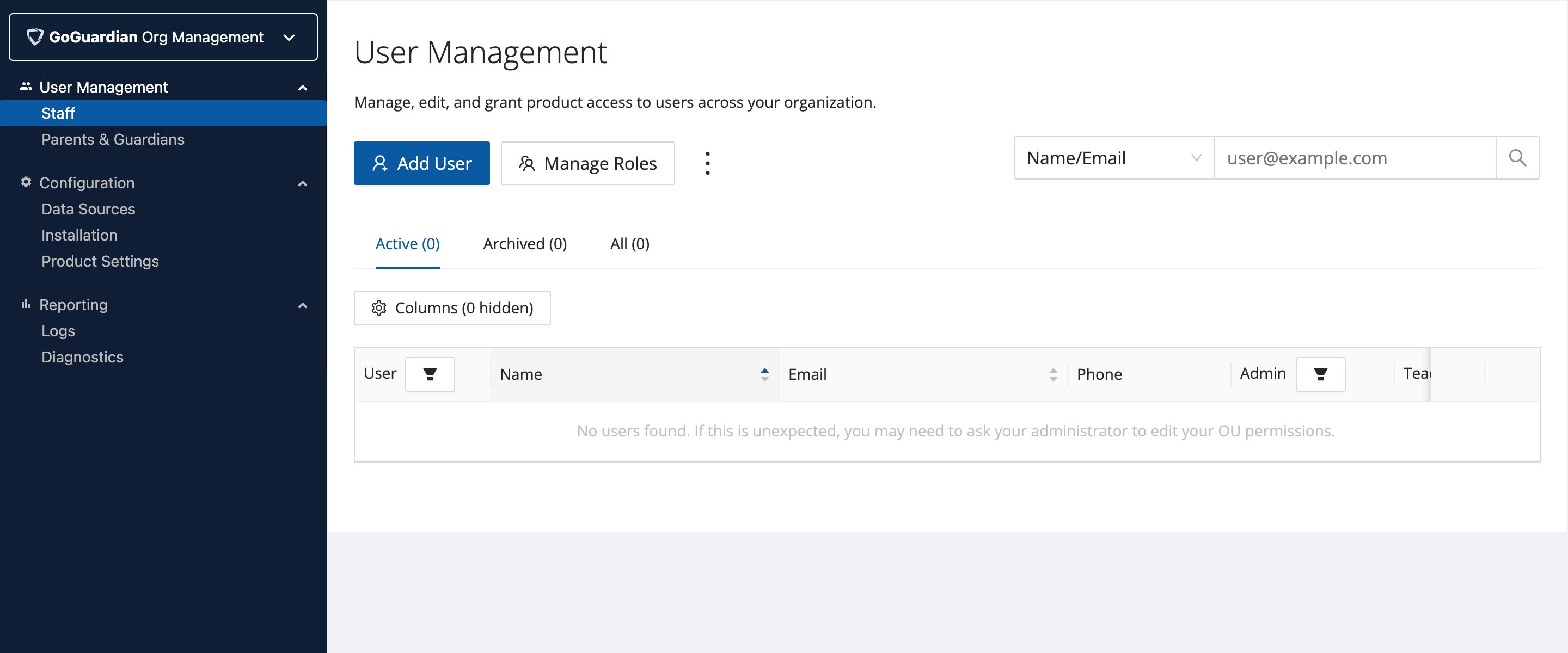 2. From the Role Management interface, click **+ Add Role**.
3. Enter a name for the role and configure its access permissions.
Roles can be renamed or duplicated at any time.
### Assign a Role to a User
1. Select **Edit** next to an individual's name in User Management.
2. Expand **GoGuardian Org Management** and then select **Role** to assign the new role.
Roles can also be assigned in bulk via CSV file upload.
### Delete a Role
1. Select the three-dot menu next to the role and choose **Delete**.
2. If users are assigned to the role being deleted, you will be prompted to reassign them before deletion completes.
2. From the Role Management interface, click **+ Add Role**.
3. Enter a name for the role and configure its access permissions.
Roles can be renamed or duplicated at any time.
### Assign a Role to a User
1. Select **Edit** next to an individual's name in User Management.
2. Expand **GoGuardian Org Management** and then select **Role** to assign the new role.
Roles can also be assigned in bulk via CSV file upload.
### Delete a Role
1. Select the three-dot menu next to the role and choose **Delete**.
2. If users are assigned to the role being deleted, you will be prompted to reassign them before deletion completes.