> ## Documentation Index
> Fetch the complete documentation index at: https://docs.goguardian.com/llms.txt
> Use this file to discover all available pages before exploring further.
# Verify the GoGuardian Extension Deployment
> Confirm that the GoGuardian and GoGuardian License extensions are installed and identify settings that affect activity review.
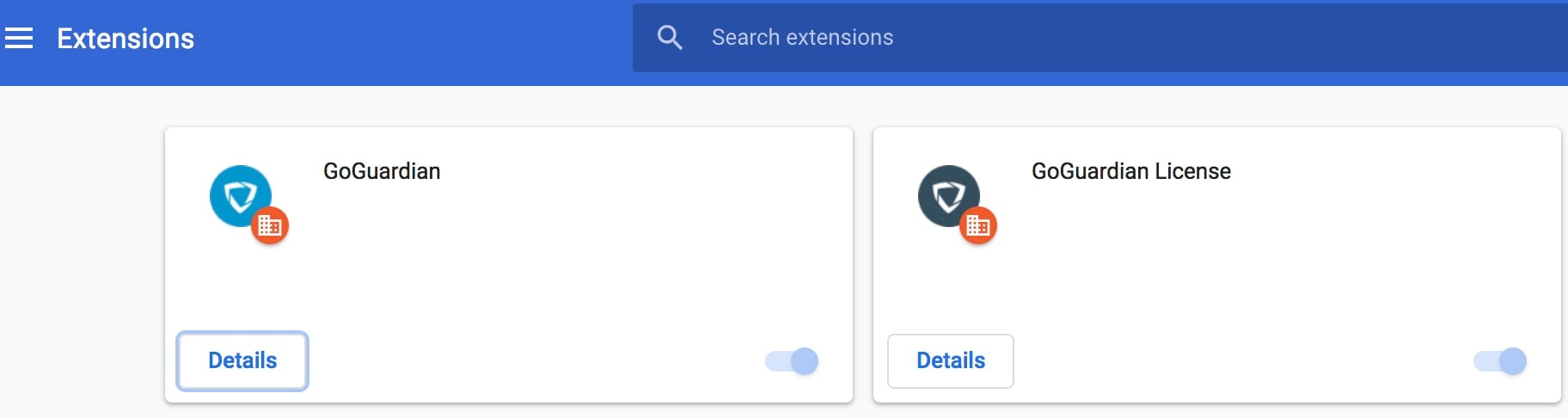
For any GoGuardian product to work, both the **GoGuardian** and **GoGuardian License** extensions must be installed for each student. GoGuardian recommends creating a test account (such as `teststudent@schooldistrict.org`) in the same OU as students for testing.
## Verify the Extensions
1. Sign in to a test or student account in the same OU where extensions are deployed.
2. Open Google Chrome and go to `chrome://extensions`.
3. Confirm that both the **GoGuardian** and **GoGuardian License** extensions are present and enabled.
If one or both extensions are missing, see the Deploy the Extensions article for deployment steps.
 ## Review Settings That Affect Activity Review
The GoGuardian extensions are always present if deployed, but activity review can be affected by settings configured at manage.goguardian.com. Access to GoGuardian Org Management is limited to GoGuardian Super Users or users with custom role access.
The following settings affect whether GoGuardian is actively reviewing activity:
* **Restrict extension filtering and monitoring to Chromebooks only** toggle, found at [manage.goguardian.com/products](https://manage.goguardian.com/products)
* **At Home Mode** settings and configured **In School Hours**, found at [manage.goguardian.com/products](https://manage.goguardian.com/products)
* **IP Ranges**, found at [manage.goguardian.com/products](https://manage.goguardian.com/products)
* **GoGuardian Teacher Session Restrictions** and **Enable Scheduling by Day**, found at [manage.goguardian.com/products/teacher/settings](https://manage.goguardian.com/products/teacher/settings)
See the Configure At Home Mode article for details on At Home Mode settings.
## Confirm Google Admin Console Settings
GoGuardian's recommended Google Admin Console best practice settings ensure each student is required to sign in to their managed school account and that settings affecting GoGuardian (such as Guest Mode, Incognito, and certificate management) are disabled.
See the Google Admin Console Best Practices article to confirm all recommended settings are in place for accounts with GoGuardian deployed.
## Review Settings That Affect Activity Review
The GoGuardian extensions are always present if deployed, but activity review can be affected by settings configured at manage.goguardian.com. Access to GoGuardian Org Management is limited to GoGuardian Super Users or users with custom role access.
The following settings affect whether GoGuardian is actively reviewing activity:
* **Restrict extension filtering and monitoring to Chromebooks only** toggle, found at [manage.goguardian.com/products](https://manage.goguardian.com/products)
* **At Home Mode** settings and configured **In School Hours**, found at [manage.goguardian.com/products](https://manage.goguardian.com/products)
* **IP Ranges**, found at [manage.goguardian.com/products](https://manage.goguardian.com/products)
* **GoGuardian Teacher Session Restrictions** and **Enable Scheduling by Day**, found at [manage.goguardian.com/products/teacher/settings](https://manage.goguardian.com/products/teacher/settings)
See the Configure At Home Mode article for details on At Home Mode settings.
## Confirm Google Admin Console Settings
GoGuardian's recommended Google Admin Console best practice settings ensure each student is required to sign in to their managed school account and that settings affecting GoGuardian (such as Guest Mode, Incognito, and certificate management) are disabled.
See the Google Admin Console Best Practices article to confirm all recommended settings are in place for accounts with GoGuardian deployed.