> ## Documentation Index
> Fetch the complete documentation index at: https://docs.goguardian.com/llms.txt
> Use this file to discover all available pages before exploring further.

# Archive Class

> Move a class out of your active list while preserving all historical student data and assignments for future reference or restoration.

Pear Assessment allows teachers to archive classes to maintain organization and focus on current coursework. To archive a class, a teacher can first sign in to their account and navigate to the **Classes** section. Selecting the desired class and clicking on the **Settings** gear icon reveals an **Archive Class** option. Confirming this selection removes the class from the active list but ensures it can be accessed and restored later through the **Archived Classes** section. This archived status allows teachers to retrieve historical data or materials whenever needed.

## Archive Class in Pear Assessment

Pear Assessment stores classes in an archived state instead of deleting them, allowing access to year-over-year student data. Teachers can manually archive classes, except in districts where enrollment is managed through a Student Information System (SIS) via integrations like Clever, Canvas, Schoology, etc.

If your district utilizes an active roster integration besides Google Classroom, archiving a class will require using that specific integration method to archive the classes. This ensures the changes are synced correctly with Pear Assessment.

## Archive Class

1. Click **Manage Class** in the navigation menu.
2. Click on a class name.

<img src="https://mintcdn.com/goguardian/4b0Jb9yTHXXifnuG/images/screenshots/archive-class/step-01.png?fit=max&auto=format&n=4b0Jb9yTHXXifnuG&q=85&s=cc9d4fbf903126a725646db43fd1de56" alt="Click on a class name." width="3452" height="1982" data-path="images/screenshots/archive-class/step-01.png" />

3. Click **Actions** > **Archive Class**.

<img src="https://mintcdn.com/goguardian/4b0Jb9yTHXXifnuG/images/screenshots/archive-class/step-02.png?fit=max&auto=format&n=4b0Jb9yTHXXifnuG&q=85&s=ae6e5b4cf6324656e9e37a3c81cd9bc7" alt="Click Actions > Archive Class." data-og-width="3454" width="3454" data-og-height="2154" height="2154" data-path="images/screenshots/archive-class/step-02.png" data-optimize="true" data-opv="3" srcset="https://mintcdn.com/goguardian/4b0Jb9yTHXXifnuG/images/screenshots/archive-class/step-02.png?w=280&fit=max&auto=format&n=4b0Jb9yTHXXifnuG&q=85&s=2d727bfd5a0e53f487d5bc58f6b344a6 280w, https://mintcdn.com/goguardian/4b0Jb9yTHXXifnuG/images/screenshots/archive-class/step-02.png?w=560&fit=max&auto=format&n=4b0Jb9yTHXXifnuG&q=85&s=556aabe2ec1bc492ec3086d1f5c18b11 560w, https://mintcdn.com/goguardian/4b0Jb9yTHXXifnuG/images/screenshots/archive-class/step-02.png?w=840&fit=max&auto=format&n=4b0Jb9yTHXXifnuG&q=85&s=e224cfc5548c094c123b07e3b26fa136 840w, https://mintcdn.com/goguardian/4b0Jb9yTHXXifnuG/images/screenshots/archive-class/step-02.png?w=1100&fit=max&auto=format&n=4b0Jb9yTHXXifnuG&q=85&s=274fa21213670aaa203dceca856453bc 1100w, https://mintcdn.com/goguardian/4b0Jb9yTHXXifnuG/images/screenshots/archive-class/step-02.png?w=1650&fit=max&auto=format&n=4b0Jb9yTHXXifnuG&q=85&s=5a84d7e851859a72765930a9df64a863 1650w, https://mintcdn.com/goguardian/4b0Jb9yTHXXifnuG/images/screenshots/archive-class/step-02.png?w=2500&fit=max&auto=format&n=4b0Jb9yTHXXifnuG&q=85&s=27d4ed3b4df382d47a27981e08b69fd2 2500w" />

4. In the confirmation pop-up, type "ARCHIVE" and click **Yes, Archive**.
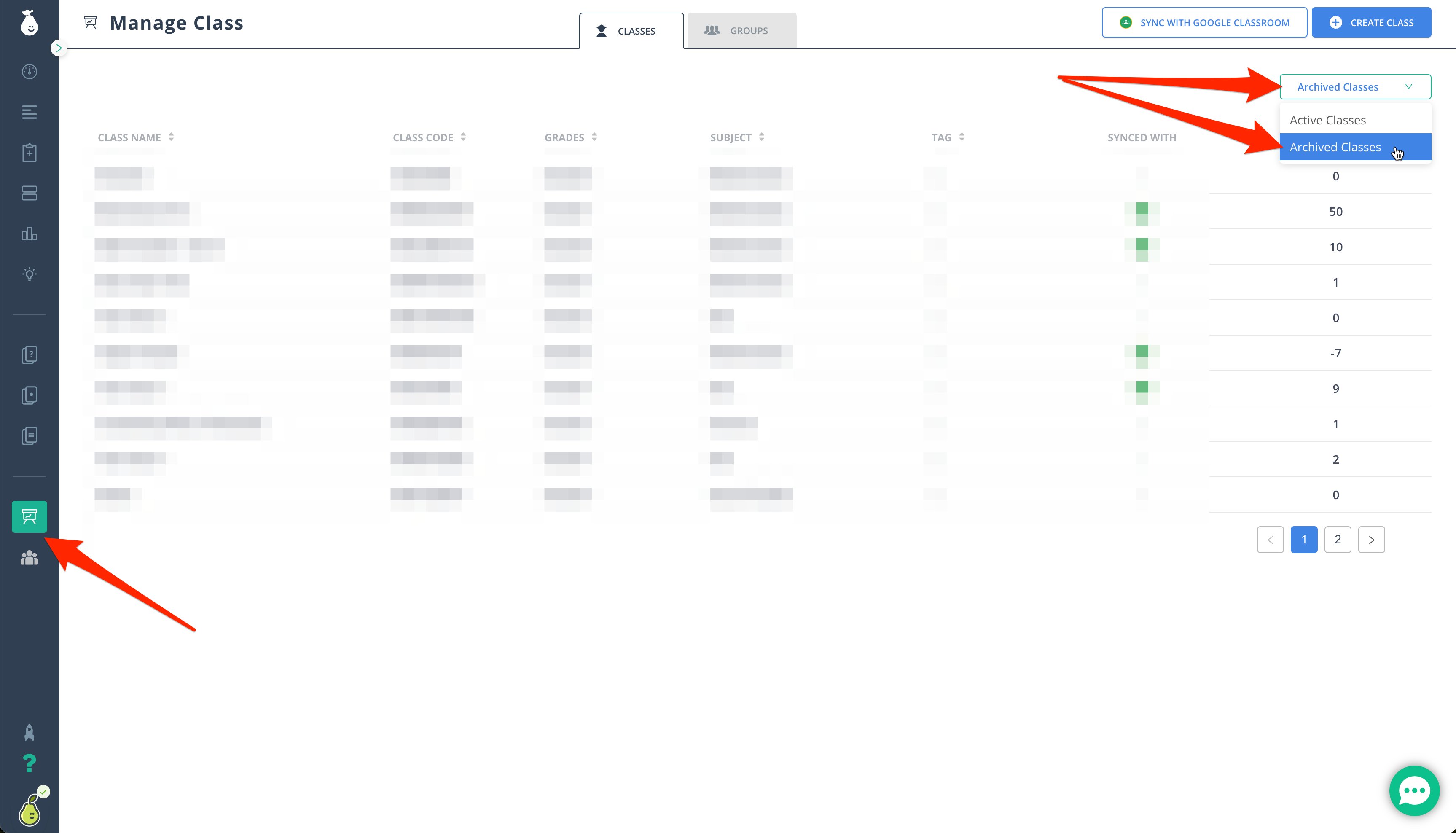
5. The archived class is now accessible under the **Archived Classes** dropdown.

<img src="https://mintcdn.com/goguardian/4b0Jb9yTHXXifnuG/images/screenshots/archive-class/step-03.png?fit=max&auto=format&n=4b0Jb9yTHXXifnuG&q=85&s=900478f5506b918b2b8b57fe192a7d88" alt="Archive Class" width="1198" height="570" data-path="images/screenshots/archive-class/step-03.png" />

<img src="https://mintcdn.com/goguardian/4b0Jb9yTHXXifnuG/images/screenshots/archive-class/step-04.png?fit=max&auto=format&n=4b0Jb9yTHXXifnuG&q=85&s=85d2920a40db77711f4d4cc5eae197f6" alt="Archive Class" width="3454" height="1976" data-path="images/screenshots/archive-class/step-04.png" />
