> ## Documentation Index
> Fetch the complete documentation index at: https://docs.goguardian.com/llms.txt
> Use this file to discover all available pages before exploring further.
# Assign a Test
> Assign tests to students from the Test Library using Quick Assign and configure settings for behavior, anti-cheating, and more
In Pear Assessment's Test Library, you can assign tests to students using the Quick Assign button. Tests support shuffled questions, anti-cheating measures, multiple attempts, password protection, and more.
## Assign a Test
1. In the navigation menu, click **Tests** under **Library**.
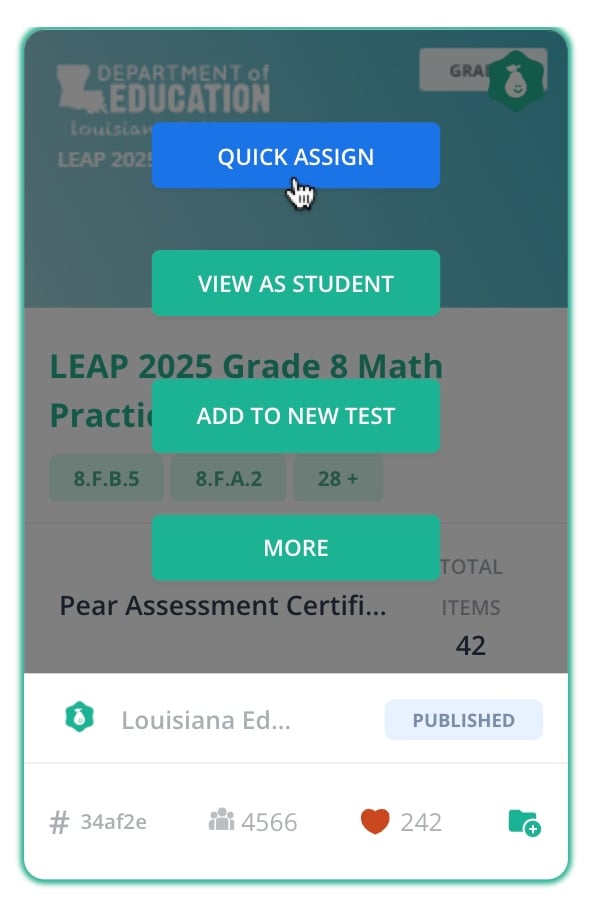
2. Hover over a test and click **Quick Assign**.
 3. Review each of the following five tabs and configure your preferred settings:
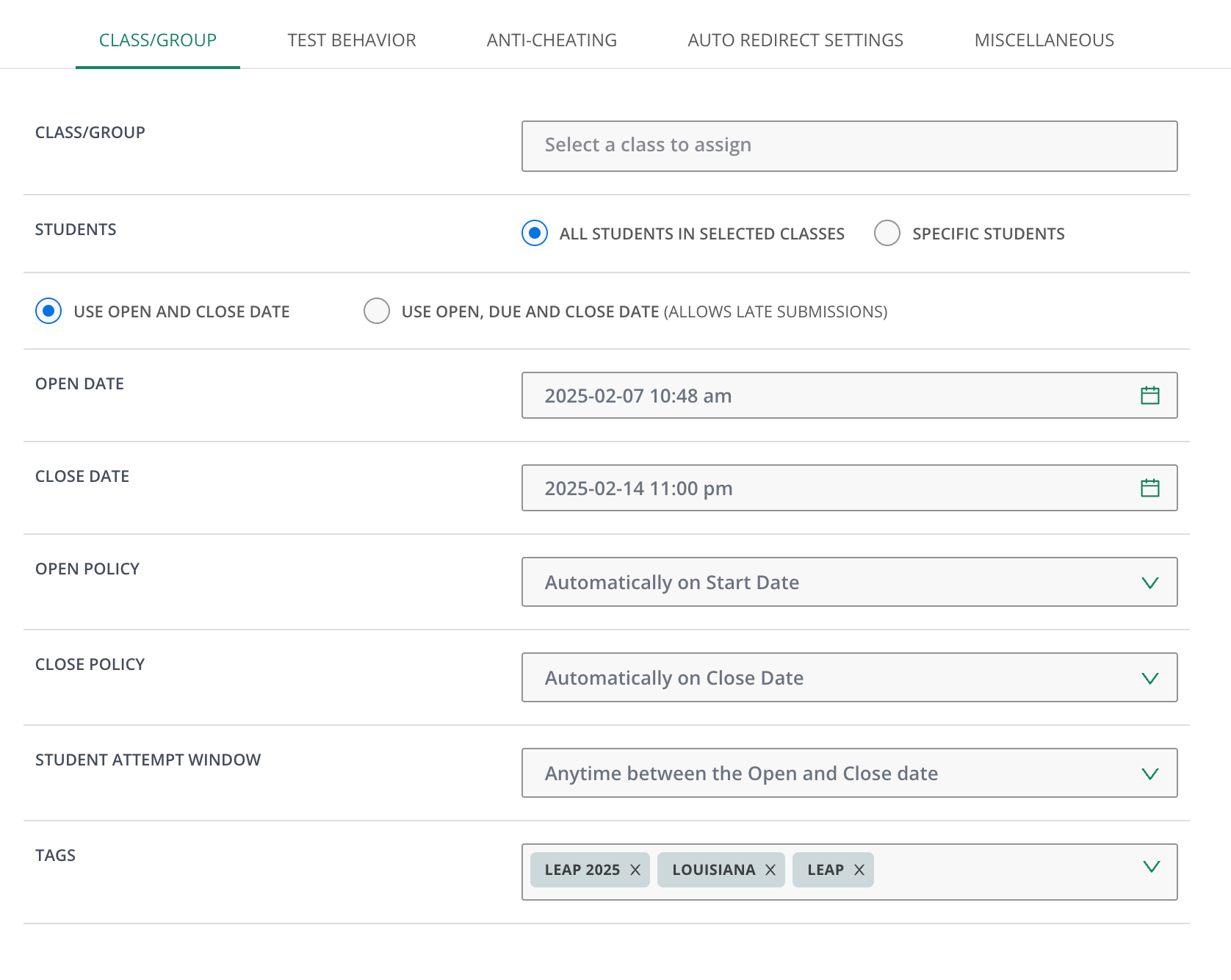
* **Class/Group**
* Class/Group
* Students: supports all or specific students
* Open Date
* Close Date
* Open Policy: allows the teacher to assign the assessment now but gives access to classes when they are ready
* Close Policy: allows the teacher to keep the assessment open until all students finish. This does not affect reports or data
* Student Attempt Window
* Tags
3. Review each of the following five tabs and configure your preferred settings:
* **Class/Group**
* Class/Group
* Students: supports all or specific students
* Open Date
* Close Date
* Open Policy: allows the teacher to assign the assessment now but gives access to classes when they are ready
* Close Policy: allows the teacher to keep the assessment open until all students finish. This does not affect reports or data
* Student Attempt Window
* Tags
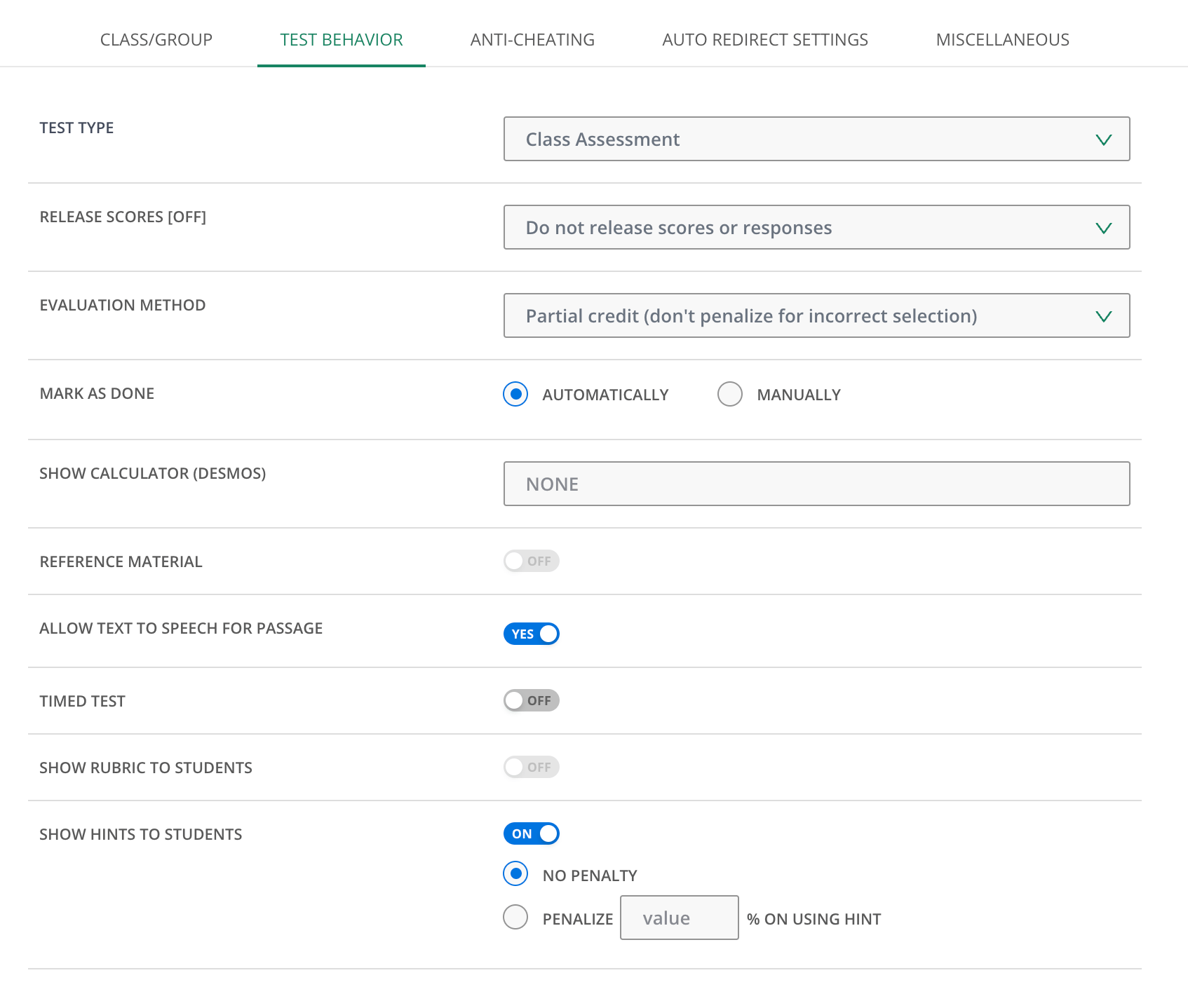
 * **Test Behavior**
* Test Type: a Class Assessment is a graded assessment with results moving to a destination gradebook. A Practice Assessment is an ungraded assessment with no grades recorded. This option is appropriate for practice tests and instruction-only assignments. Homework and Quiz test types are also available for premium users
* Release Scores
* Evaluation Method
* Mark as Done
* Show Calculator
* Reference Material
* Allow Text to Speech for Passage
* Timed Test
* Show Rubric to Students
* Show Hints to Students
* **Test Behavior**
* Test Type: a Class Assessment is a graded assessment with results moving to a destination gradebook. A Practice Assessment is an ungraded assessment with no grades recorded. This option is appropriate for practice tests and instruction-only assignments. Homework and Quiz test types are also available for premium users
* Release Scores
* Evaluation Method
* Mark as Done
* Show Calculator
* Reference Material
* Allow Text to Speech for Passage
* Timed Test
* Show Rubric to Students
* Show Hints to Students
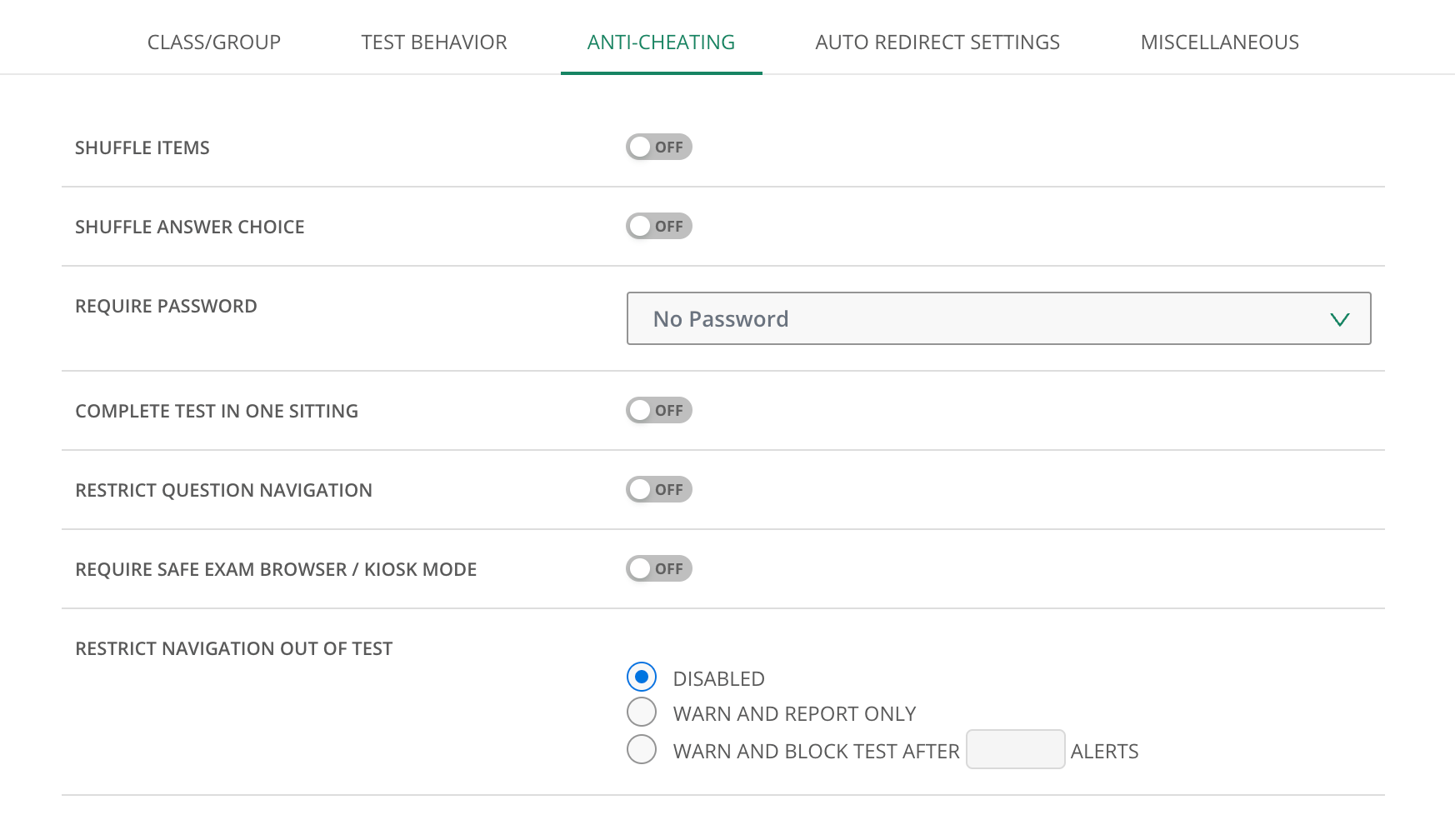
 * **Anti-Cheating**
* Shuffle Items
* Shuffle Answer Choice
* Require Password
* Complete Test in One Setting
* Restrict Question Navigation
* Require Safe Exam Browser/Kiosk Mode
* Restrict Navigation Out of Test
* **Anti-Cheating**
* Shuffle Items
* Shuffle Answer Choice
* Require Password
* Complete Test in One Setting
* Restrict Question Navigation
* Require Safe Exam Browser/Kiosk Mode
* Restrict Navigation Out of Test
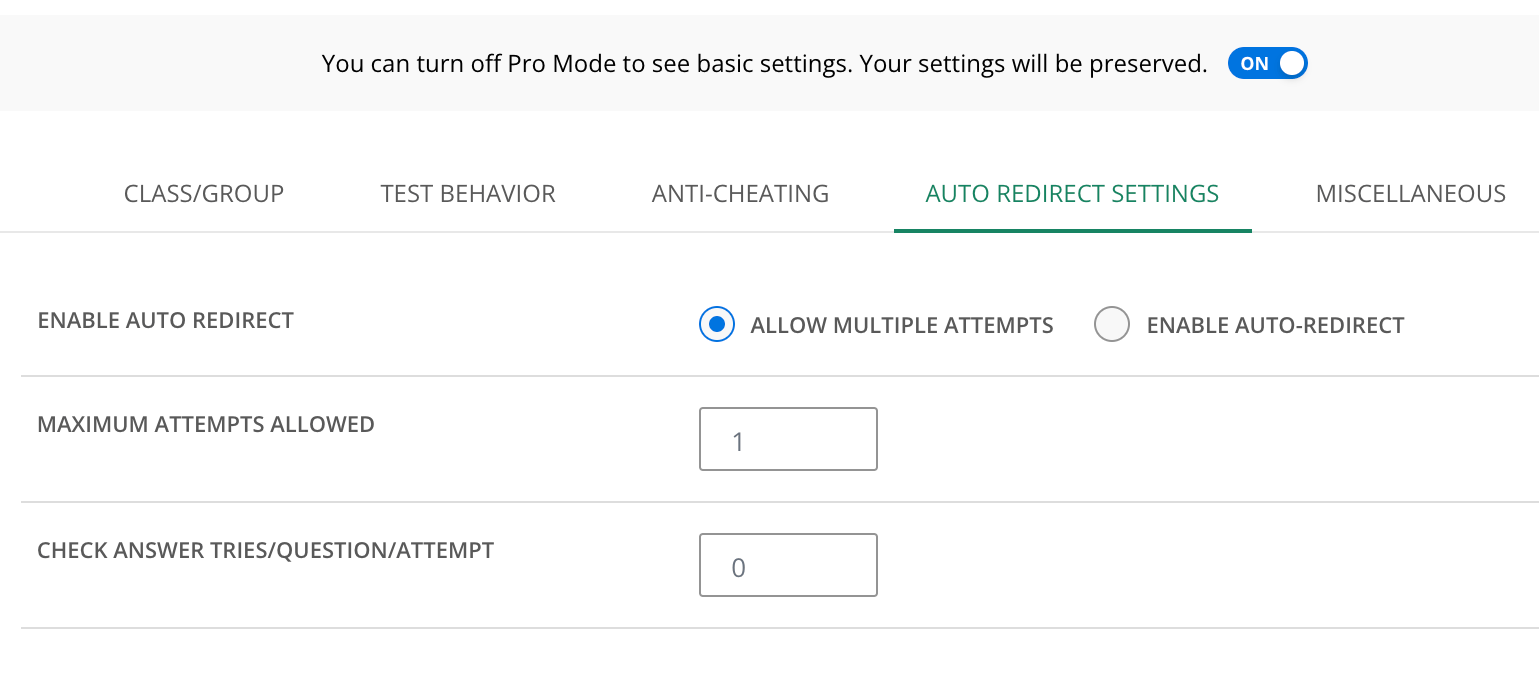
 * **Auto Redirect Settings**
* Enable Auto Redirect (Multiple Attempts)
* Maximum Attempts Allowed
* Check Answer Tries/Question/Attempt
* **Auto Redirect Settings**
* Enable Auto Redirect (Multiple Attempts)
* Maximum Attempts Allowed
* Check Answer Tries/Question/Attempt
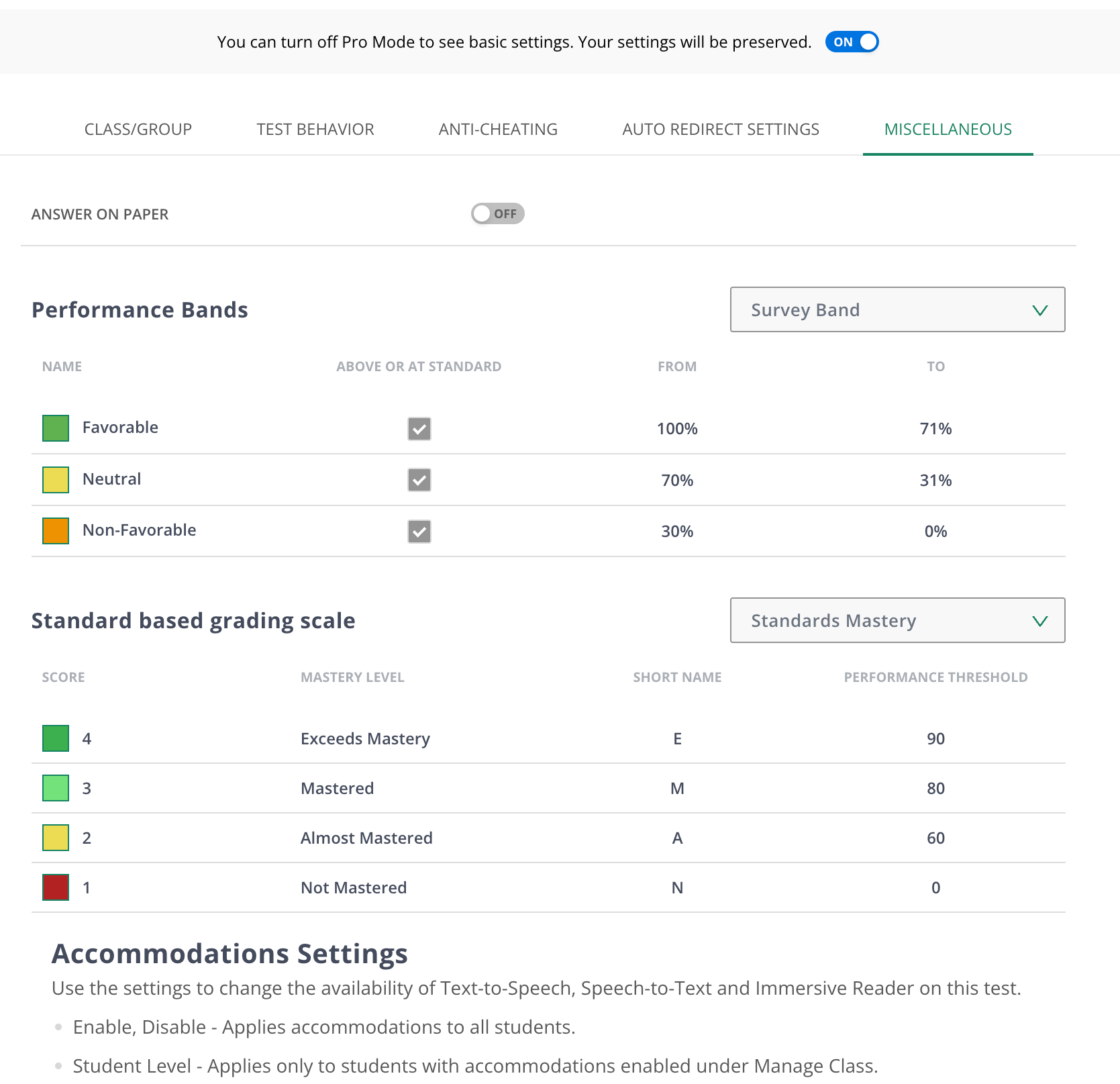
 * **Miscellaneous**
* Answer on Paper
* Performance Bands
* Standard-Based Grading Scale
* Accommodations Settings
* Accessibility
Configure only the basic settings by toggling off **Pro Mode** above the tabs.
* **Miscellaneous**
* Answer on Paper
* Performance Bands
* Standard-Based Grading Scale
* Accommodations Settings
* Accessibility
Configure only the basic settings by toggling off **Pro Mode** above the tabs.
 4. Click **Assign**.