> ## Documentation Index
> Fetch the complete documentation index at: https://docs.goguardian.com/llms.txt
> Use this file to discover all available pages before exploring further.
# Common Assessment: Admin Assigned
> Assign a common assessment to classes and students as a district administrator in Pear Assessment
Administrators can assign common assessments directly to classes and students, then let teachers open and administer them. Before proceeding, review [Common Assessment: Teacher vs Admin Assigning](/products/pear-assessment/teacher-vs-admin-assigning) to confirm that admin-assigned assessments are the right fit for your district.
## Assign Assessments as Admin
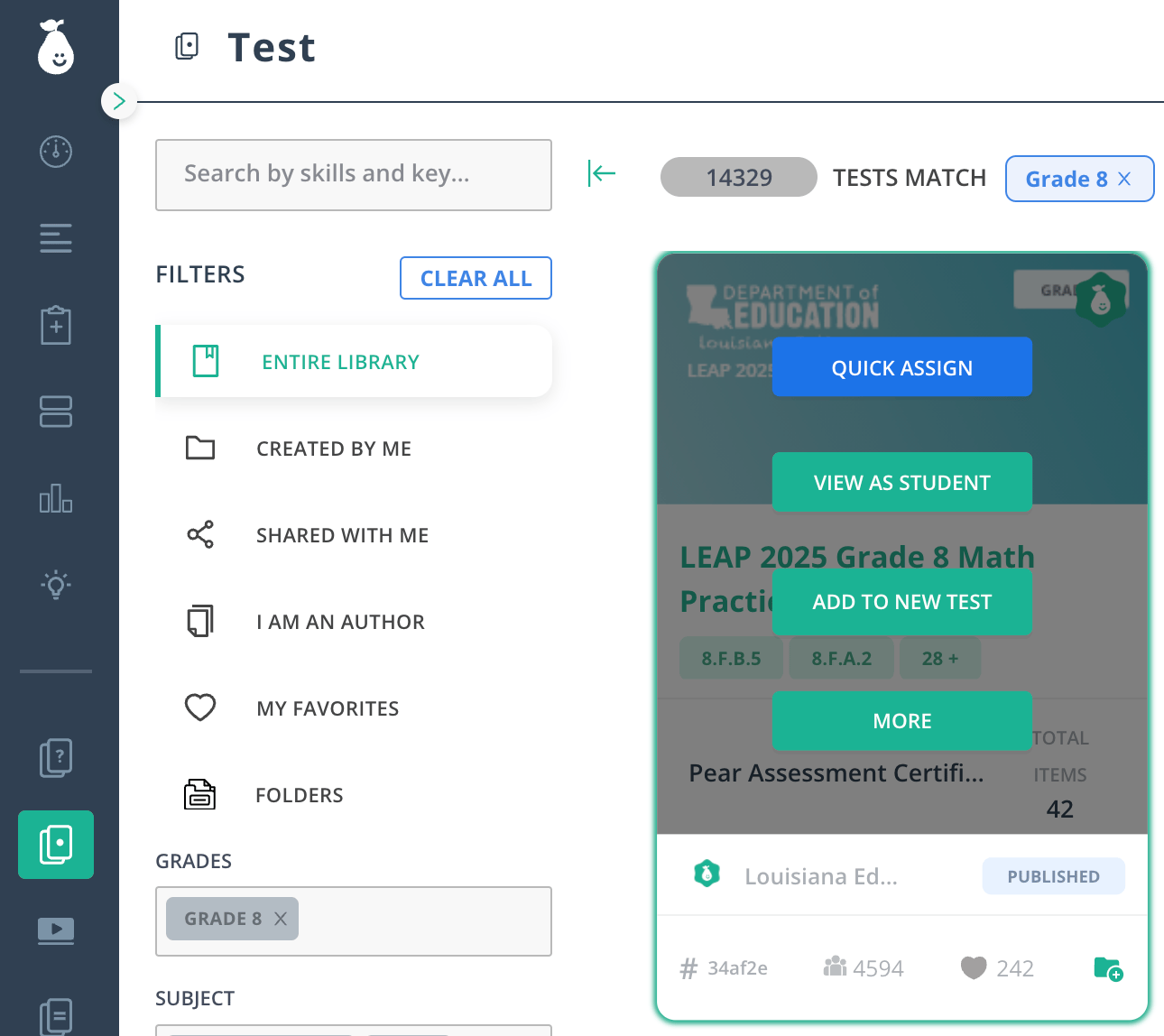
1. Click **Test** in the navigation menu.
2. Hover over the assessment and click **Quick Assign**.
 3. Use the filters to select the classes you need under **Class/Group**.
If your district uses Google or manually created teacher rosters, these filters may not be accurate because fields are populated manually. Teachers can [update their manually created classes](/products/pear-assessment/manage-class-edit-class-details) at any time.
4. Select all students or specific students under **Students**.
5. Decide whether to allow late submissions on the assignment.
6. Select the following settings:
* Open Date
* Close Date
* Open Policy
* Close Policy
* Student Attempt Window
* Tags
Opening the assessment manually: either as a teacher or admin: works best because it keeps the assessment hidden from students until the exact moment they should take it. Using [tags](/products/pear-assessment/tags-help-admins-and-teachers) is also strongly recommended. You can tag classes to something more specific, such as ELA 1001, to assign to the correct groups.
7. Choose any tab at the top to update test settings, including the [Anti-Cheating](/products/pear-assessment/set-up-anti-cheating-settings) tab.
3. Use the filters to select the classes you need under **Class/Group**.
If your district uses Google or manually created teacher rosters, these filters may not be accurate because fields are populated manually. Teachers can [update their manually created classes](/products/pear-assessment/manage-class-edit-class-details) at any time.
4. Select all students or specific students under **Students**.
5. Decide whether to allow late submissions on the assignment.
6. Select the following settings:
* Open Date
* Close Date
* Open Policy
* Close Policy
* Student Attempt Window
* Tags
Opening the assessment manually: either as a teacher or admin: works best because it keeps the assessment hidden from students until the exact moment they should take it. Using [tags](/products/pear-assessment/tags-help-admins-and-teachers) is also strongly recommended. You can tag classes to something more specific, such as ELA 1001, to assign to the correct groups.
7. Choose any tab at the top to update test settings, including the [Anti-Cheating](/products/pear-assessment/set-up-anti-cheating-settings) tab.
 If you plan to reuse these settings, click **Saved Settings** in the top right to save them for future assignments.
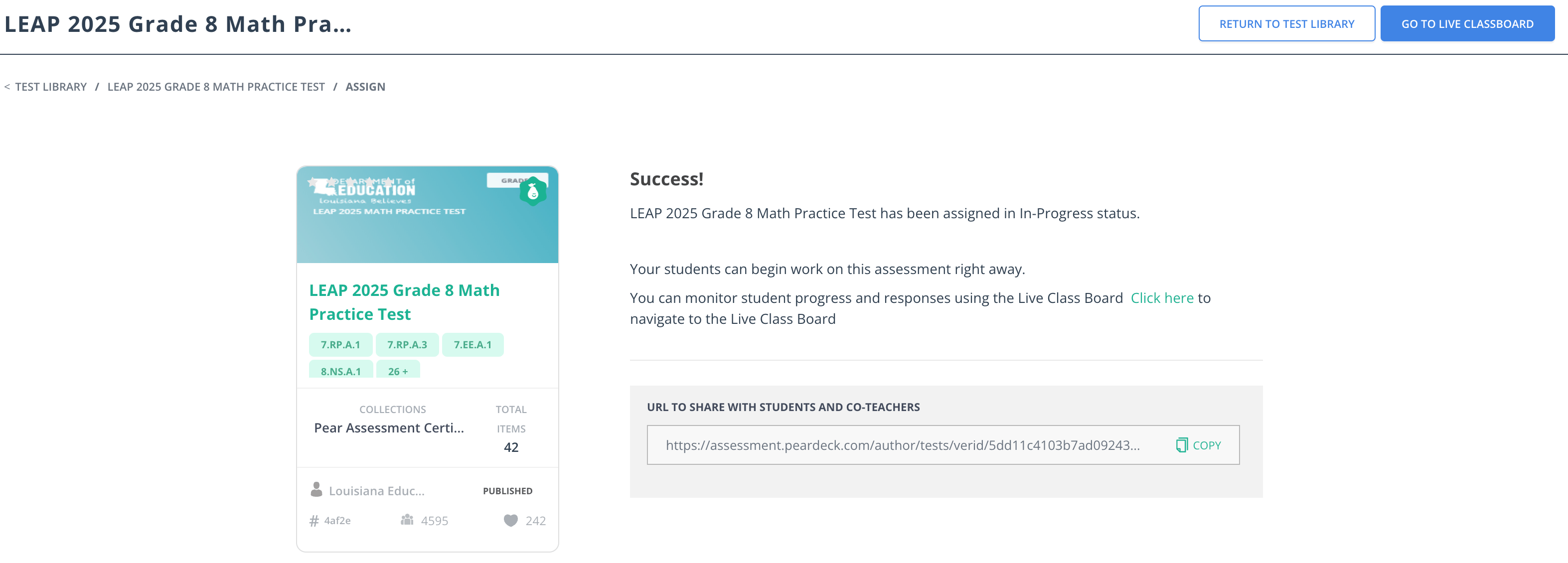
8. Click **Assign**. The confirmation screen lists the classes to which you have assigned the common assessment. Students can begin working on the assessment immediately or when their teacher or admin opens it for them.
If you plan to reuse these settings, click **Saved Settings** in the top right to save them for future assignments.
8. Click **Assign**. The confirmation screen lists the classes to which you have assigned the common assessment. Students can begin working on the assessment immediately or when their teacher or admin opens it for them.
 Because this assessment is admin-assigned, keep it private (the default) or visible only to other admins and coaches without student rosters.
9. The next step is for teachers to open and administer the common assessment. See [Managing Students on a Live Assessment](/products/pear-assessment/common-assessment-managing-students-live) for details. District admins can also monitor common assessments after assignment: see [Common Assessment Status Tracking](/products/pear-assessment/common-assessment-status-tracking) for more information.
## Resources
Compare teacher-assigned and admin-assigned common assessments to choose the right approach for your district.
Learn how teachers open, monitor, and close a common assessment session.
Track the status of admin-assigned common assessments across your district.
Use tags to organize assessments and assign them to specific classes or groups.
Because this assessment is admin-assigned, keep it private (the default) or visible only to other admins and coaches without student rosters.
9. The next step is for teachers to open and administer the common assessment. See [Managing Students on a Live Assessment](/products/pear-assessment/common-assessment-managing-students-live) for details. District admins can also monitor common assessments after assignment: see [Common Assessment Status Tracking](/products/pear-assessment/common-assessment-status-tracking) for more information.
## Resources
Compare teacher-assigned and admin-assigned common assessments to choose the right approach for your district.
Learn how teachers open, monitor, and close a common assessment session.
Track the status of admin-assigned common assessments across your district.
Use tags to organize assessments and assign them to specific classes or groups.