> ## Documentation Index
> Fetch the complete documentation index at: https://docs.goguardian.com/llms.txt
> Use this file to discover all available pages before exploring further.
# Change Your School
> How teachers can add a new school or remove an old school from their Pear Assessment account
Teachers moving to a different school can update their preferred school in the **My Profile** section of their Pear Assessment account. If you have active classes and assignments to transfer, contact Pear Assessment Support and provide your username and the name of your new school or district.
If you have added students but have not given them assignments, archive those classes before following the steps below.
## Add a New School to Your Account
These steps are only available to teachers without active classes.
1. Click **My Profile** in the navigation menu.
2. Click **Add School** in the **My Schools** row.
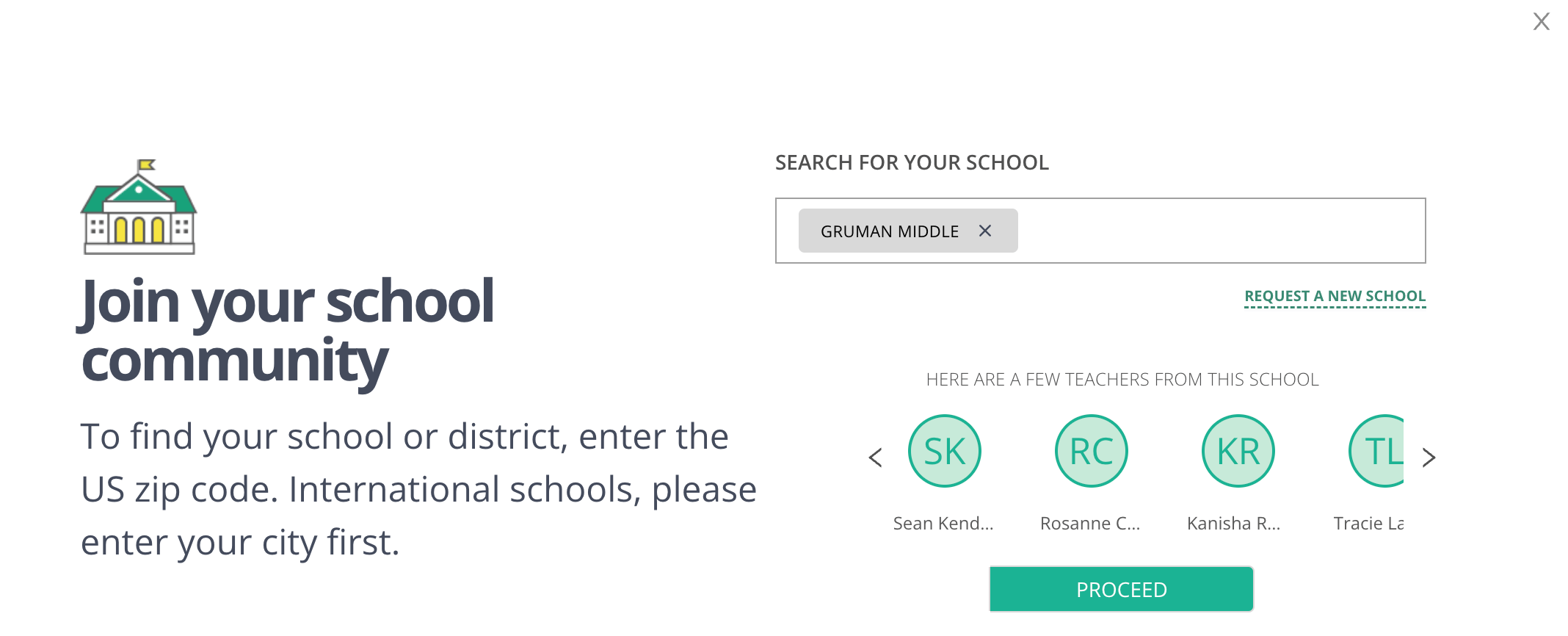
3. Enter your school or district name to search for it. If your school does not appear, click **Request a New School** and complete the fields.
4. Review the existing teachers at the school or district and confirm it is the correct destination.
5. Click **Proceed**. You can find your new class under the **Manage Class** section in the navigation menu.

 ## Remove Your Old School from Your Account
1. Click **My Profile** in the navigation menu.
2. Click the **X** button next to your old school's name in the **My Schools** row.
3. Enter **REMOVE** when prompted to confirm your changes.
4. Click **Yes, Remove**.
5. Confirm the removal notification in the lower-left of your screen and verify the school no longer appears under **My Schools**.
## Remove Your Old School from Your Account
1. Click **My Profile** in the navigation menu.
2. Click the **X** button next to your old school's name in the **My Schools** row.
3. Enter **REMOVE** when prompted to confirm your changes.
4. Click **Yes, Remove**.
5. Confirm the removal notification in the lower-left of your screen and verify the school no longer appears under **My Schools**.

 ## Resources
Learn about Pear Assessment features and how to get started.
## Resources
Learn about Pear Assessment features and how to get started.