> ## Documentation Index
> Fetch the complete documentation index at: https://docs.goguardian.com/llms.txt
> Use this file to discover all available pages before exploring further.
# Create Bilingual Tests
> Author test items in multiple languages and let students choose their preferred language when taking an assessment
Pear Assessment supports bilingual authoring so students can take assessments in their preferred language. You author each item in the languages you want to offer: English and Spanish are supported: then enable Multi-Language in the test settings. No automatic translation is applied. each language version must be written manually.
## Author Items in Multiple Languages
1. Click **Item Bank** in the navigation menu.
2. Click **New Item**.
3. Click your preferred question type.
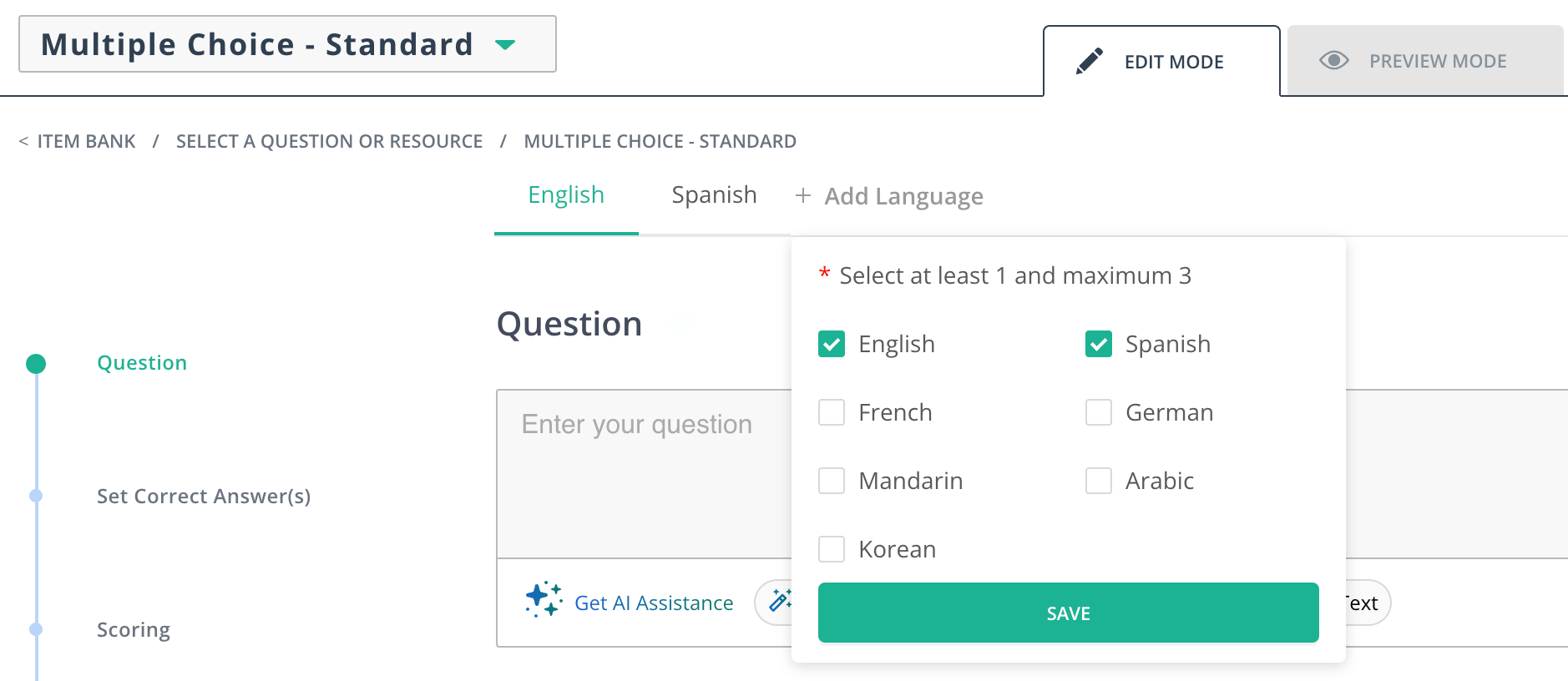
4. Click **+ Add Language** under **Edit Mode** > **Question**.
5. Select your preferred languages.
6. Click **Save**.
 ## Enable Multi-Language on a Test
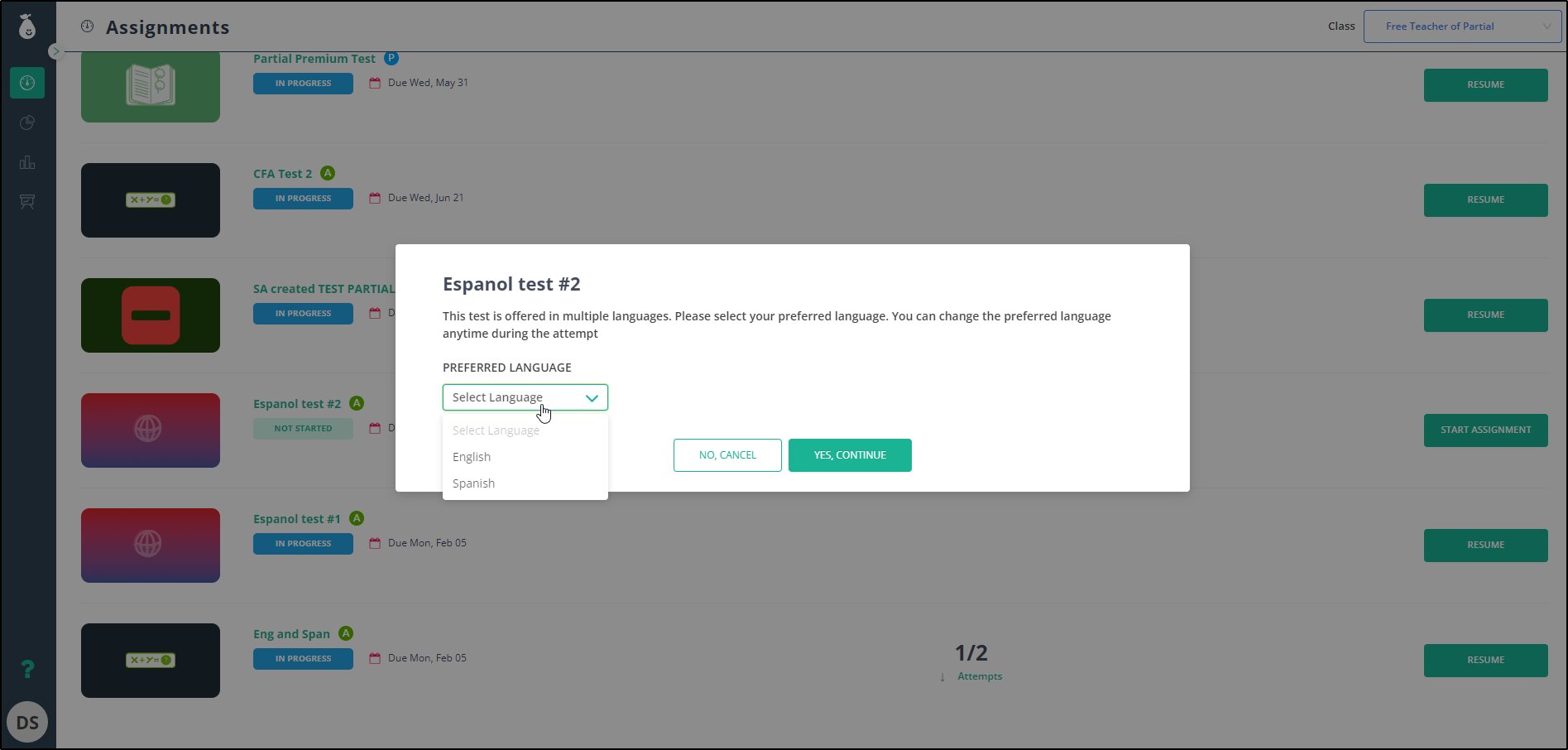
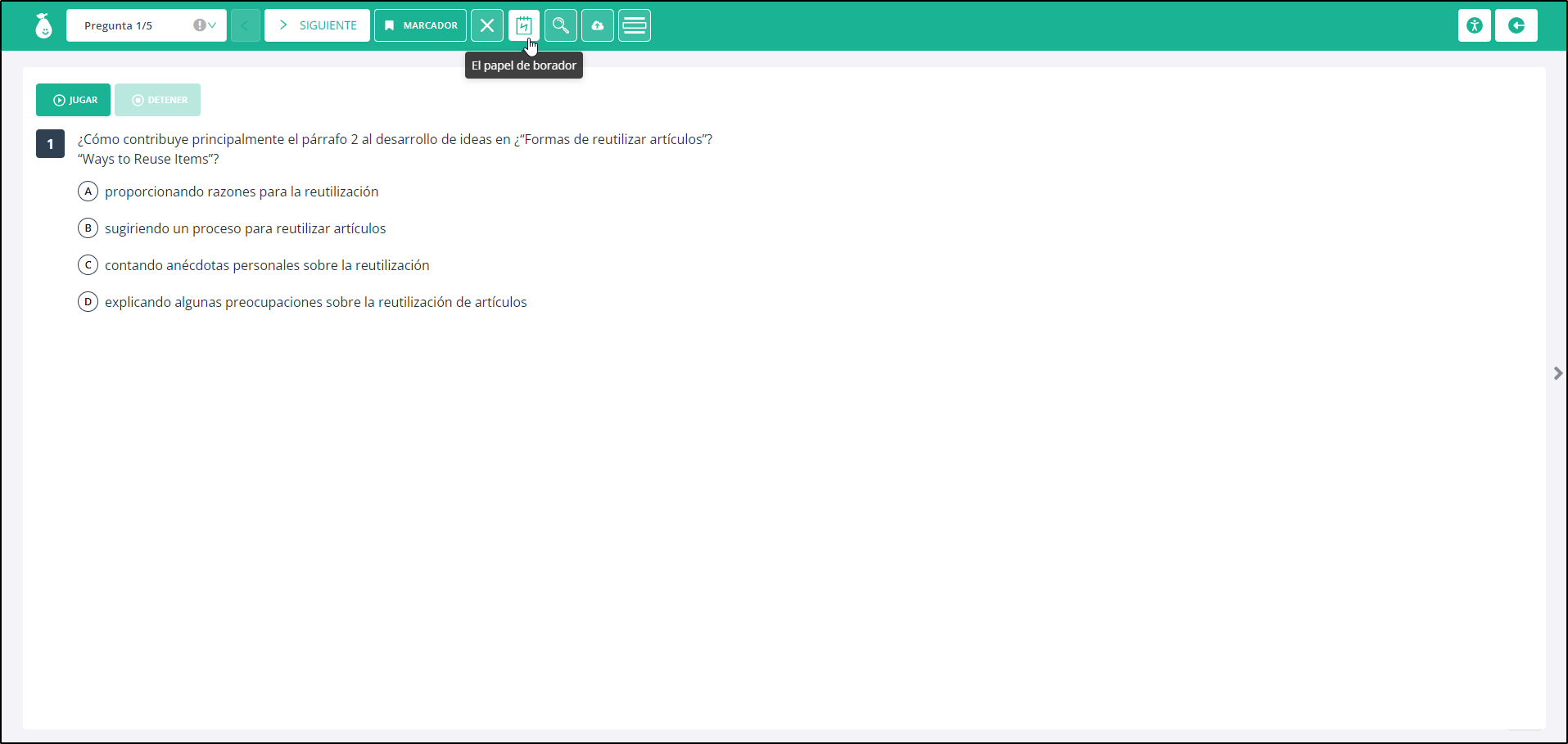
You can let students choose their preferred language on a test by enabling the setting in test settings.
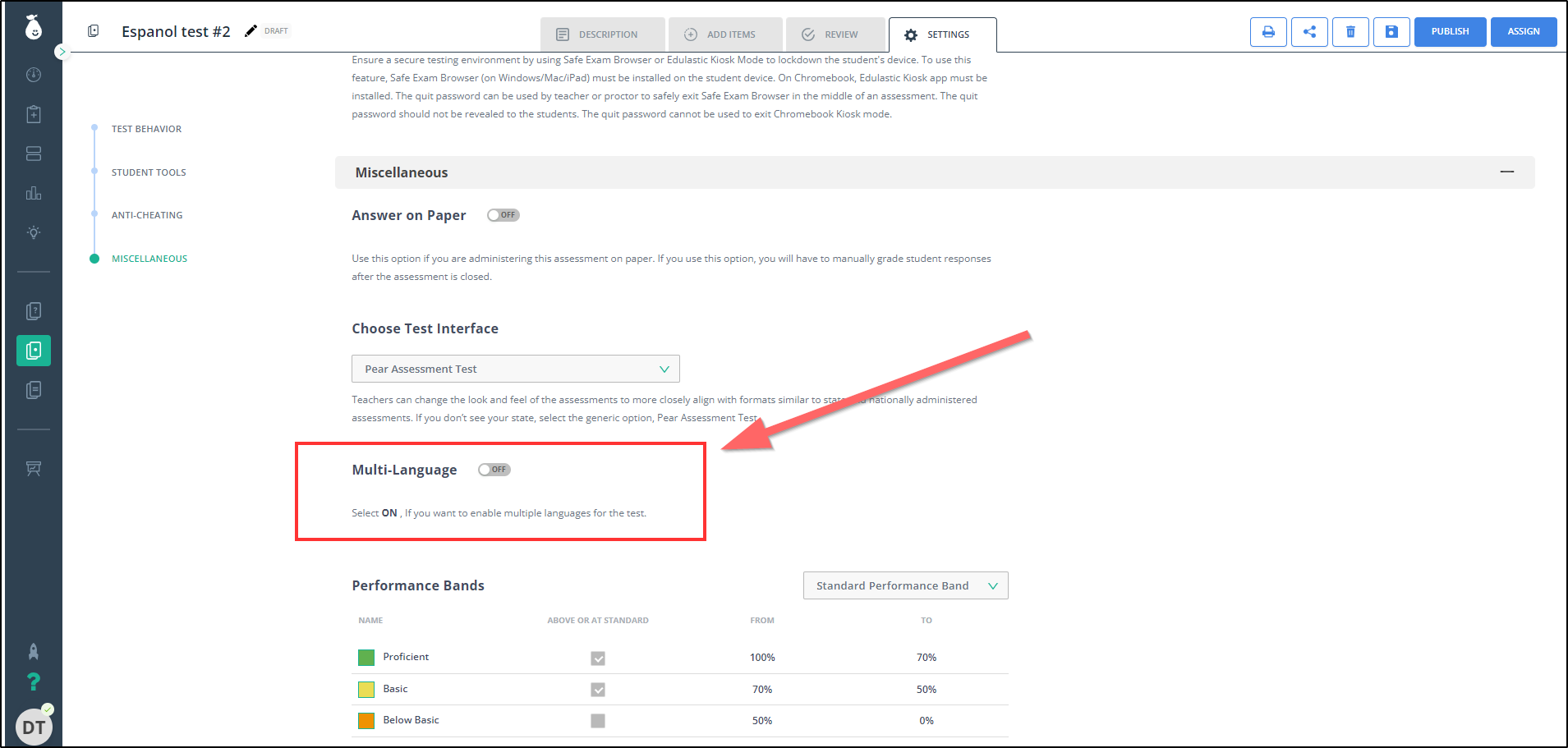
1. Open a test and click the **Settings** tab.
2. Scroll down to **Miscellaneous**.
3. Enable **Multi-Language**.
4. **Save** your change.
## Enable Multi-Language on a Test
You can let students choose their preferred language on a test by enabling the setting in test settings.
1. Open a test and click the **Settings** tab.
2. Scroll down to **Miscellaneous**.
3. Enable **Multi-Language**.
4. **Save** your change.
 ## FAQ
### Will This Auto-Translate My Items?
No. Items must be authored in each language you want to offer. Enabling Multi-Language on a test does not auto-translate existing content.
### Can I Use This Feature with All Item Types?
Multi-Language is supported for the following item types:
* Multiple Choice
* Multiple Selection
* Matching Tables
* Classification
* Re-sequence
* Essay Rich Text
* Essay Plain Text
* Sentence Response
* Math types (except math-text-dropdown)
* Multipart with supported types
* Passage
* Video
* Text
## Resources
## FAQ
### Will This Auto-Translate My Items?
No. Items must be authored in each language you want to offer. Enabling Multi-Language on a test does not auto-translate existing content.
### Can I Use This Feature with All Item Types?
Multi-Language is supported for the following item types:
* Multiple Choice
* Multiple Selection
* Matching Tables
* Classification
* Re-sequence
* Essay Rich Text
* Essay Plain Text
* Sentence Response
* Math types (except math-text-dropdown)
* Multipart with supported types
* Passage
* Video
* Text
## Resources