> ## Documentation Index
> Fetch the complete documentation index at: https://docs.goguardian.com/llms.txt
> Use this file to discover all available pages before exploring further.
# Create Classes and Add Students
> Create a class in Pear Assessment and add students by syncing Google Classroom, sharing a class code, or uploading a roster
Setting up a class in Pear Assessment takes just a few steps. Once your class exists, you can bring students in through Google Classroom, a class code, or a manually uploaded roster: whichever fits your workflow.
## Create a Class
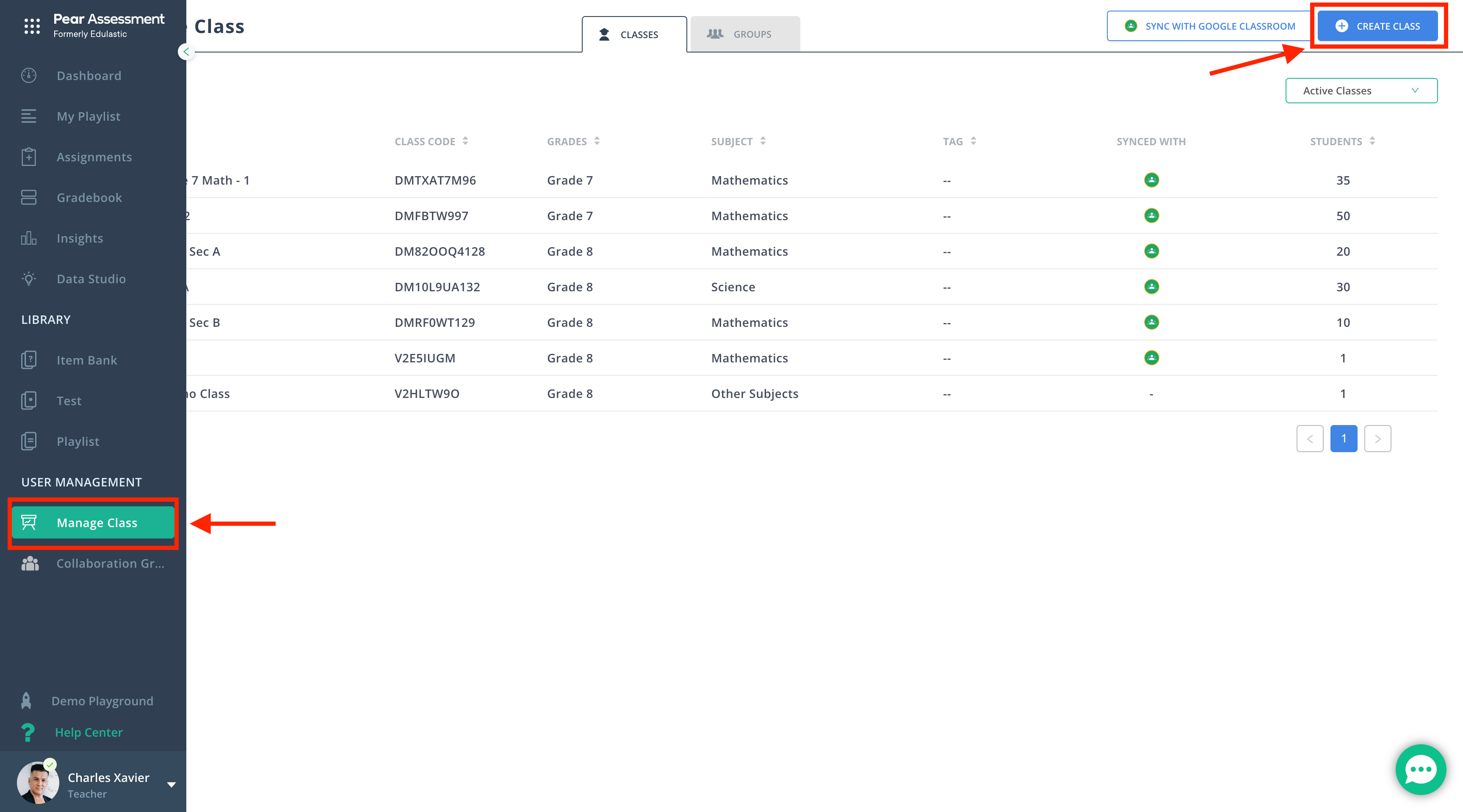
1. Click **Manage Class** in the navigation menu.
2. Click **Create Class**.
 3. Change the class avatar to your preferred one for easy recognition.
4. Fill out the following fields:
* Class Name
* Grade
* Subject
* Standard Sets
* School
5. Expand **Advanced Settings** to add a start and end date, course, and tags (optional).
6. Click **Create Class**.
## Add Students
You can add students to a class in one of three ways:
* Sync with Google Classroom
* Class Code
* Manually uploaded students
### Sync with Google Classroom
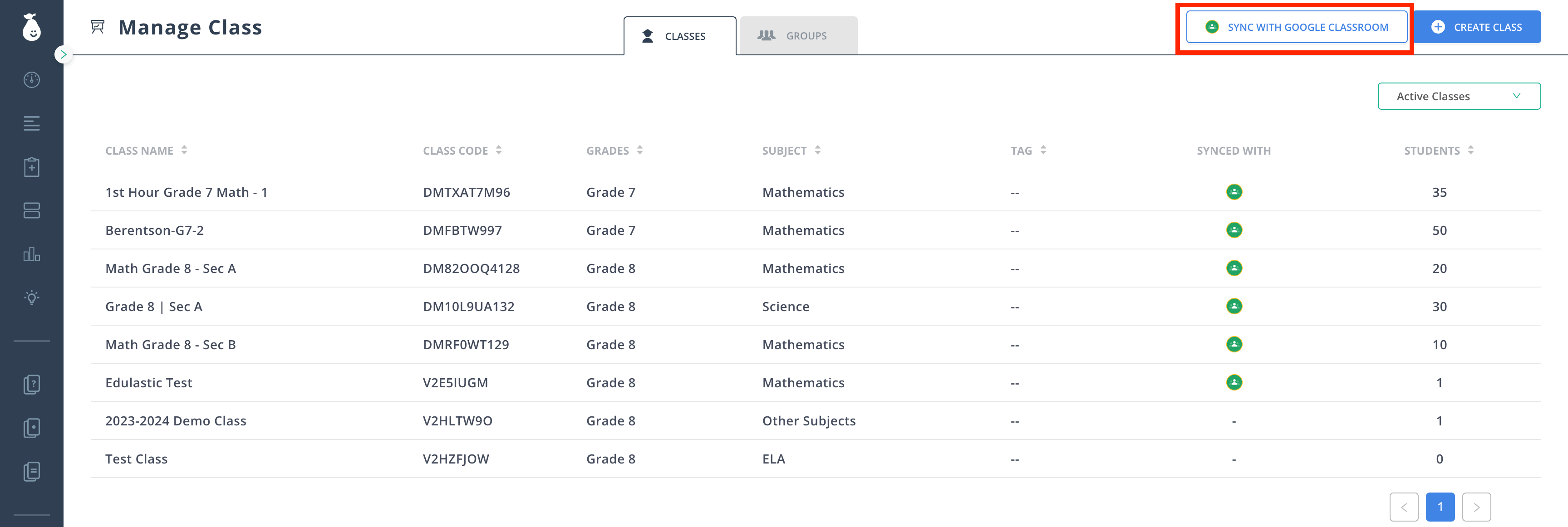
After creating a class in Pear Assessment, you can sync with your existing Google Classroom via the **Sync with Google Classroom** option, which supports sharing assignments to the Google Classroom dashboard.
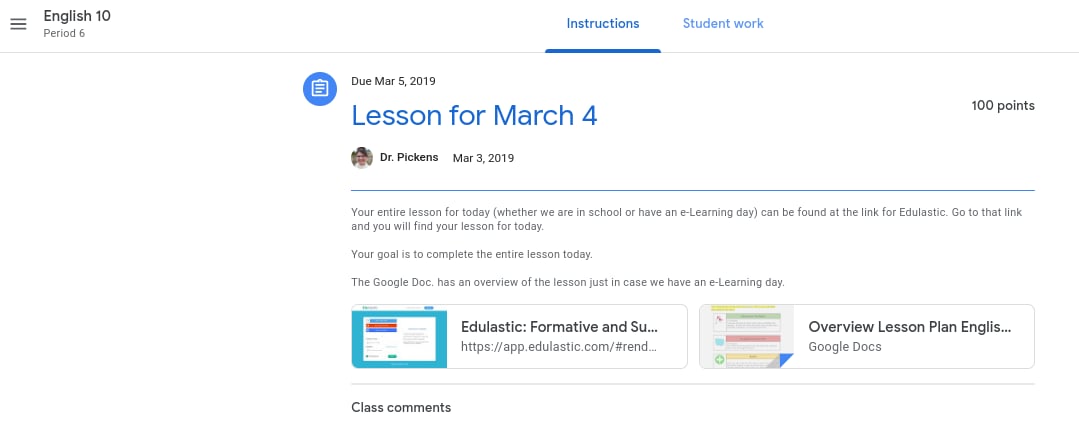
When students click on the Pear Assessment assignment in their Google Classroom dashboard, the assignment opens in a new window with students automatically signed in. Students do not need to navigate Pear Assessment or remember a separate password.
Your Pear Assessment teacher account must use the same email address as your Google Classroom account. The same applies to student accounts.
To sync your Google Classroom:
1. Navigate to **Manage Class**.
2. Click **Sync with Google Classroom** in the toolbar.
3. Enter your Google Classroom Class Code.
4. Click **Sync**.
5. Add the grade level and subject area for each class you are syncing.
6. Click **Import**.
3. Change the class avatar to your preferred one for easy recognition.
4. Fill out the following fields:
* Class Name
* Grade
* Subject
* Standard Sets
* School
5. Expand **Advanced Settings** to add a start and end date, course, and tags (optional).
6. Click **Create Class**.
## Add Students
You can add students to a class in one of three ways:
* Sync with Google Classroom
* Class Code
* Manually uploaded students
### Sync with Google Classroom
After creating a class in Pear Assessment, you can sync with your existing Google Classroom via the **Sync with Google Classroom** option, which supports sharing assignments to the Google Classroom dashboard.
When students click on the Pear Assessment assignment in their Google Classroom dashboard, the assignment opens in a new window with students automatically signed in. Students do not need to navigate Pear Assessment or remember a separate password.
Your Pear Assessment teacher account must use the same email address as your Google Classroom account. The same applies to student accounts.
To sync your Google Classroom:
1. Navigate to **Manage Class**.
2. Click **Sync with Google Classroom** in the toolbar.
3. Enter your Google Classroom Class Code.
4. Click **Sync**.
5. Add the grade level and subject area for each class you are syncing.
6. Click **Import**.
 Use **Sync with Google Classroom** each time you want to update your class roster.
### Use a Class Code
Students with Pear Assessment accounts can join your class for the first time using a class code. You can find the class code for each class in the **Manage Class** section.
When you share the class code with students, they can sign up by creating a unique username on the [Pear Assessment](https://assessment.peardeck.com/) website. If they do not already have an account, students are prompted to provide the class code the first time they sign in.
Once students have a Pear Assessment account, they can join additional classes by going to their **Dashboard**, clicking **Add Class**, and entering the class code.
Use **Sync with Google Classroom** each time you want to update your class roster.
### Use a Class Code
Students with Pear Assessment accounts can join your class for the first time using a class code. You can find the class code for each class in the **Manage Class** section.
When you share the class code with students, they can sign up by creating a unique username on the [Pear Assessment](https://assessment.peardeck.com/) website. If they do not already have an account, students are prompted to provide the class code the first time they sign in.
Once students have a Pear Assessment account, they can join additional classes by going to their **Dashboard**, clicking **Add Class**, and entering the class code.
 ### Manually Upload Students
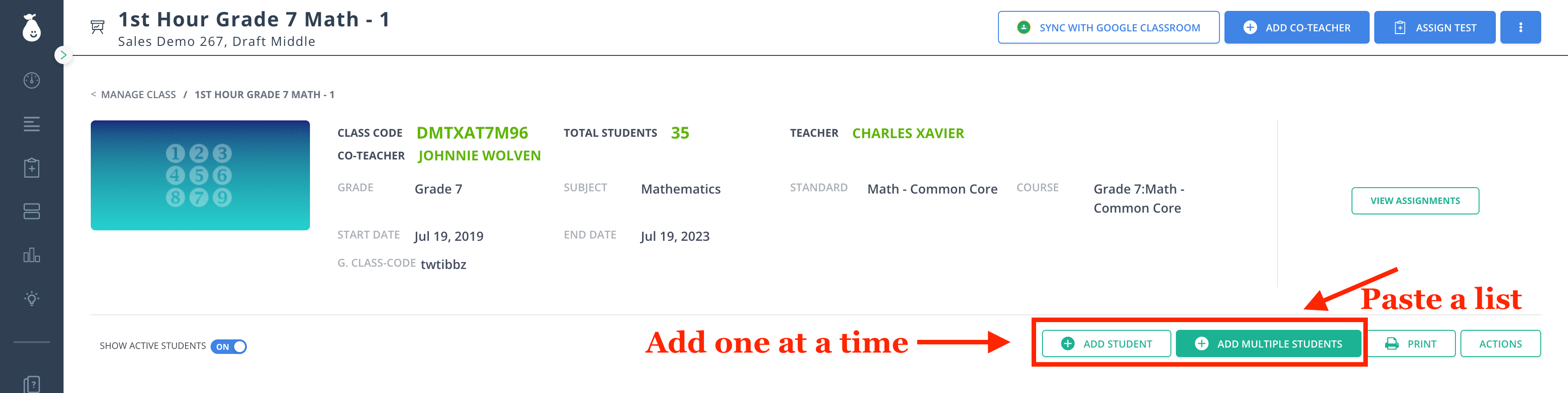
To add students manually, click **Manage Class** and then click the class name.
To add a single student, click **Add Student** and follow the prompts. This lets you add an individual and assign a username and password.
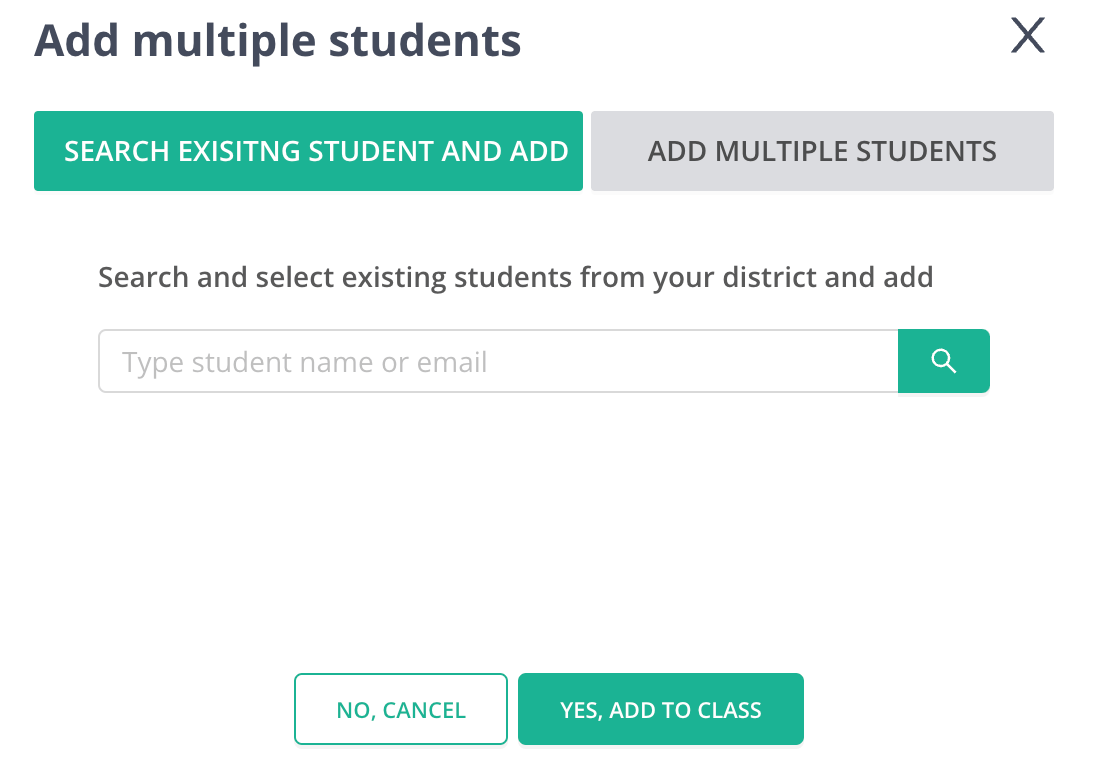
To upload multiple students at once from a spreadsheet or word file, or to add students who already have a district account, click **Add Multiple Students**.
If students already have a district account and need to be added to your class, search for the student's name under the **Search Existing Student And Add** tab.
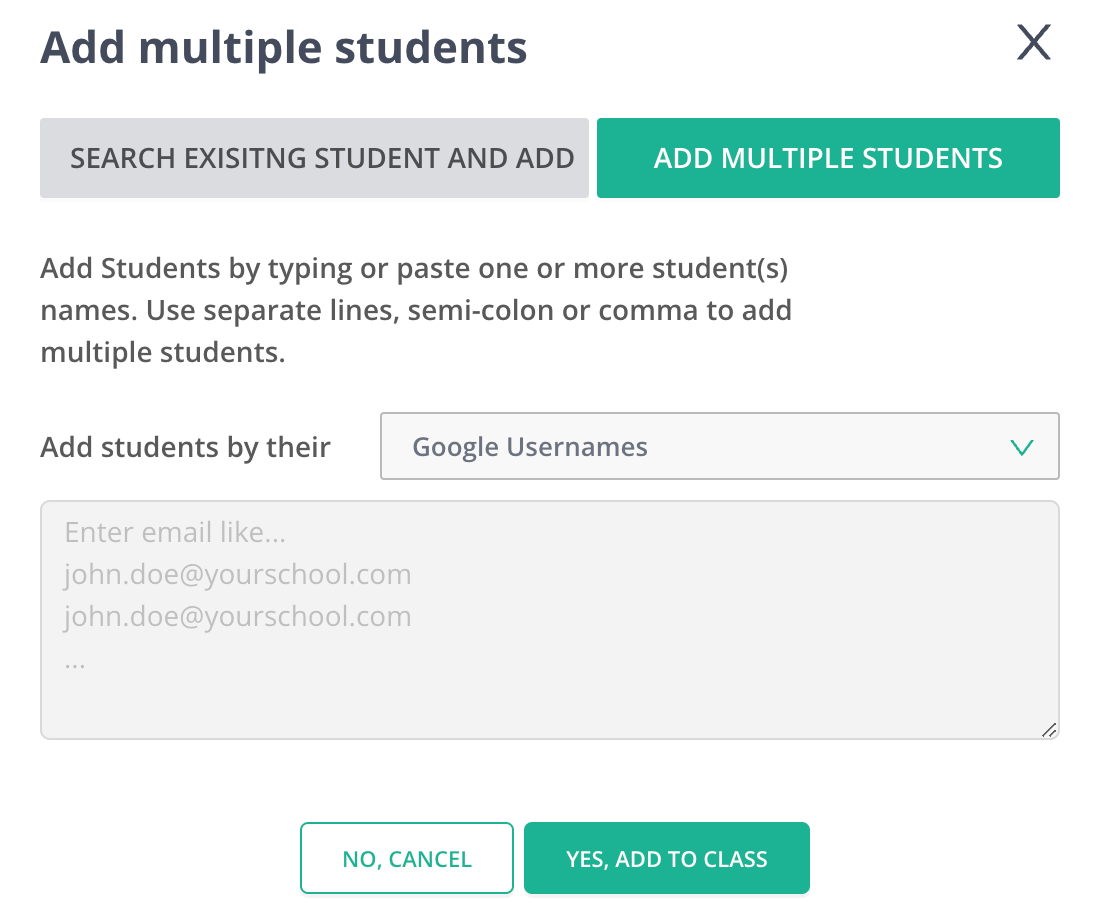
To add a whole class roster at once, click **Add Multiple Students**. Select the format from the **Add students by their** dropdown menu, paste the student names, and click **Yes, Add to Class**. Usernames are generated automatically and your class roster is populated.
* If students have a school-assigned username (such as Google or Office 365), their password remains their existing password.
* If you pasted the roster using First Name and Last Name, the Pear Assessment class code is used as the default password. Ask students to change their password after signing in for the first time.
### Manually Upload Students
To add students manually, click **Manage Class** and then click the class name.
To add a single student, click **Add Student** and follow the prompts. This lets you add an individual and assign a username and password.
To upload multiple students at once from a spreadsheet or word file, or to add students who already have a district account, click **Add Multiple Students**.
If students already have a district account and need to be added to your class, search for the student's name under the **Search Existing Student And Add** tab.
To add a whole class roster at once, click **Add Multiple Students**. Select the format from the **Add students by their** dropdown menu, paste the student names, and click **Yes, Add to Class**. Usernames are generated automatically and your class roster is populated.
* If students have a school-assigned username (such as Google or Office 365), their password remains their existing password.
* If you pasted the roster using First Name and Last Name, the Pear Assessment class code is used as the default password. Ask students to change their password after signing in for the first time.