> ## Documentation Index
> Fetch the complete documentation index at: https://docs.goguardian.com/llms.txt
> Use this file to discover all available pages before exploring further.
# Create a Free Teacher Account
> Sign up for a free Pear Assessment teacher account and complete your profile setup to access all features
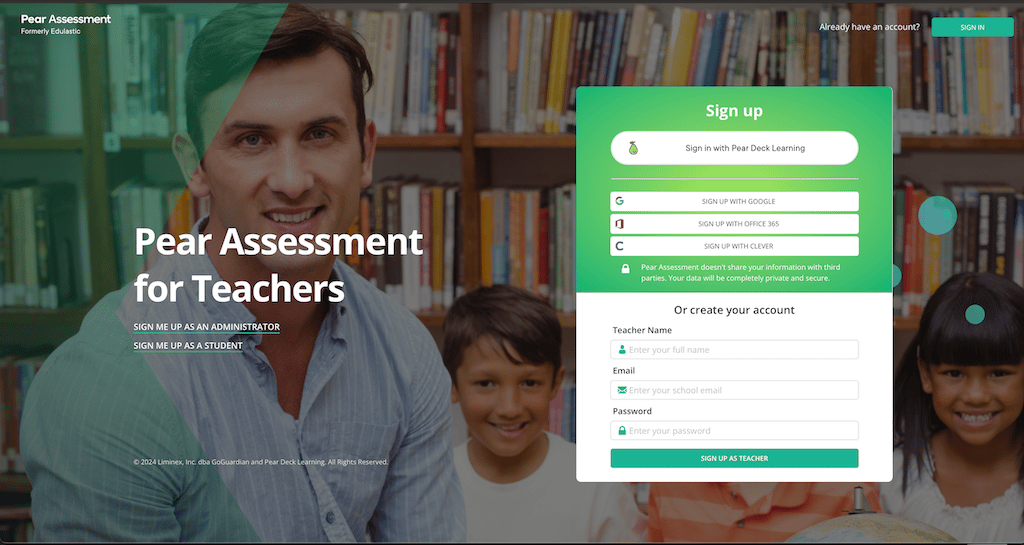
Teachers can create a free Pear Assessment account from the Get Started page using a school email address or a single sign-on (SSO) option. The sign-up process includes selecting your school, subject, and grade, then verifying your account by email.
## Sign up for an Account
1. Go to the [Get Started](https://assessment.peardeck.com/getStarted) page.
2. Enter your school email address and a password of at least four characters, or select one of the available SSO options.
3. Accept the terms of service, user license agreement, and privacy policy.
4. Click **Next** on the "Let's get started…" screen and follow the on-screen instructions.
 ## Set up Your Profile
1. Search for your school by entering the school name or zip code, then select it from the results. The district name appears below the school name after you select it.
* If you are not affiliated with a school, select **I want to homeschool**.
2. Choose the subject and grade that best represents your primary class. You can set up additional classes with different subjects or grades later.
## Set up Your Profile
1. Search for your school by entering the school name or zip code, then select it from the results. The district name appears below the school name after you select it.
* If you are not affiliated with a school, select **I want to homeschool**.
2. Choose the subject and grade that best represents your primary class. You can set up additional classes with different subjects or grades later.
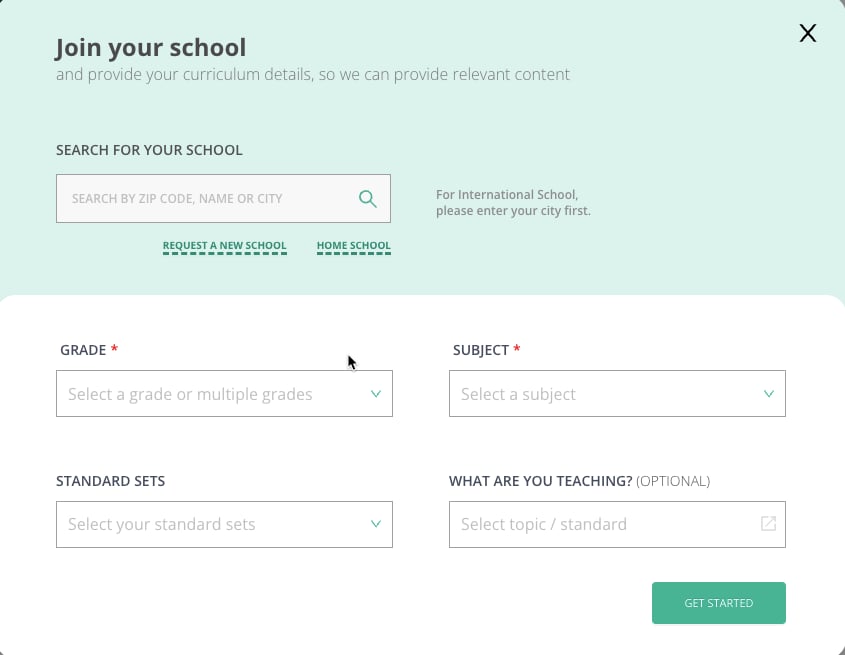 Select your [standard sets](/products/pear-assessment/standard-sets) during setup. Pear Assessment uses these standard sets to generate in-depth analysis when you review reports.
3. Click **Get Started**.
## Verify Your Account
1. Check your school email inbox for a verification message from Pear Assessment.
2. If you do not see the email, check your spam and other folders.
3. Follow the instructions in the email to verify your account.
If you cannot find the verification email, contact Pear Assessment Support at [support@assessment.peardeck.com](mailto:support@assessment.peardeck.com).
## Frequently Asked Questions
### Why Doesn't My School Appear in the Search Results?
Contact Pear Assessment Support at [support@assessment.peardeck.com](mailto:support@assessment.peardeck.com).
### My School and District Are New to Pear Assessment. What Do I Do?
Submit a request to [add a new school](/products/pear-assessment/request-new-school).
## Resources
Add your school to Pear Assessment if it does not appear in the search results.
Learn how to select and manage standard sets for in-depth report analysis.
Select your [standard sets](/products/pear-assessment/standard-sets) during setup. Pear Assessment uses these standard sets to generate in-depth analysis when you review reports.
3. Click **Get Started**.
## Verify Your Account
1. Check your school email inbox for a verification message from Pear Assessment.
2. If you do not see the email, check your spam and other folders.
3. Follow the instructions in the email to verify your account.
If you cannot find the verification email, contact Pear Assessment Support at [support@assessment.peardeck.com](mailto:support@assessment.peardeck.com).
## Frequently Asked Questions
### Why Doesn't My School Appear in the Search Results?
Contact Pear Assessment Support at [support@assessment.peardeck.com](mailto:support@assessment.peardeck.com).
### My School and District Are New to Pear Assessment. What Do I Do?
Submit a request to [add a new school](/products/pear-assessment/request-new-school).
## Resources
Add your school to Pear Assessment if it does not appear in the search results.
Learn how to select and manage standard sets for in-depth report analysis.