> ## Documentation Index
> Fetch the complete documentation index at: https://docs.goguardian.com/llms.txt
> Use this file to discover all available pages before exploring further.
# Create Parent Accounts
> Add a parent to a Pear Assessment student account so the parent can view assignments and progress, including how to add multiple parents
In Pear Assessment, a teacher can add a parent to a student account. Each parent gets their own username, which is an email address set by the teacher, and can view the student's assignments and progress. When you add a parent, Pear Assessment automatically sends the parent an email invitation to set up a password.
## Add a Parent to a Student Account
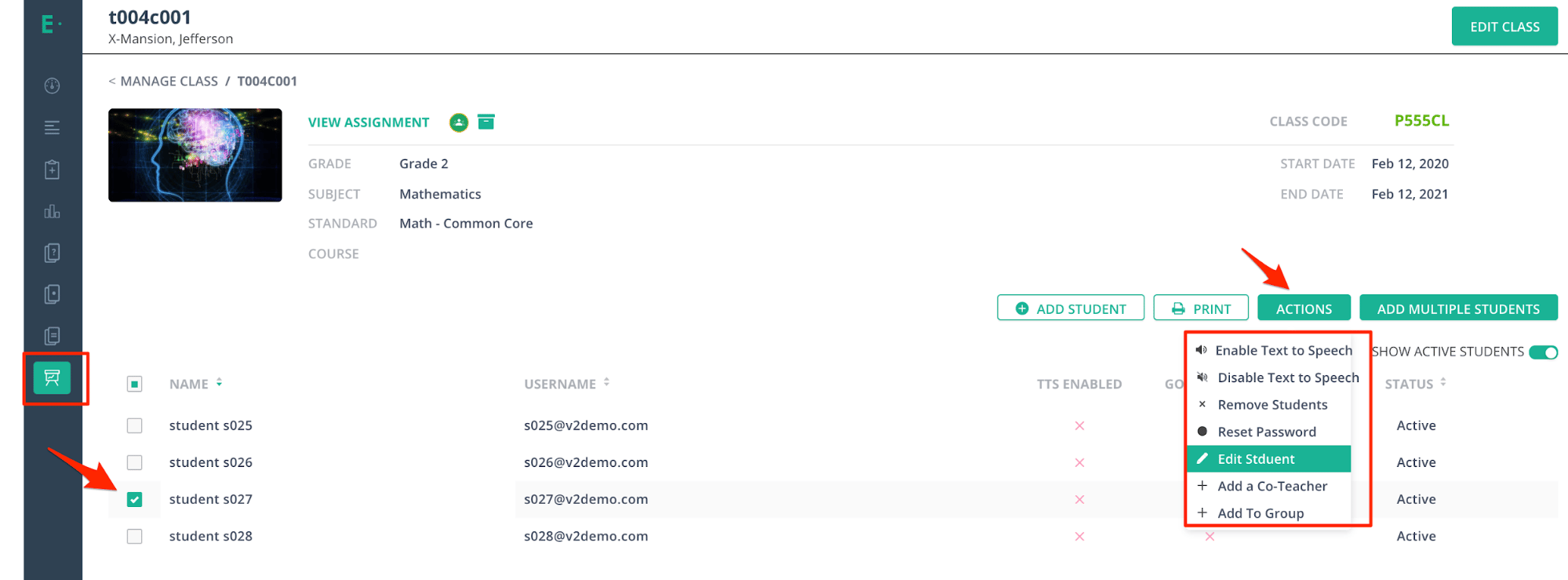
1. In Pear Assessment, navigate to **Manage Class**.
2. Click the class name to open the class roster.
3. Check the box next to the student's name.
4. Click **Actions**, then select **Edit Student**.
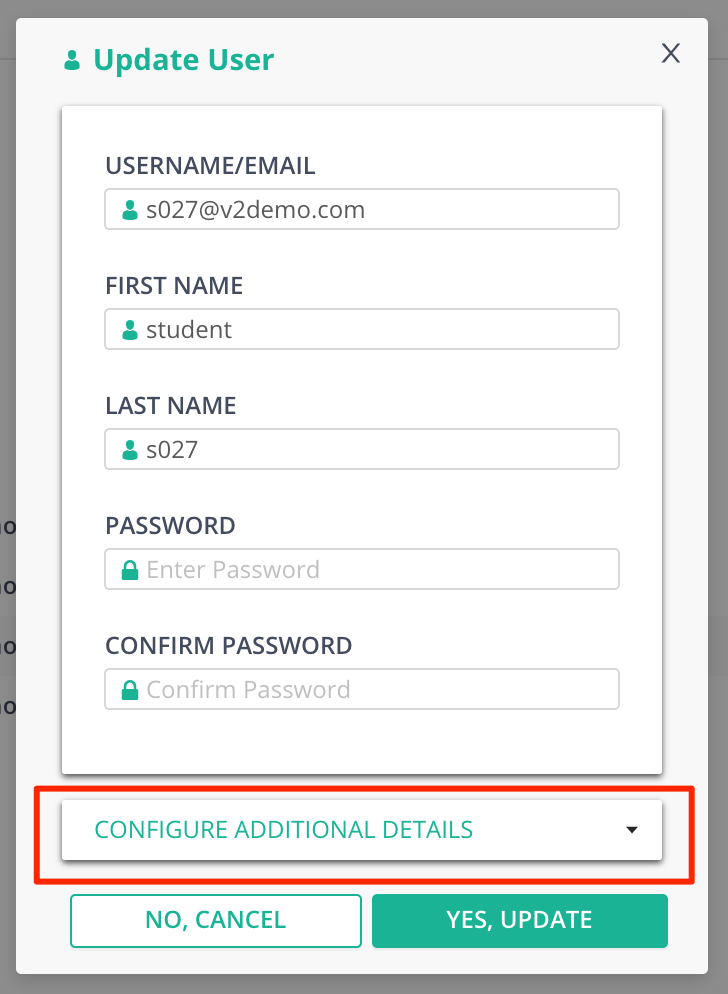
5. In the student record panel, click **Configure Additional Details**.
6. In the additional details section, enter the parent's email address in the parent email field.
7. Click **Yes, Update** to save the change.
After you click **Yes, Update**, Pear Assessment automatically sends an email to the parent's address. The email invites the parent to click a link and set up a password. Once the parent sets a password, they can sign in to view the student's assignments and progress.
 ## Add Multiple Parents to One Student
To add more than one parent to the same student account, enter each parent email address in the parent email field, separated by commas. Pear Assessment sends a separate password-setup invitation to each address.
1. Follow steps 1 through 6 in [Add a Parent to a Student Account](#add-a-parent-to-a-student-account).
2. In the parent email field, enter each parent's email address, separated by commas.
3. Click **Yes, Update** to save the change.
Each parent receives their own password-setup email and signs in with their own email address as the username.
## Resources
Reset a student's Pear Assessment password from the teacher's account.
Sign in to a student's account to view what the student sees in Pear Assessment.
## Add Multiple Parents to One Student
To add more than one parent to the same student account, enter each parent email address in the parent email field, separated by commas. Pear Assessment sends a separate password-setup invitation to each address.
1. Follow steps 1 through 6 in [Add a Parent to a Student Account](#add-a-parent-to-a-student-account).
2. In the parent email field, enter each parent's email address, separated by commas.
3. Click **Yes, Update** to save the change.
Each parent receives their own password-setup email and signs in with their own email address as the username.
## Resources
Reset a student's Pear Assessment password from the teacher's account.
Sign in to a student's account to view what the student sees in Pear Assessment.