> ## Documentation Index
> Fetch the complete documentation index at: https://docs.goguardian.com/llms.txt
> Use this file to discover all available pages before exploring further.
# Create Questions with Dynamic Parameters
> Use the @ symbol to create randomized, variable-driven questions that give each student a unique assignment
Dynamic Parameters in Pear Assessment lets you create questions where variables are unique per student. By prefixing variables with the @ symbol (for example, @x or @y), each student receives a randomized version of the question and answer. You can define variable values with a range, a set, or a formula. This feature requires a premium account and **Power User** enabled in **My Profile**.
Questions with Dynamic Parameters enabled cannot be edited after they are published.
## Create Dynamic Questions
1. Click **Item Bank** in the navigation menu.
2. Click **New Item** in the toolbar, or click an existing question to edit it.
3. Scroll to **Dynamic Parameters** in the **Edit Mode** tab and select **Use Dynamic Parameters**.
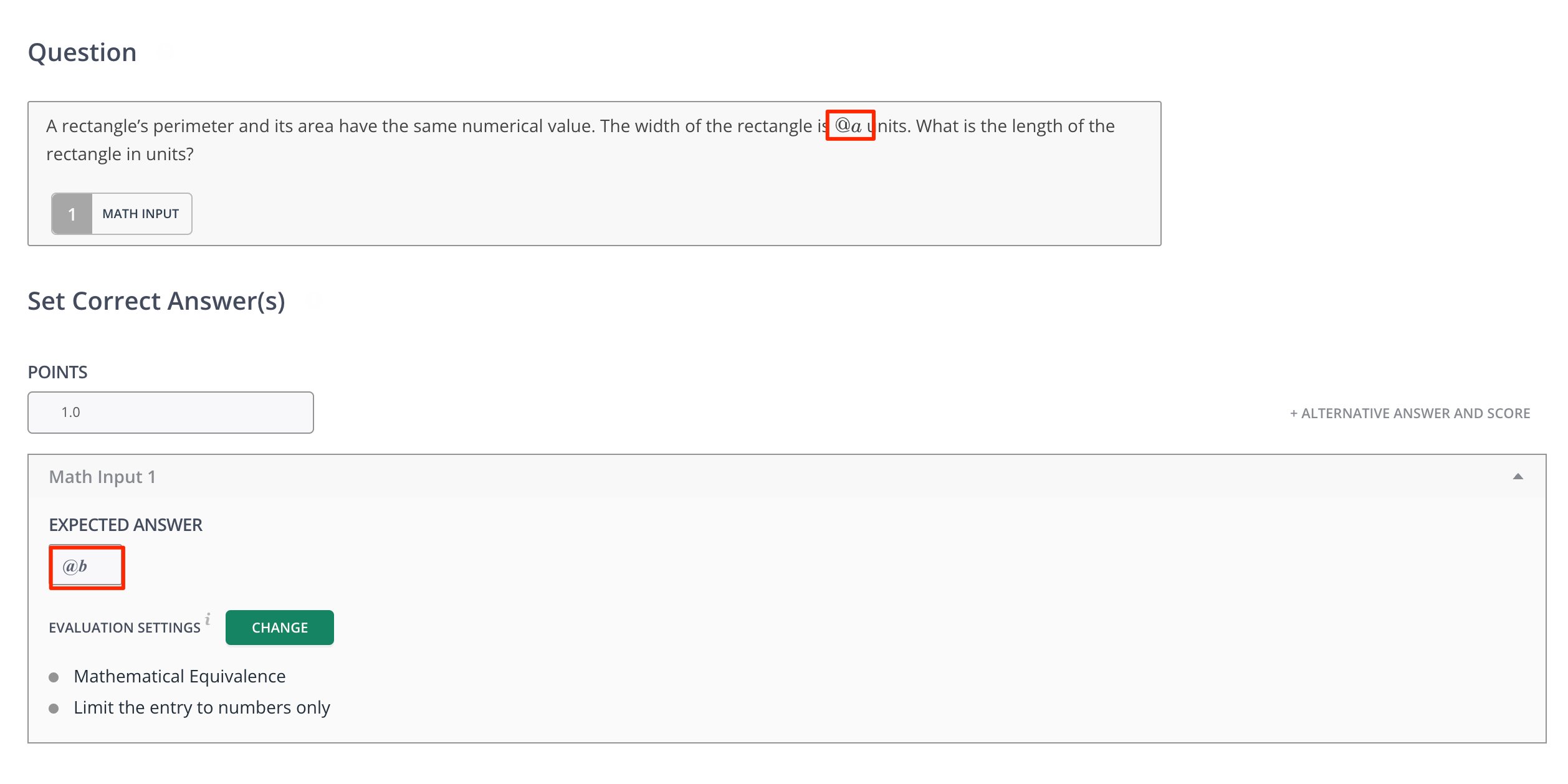
 4. Enter a question in the **Question** editor and add the @ symbol followed by a letter before each variable. For example, the number *7* in a math question would be replaced with *@a*.
5. Add the @ symbol and the next letter in the alphabet before the correct answer. For example, the correct answer would be replaced with *@b*.
4. Enter a question in the **Question** editor and add the @ symbol followed by a letter before each variable. For example, the number *7* in a math question would be replaced with *@a*.
5. Add the @ symbol and the next letter in the alphabet before the correct answer. For example, the correct answer would be replaced with *@b*.
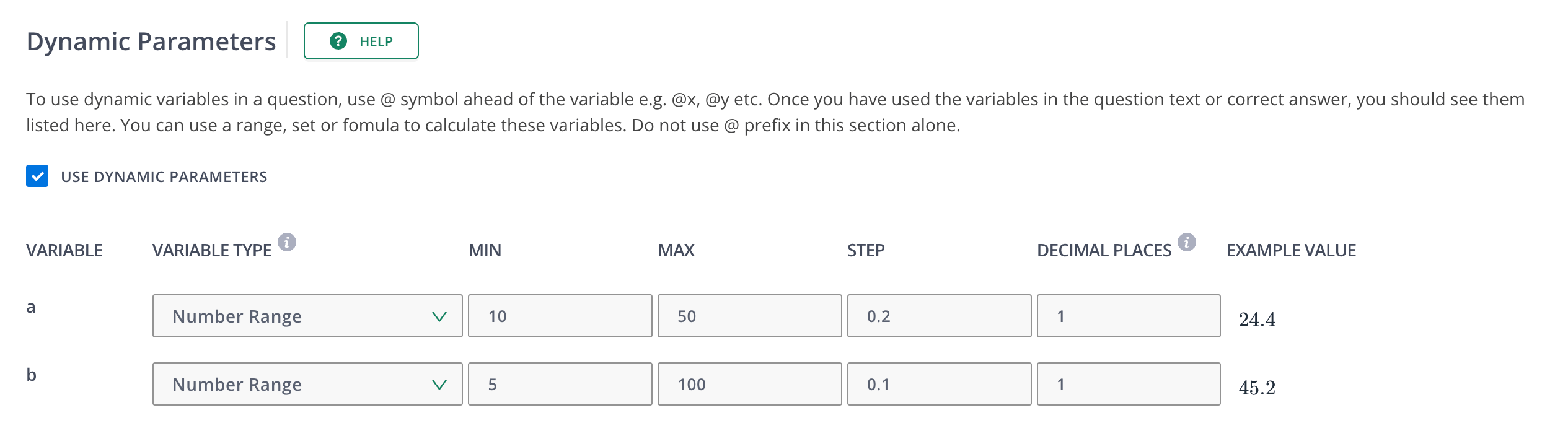
 6. Scroll down to **Dynamic Parameters** and select the **Variable Type** for each variable (for example, @a and @b). The variable type is the text, number, or expression range used to generate randomized and unique questions for students.
7. Set a **Min** and **Max** to define the minimum and maximum range of possible variable values.
8. Enter the incremental value of the numbers in the range (optional).
6. Scroll down to **Dynamic Parameters** and select the **Variable Type** for each variable (for example, @a and @b). The variable type is the text, number, or expression range used to generate randomized and unique questions for students.
7. Set a **Min** and **Max** to define the minimum and maximum range of possible variable values.
8. Enter the incremental value of the numbers in the range (optional).
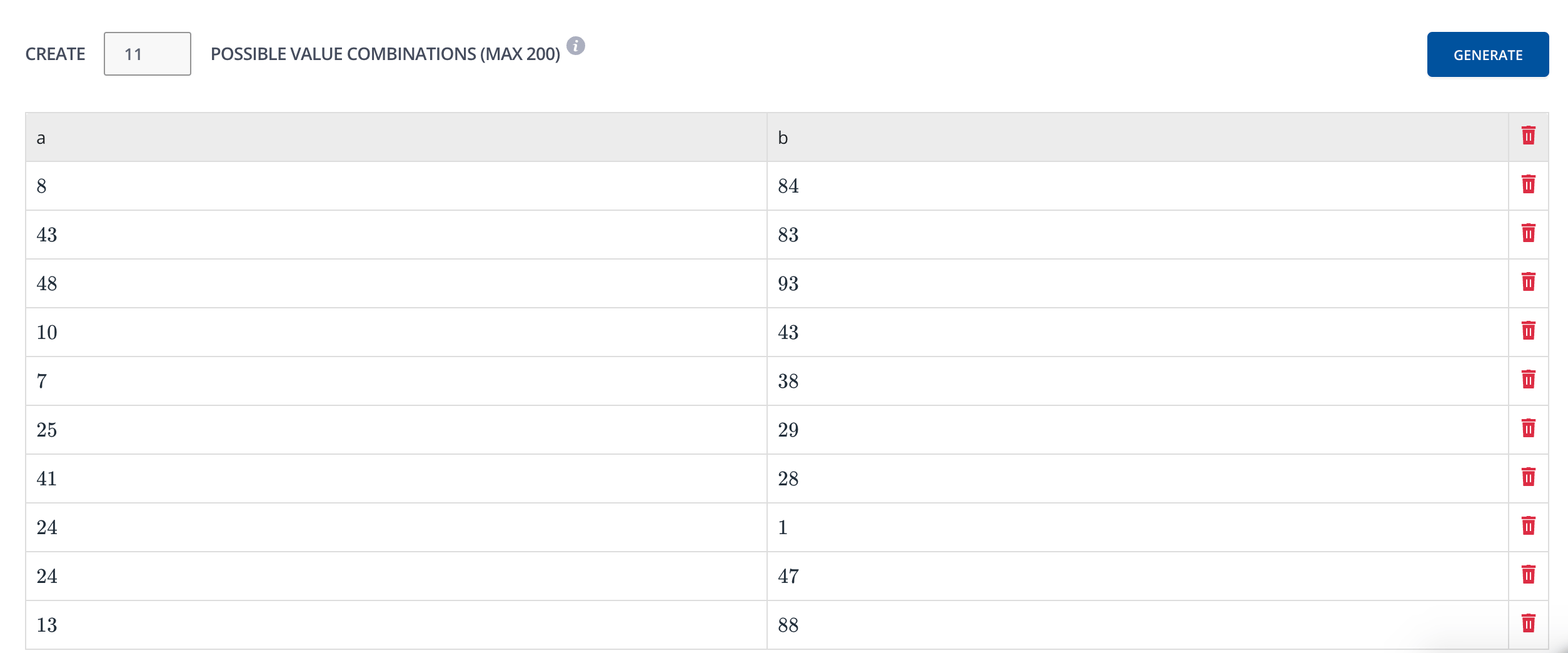
 9. Under **Create Possible Value Combinations**, generate the number of question-and-answer combinations based on the variable attributes you set above.
 10. Click **Save**.