> ## Documentation Index
> Fetch the complete documentation index at: https://docs.goguardian.com/llms.txt
> Use this file to discover all available pages before exploring further.
# Create Staff Accounts
> Create admin and teacher accounts in Pear Assessment as a District Admin or School Admin
District Admins and School Admins can create additional staff accounts for their district or school. Account-creation permissions vary by role: if you are unable to create accounts, check with your District Administrator. Some districts require that all users be created through a School Information System (SIS) such as Clever.
| Role | Can create |
| -------------- | -------------------------------------------------------- |
| District Admin | Other District Admins, School Admins, Teachers, Students |
| School Admin | Other School Admins, Teachers, Students |
## Create an Admin Account
Only Super Admins can create new admin accounts. If you do not have Super Admin access, contact your point of contact to request a role change.
1. In the navigation menu, go to **Manage District** or **Manage School**.
2. Select **Users**.
3. Click the **District Admin** or **School Admin** tab, depending on the account type you are creating.
4. Click **+ Add**.
5. Fill out the required details.
6. Click **Yes, Create**.
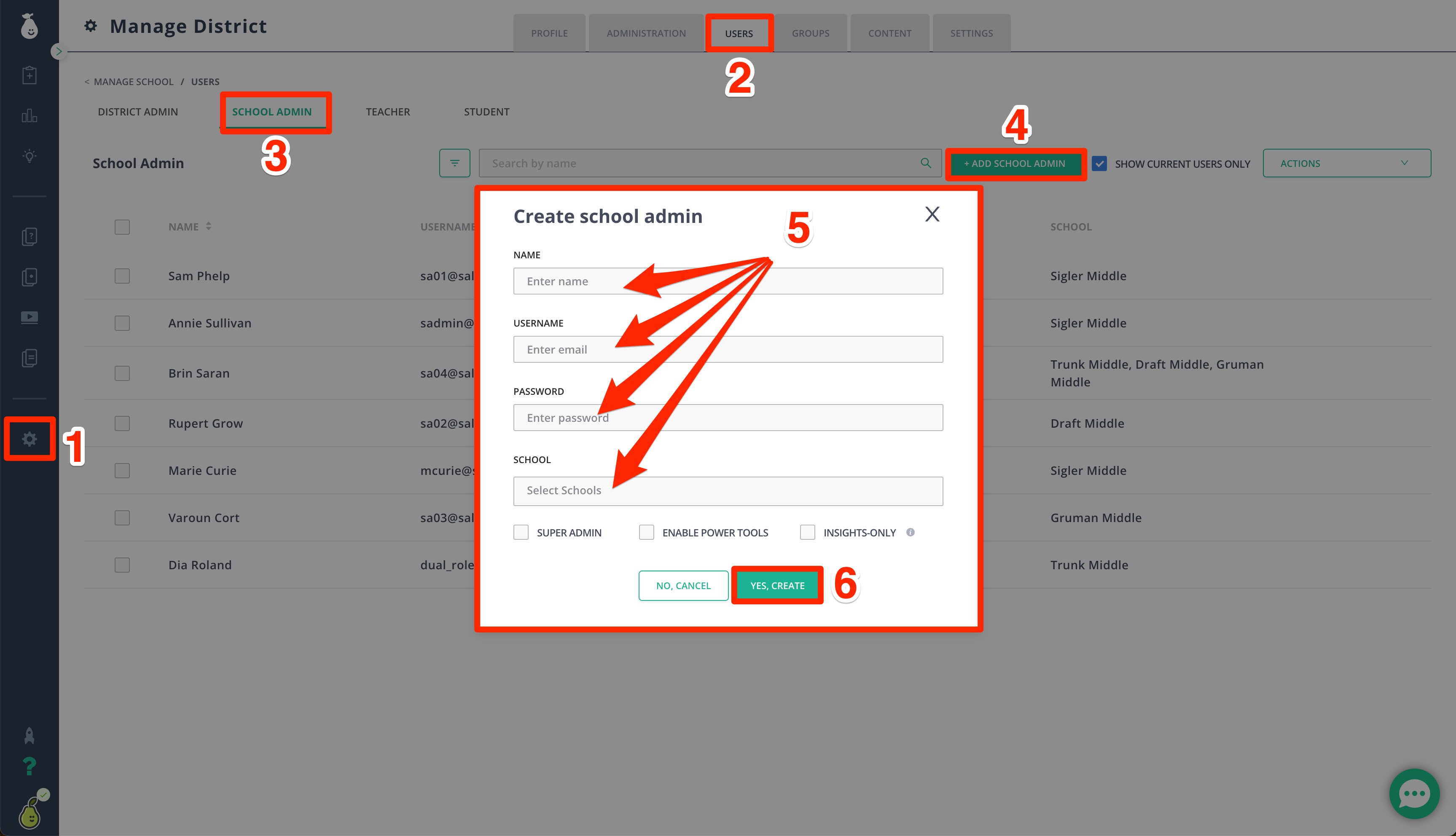 **Super Admin** allows users to manage the district. Enabling **Power Tools** gives users more advanced configurations. **Insights Only** restricts users to viewing insights for all assignments within the school or district.
## Create a Teacher Account
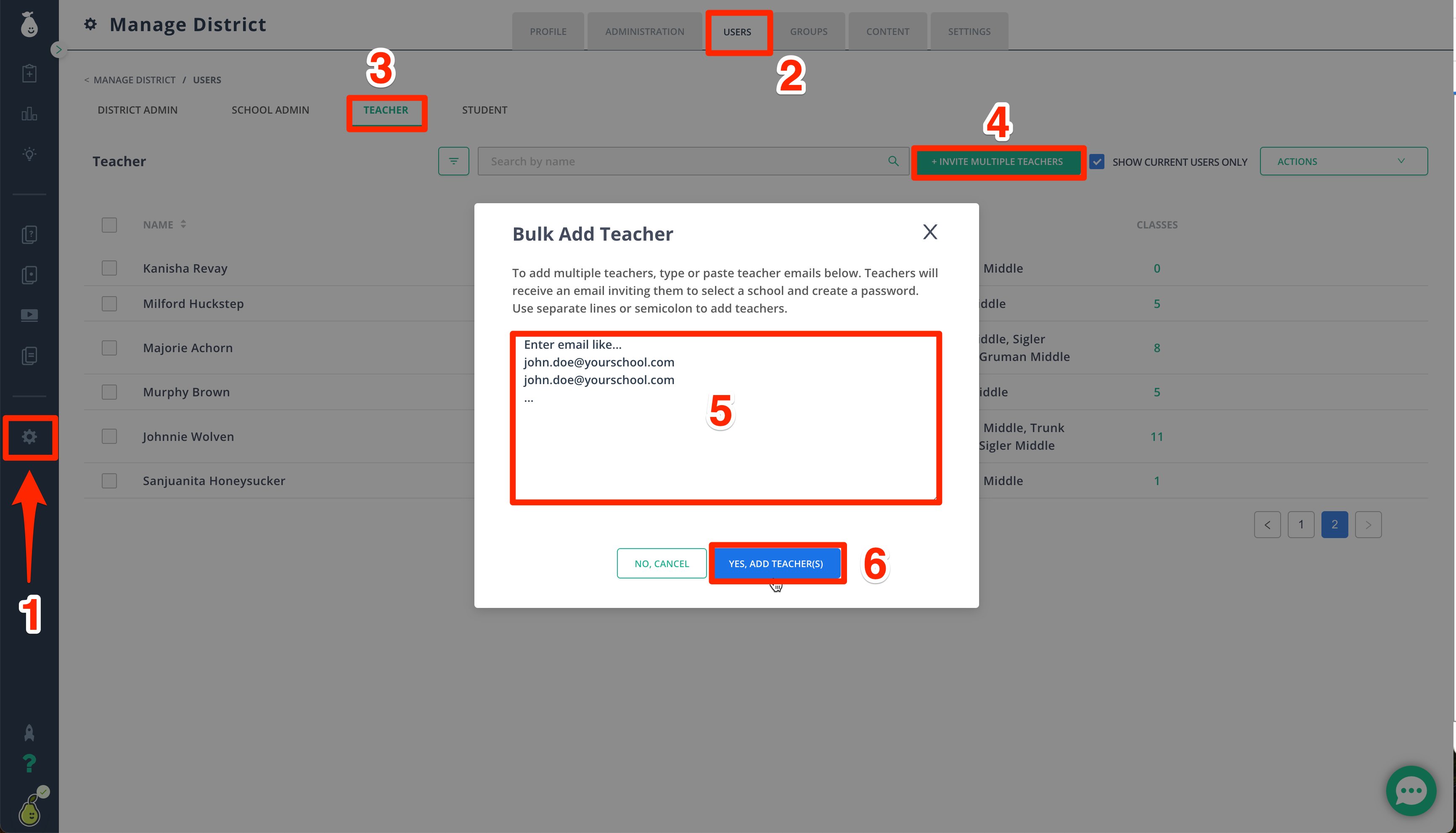
1. In the navigation menu, go to **Manage District** or **Manage School**.
2. Select **Users**.
3. Click **Teachers**.
4. Click **+ Invite Multiple Teachers**.
5. Add each teacher's email address on a separate line.
6. Click **Yes, Add Teacher(s)**.
An email invitation is sent to each address. Teachers complete their own registration and set their own password.
If a user account already exists, deactivate it from the **Actions** menu before sending a new invitation.
**Super Admin** allows users to manage the district. Enabling **Power Tools** gives users more advanced configurations. **Insights Only** restricts users to viewing insights for all assignments within the school or district.
## Create a Teacher Account
1. In the navigation menu, go to **Manage District** or **Manage School**.
2. Select **Users**.
3. Click **Teachers**.
4. Click **+ Invite Multiple Teachers**.
5. Add each teacher's email address on a separate line.
6. Click **Yes, Add Teacher(s)**.
An email invitation is sent to each address. Teachers complete their own registration and set their own password.
If a user account already exists, deactivate it from the **Actions** menu before sending a new invitation.