> ## Documentation Index
> Fetch the complete documentation index at: https://docs.goguardian.com/llms.txt
> Use this file to discover all available pages before exploring further.
# Download Grades and Responses for Grading Programs
> Export student grades and responses as a CSV file to upload into an external grading program, individually or in bulk as an admin.
In Pear Assessment, you can download student grades and responses for completed assignments. They download as a CSV file, which you can upload to a grading program.
## Download Grades and Responses for Grading Programs
In Pear Assessment, you can download student grades and responses for completed assignments. They download as a CSV file, which you can upload to a grading program.
## Download Grades
1. Click **Assignments** in the navigation menu.
2. Click on the assignment's name.
3. In the **Live Class Board** tab, select a student or multiple students by checking the box next to their name.
4. Click **More** > **Download Grades**.
 ## Download Responses
1. Click **Assignments** in the navigation menu.
2. Click on the assignment's name.
3. In the **Live Class Board** tab, select a student or multiple students by checking the box next to their name.
4. Click **More** > **Download Response**.
## Download Responses
1. Click **Assignments** in the navigation menu.
2. Click on the assignment's name.
3. In the **Live Class Board** tab, select a student or multiple students by checking the box next to their name.
4. Click **More** > **Download Response**.
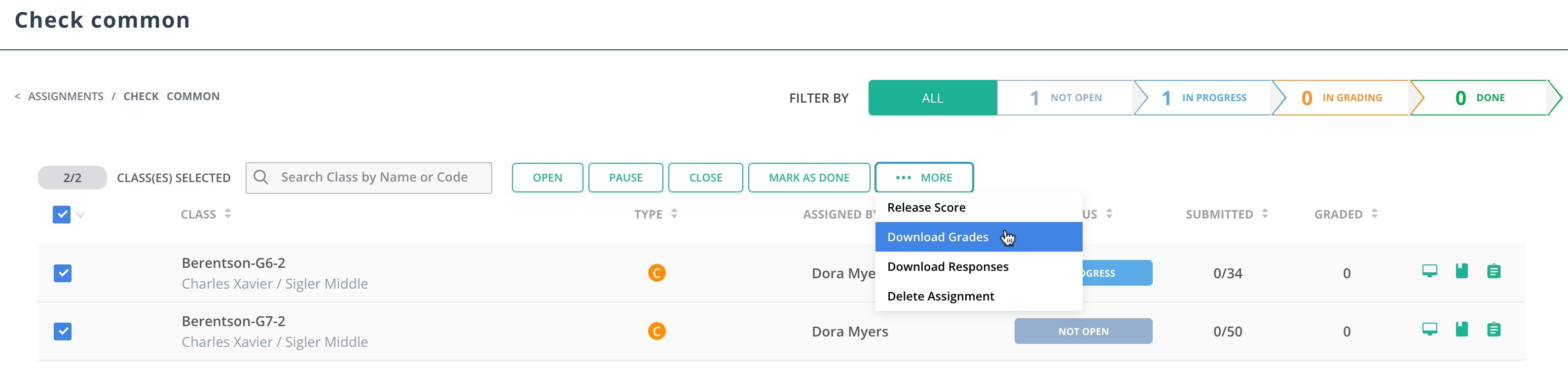
 ## Bulk Download Grades as Admin
1. Sign in as a district or school administrator.
2. Click **Assignments** in the navigation menu.
3. Click on the assignment's name.
4. Select a class or multiple classes by checking the box next to their name.
5. Click **More** > **Download Grades**.
## Bulk Download Grades as Admin
1. Sign in as a district or school administrator.
2. Click **Assignments** in the navigation menu.
3. Click on the assignment's name.
4. Select a class or multiple classes by checking the box next to their name.
5. Click **More** > **Download Grades**.
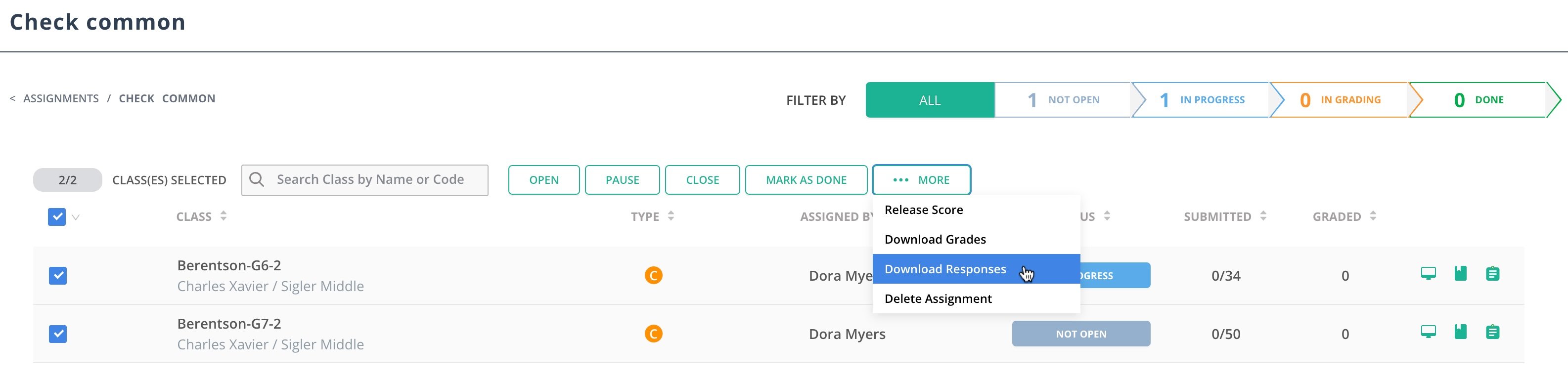
 ## Bulk Download Responses as Admin
1. Sign in as a district or school administrator.
2. Click **Assignments** in the navigation menu.
3. Click on the assignment's name.
4. Select a class or multiple classes by checking the box next to their name.
5. Click **More** > **Download Response**.
## Bulk Download Responses as Admin
1. Sign in as a district or school administrator.
2. Click **Assignments** in the navigation menu.
3. Click on the assignment's name.
4. Select a class or multiple classes by checking the box next to their name.
5. Click **More** > **Download Response**.
