> ## Documentation Index
> Fetch the complete documentation index at: https://docs.goguardian.com/llms.txt
> Use this file to discover all available pages before exploring further.
# Find Shared Tests
> Locate shared tests in Pear Assessment by clearing filters in the Test library
If you cannot find a shared test, the most common cause is an active filter in the Test library. Clearing all filters reveals tests shared with you, including those in school or district collections.
## Clear All Filters to Find Shared Tests
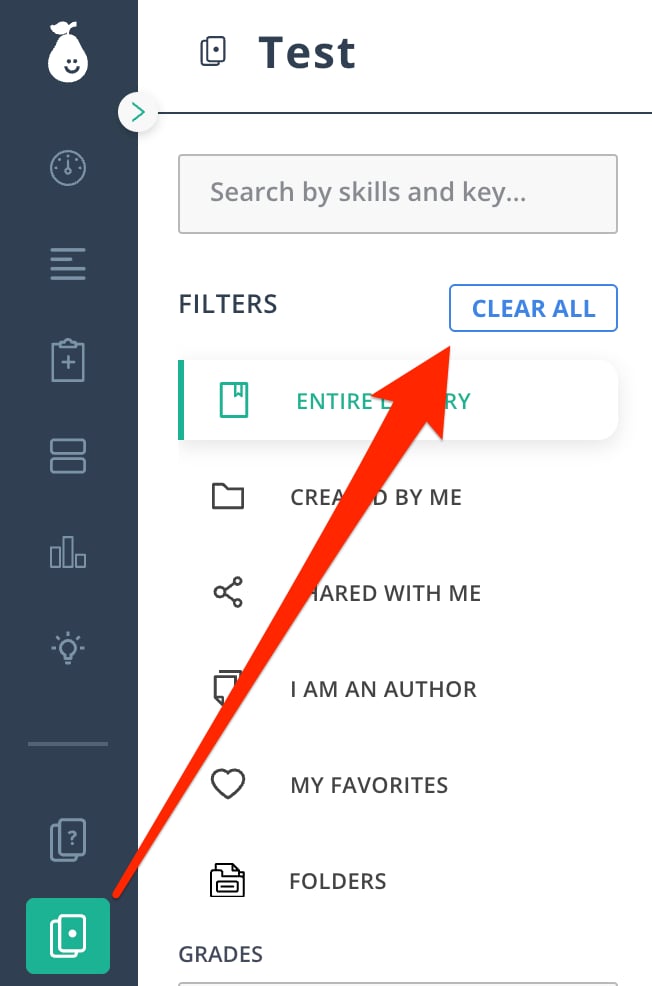
1. Click **Test** in the navigation menu.
2. Click **Clear All** next to **Filters**. The filters appear next to the navigation menu.
 Tests appear under **Shared with Me** only if another teacher shared the test directly with you. If the test was shared with the School Library or District Library, scroll to the bottom of the filters and select the appropriate library under **Collections**.
## Sharing Levels
Each test in Pear Assessment has one of four sharing levels:
* **Private**: Not visible to others. The test resides solely in your teacher account.
* **Public**: Available to anyone using Pear Assessment.
* **District**: Available to everyone inside your district.
* **School**: Available to everyone inside your school.
Tests appear under **Shared with Me** only if another teacher shared the test directly with you. If the test was shared with the School Library or District Library, scroll to the bottom of the filters and select the appropriate library under **Collections**.
## Sharing Levels
Each test in Pear Assessment has one of four sharing levels:
* **Private**: Not visible to others. The test resides solely in your teacher account.
* **Public**: Available to anyone using Pear Assessment.
* **District**: Available to everyone inside your district.
* **School**: Available to everyone inside your school.