> ## Documentation Index
> Fetch the complete documentation index at: https://docs.goguardian.com/llms.txt
> Use this file to discover all available pages before exploring further.
# Goals and Interventions with Data Studio
> Create student groups, set academic and attendance goals, and track intervention plans in Data Studio to support student progress.
The Goals and Interventions Management report in Pear Assessment Data Studio gives you a structured way to define goals for student cohorts, record interventions, and track progress after support has been provided. The report has three sections: Student Groups, Goals, and Interventions. This is an enterprise report available to administrators and teachers.
## Manage Student Groups
The **Student Groups** tab lists all existing student groups with columns for group name, student count, associated goals, and intervention plans.
### Create a Student Group
1. Click **+ Add New Student Group**.
2. Enter the group name, grades, course, and any other relevant details.
3. Under **Select Students for the Group**, click **+ Add Criterion**.
4. Select the values for your criterion, choose whether to include or exclude those students, and enter the values.
5. Click **Apply Criteria** to preview the matching students.
6. Click **Save Student Group**.
To set a goal or intervention for an existing group, open the **Actions** menu at the end of that group's row.

 ## Set Goals
The **Goals** tab lists all goals that have been set, with columns for goal type, target students, improvement areas, decline, and notes.
From the **Actions** menu at the end of a goal's row, you can:
* **View Summary**: opens the Dashboard report
* **View Trends**: opens the Performance Trends or Attendance report
* **Edit**
* **Delete**
## Set Goals
The **Goals** tab lists all goals that have been set, with columns for goal type, target students, improvement areas, decline, and notes.
From the **Actions** menu at the end of a goal's row, you can:
* **View Summary**: opens the Dashboard report
* **View Trends**: opens the Performance Trends or Attendance report
* **Edit**
* **Delete**
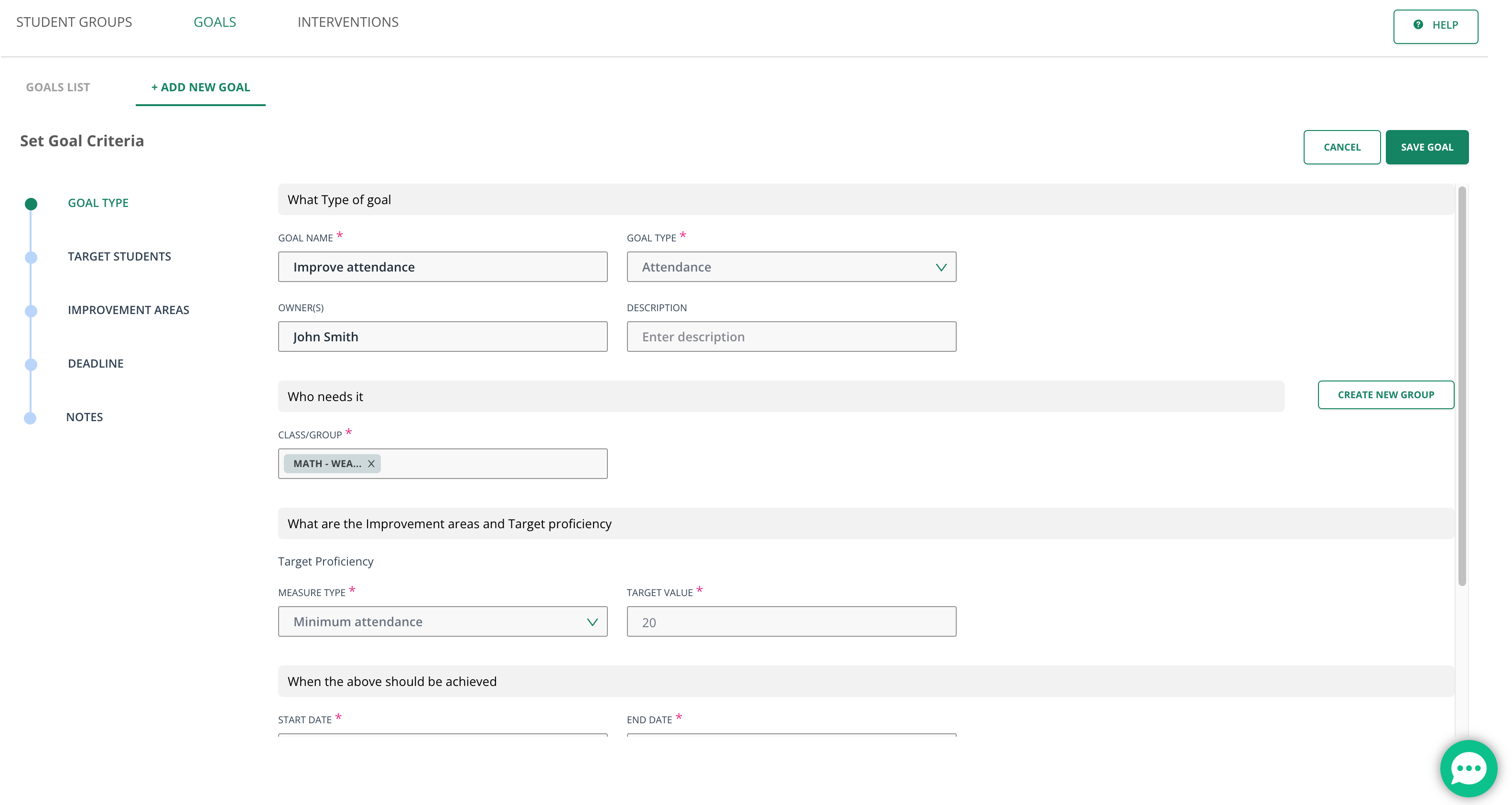
 ### Add a Goal
1. Click **+ Add New Goal**.
2. Enter the goal name, goal type, target students, and target proficiency.
3. Click **Save Goal**.
### Add a Goal
1. Click **+ Add New Goal**.
2. Enter the goal name, goal type, target students, and target proficiency.
3. Click **Save Goal**.

 ## Record Interventions
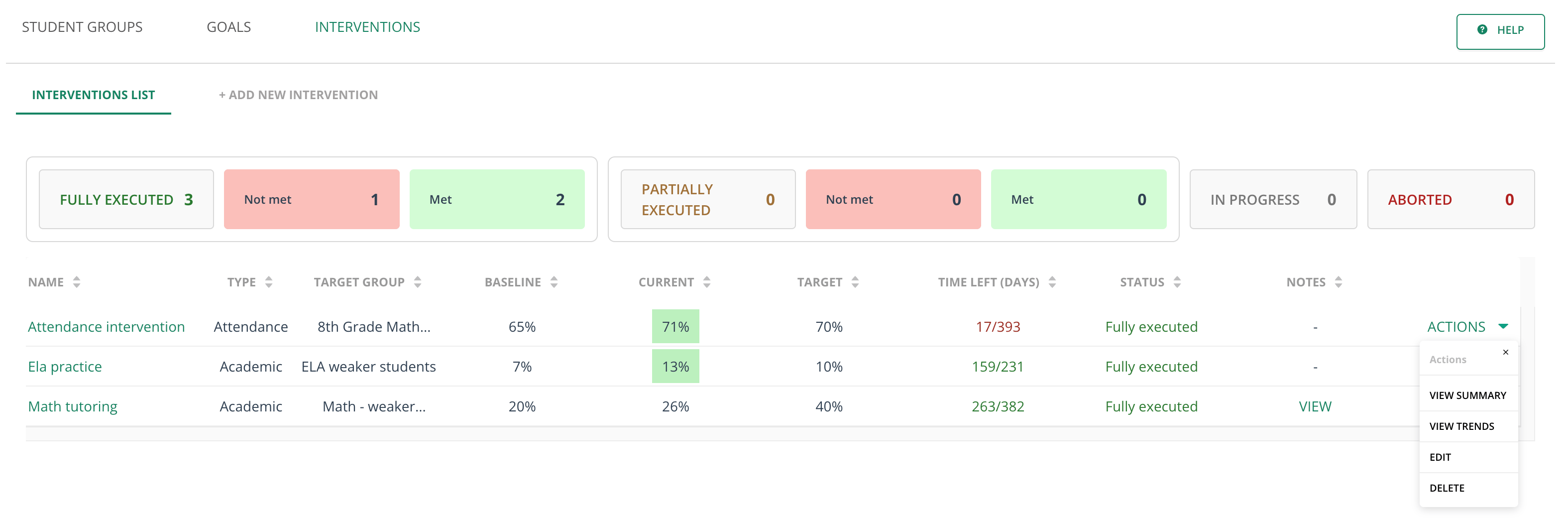
The **Interventions** tab lists all interventions that have been recorded, with information about the support administrators and teachers have provided. Use the **Actions** menu to view summaries, view trends, edit, or delete an intervention.
Regardless of an intervention's current status, you can override it and set it to **Fully Executed**, **Aborted**, **Partially Executed**, or **In Progress**. Overriding to Fully Executed or Aborted marks the intervention as met or not met based on the current target outcome value.
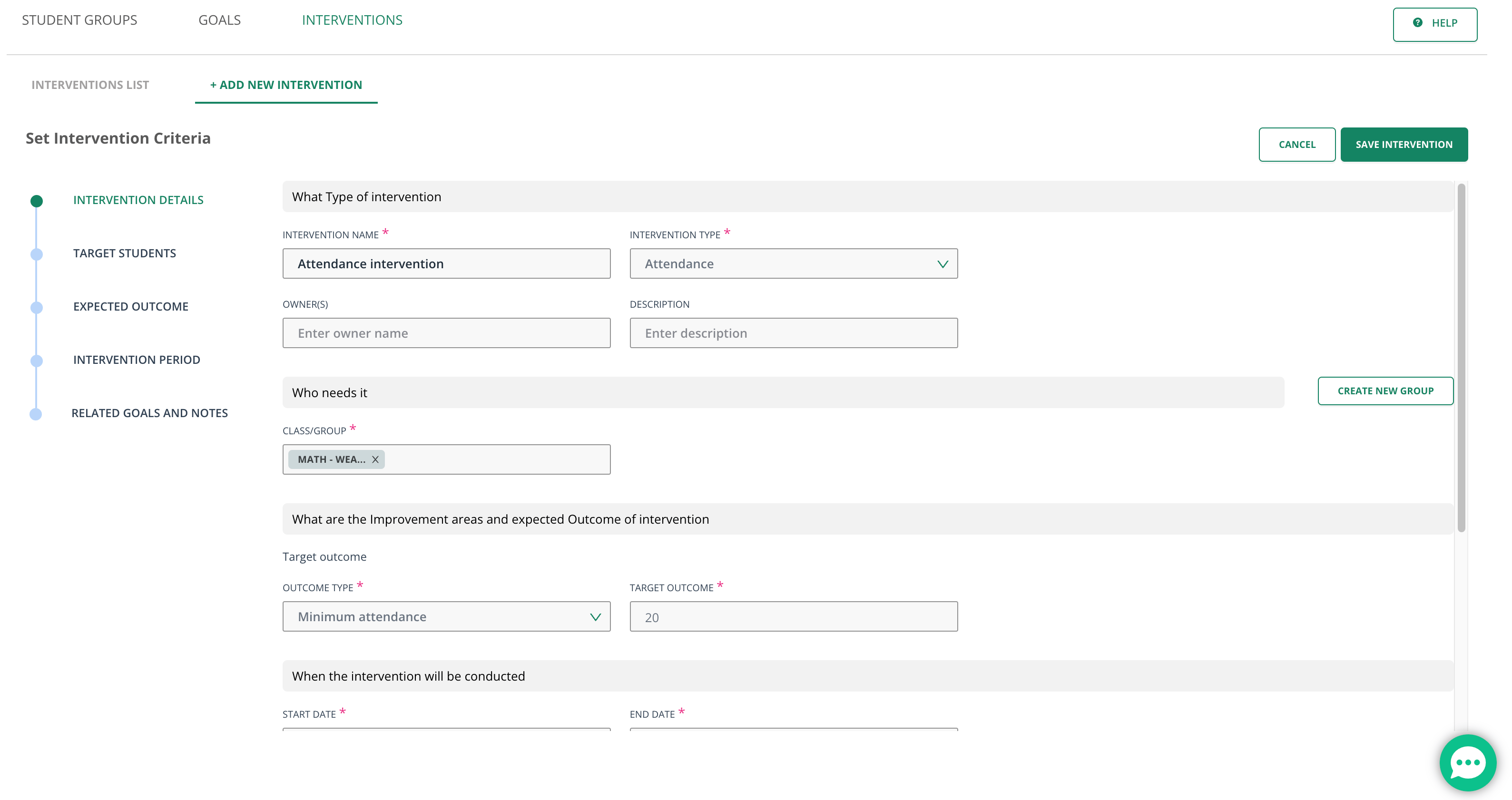
### Add an Intervention
You can set an academic intervention or an attendance intervention.
1. Click **+ Add New Intervention**.
2. Enter the intervention name, type, target students, target outcome, start date, and end date.
3. Optionally, link the intervention to a related goal.
4. Click **Save Intervention**.
## Record Interventions
The **Interventions** tab lists all interventions that have been recorded, with information about the support administrators and teachers have provided. Use the **Actions** menu to view summaries, view trends, edit, or delete an intervention.
Regardless of an intervention's current status, you can override it and set it to **Fully Executed**, **Aborted**, **Partially Executed**, or **In Progress**. Overriding to Fully Executed or Aborted marks the intervention as met or not met based on the current target outcome value.
### Add an Intervention
You can set an academic intervention or an attendance intervention.
1. Click **+ Add New Intervention**.
2. Enter the intervention name, type, target students, target outcome, start date, and end date.
3. Optionally, link the intervention to a related goal.
4. Click **Save Intervention**.
 ## Frequently Asked Questions
### Can I Link an Intervention to an Existing Goal?
Yes. When adding an intervention, you can optionally link it to a related goal in the same form.
### What Happens When I Override an Intervention's Status?
Setting the status to Fully Executed or Aborted marks the intervention as met or not met based on the current target outcome value.
## Resources
* [Performance Trends with Data Studio](/products/pear-assessment/performance-trends-with-data-studio)
* [Attendance Summary with Data Studio](/products/pear-assessment/attendance-summary-with-data-studio)
* [Efficacy with Data Studio](/products/pear-assessment/efficacy-with-data-studio)
## Frequently Asked Questions
### Can I Link an Intervention to an Existing Goal?
Yes. When adding an intervention, you can optionally link it to a related goal in the same form.
### What Happens When I Override an Intervention's Status?
Setting the status to Fully Executed or Aborted marks the intervention as met or not met based on the current target outcome value.
## Resources
* [Performance Trends with Data Studio](/products/pear-assessment/performance-trends-with-data-studio)
* [Attendance Summary with Data Studio](/products/pear-assessment/attendance-summary-with-data-studio)
* [Efficacy with Data Studio](/products/pear-assessment/efficacy-with-data-studio)