> ## Documentation Index
> Fetch the complete documentation index at: https://docs.goguardian.com/llms.txt
> Use this file to discover all available pages before exploring further.
# How and When to Release Scores and Feedback
> Control when students see their scores and responses by configuring release settings at the test level and releasing results by class after testing closes.
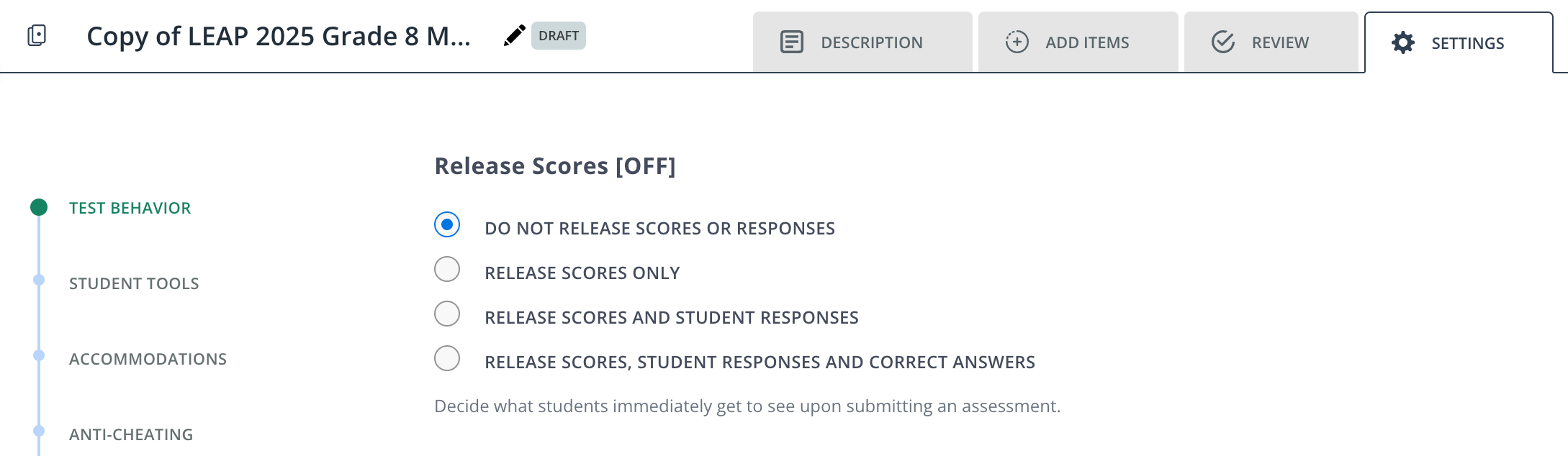
District and school administrators can set their test settings to not release scores after a student submits an assessment, specifically in the **Settings** tab of a test > **Release Scores** > **Do not release scores or responses**. Teachers can release the scores when the class completes the assessment by navigating to **Assignments** > **Actions** > **Release Scores**.
## How and When to Release Scores and Feedback in Pear Assessment
District or school administrators own common assessments and set policies, such as determining the testing window, who's assigned an assessment, when to release feedback to students, and more.
For common assessments, if you want a high level of test security, we recommend the following setup under a test's **Settings** tab.
| Assessment Policies | Recommended Setting | Expected Outcome |
| ------------------- | ---------------------------------- | --------------------------------------------------------------------------------------------------------------------------------------------------------------------------------------------------------------------------------------- |
| Release Scores | Do not release scores or responses | Students will not receive their scores immediately after they submit the assessment. Admins can release the scores to students anytime. ideally, after the testing window has closed and there is minimal risk of cheating by students. |
When the assessment ends, you can selectively release the scores for one or more classes. To do so, click **Assignments** in the navigation menu > click **Actions** at the end of an assessment's row > **Release Scores**. This releases scores for all classes taking the assessment.
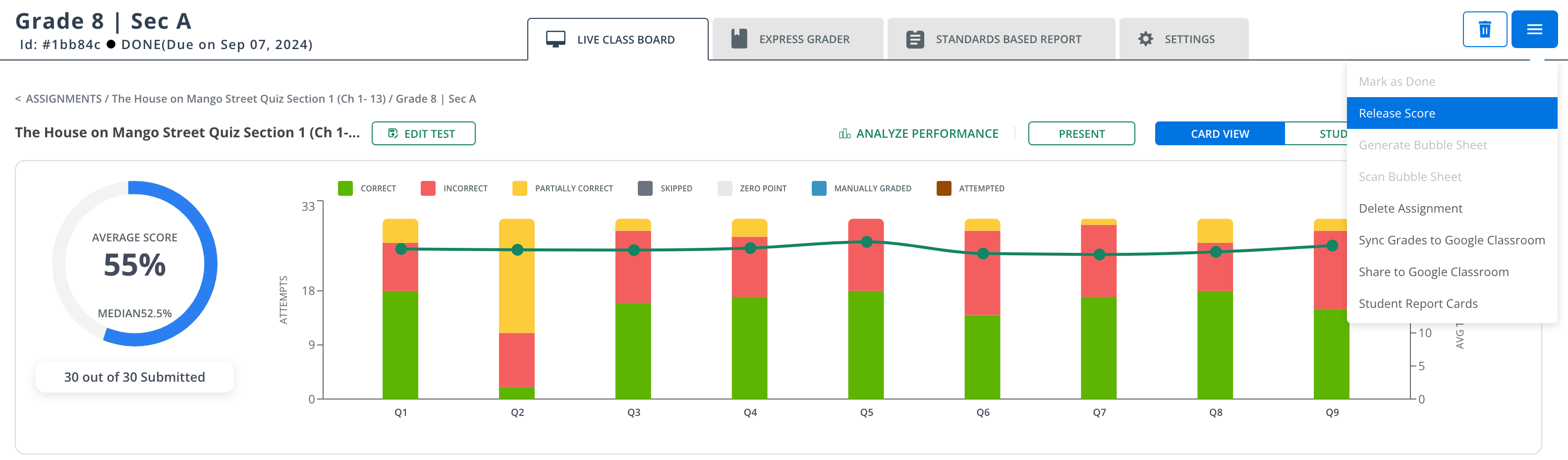
To release scores for a specific class, click **Assignments** > the class name > the hamburger menu > **Release Score**.