> ## Documentation Index
> Fetch the complete documentation index at: https://docs.goguardian.com/llms.txt
> Use this file to discover all available pages before exploring further.
# Identify Learning Gap: Group Students by Multiple Standards
> Use Identify Learning Gap in the Live Class Board to automatically group students by standards performance and get recommended resources for each group.
Identify Learning Gap analyzes student performance across every standard on an assessment and automatically sorts students into learning groups based on their results. Each group comes with recommended learning materials, so you can plan targeted instruction without reviewing every standard one by one.
## Access Identify Learning Gap
1. Open an assessment.
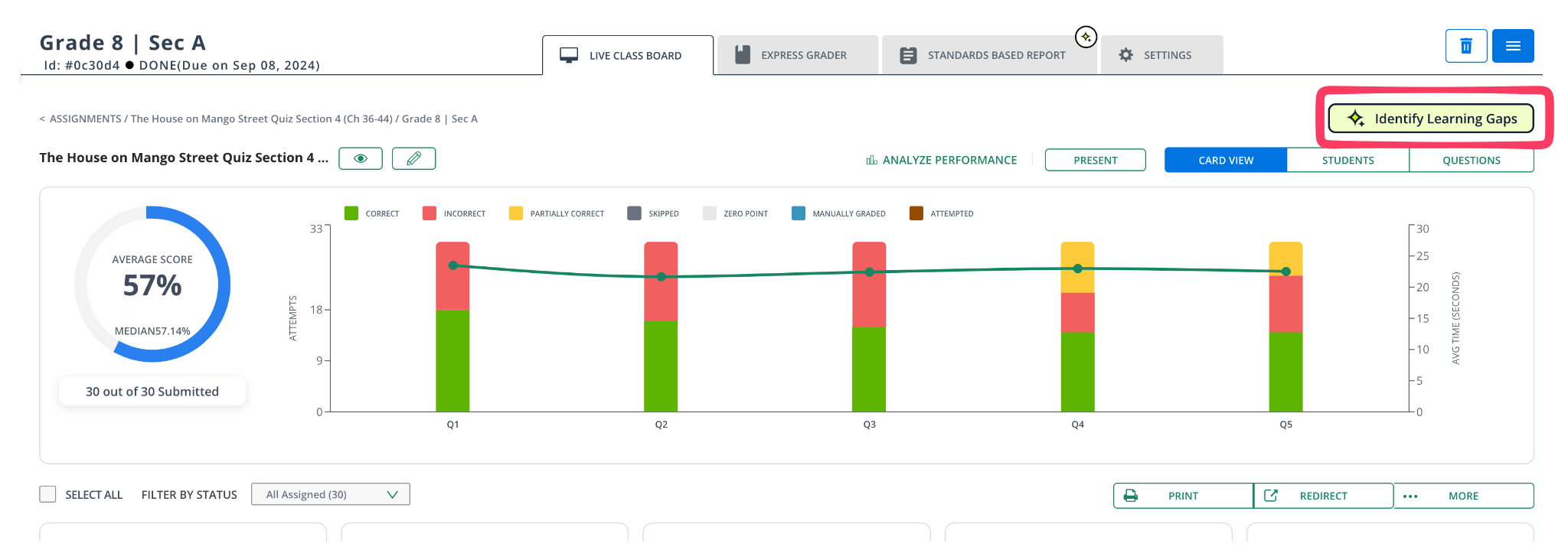
2. Navigate to the **Live Class Board (LCB)**.
3. Click **Identify Learning Gaps** in the top right.
 4. Select the **Standard Set** and **Mastery Band** you want to use for the analysis.
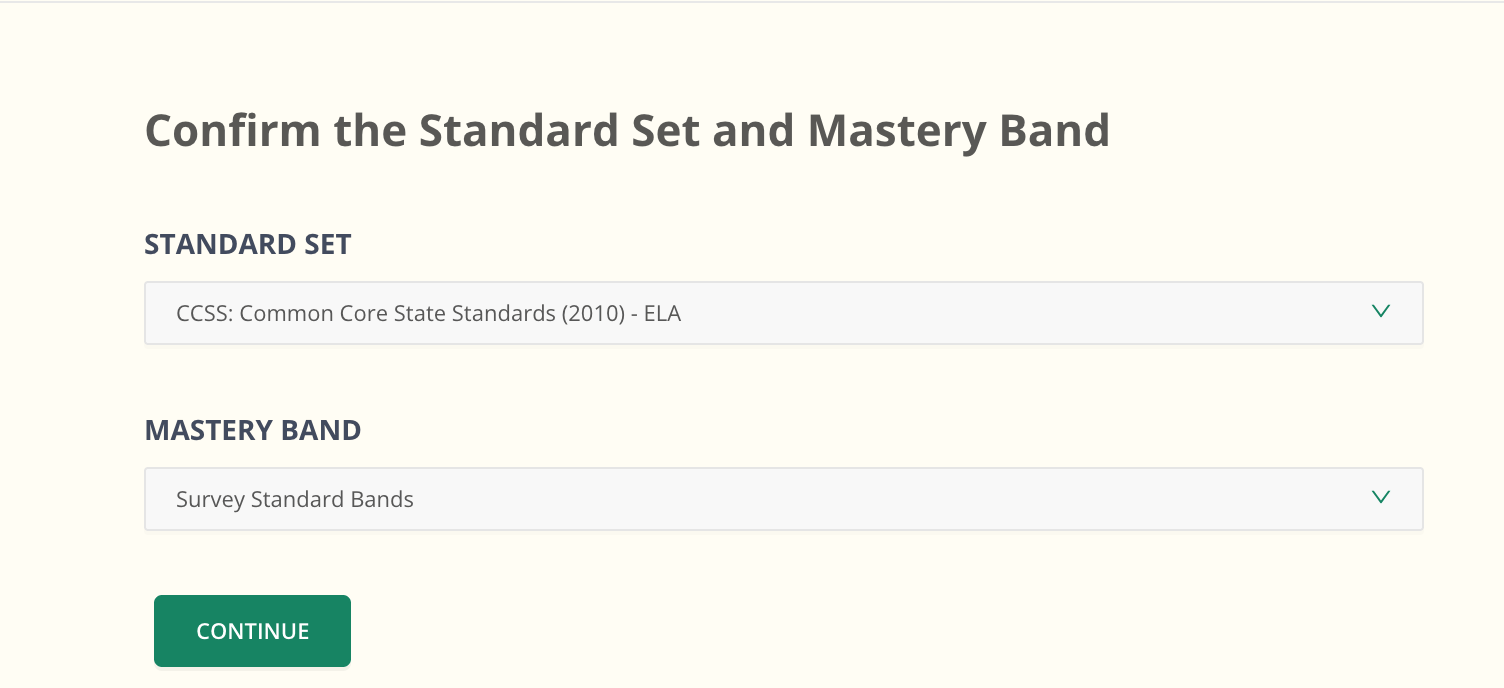 5. Click **Continue**.
## Review Learning Groups
After you click **Continue**, Pear Assessment analyzes student performance and sorts students into learning groups. Only groups that contain students appear. If no students meet the criteria for a group, that group is left out.
5. Click **Continue**.
## Review Learning Groups
After you click **Continue**, Pear Assessment analyzes student performance and sorts students into learning groups. Only groups that contain students appear. If no students meet the criteria for a group, that group is left out.
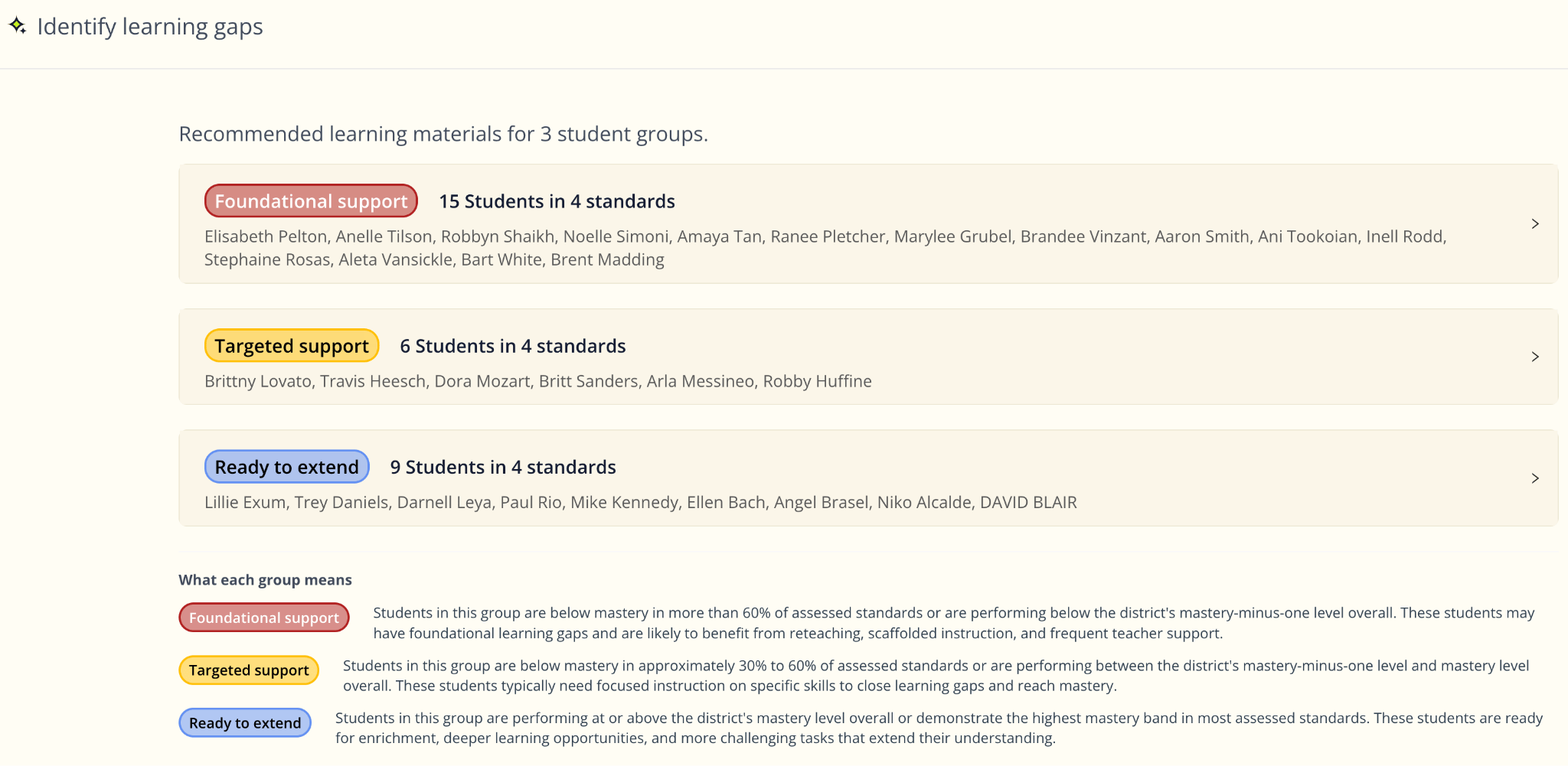 Each group shows:
* The number of students in the group.
* The number of standards included in the analysis.
* The students assigned to the group.
Group labels appear in the product as sentence case, for example **Foundational support**, not title case.
## Review Group Recommendations
Select a learning group to see detailed performance information and recommended instructional resources.
Each group shows:
* The number of students in the group.
* The number of standards included in the analysis.
* The students assigned to the group.
Group labels appear in the product as sentence case, for example **Foundational support**, not title case.
## Review Group Recommendations
Select a learning group to see detailed performance information and recommended instructional resources.
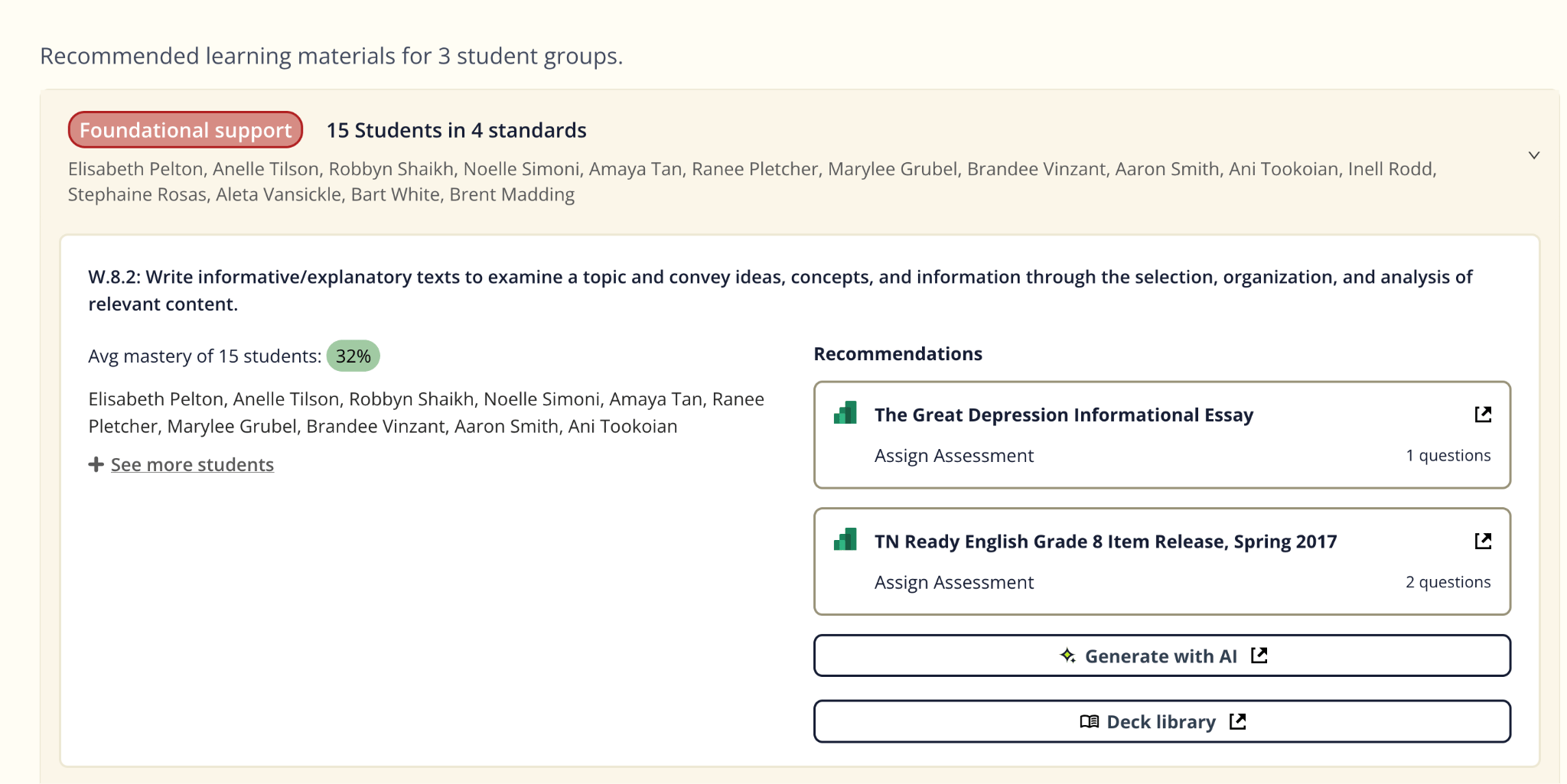 For each group, you can view:
* The standard being addressed.
* The group's average mastery for that standard.
* The students included in the group.
* Recommended assessments and instructional resources.
From this view, you can:
* **Assign Assessment** to deliver a recommended resource.
* Select **Generate with AI** to create AI-powered instructional content.
* Open the **Deck Library** to browse additional resources.
## Understand Learning Groups
Depending on the assessment results, you may see one or more of these groups:
| Learning Group | Description |
| --------------------- | --------------------------------------------------------------------------------------------------------------------------------------------------------------------------------------------------- |
| Foundational Support | Students who consistently perform below mastery across multiple standards and may need additional support. |
| Targeted Support | Students who have mastered some standards but need focused instruction in specific areas. |
| On Track / Proficient | Students who are meeting or are close to mastery across most assessed standards. |
| Ready to Extend | Students who consistently demonstrate mastery and are ready for enrichment. |
| Ungrouped | Students with insufficient assessment data. For example, students who haven't started the assessment, have one in progress, or don't have enough completed responses to determine a learning group. |
## Why Use Identify Learning Gap
Identify Learning Gap helps you:
* Spot learning patterns across multiple standards at once.
* Quickly find students who need intervention, targeted support, or enrichment.
* Reduce the time spent reviewing standards individually.
* Access recommended instructional resources aligned to student needs.
## Things to Keep in Mind
* Learning groups are based on the **Standard Set** and **Mastery Band** you select.
* Students must have enough assessment data to be included in a group.
* Only groups that contain students are displayed.
* Learning groups update automatically as assessment data changes.
* Learning groups are generated automatically and can't be edited manually.
To choose your own mastery range, standards, and students instead of using the automatic groups, see [Create Targeted Interventions from a Standards-Based Report](/products/pear-assessment/create-targeted-interventions-from-standards-based-report).
## FAQs
**How are students assigned to a learning group?**
Students are grouped automatically based on their performance across the standards included in the assessment and the **Mastery Band** you selected. The system identifies students with similar learning needs and places them into the appropriate group.
**Why don't I see all of the learning groups?**
Only learning groups that contain students are displayed. If no students meet the criteria for a group, that group doesn't appear.
**Can I change a student's learning group?**
No. Learning groups are generated automatically based on assessment performance and can't be modified manually.
**When are learning groups updated?**
Learning groups update automatically as assessment results change.
**What are the Standard Set and Mastery Band used for?**
The **Standard Set** determines which standards are included in the analysis. The **Mastery Band** defines the mastery levels used to evaluate student performance and generate learning groups.
**Can I assign recommended resources to students?**
Yes. After selecting a learning group, review the recommended instructional resources and assign assessments directly. You can also select **Generate with AI** or browse the **Deck Library** for additional resources.
**Can I use these groups for differentiated instruction?**
Yes. Learning groups are designed to help you organize students for small-group instruction, targeted interventions, reteaching, and enrichment based on assessment performance.
## Related Articles
* [Create Targeted Interventions from a Standards-Based Report](/products/pear-assessment/create-targeted-interventions-from-standards-based-report): build an intervention manually, using your own mastery range, standards, and students.
* [Manage Students on a Live Assessment](/products/pear-assessment/manage-students-on-a-live-assessment): the Live Class Board features you use alongside Identify Learning Gap.
* [Class Profile Report](/products/pear-assessment/class-profile-report): group students by a single standard from a class-level report instead of a specific assessment.
For each group, you can view:
* The standard being addressed.
* The group's average mastery for that standard.
* The students included in the group.
* Recommended assessments and instructional resources.
From this view, you can:
* **Assign Assessment** to deliver a recommended resource.
* Select **Generate with AI** to create AI-powered instructional content.
* Open the **Deck Library** to browse additional resources.
## Understand Learning Groups
Depending on the assessment results, you may see one or more of these groups:
| Learning Group | Description |
| --------------------- | --------------------------------------------------------------------------------------------------------------------------------------------------------------------------------------------------- |
| Foundational Support | Students who consistently perform below mastery across multiple standards and may need additional support. |
| Targeted Support | Students who have mastered some standards but need focused instruction in specific areas. |
| On Track / Proficient | Students who are meeting or are close to mastery across most assessed standards. |
| Ready to Extend | Students who consistently demonstrate mastery and are ready for enrichment. |
| Ungrouped | Students with insufficient assessment data. For example, students who haven't started the assessment, have one in progress, or don't have enough completed responses to determine a learning group. |
## Why Use Identify Learning Gap
Identify Learning Gap helps you:
* Spot learning patterns across multiple standards at once.
* Quickly find students who need intervention, targeted support, or enrichment.
* Reduce the time spent reviewing standards individually.
* Access recommended instructional resources aligned to student needs.
## Things to Keep in Mind
* Learning groups are based on the **Standard Set** and **Mastery Band** you select.
* Students must have enough assessment data to be included in a group.
* Only groups that contain students are displayed.
* Learning groups update automatically as assessment data changes.
* Learning groups are generated automatically and can't be edited manually.
To choose your own mastery range, standards, and students instead of using the automatic groups, see [Create Targeted Interventions from a Standards-Based Report](/products/pear-assessment/create-targeted-interventions-from-standards-based-report).
## FAQs
**How are students assigned to a learning group?**
Students are grouped automatically based on their performance across the standards included in the assessment and the **Mastery Band** you selected. The system identifies students with similar learning needs and places them into the appropriate group.
**Why don't I see all of the learning groups?**
Only learning groups that contain students are displayed. If no students meet the criteria for a group, that group doesn't appear.
**Can I change a student's learning group?**
No. Learning groups are generated automatically based on assessment performance and can't be modified manually.
**When are learning groups updated?**
Learning groups update automatically as assessment results change.
**What are the Standard Set and Mastery Band used for?**
The **Standard Set** determines which standards are included in the analysis. The **Mastery Band** defines the mastery levels used to evaluate student performance and generate learning groups.
**Can I assign recommended resources to students?**
Yes. After selecting a learning group, review the recommended instructional resources and assign assessments directly. You can also select **Generate with AI** or browse the **Deck Library** for additional resources.
**Can I use these groups for differentiated instruction?**
Yes. Learning groups are designed to help you organize students for small-group instruction, targeted interventions, reteaching, and enrichment based on assessment performance.
## Related Articles
* [Create Targeted Interventions from a Standards-Based Report](/products/pear-assessment/create-targeted-interventions-from-standards-based-report): build an intervention manually, using your own mastery range, standards, and students.
* [Manage Students on a Live Assessment](/products/pear-assessment/manage-students-on-a-live-assessment): the Live Class Board features you use alongside Identify Learning Gap.
* [Class Profile Report](/products/pear-assessment/class-profile-report): group students by a single standard from a class-level report instead of a specific assessment.