> ## Documentation Index
> Fetch the complete documentation index at: https://docs.goguardian.com/llms.txt
> Use this file to discover all available pages before exploring further.
# Import a Document, Image, or Form to Create a Test
> Import PDFs, Word documents, images, or Google Forms into Pear Assessment to create interactive tests from existing content
Pear Assessment lets you import supported files to extract questions and build interactive tests without starting from scratch. Supported file types include PDFs, Word documents (.docx), images (.jpg and .png), and Google Forms. You can start the import from either the Dashboard or the Test library.
If you want to generate questions from notes or documents using AI, click **Don't have questions ready? Upload now** during the import flow. Question Generation requires the AI suite add-on.
## Import a File from the Dashboard
1. In the navigation menu, click **Dashboard**.
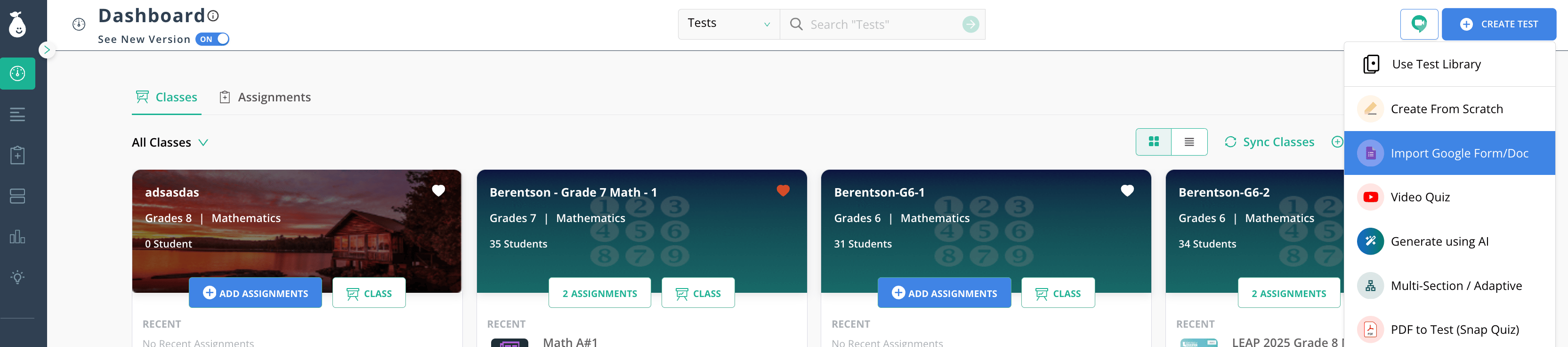
2. In the upper-right corner, click **Create Test** > **Import Google Form/Doc**.
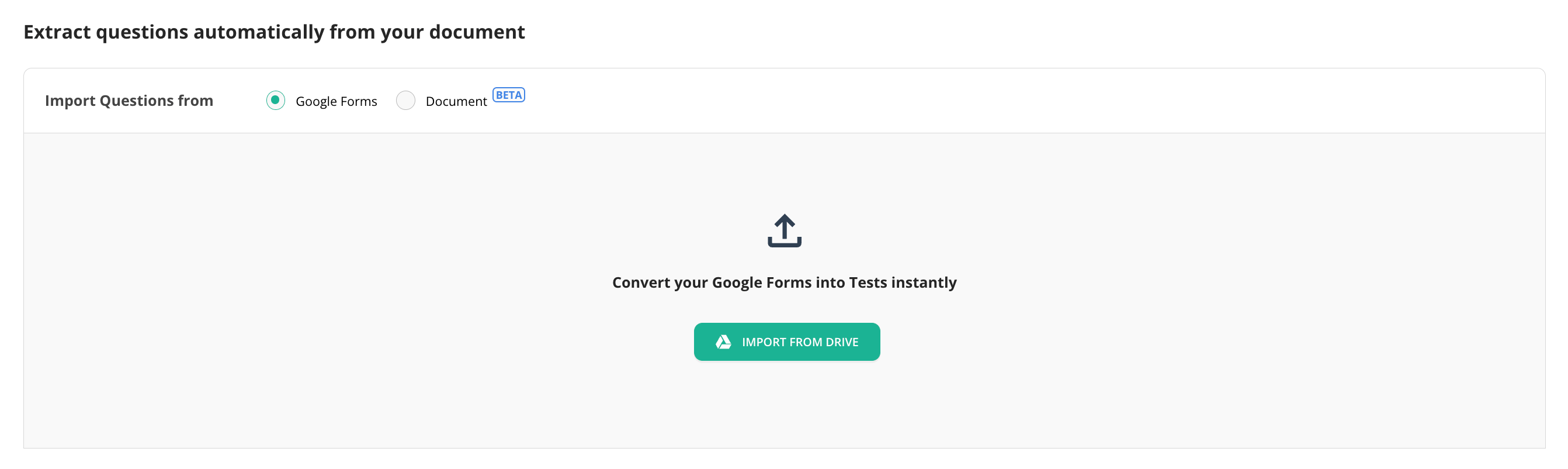
3. Select **Google Forms** or **Document**.
4. Import or upload the file.
5. If you uploaded a document, configure grades, subjects, and standards.
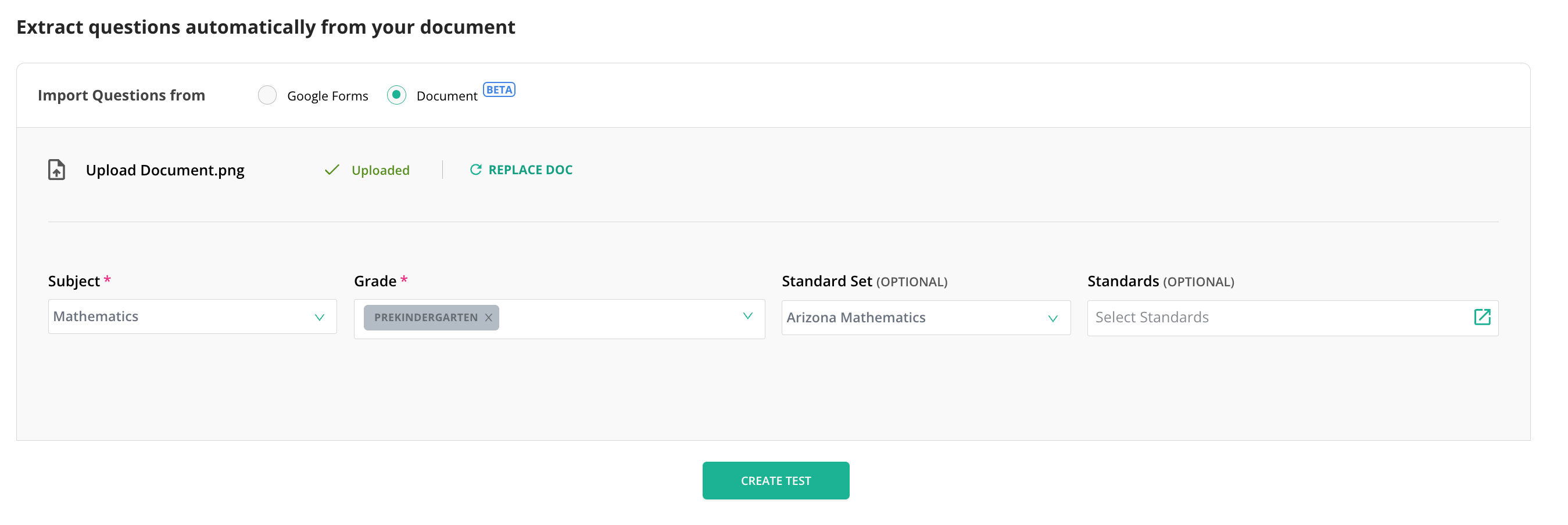 6. Click **Create Test** to extract questions from the document. Google Forms extraction starts automatically.
7. Review the confirmation pop-up, which summarizes extraction results, successfully imported questions, unsupported question formats, reviewable edits, and any warnings about missing standards.
8. On the **Test Review** screen, modify extracted questions, resolve warnings, and rename the test.
9. Click **Save** to add the test to your Test library.
## Import a File from the Test Library
1. In the navigation menu, click **Test**.
2. In the upper-right corner, click **New Test**.
3. Click **Import Google Form/Doc**.
6. Click **Create Test** to extract questions from the document. Google Forms extraction starts automatically.
7. Review the confirmation pop-up, which summarizes extraction results, successfully imported questions, unsupported question formats, reviewable edits, and any warnings about missing standards.
8. On the **Test Review** screen, modify extracted questions, resolve warnings, and rename the test.
9. Click **Save** to add the test to your Test library.
## Import a File from the Test Library
1. In the navigation menu, click **Test**.
2. In the upper-right corner, click **New Test**.
3. Click **Import Google Form/Doc**.
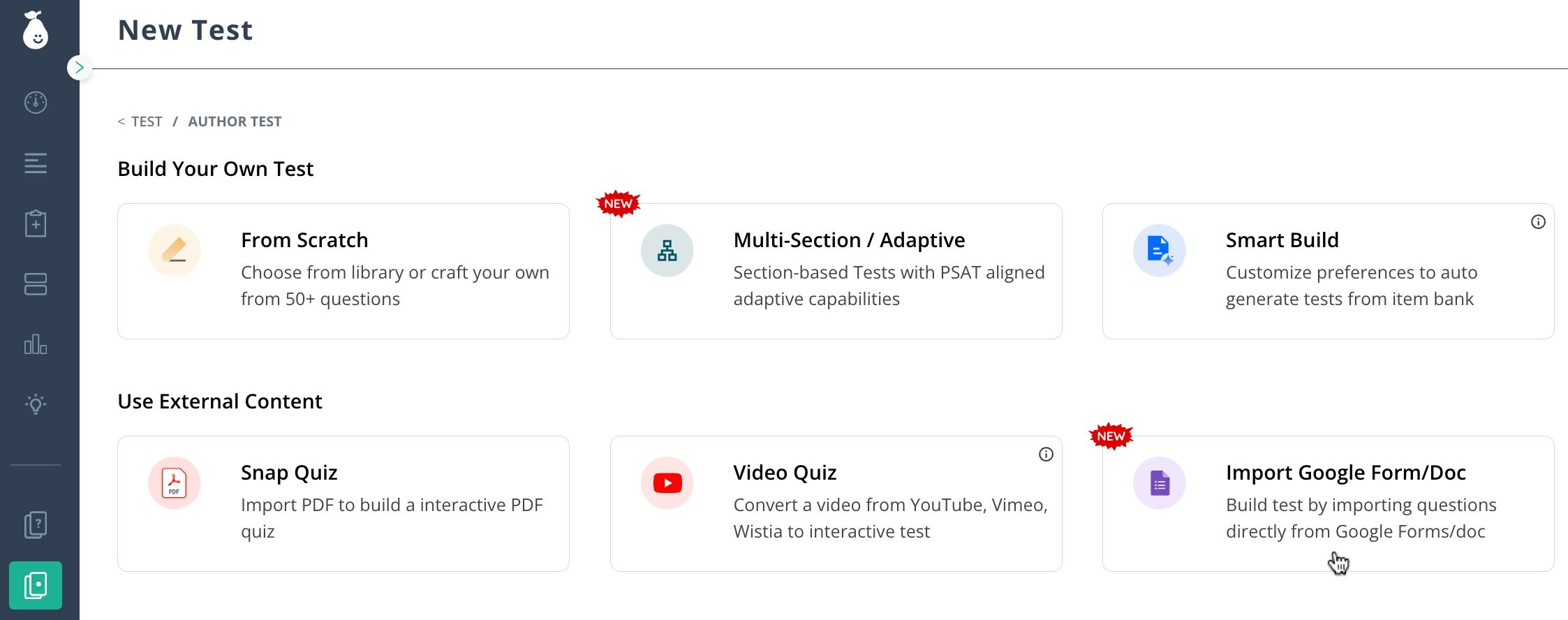 4. Select **Google Forms** or **Document**.
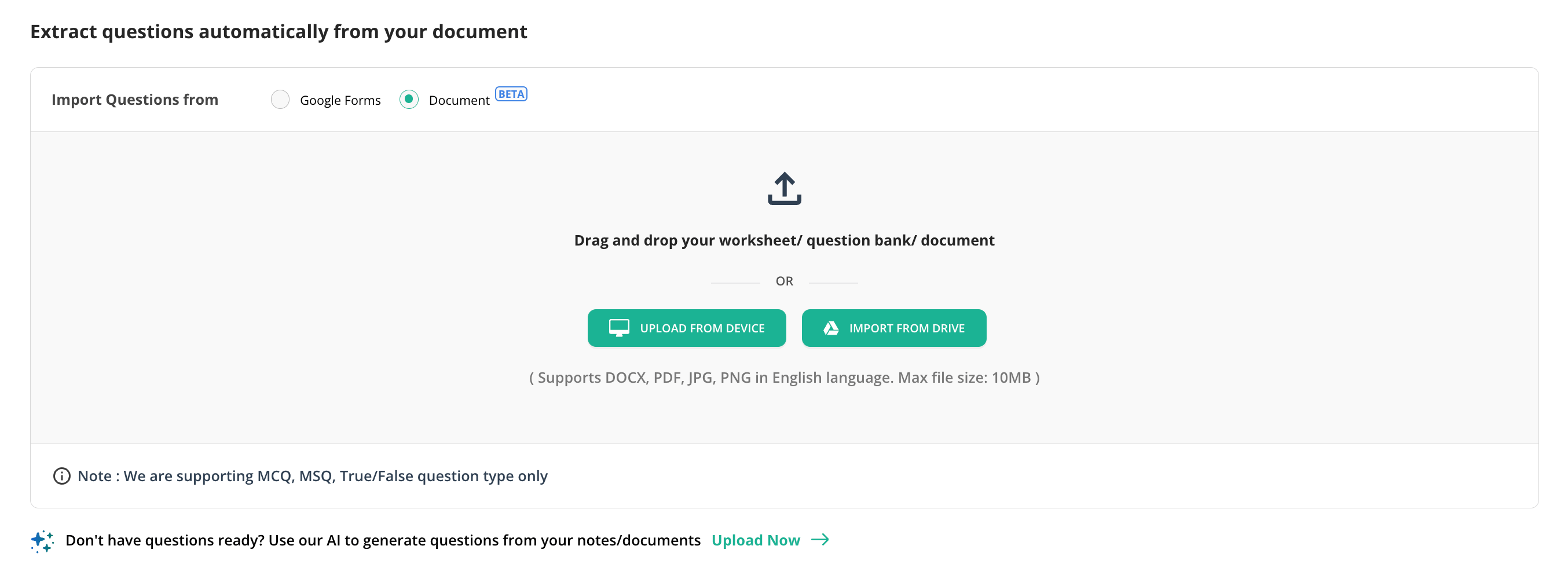 5. Import or upload the file.
6. If you uploaded a document, configure grades, subjects, and standards.
7. Click **Create Test** to extract questions from the document. Google Forms extraction starts automatically.
8. Click **Review Your Test**.
5. Import or upload the file.
6. If you uploaded a document, configure grades, subjects, and standards.
7. Click **Create Test** to extract questions from the document. Google Forms extraction starts automatically.
8. Click **Review Your Test**.
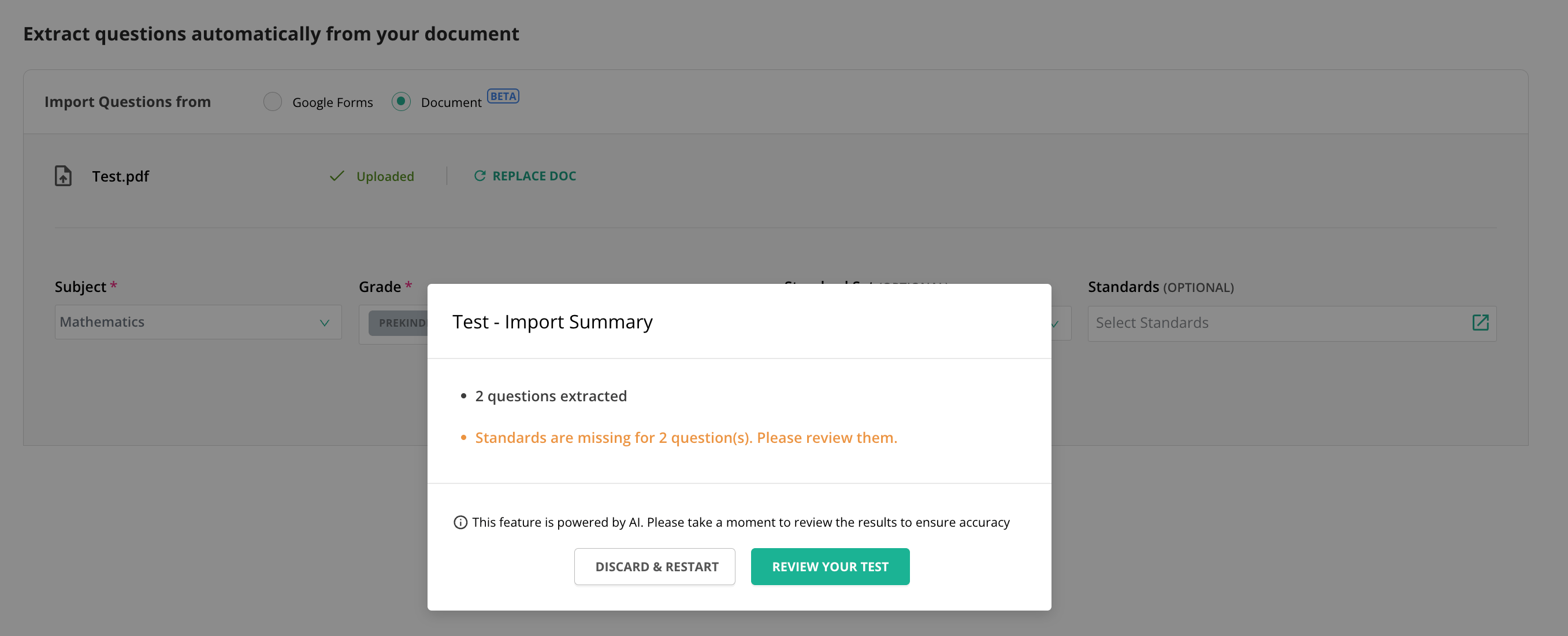 9. On the **Test Review** screen, modify extracted questions, resolve warnings, and rename the test.
10. Click **Save** to add the test to your Test library.
9. On the **Test Review** screen, modify extracted questions, resolve warnings, and rename the test.
10. Click **Save** to add the test to your Test library.
 ## Frequently Asked Questions
### What File Types Can I Upload?
Supported file types are .pdf, .docx, .jpg, and .png.
### Can I Upload Files in Languages Other Than English?
No. Only English-language files are currently supported.
### What Is the Maximum File Size?
Files must be 20 MB or smaller. If your file exceeds this limit, split it into smaller parts before uploading.
### How Many Questions Can a Document Contain?
Each document supports up to 100 questions. If a document contains more than 100 questions, only the first 100 are imported.
### What Question Types Are Supported?
Supported question types include Multiple Choice (MCQ), Multiple Select (MSQ), and True/False.
### What Should I Check if My File Does Not Import Correctly?
Confirm that the file is in a supported format (.pdf, .docx, .jpg, or .png), is written in English, is 20 MB or smaller, and contains no more than 100 questions. If the issue continues, contact GoGuardian support.
## Resources
## Frequently Asked Questions
### What File Types Can I Upload?
Supported file types are .pdf, .docx, .jpg, and .png.
### Can I Upload Files in Languages Other Than English?
No. Only English-language files are currently supported.
### What Is the Maximum File Size?
Files must be 20 MB or smaller. If your file exceeds this limit, split it into smaller parts before uploading.
### How Many Questions Can a Document Contain?
Each document supports up to 100 questions. If a document contains more than 100 questions, only the first 100 are imported.
### What Question Types Are Supported?
Supported question types include Multiple Choice (MCQ), Multiple Select (MSQ), and True/False.
### What Should I Check if My File Does Not Import Correctly?
Confirm that the file is in a supported format (.pdf, .docx, .jpg, or .png), is written in English, is 20 MB or smaller, and contains no more than 100 questions. If the issue continues, contact GoGuardian support.
## Resources