> ## Documentation Index
> Fetch the complete documentation index at: https://docs.goguardian.com/llms.txt
> Use this file to discover all available pages before exploring further.
# Interpret Multiple Assessment Report
> Understand how to navigate and filter the Multiple Assessment Report to track student progress across assessments
The Multiple Assessment Report is available with Teacher Premium or Enterprise subscriptions. This report lets administrators and teachers view student progress across assessments. The data compares the performance of one or more benchmarks to help develop strategies to improve areas of concern.
## Access the Multiple Assessment Report
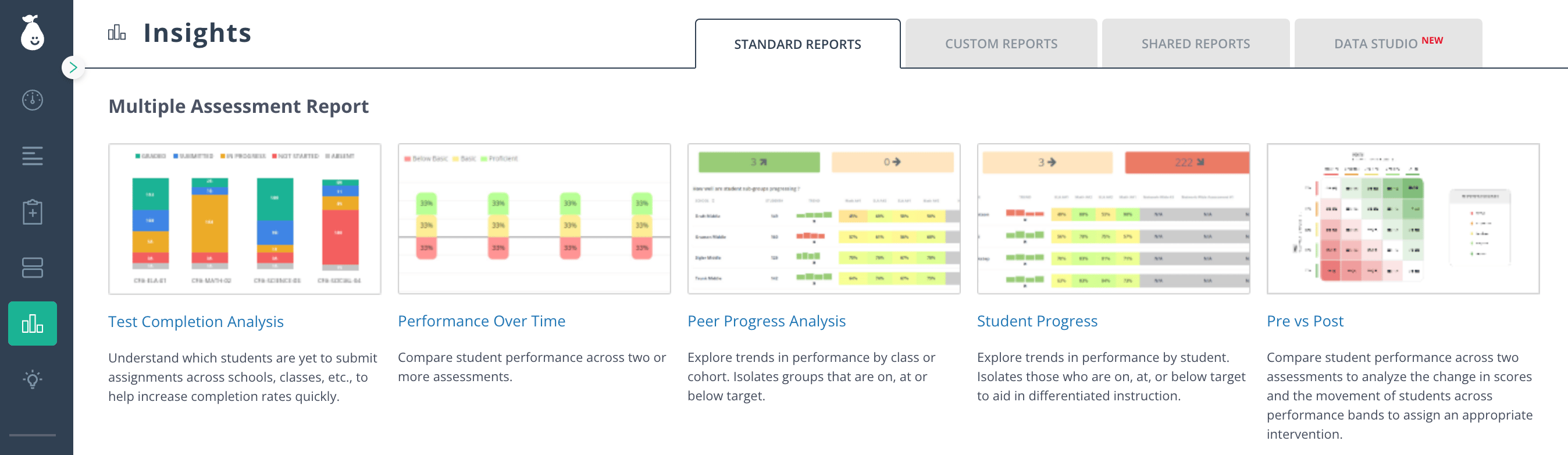
To get started, click **Insights** and click on one of the reports under the **Multiple Assessment Report** section.
Scores are usually immediate, but there can be a lag of about one hour before reports are populated. You will only receive data for students who are marked as absent or who have submitted. Students with ungraded constructed responses will also appear in the report.
 ## Report Types
The Multiple Assessment Report includes three report types:
* **Performance Over Time**: Statistical overview of several assessments. Teachers get a high-level summary of data. District and school administrators can compare the data by school, teachers, and classes.
* **Peer Progress Analysis**: Analysis across cohorts such as classes, schools, gender, and race. Data can be modified to analyze by raw score or percentage. Rectangular bars indicate the number of students improving (green), maintaining the same status (yellow), or declining (red).
* **Student Progress**: Breaks down the performance on several assessments by each student and helps identify individual students who need intervention.
## Filter Report Data
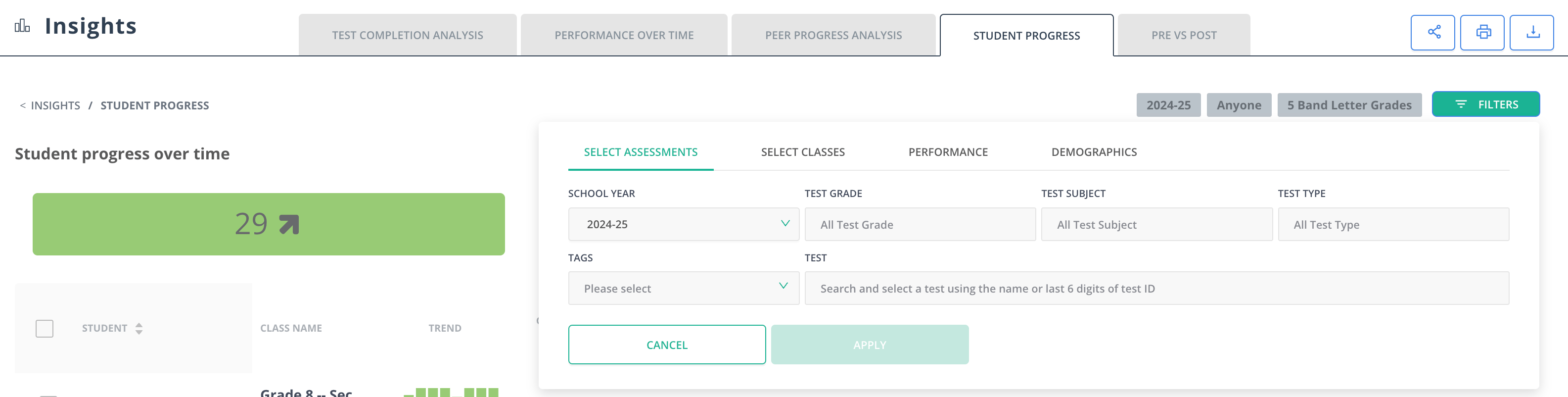
Once you navigate to your preferred Multiple Assessment Report, filter data by clicking **Filters** in the upper-right corner, then select a school year, course, assessment type, or assessment title.
## Report Types
The Multiple Assessment Report includes three report types:
* **Performance Over Time**: Statistical overview of several assessments. Teachers get a high-level summary of data. District and school administrators can compare the data by school, teachers, and classes.
* **Peer Progress Analysis**: Analysis across cohorts such as classes, schools, gender, and race. Data can be modified to analyze by raw score or percentage. Rectangular bars indicate the number of students improving (green), maintaining the same status (yellow), or declining (red).
* **Student Progress**: Breaks down the performance on several assessments by each student and helps identify individual students who need intervention.
## Filter Report Data
Once you navigate to your preferred Multiple Assessment Report, filter data by clicking **Filters** in the upper-right corner, then select a school year, course, assessment type, or assessment title.