> ## Documentation Index
> Fetch the complete documentation index at: https://docs.goguardian.com/llms.txt
> Use this file to discover all available pages before exploring further.
# Manage Curriculum Tab in Pear Assessment
> Create, publish, and manage your district's official scope and sequence as an administrator, or browse it as a teacher to align your lessons.
The Curriculum tab in Pear Assessment holds your district's official scope and sequence. District administrators create, manage, and publish it; teachers browse the published version as a read-only planning guide for their own lessons.
## Access Curriculum Tab
1. Sign in to Pear Assessment and click **Curriculum** in the navigation menu.
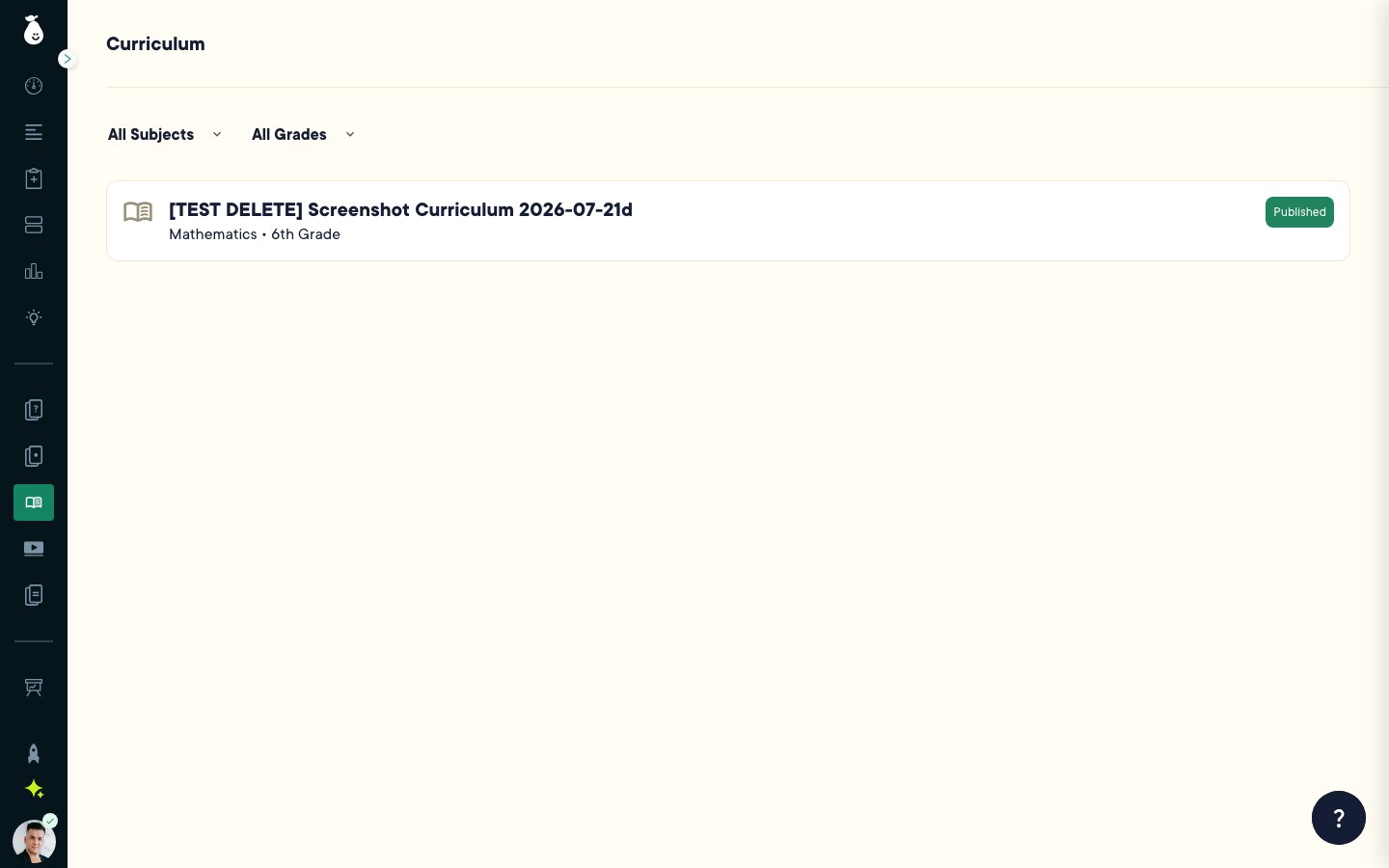
2. Use the **All Subjects** and **All Grades** filters to narrow the list.
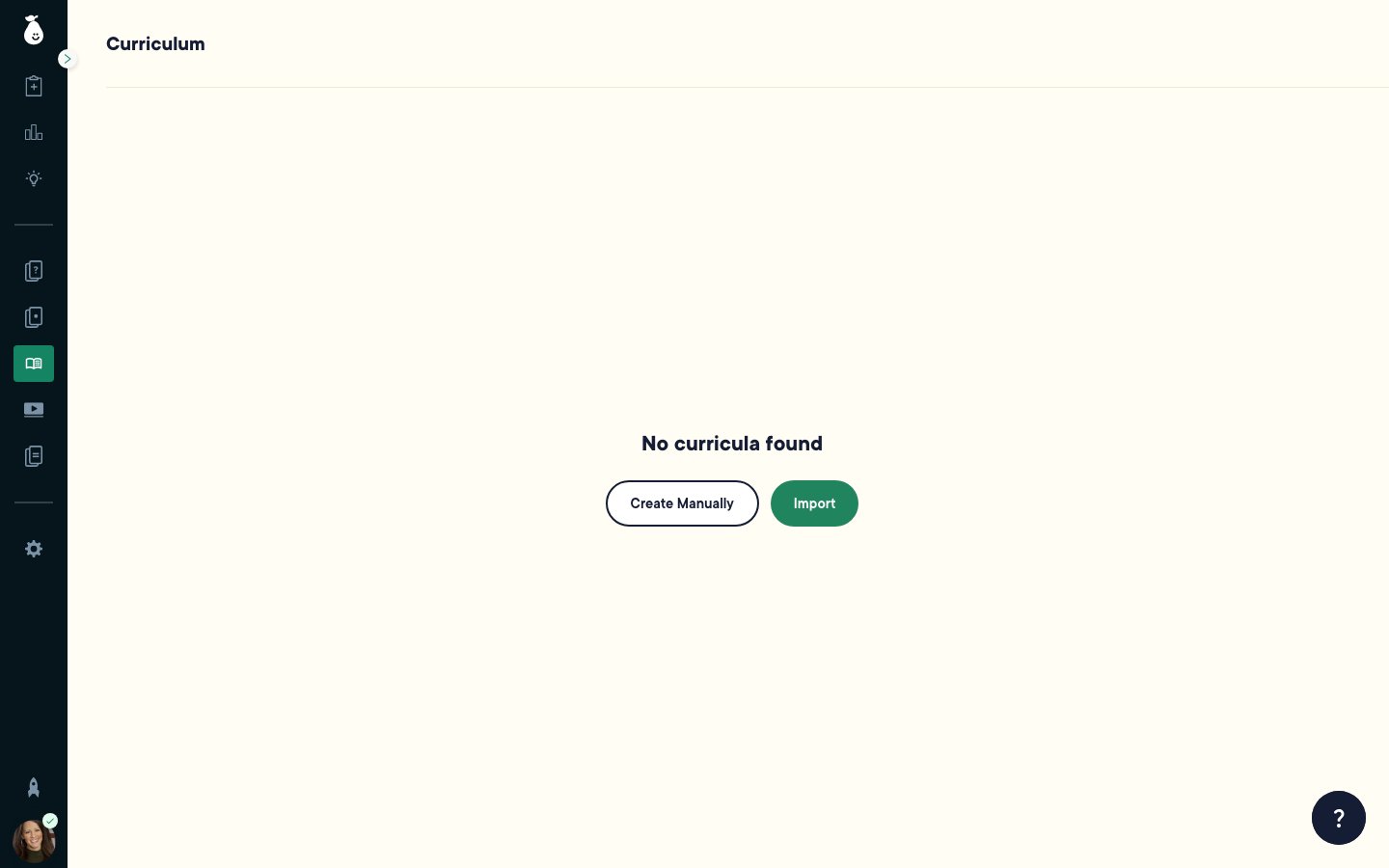 Teachers only see Published curricula here. If your district administrator hasn't published one yet, the tab shows a message letting you know nothing is available.
## Create a Curriculum (District Admin)
You have two options for creating a curriculum:
**Create manually:**
1. Click **Create Manually**.
2. Enter a **Curriculum name**, then select a **Subject** and **Grade**.
Teachers only see Published curricula here. If your district administrator hasn't published one yet, the tab shows a message letting you know nothing is available.
## Create a Curriculum (District Admin)
You have two options for creating a curriculum:
**Create manually:**
1. Click **Create Manually**.
2. Enter a **Curriculum name**, then select a **Subject** and **Grade**.
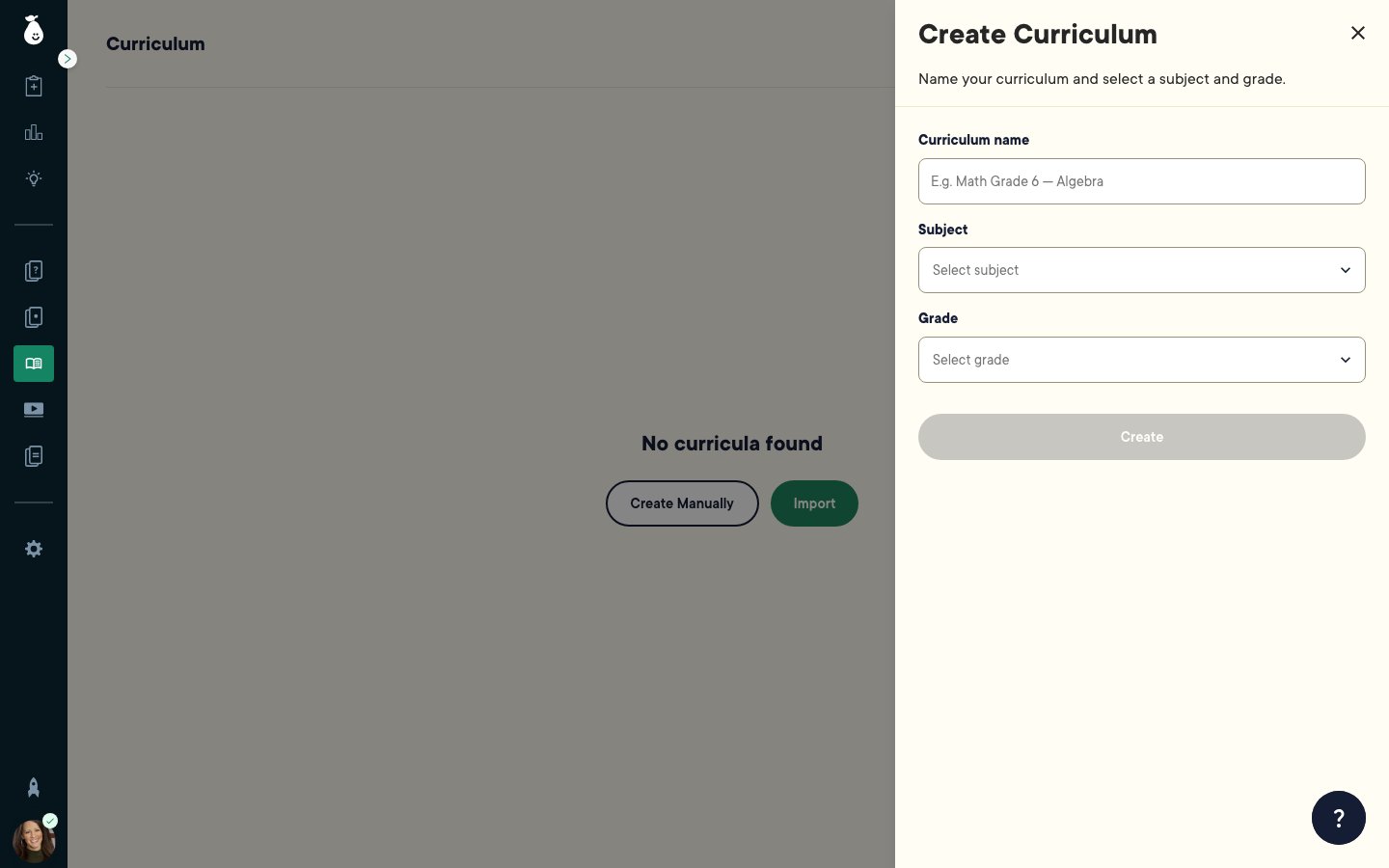 3. Click **Create**. The curriculum is created in Draft state.
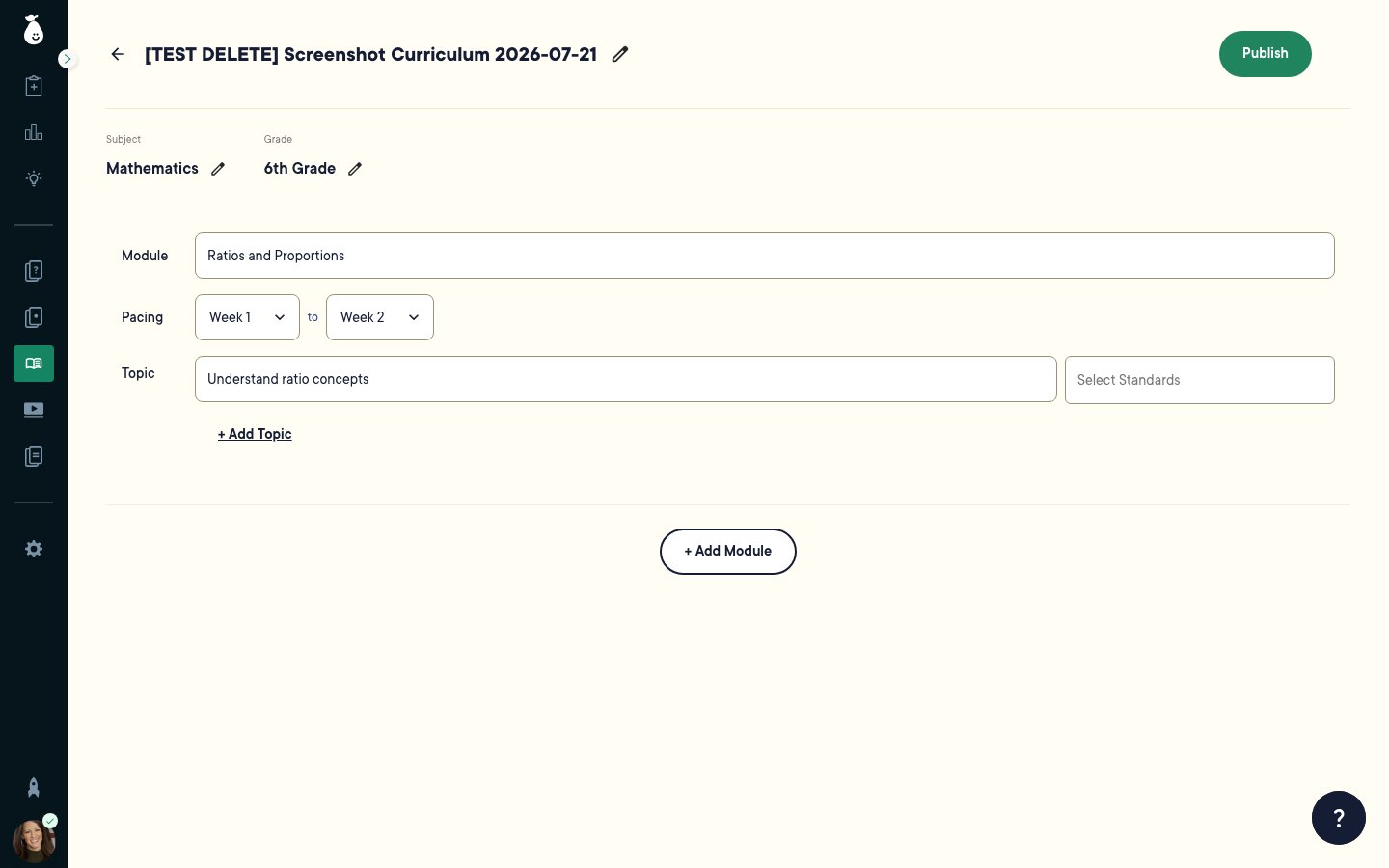
4. Enter a **Module** name, and set the **Pacing** range in weeks.
5. Enter a **Topic** name within the module, and click **Select Standards** to tag one or more standards. Standards are optional, but a warning appears at publish time if a topic has none, since reporting may be impacted.
6. Click **+ Add Topic** to add more topics, or **+ Add Module** to add another module.
3. Click **Create**. The curriculum is created in Draft state.
4. Enter a **Module** name, and set the **Pacing** range in weeks.
5. Enter a **Topic** name within the module, and click **Select Standards** to tag one or more standards. Standards are optional, but a warning appears at publish time if a topic has none, since reporting may be impacted.
6. Click **+ Add Topic** to add more topics, or **+ Add Module** to add another module.
 **Import curriculum documents:**
1. Click **Import** and select a **Grade** and **Subject**.
2. Upload one or more documents from your computer, Google Drive (Google SSO districts), or Microsoft OneDrive (Microsoft SSO districts).
3. Pear Assessment extracts modules, topics, pacing, and standards from your documents using AI. You can leave the page and return later — progress is saved.
4. Review the Draft curriculum populated from your documents. If extraction partially fails, correct the remaining fields manually.
## Publish a Curriculum (District Admin)
1. Open the Draft curriculum and click **Publish**.
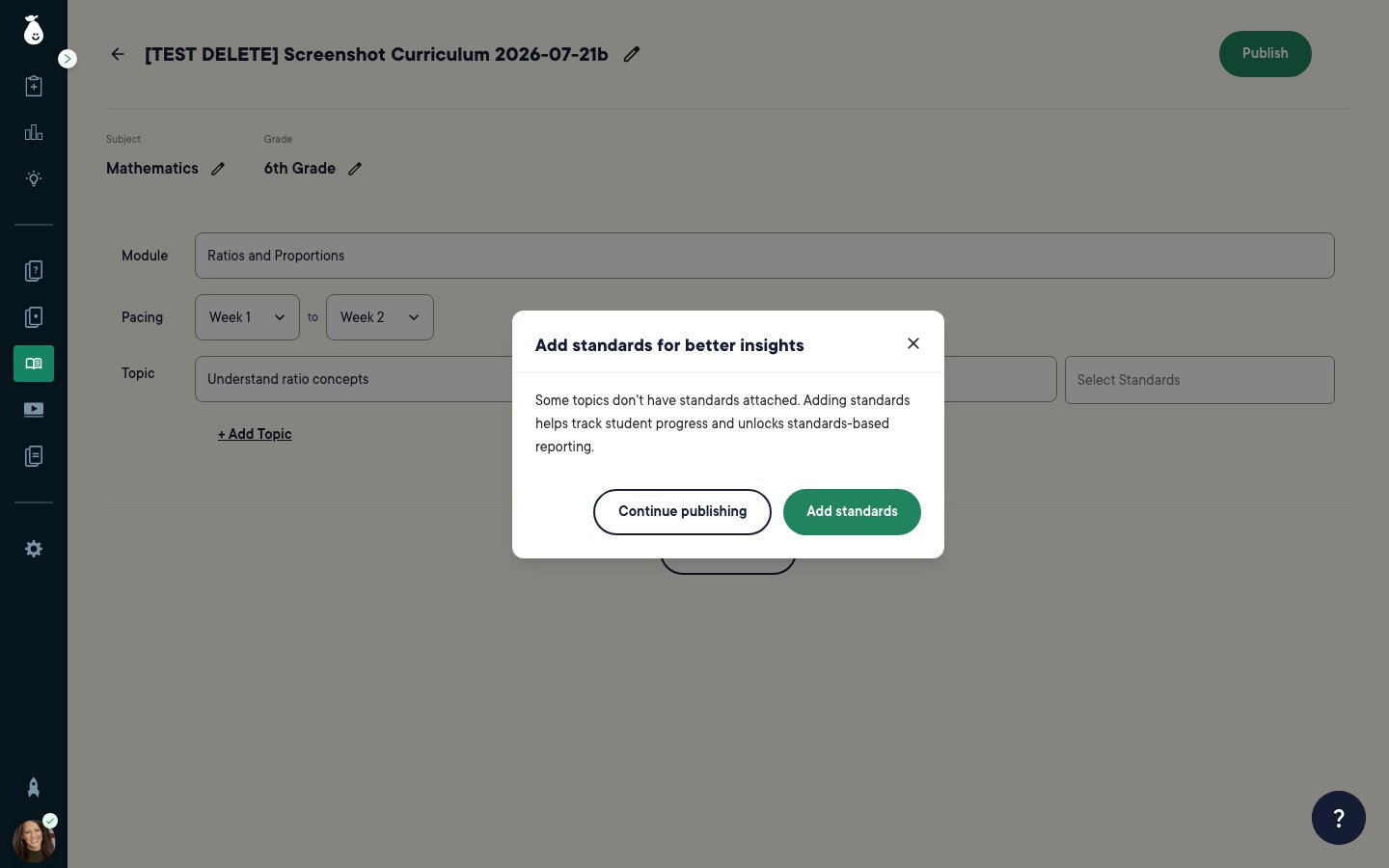
2. If any topics don't have standards attached, a non-blocking warning appears. Click **Continue Publishing** to proceed, or **Add Standards** to tag them first.
**Import curriculum documents:**
1. Click **Import** and select a **Grade** and **Subject**.
2. Upload one or more documents from your computer, Google Drive (Google SSO districts), or Microsoft OneDrive (Microsoft SSO districts).
3. Pear Assessment extracts modules, topics, pacing, and standards from your documents using AI. You can leave the page and return later — progress is saved.
4. Review the Draft curriculum populated from your documents. If extraction partially fails, correct the remaining fields manually.
## Publish a Curriculum (District Admin)
1. Open the Draft curriculum and click **Publish**.
2. If any topics don't have standards attached, a non-blocking warning appears. Click **Continue Publishing** to proceed, or **Add Standards** to tag them first.
 3. Verify the result: the curriculum status changes from Draft to Published, and it becomes immediately visible to every teacher in the district's own read-only Curriculum tab.
Editing a Published curriculum reverts it to Draft state, which removes it from teacher visibility until you publish it again.
## Attach Content to a Published Module (District Admin)
1. On a Published curriculum, click **Add content** next to a module.
3. Verify the result: the curriculum status changes from Draft to Published, and it becomes immediately visible to every teacher in the district's own read-only Curriculum tab.
Editing a Published curriculum reverts it to Draft state, which removes it from teacher visibility until you publish it again.
## Attach Content to a Published Module (District Admin)
1. On a Published curriculum, click **Add content** next to a module.
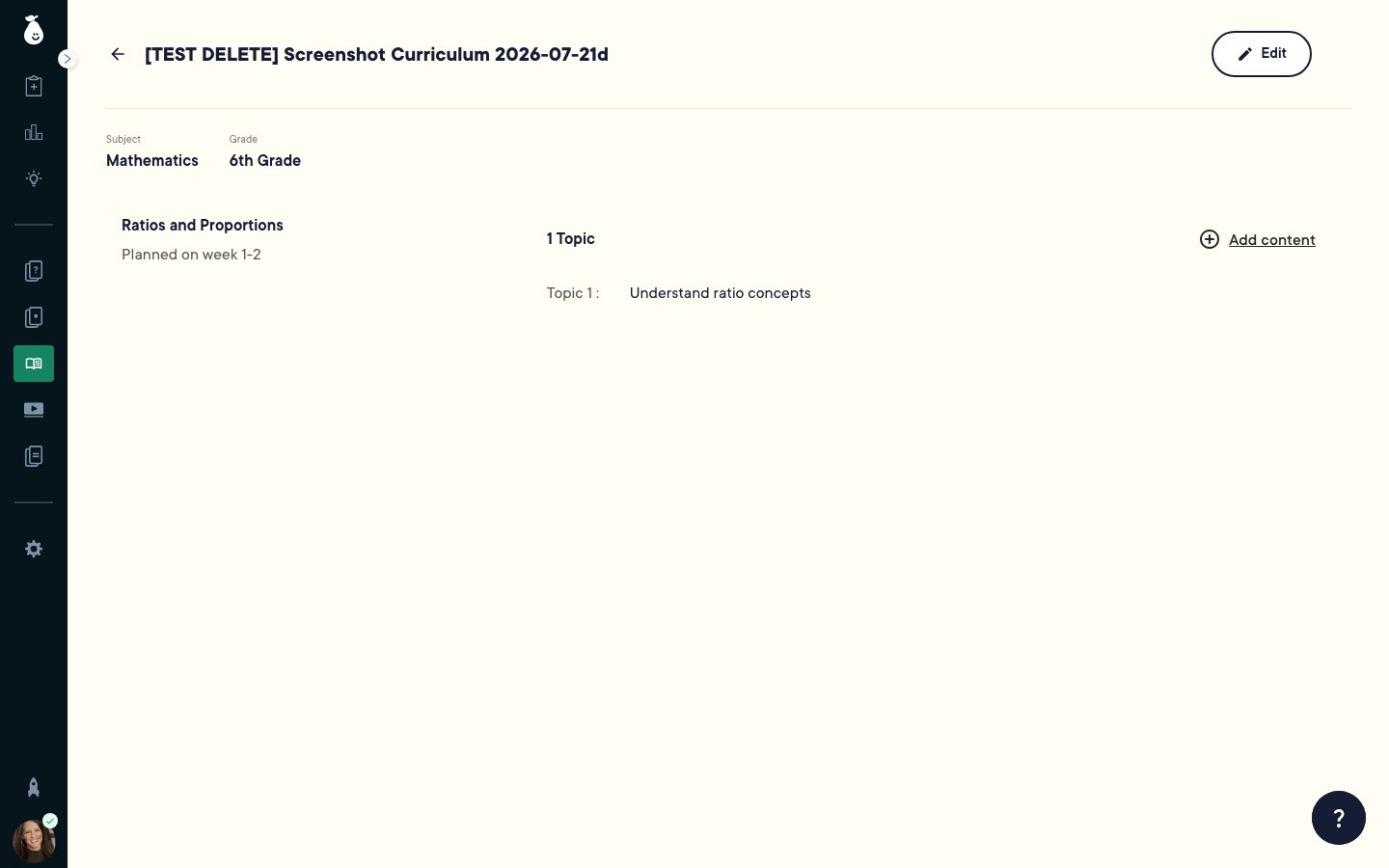 2. In the side panel, select the relevant topic.
3. Choose a content source: upload from your computer, Google Drive, or Microsoft OneDrive.
4. Pear Assessment converts your document into a Pear Deck, automatically inheriting the curriculum's grade and subject. The generated deck attaches to the selected module and topic.
Content attachment is only available on Published curricula. **Add content** doesn't appear on Draft curricula.
## Delete a Curriculum (District Admin)
1. From the Curriculum tab list, click the **⋮** menu next to the curriculum.
2. Click **Delete**, then confirm. Deleting a curriculum removes it from the list — any content already attached to it isn't deleted.
## Browse Published Curricula (Teacher)
1. Click a Published curriculum to open it and view its full structure:
* **Modules** — the major units or sections of the curriculum
* **Topics** — the individual instructional topics within each module
* **Pacing** — the suggested timeframe for each topic
* **Standards** — any tagged standards aligned to each topic, where available
2. In the side panel, select the relevant topic.
3. Choose a content source: upload from your computer, Google Drive, or Microsoft OneDrive.
4. Pear Assessment converts your document into a Pear Deck, automatically inheriting the curriculum's grade and subject. The generated deck attaches to the selected module and topic.
Content attachment is only available on Published curricula. **Add content** doesn't appear on Draft curricula.
## Delete a Curriculum (District Admin)
1. From the Curriculum tab list, click the **⋮** menu next to the curriculum.
2. Click **Delete**, then confirm. Deleting a curriculum removes it from the list — any content already attached to it isn't deleted.
## Browse Published Curricula (Teacher)
1. Click a Published curriculum to open it and view its full structure:
* **Modules** — the major units or sections of the curriculum
* **Topics** — the individual instructional topics within each module
* **Pacing** — the suggested timeframe for each topic
* **Standards** — any tagged standards aligned to each topic, where available
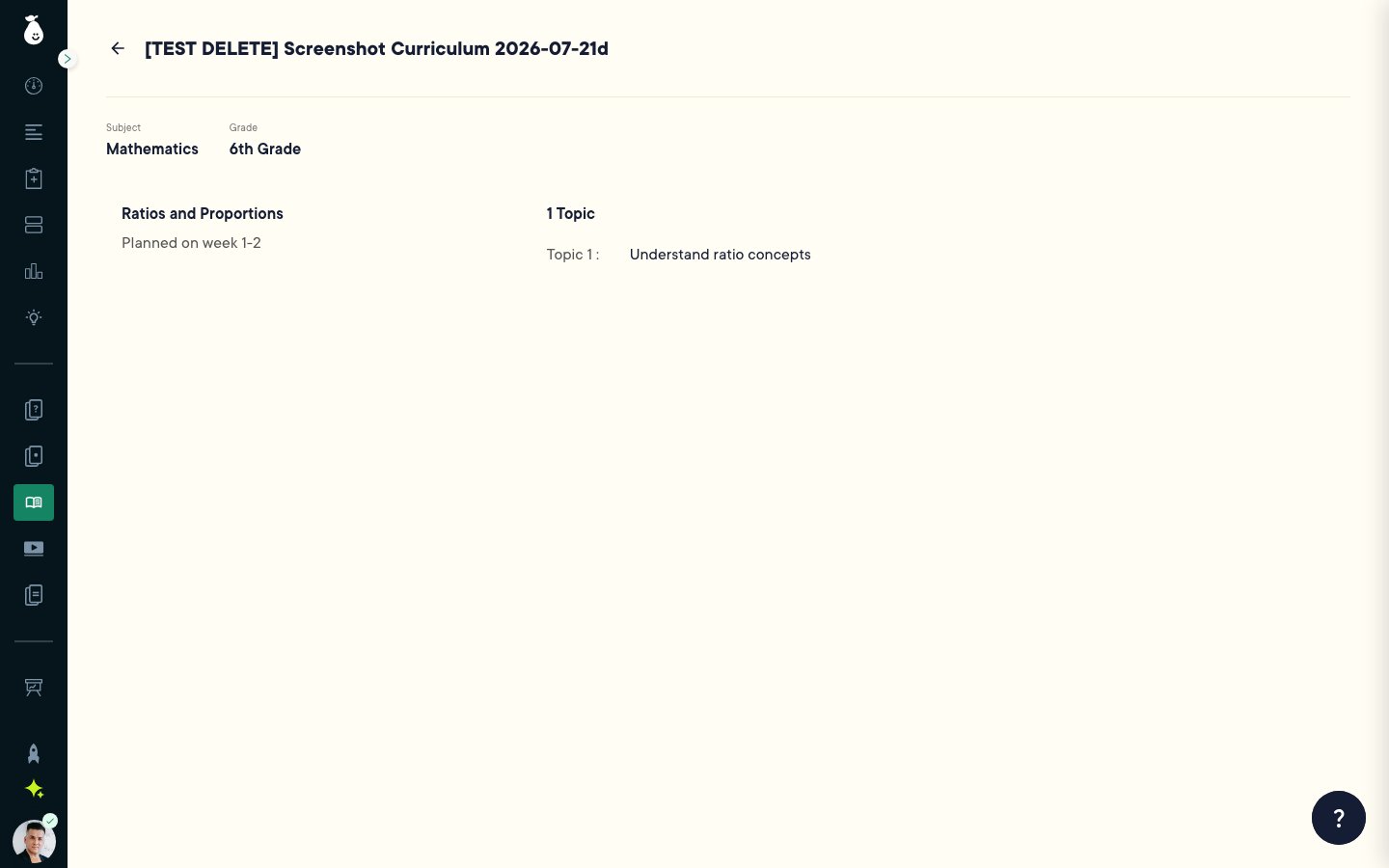 2. Use the curriculum as a planning guide — the module and topic structure reflects your district's official pacing, so you can align your lessons and generated decks accordingly.
## Review Teacher Access Limits
As a teacher, your access to the Curriculum tab is view-only. You can't:
* Create, edit, or delete curricula, modules, or topics
* Add content to the curriculum
* Access Draft curricula
* Publish or unpublish a curriculum
These actions are reserved for district administrators.
## FAQ
**Do I need to tag standards before publishing?**
No. Standards are optional, but tagging them unlocks standards-based reporting and helps teachers track student progress against district pacing.
**Why don't I see a curriculum my administrator told me about?**
The curriculum is likely still in Draft state. Draft curricula aren't visible to teachers until a district administrator publishes them.
## Resources
Generate a Pear Deck lesson, Pear Practice Set, or Pear Assessment Test from a topic, file, or standard.
2. Use the curriculum as a planning guide — the module and topic structure reflects your district's official pacing, so you can align your lessons and generated decks accordingly.
## Review Teacher Access Limits
As a teacher, your access to the Curriculum tab is view-only. You can't:
* Create, edit, or delete curricula, modules, or topics
* Add content to the curriculum
* Access Draft curricula
* Publish or unpublish a curriculum
These actions are reserved for district administrators.
## FAQ
**Do I need to tag standards before publishing?**
No. Standards are optional, but tagging them unlocks standards-based reporting and helps teachers track student progress against district pacing.
**Why don't I see a curriculum my administrator told me about?**
The curriculum is likely still in Draft state. Draft curricula aren't visible to teachers until a district administrator publishes them.
## Resources
Generate a Pear Deck lesson, Pear Practice Set, or Pear Assessment Test from a topic, file, or standard.