> ## Documentation Index
> Fetch the complete documentation index at: https://docs.goguardian.com/llms.txt
> Use this file to discover all available pages before exploring further.
# Add, Edit, and Deactivate User Accounts
> Add individual or bulk users, update account details, and deactivate accounts in Pear Assessment
District admins in Pear Assessment can add, edit, and deactivate user accounts for teachers and students across their schools.
## Manage Users
The **Users** tab under **Manage District** and **Manage School** shows every individual with an account in your district or school. Roles include Student, Teacher, District Admin, and School Admin. Use the **Refine Results** button to filter by any column heading.
The **Actions** menu on each row lets you add, modify, or delete individual user accounts.
## User Management Options
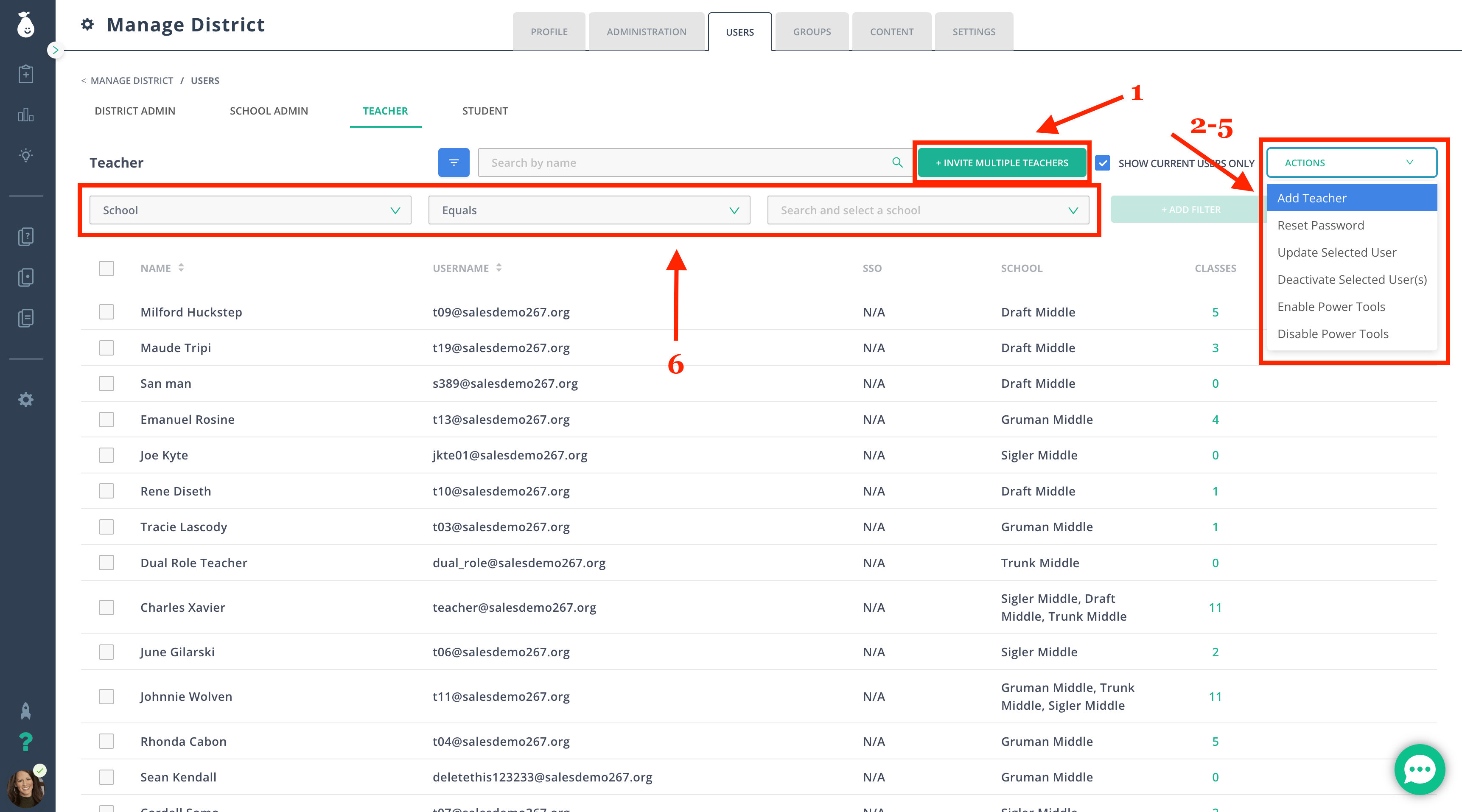
* **(1) Invite Multiple Teachers:** Select **Invite Multiple Teachers** in the top-left of the Users tab to bulk-add teachers. Type or paste teacher email addresses into the pop-up box. Each teacher receives an email inviting them to select a school and create a password.
* **(2) Add Individual Teacher:** Use the **Actions** dropdown on the right side of the screen to add a single teacher. Provide the teacher's name, username, and password, then select the school where they teach.
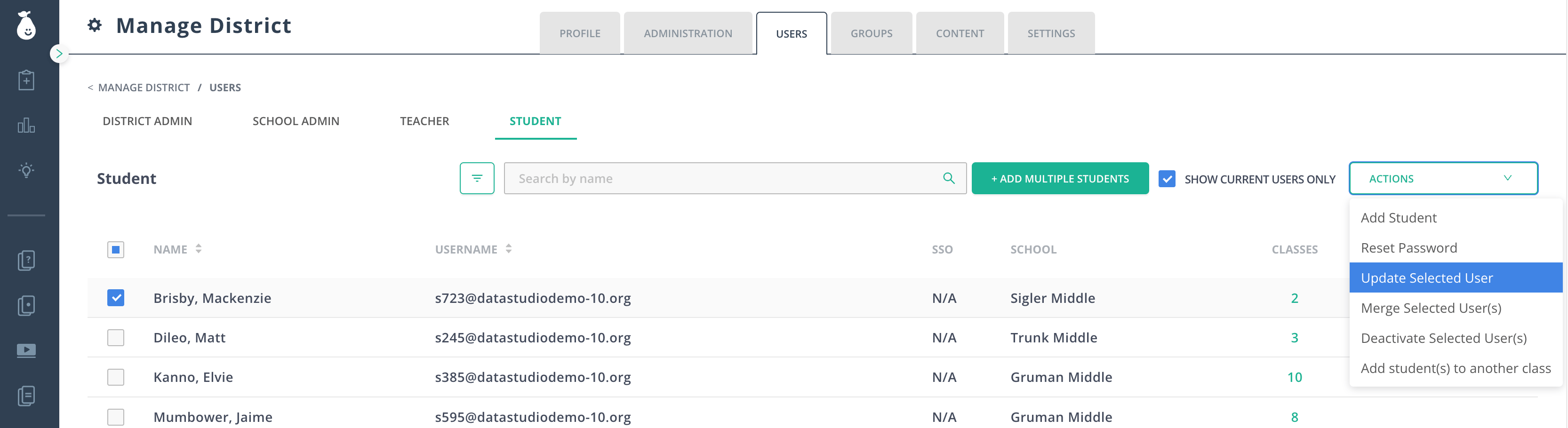
* **(2) Add Students:** Add multiple students using the same process as adding teachers. Type or paste one or more student names into the pop-up box. Use the **Actions** dropdown to add an individual student.
* **(3) Update Selected User:** Edit the name, email, or password for any teacher or student using the **Actions** dropdown. District admins can also update school admin accounts from this option.
* **(4) Deactivate Selected Users:** Deactivate an account for users who have left the district, changed roles, or were created under the wrong role. To change a user's role, deactivate the existing account first, then use **Add** to create the account under the correct role.
* **(5) Enable/Disable Power Tools:** Grant additional customization options within each item type. Use this option only with experienced Pear Assessment users, as the extra options vary by item type.
* **(6) Filter by School:** Type a school name in the filter field to narrow the user list to a specific building.