> ## Documentation Index
> Fetch the complete documentation index at: https://docs.goguardian.com/llms.txt
> Use this file to discover all available pages before exploring further.

# Organize Assignments, Tests, and Items by Creating Folders

> Group assignments, tests, and items into named folders to find and reuse content across school years.

Folders in Pear Assessment let you group assignments, tests, and items so you can find and reuse content efficiently across school years.

## Create Folders for Assignments

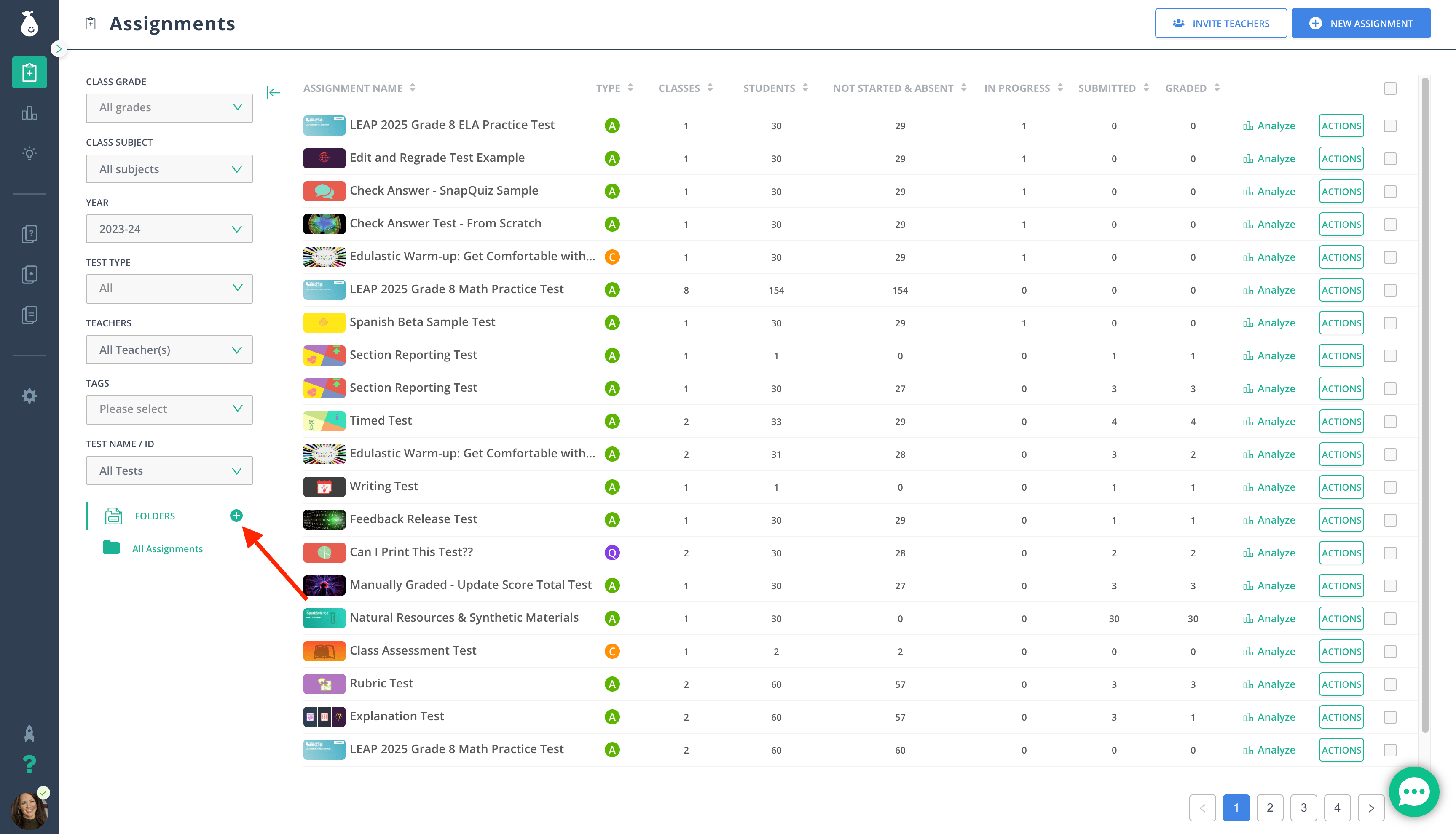
1. Go to **Assignments** in the navigation menu.
2. Click **Folders** under **Filters**.
3. Click **New Folder**.
4. Name the folder.
5. Place a checkmark next to the assessments you want to move into the folder.
6. Click **Actions** > **Move to Folder**.
<img src="https://mintcdn.com/goguardian/FQcNG4vVUgnGyxL2/images/screenshots/organize-assignments-tests-and-items-by-creating-folders/step-01.png?fit=max&auto=format&n=FQcNG4vVUgnGyxL2&q=85&s=5b6dbcff425e49c502bff364fee45e5d" alt="Click Actions > Move to Folder." data-og-width="3455" width="3455" data-og-height="1980" height="1980" data-path="images/screenshots/organize-assignments-tests-and-items-by-creating-folders/step-01.png" data-optimize="true" data-opv="3" srcset="https://mintcdn.com/goguardian/FQcNG4vVUgnGyxL2/images/screenshots/organize-assignments-tests-and-items-by-creating-folders/step-01.png?w=280&fit=max&auto=format&n=FQcNG4vVUgnGyxL2&q=85&s=56f73c8759cfa6657025ad6eb255ea9f 280w, https://mintcdn.com/goguardian/FQcNG4vVUgnGyxL2/images/screenshots/organize-assignments-tests-and-items-by-creating-folders/step-01.png?w=560&fit=max&auto=format&n=FQcNG4vVUgnGyxL2&q=85&s=049ade92abdceebb2ffa63a74a8c506b 560w, https://mintcdn.com/goguardian/FQcNG4vVUgnGyxL2/images/screenshots/organize-assignments-tests-and-items-by-creating-folders/step-01.png?w=840&fit=max&auto=format&n=FQcNG4vVUgnGyxL2&q=85&s=f62f3e29b4b26ffeaf1bae1fab0196a0 840w, https://mintcdn.com/goguardian/FQcNG4vVUgnGyxL2/images/screenshots/organize-assignments-tests-and-items-by-creating-folders/step-01.png?w=1100&fit=max&auto=format&n=FQcNG4vVUgnGyxL2&q=85&s=4cff0dcd422517584f822e1b8e0fd2ab 1100w, https://mintcdn.com/goguardian/FQcNG4vVUgnGyxL2/images/screenshots/organize-assignments-tests-and-items-by-creating-folders/step-01.png?w=1650&fit=max&auto=format&n=FQcNG4vVUgnGyxL2&q=85&s=28a169d2aafafbae97f1d65c3eca2b82 1650w, https://mintcdn.com/goguardian/FQcNG4vVUgnGyxL2/images/screenshots/organize-assignments-tests-and-items-by-creating-folders/step-01.png?w=2500&fit=max&auto=format&n=FQcNG4vVUgnGyxL2&q=85&s=894f11d6f3f2fc267d4529aa0fe6e143 2500w" />

<Tip>
  You can access an assessment and its data in the folder year after year. Build folders by subject matter or chronologically ,  for example, "Fall ELA Benchmarks Gr 5."
</Tip>

## Create Folders for Tests

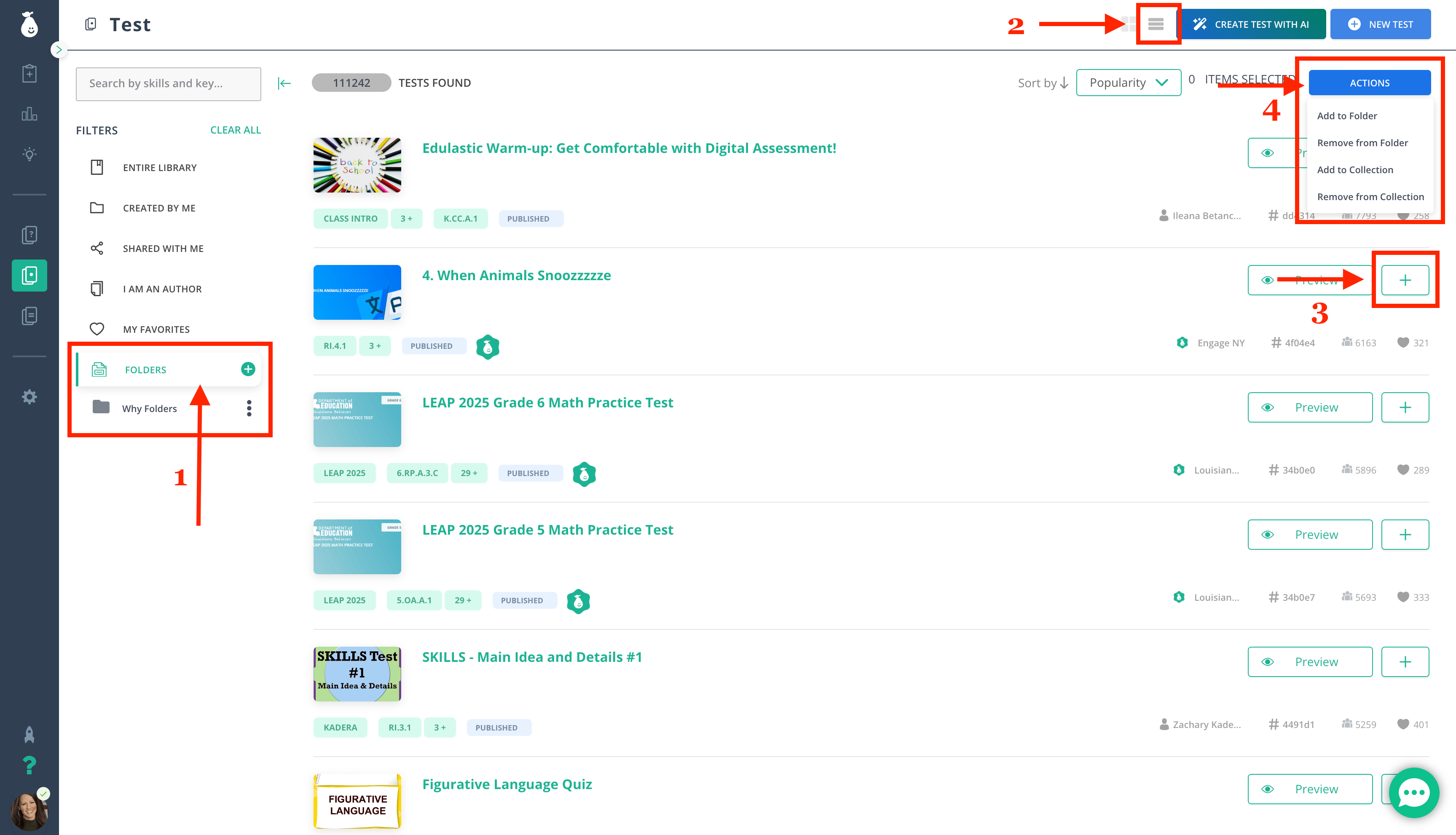
1. Click **Tests** in the navigation menu, then click **Folders** under **Filters**.
2. Change the layout to **List View**.
3. Click the plus sign next to each assessment you want to add to a new folder.
4. Click **Actions** > **Move to Folder**.
<img src="https://mintcdn.com/goguardian/FQcNG4vVUgnGyxL2/images/screenshots/organize-assignments-tests-and-items-by-creating-folders/step-02.png?fit=max&auto=format&n=FQcNG4vVUgnGyxL2&q=85&s=991deb5391812a2892c365e3da472bbb" alt="Click Actions > Move to Folder." data-og-width="3455" width="3455" data-og-height="1982" height="1982" data-path="images/screenshots/organize-assignments-tests-and-items-by-creating-folders/step-02.png" data-optimize="true" data-opv="3" srcset="https://mintcdn.com/goguardian/FQcNG4vVUgnGyxL2/images/screenshots/organize-assignments-tests-and-items-by-creating-folders/step-02.png?w=280&fit=max&auto=format&n=FQcNG4vVUgnGyxL2&q=85&s=b69272e14468605f4add5f87cac491b7 280w, https://mintcdn.com/goguardian/FQcNG4vVUgnGyxL2/images/screenshots/organize-assignments-tests-and-items-by-creating-folders/step-02.png?w=560&fit=max&auto=format&n=FQcNG4vVUgnGyxL2&q=85&s=a3cbb54e77989210b35f010e6fab808a 560w, https://mintcdn.com/goguardian/FQcNG4vVUgnGyxL2/images/screenshots/organize-assignments-tests-and-items-by-creating-folders/step-02.png?w=840&fit=max&auto=format&n=FQcNG4vVUgnGyxL2&q=85&s=e1955be4535f1beb8dfe5d4c63b80d05 840w, https://mintcdn.com/goguardian/FQcNG4vVUgnGyxL2/images/screenshots/organize-assignments-tests-and-items-by-creating-folders/step-02.png?w=1100&fit=max&auto=format&n=FQcNG4vVUgnGyxL2&q=85&s=6fbdcf9e76ff3bececeb692d3d5aaf69 1100w, https://mintcdn.com/goguardian/FQcNG4vVUgnGyxL2/images/screenshots/organize-assignments-tests-and-items-by-creating-folders/step-02.png?w=1650&fit=max&auto=format&n=FQcNG4vVUgnGyxL2&q=85&s=b81925dbbff3bd7d97d933c976edad98 1650w, https://mintcdn.com/goguardian/FQcNG4vVUgnGyxL2/images/screenshots/organize-assignments-tests-and-items-by-creating-folders/step-02.png?w=2500&fit=max&auto=format&n=FQcNG4vVUgnGyxL2&q=85&s=1d4729370f21da32b586c62b0cd05bba 2500w" />

## Create Folders for Items

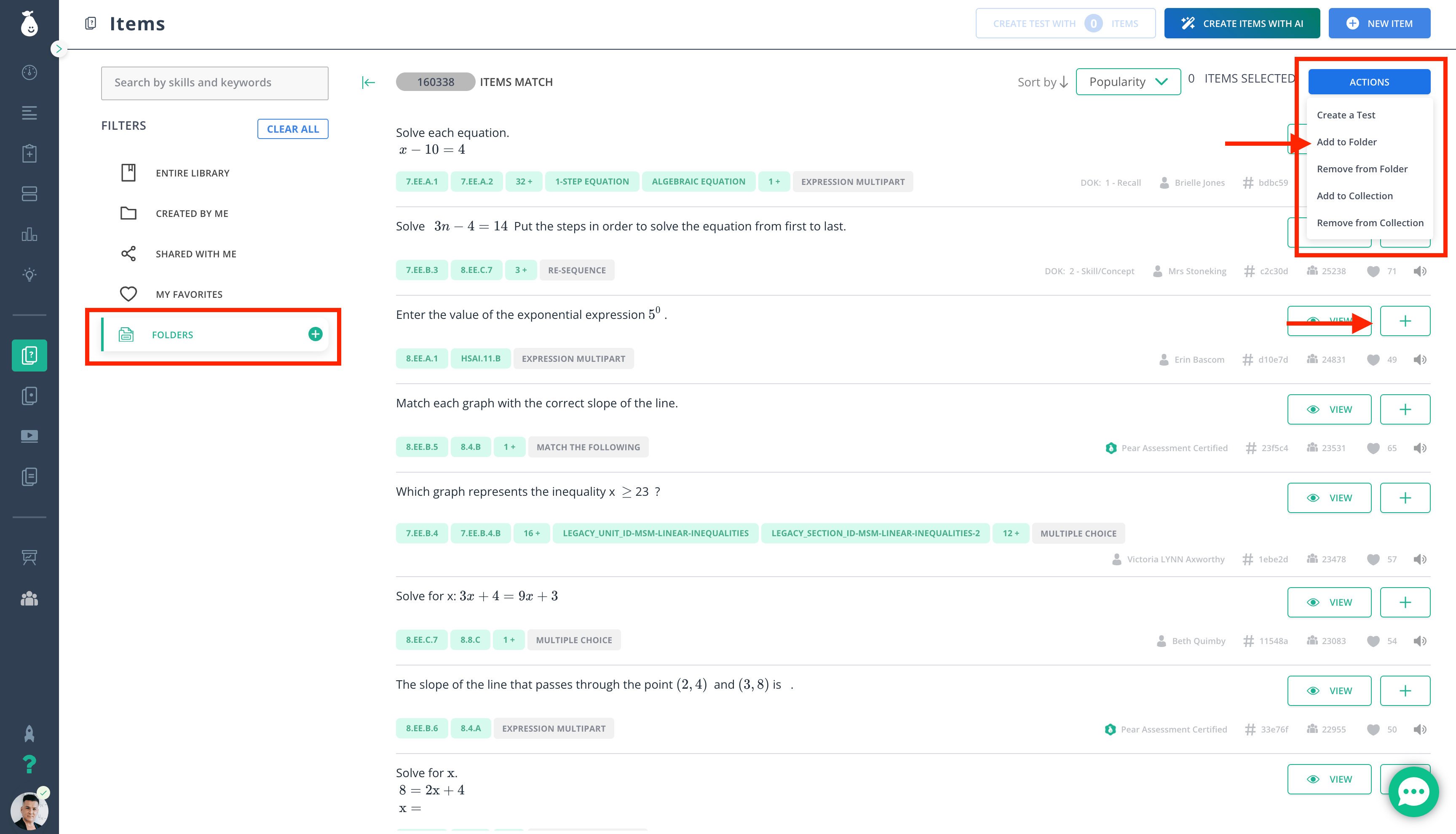
1. Go to **Item Bank** in the navigation menu.
2. Click **Folders** under **Filters**.
3. Click **New Folder**.
4. Name the folder.
5. Click the plus sign next to each item you want to add to the folder.
6. Click **Actions** > **Move to Folder**.
<img src="https://mintcdn.com/goguardian/FQcNG4vVUgnGyxL2/images/screenshots/organize-assignments-tests-and-items-by-creating-folders/step-03.png?fit=max&auto=format&n=FQcNG4vVUgnGyxL2&q=85&s=16e8bccedf2ee70683eaccd9a1d0f935" alt="Create Folders for Items" width="3456" height="1980" data-path="images/screenshots/organize-assignments-tests-and-items-by-creating-folders/step-03.png" />
