> ## Documentation Index
> Fetch the complete documentation index at: https://docs.goguardian.com/llms.txt
> Use this file to discover all available pages before exploring further.
# Print Test Questions
> Print a Pear Assessment test as a hard copy or PDF, or print individual student responses with scores
The Print Test feature allows a teacher or administrator to print a complete test, selected items, or a custom range of items: for example, questions 1–3, 5, and 7. This is useful for assessments that include manually graded questions such as essay responses, images, and drawings.
Pear Assessment offers three print options:
* Printing a hard copy of an assessment or saving it as a PDF
* Printing an individual student assessment with answers and scores
* Printing a [Student Report Card](/products/pear-assessment/student-report-card)
## Print an Assessment or Save as PDF
This option produces a hard copy of an assessment with questions unanswered, so students can complete the assessment on paper. It is available immediately after assigning the assessment and is useful when working or grading offline, or when internet connectivity is limited.
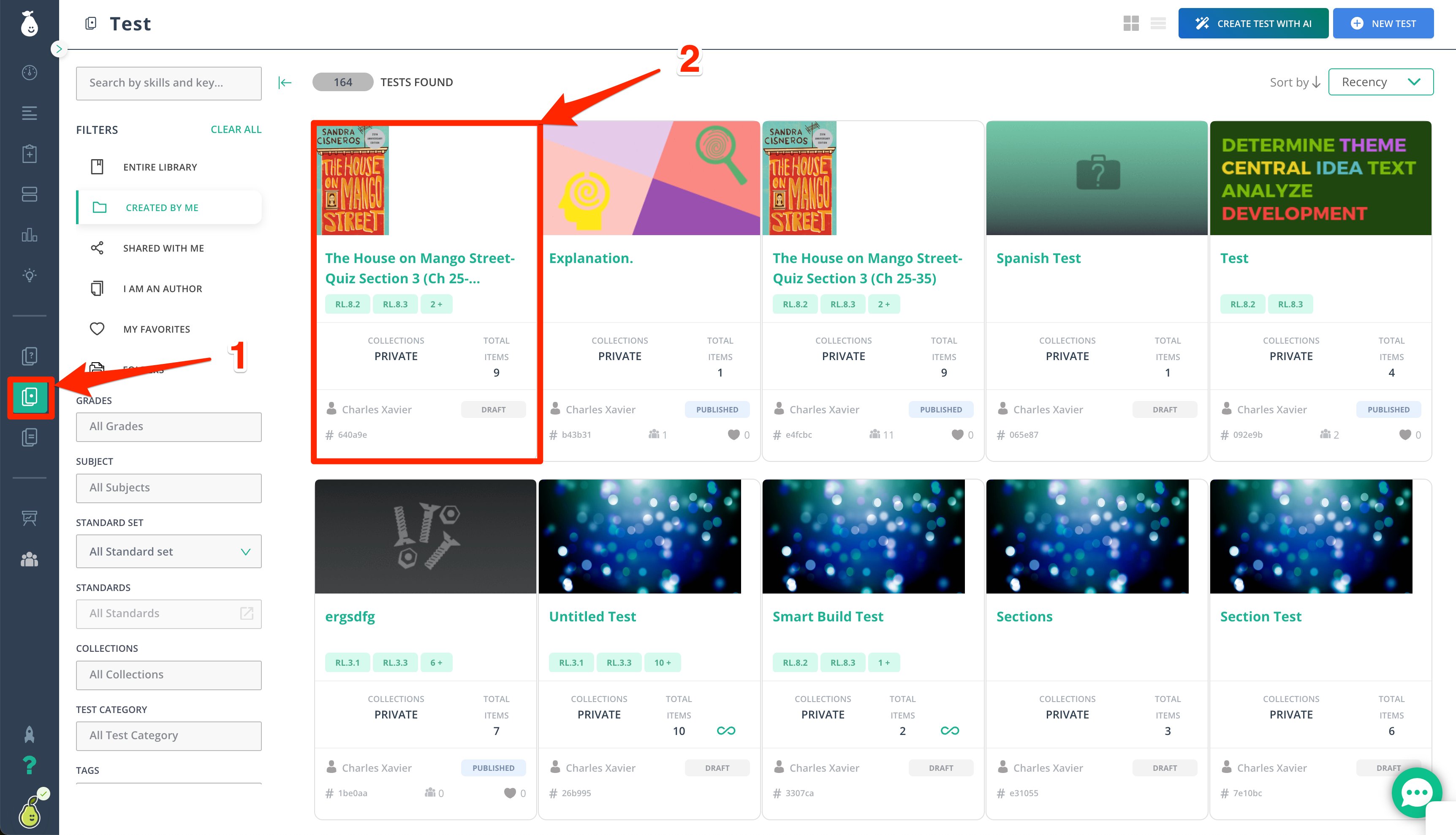
1. Navigate to the assessment:
* If the assessment is already assigned, go to **Assignments**, find the assessment, and click **Actions**.
* If the assessment has not been assigned, go to the **Test** library, find the assessment, and click its name: or hover over it and choose **More**.
2. Click the test card.
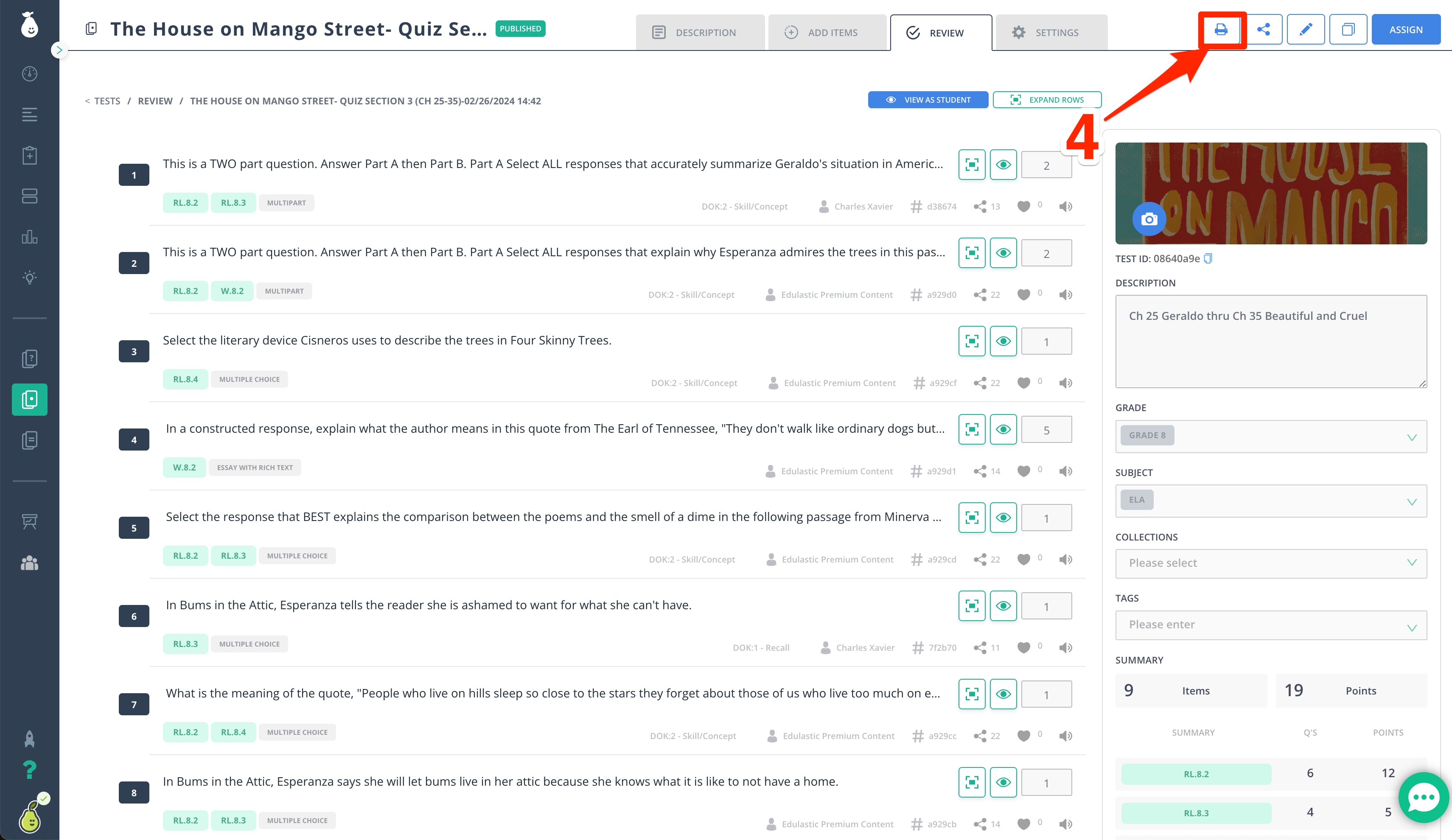
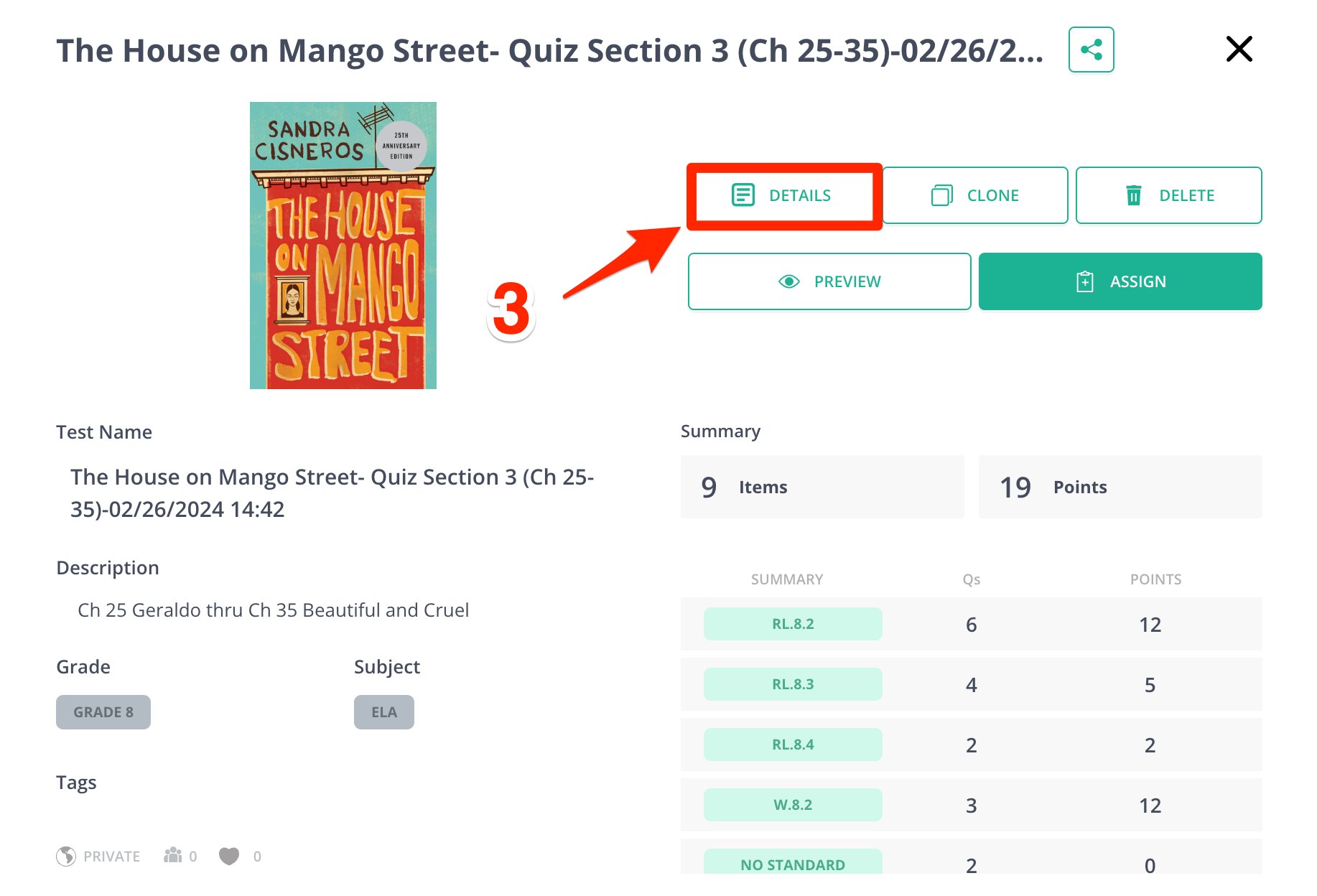
 3. Click **Details**.
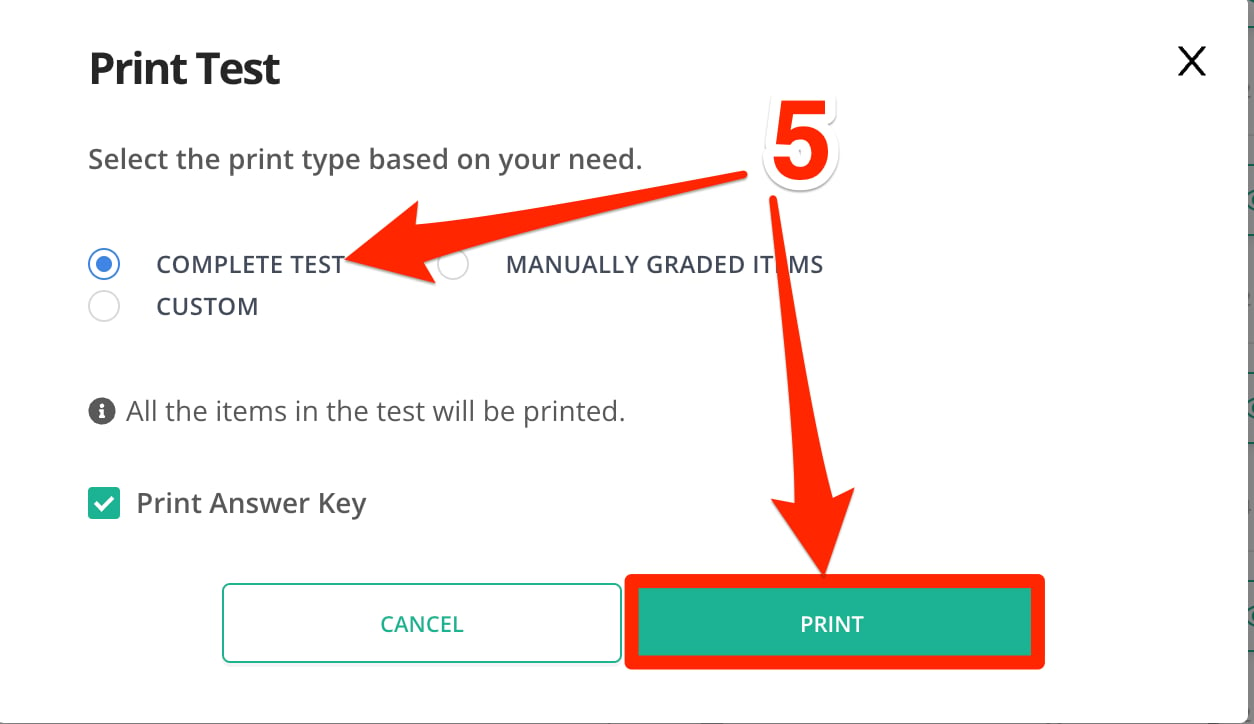
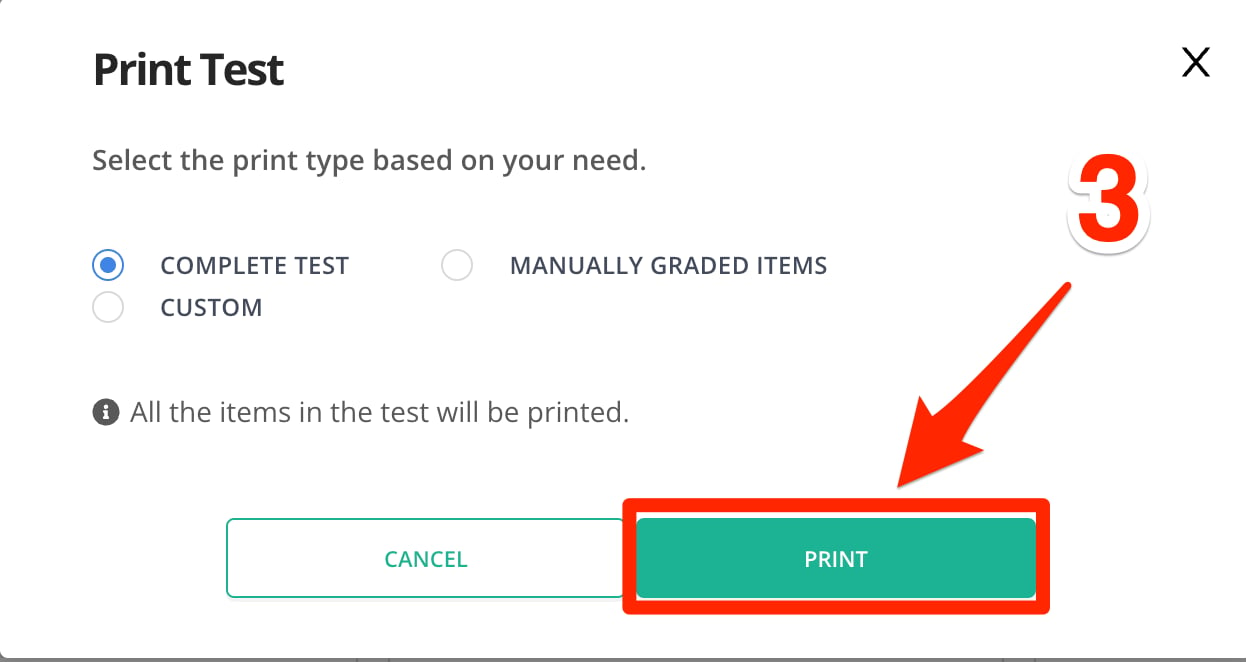
4. Click **Print** or the printer button. Three options appear: select what you want to print:
3. Click **Details**.
4. Click **Print** or the printer button. Three options appear: select what you want to print:
 * **Complete Test** prints the entire test.
* **Manually Graded Items** prints items defined as manually graded, such as Essay and Highlight Image question types.
* **Custom** opens a text box where you can enter specific item numbers to print.
5. Click the blue **Print** button, then complete the print process through your browser:
* Go to **File** > **Print** and select your printer.
* Or press **Ctrl + P** (Windows) or **Command + P** (Mac).
To save the assessment for future paper use, select **Save as PDF** as the destination in your browser's print dialog.
* **Complete Test** prints the entire test.
* **Manually Graded Items** prints items defined as manually graded, such as Essay and Highlight Image question types.
* **Custom** opens a text box where you can enter specific item numbers to print.
5. Click the blue **Print** button, then complete the print process through your browser:
* Go to **File** > **Print** and select your printer.
* Or press **Ctrl + P** (Windows) or **Command + P** (Mac).
To save the assessment for future paper use, select **Save as PDF** as the destination in your browser's print dialog.
 ## Print an Individual Student Assessment with Answers and Scores
This option prints a finished student assignment showing each student's answers.
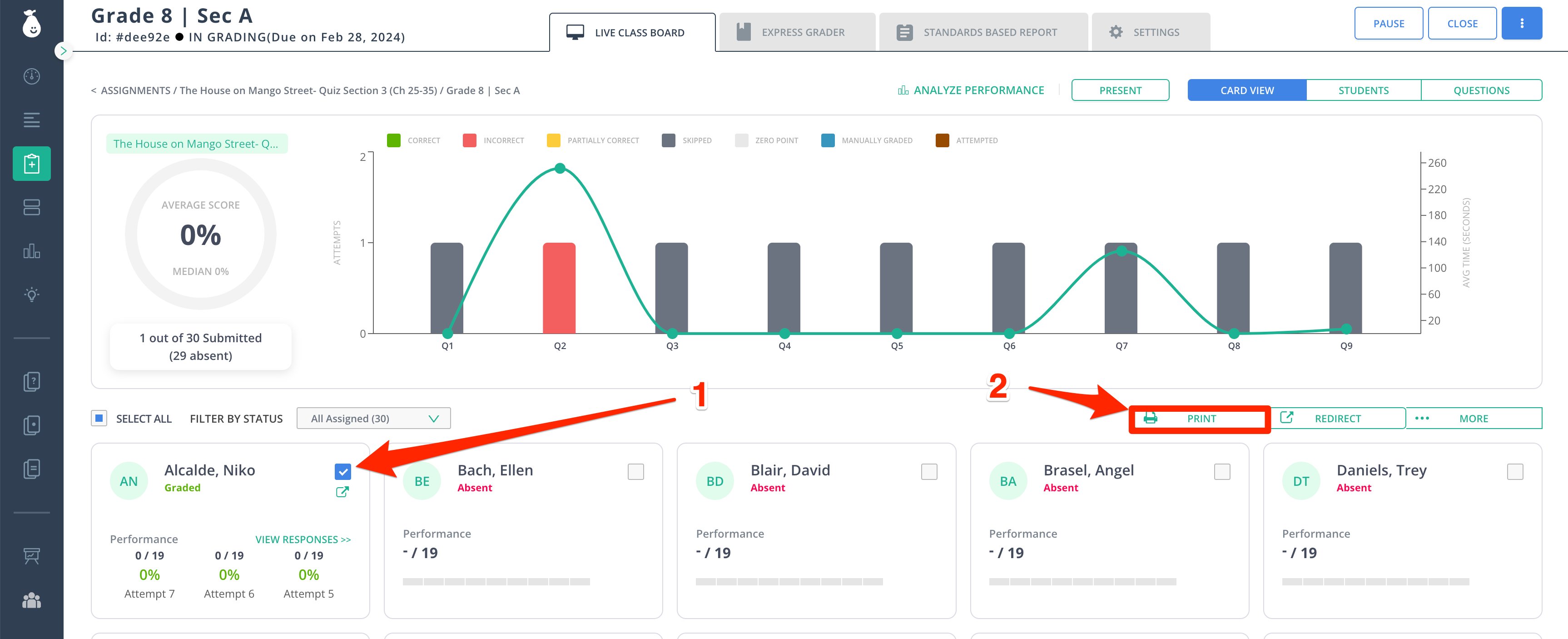
1. Open the **Live Class Board (LCB)**.
2. Select all students or individual students.
3. Click **Print**.
## Print an Individual Student Assessment with Answers and Scores
This option prints a finished student assignment showing each student's answers.
1. Open the **Live Class Board (LCB)**.
2. Select all students or individual students.
3. Click **Print**.
 ## Print a Student Report Card
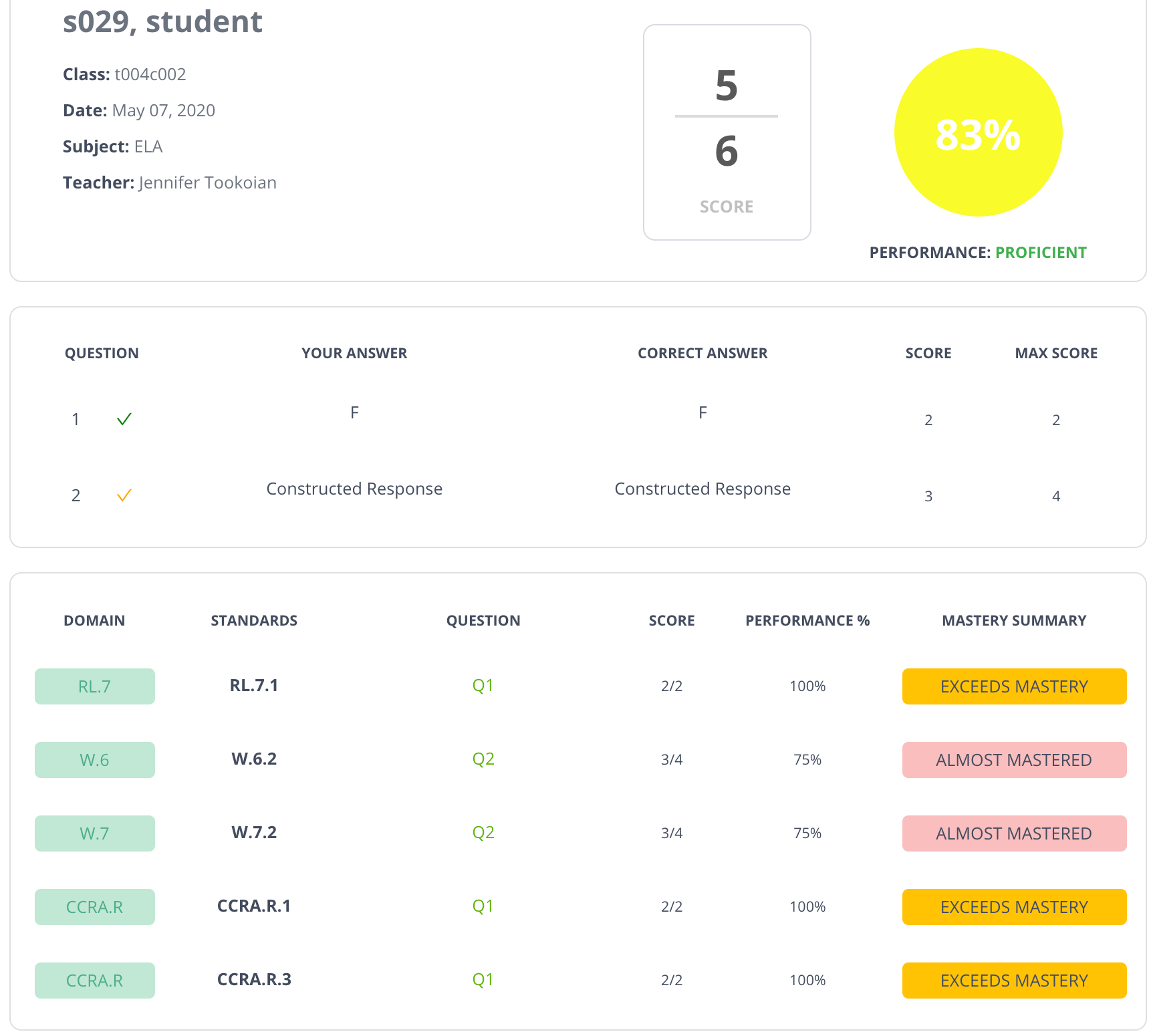
The Student Report Card (premium) generates a single, print-ready file that gives the student a record of their performance.
For steps to generate a Report Card, see [Student Report Card](/products/pear-assessment/student-report-card).
## Print a Student Report Card
The Student Report Card (premium) generates a single, print-ready file that gives the student a record of their performance.
For steps to generate a Report Card, see [Student Report Card](/products/pear-assessment/student-report-card).
 ## Resources
Generate a print-ready record of student performance.
## Resources
Generate a print-ready record of student performance.