> ## Documentation Index
> Fetch the complete documentation index at: https://docs.goguardian.com/llms.txt
> Use this file to discover all available pages before exploring further.
# Provide Feedback on Student Assessments
> Give overall and question-specific feedback to students on their assessments using the Live Class Board
In Pear Assessment, teachers can provide feedback on student assessments through the Live Class Board. Feedback can be given at the overall level or for individual questions, giving students targeted guidance on their work.
## Give Feedback via Live Class Board
1. Click **Assignments** in the navigation menu.
2. Click the assignment's name.
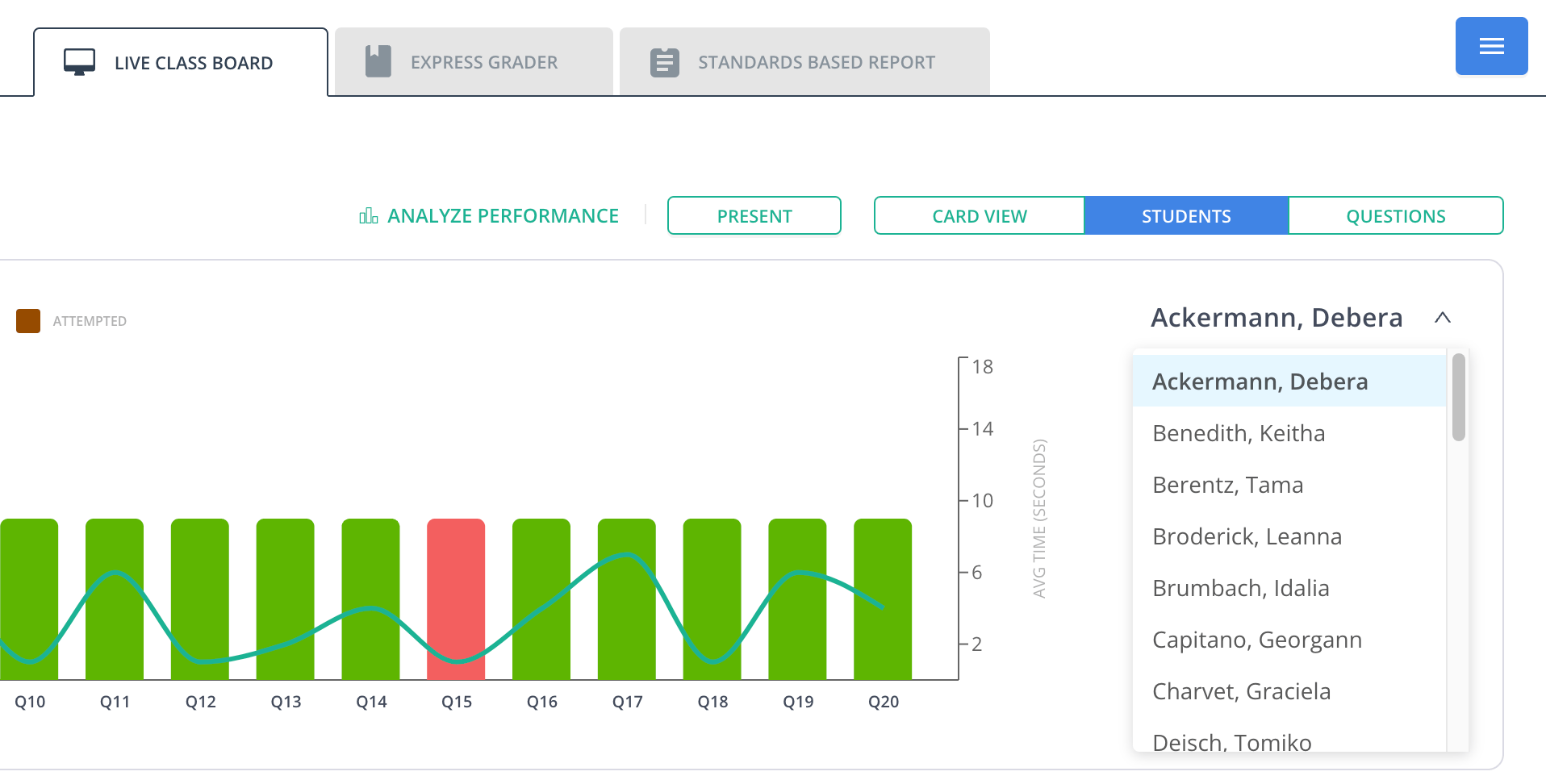
3. Click **Students** in the **Live Class Board** tab.
4. Select the student from the dropdown menu below the **Students** section.
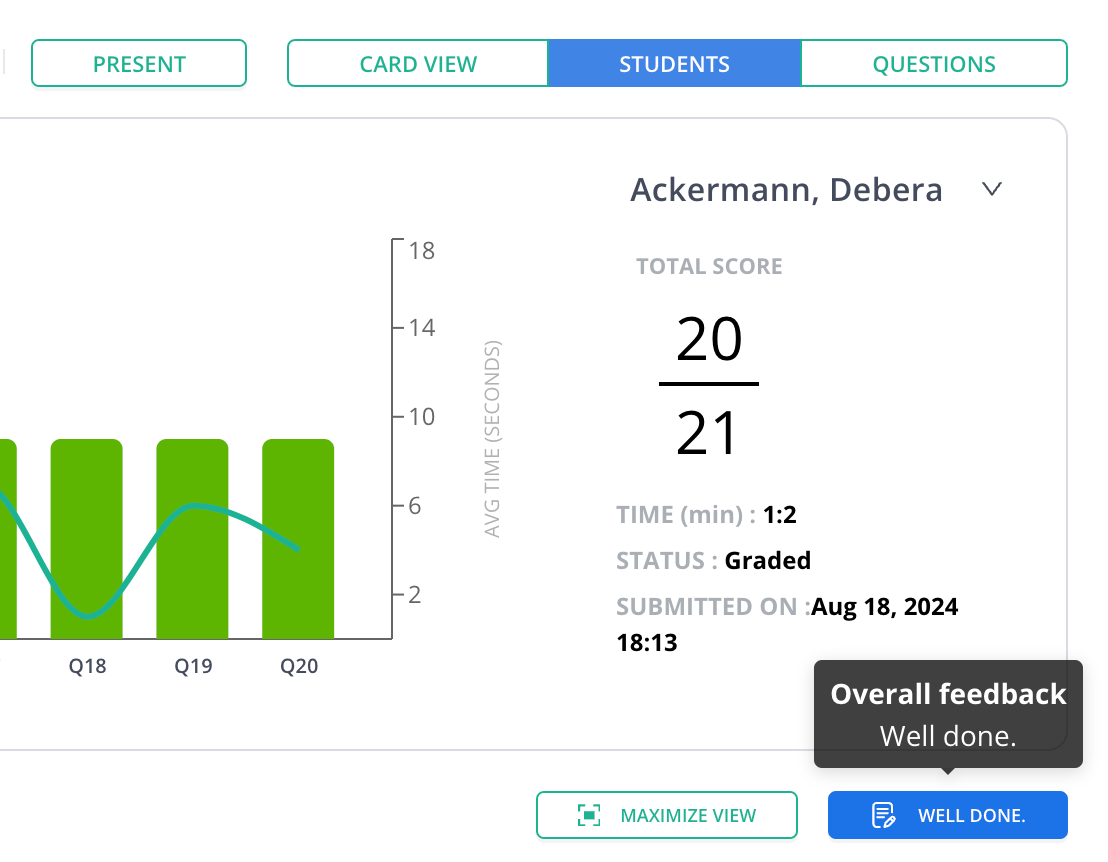
 5. Click **Well Done** to provide overall feedback (optional).
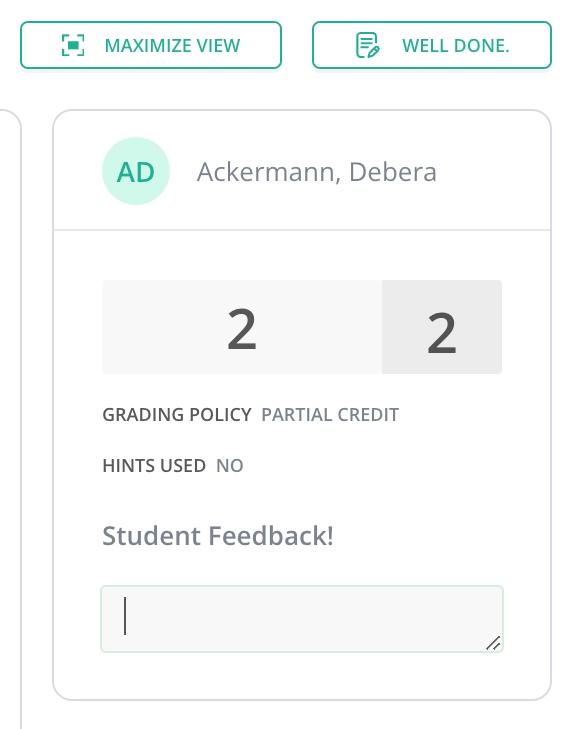
 6. Click the text field under **Student Feedback** to provide question-specific feedback.
 ## Resources
Review student responses and assign grades in Pear Assessment.
## Resources
Review student responses and assign grades in Pear Assessment.