> ## Documentation Index
> Fetch the complete documentation index at: https://docs.goguardian.com/llms.txt
> Use this file to discover all available pages before exploring further.
# Redirect a Test
> Reopen or reassign an assessment for absent students, students who need extra practice, or students who require accommodations
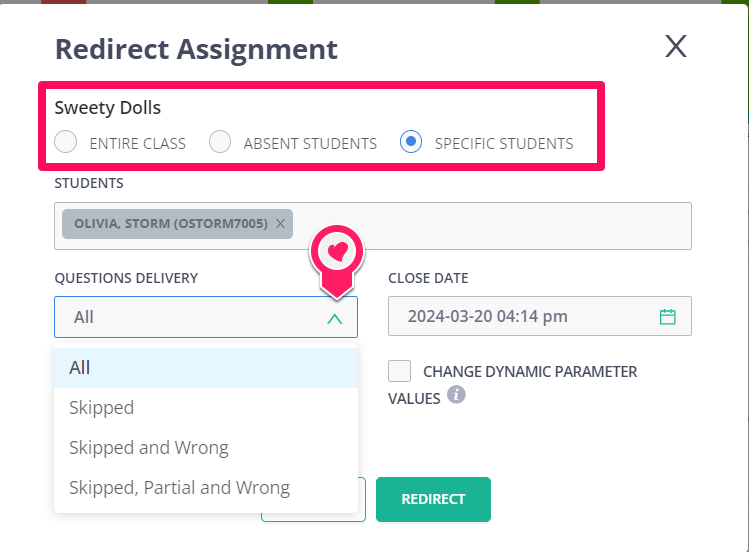
Redirecting a test lets you reopen or reassign an assessment for individual students or an entire class. Use this feature when students were absent, skipped questions, rushed through the assessment, need additional practice, or require accommodations. When you redirect an assessment, students can change their previous responses or keep them as is. Student cards display each attempt, and the **Student** tab includes a dropdown menu for viewing each score.
Teachers can redirect an assignment any number of times, and the redirect option remains available after the due date has passed. If the **Redirect** button appears grayed out, the feature has been disabled by an administrator or is not included in your plan. Contact your administrator to request access.
Redirect is part of the Enterprise package and can be disabled by administrators. Teachers who need the feature enabled must contact their admin.
## Redirect a Test
1. Select the **Assignments** tab in the navigation menu.
2. Click **Live Class Board** for the assessment you want to redirect.
 3. To redirect the entire class, click **Redirect**. To redirect specific students, select the checkbox next to each student's name, then click **Redirect**.
 4. Select your preferred settings for **Questions Delivery**, **Show Previous Attempt**, **Close Date**, and **Change Dynamic Parameter Values**.
5. Click **Redirect**.
4. Select your preferred settings for **Questions Delivery**, **Show Previous Attempt**, **Close Date**, and **Change Dynamic Parameter Values**.
5. Click **Redirect**.
 ## Frequently Asked Questions
### When Redirecting, What Attempt Number Is Considered for Scores and Data?
The most recent attempt is used for scores and data. Teachers can review each individual attempt in the Live Class Board.
### Can I Undo a Redirect After It Has Been Sent?
No. After you redirect a student, you cannot remove the redirect.
### Why Do I Not See Question Delivery Options When Redirecting?
Question delivery options require a Teacher Premium account. Under a free account, you can only redirect the entire test without additional delivery configuration.
### Can I Change the Close Date on a Redirect?
Yes. You can change the close date in the **Live Class Board** settings.
## Resources
Set up automatic redirects for assignments in Pear Assessment.
## Frequently Asked Questions
### When Redirecting, What Attempt Number Is Considered for Scores and Data?
The most recent attempt is used for scores and data. Teachers can review each individual attempt in the Live Class Board.
### Can I Undo a Redirect After It Has Been Sent?
No. After you redirect a student, you cannot remove the redirect.
### Why Do I Not See Question Delivery Options When Redirecting?
Question delivery options require a Teacher Premium account. Under a free account, you can only redirect the entire test without additional delivery configuration.
### Can I Change the Close Date on a Redirect?
Yes. You can change the close date in the **Live Class Board** settings.
## Resources
Set up automatic redirects for assignments in Pear Assessment.