> ## Documentation Index
> Fetch the complete documentation index at: https://docs.goguardian.com/llms.txt
> Use this file to discover all available pages before exploring further.
# Reset User Passwords
> Three ways to reset teacher and student passwords in Pear Assessment, including self-service and teacher-initiated options
Pear Assessment supports three password reset methods: users can select **Forgot Password** on the sign-in screen, update their password in their profile, or a teacher can reset a student's password directly from Manage Class.
Teachers cannot reset passwords for students who belong to multiple districts. Contact Pear Assessment Support for assistance with multi-district accounts.
## Use Forgot Password on the Sign-In Screen
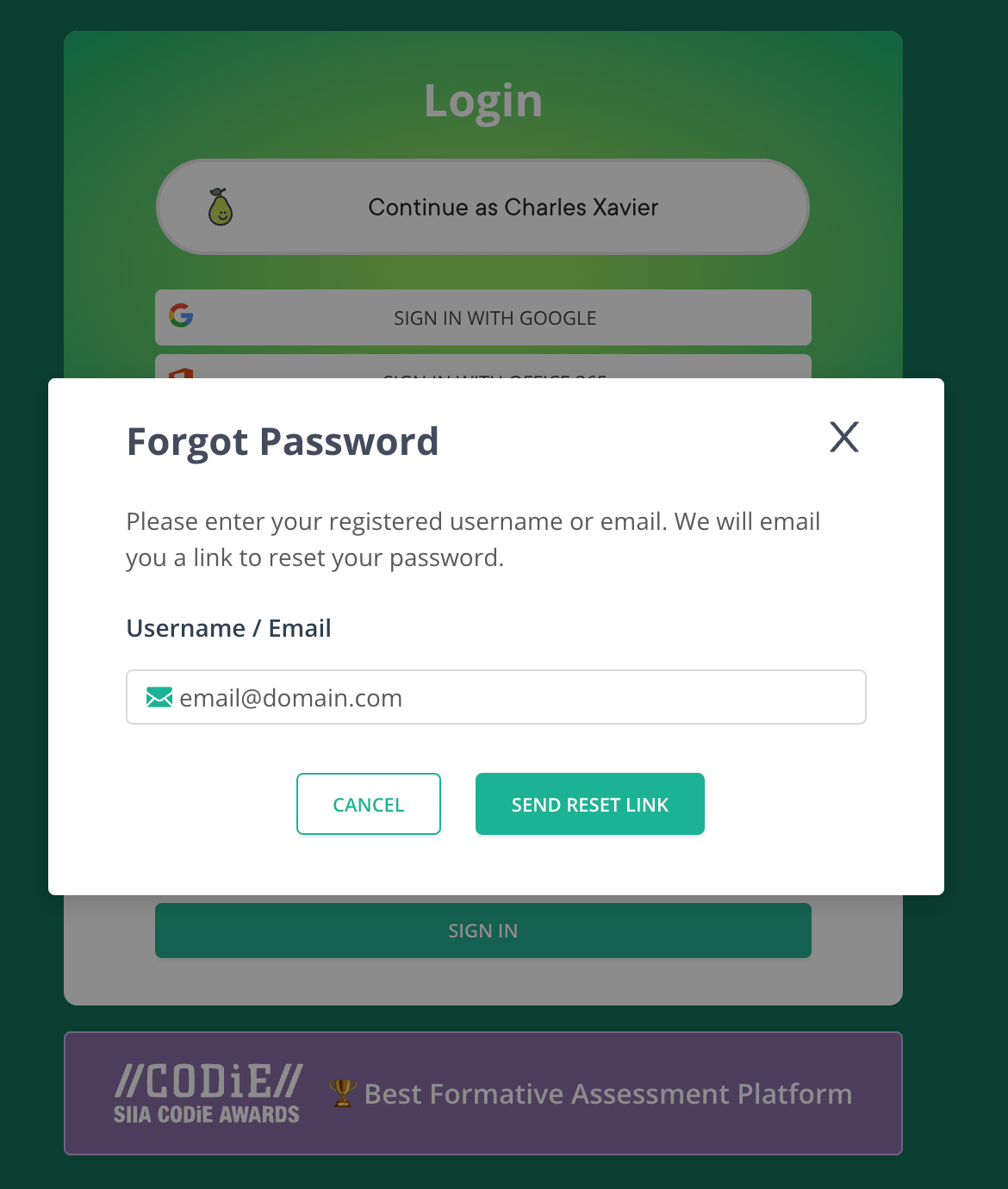
Users who sign in with a username or email address (not Google) can reset their own password from the Pear Assessment sign-in page.
1. Go to [assessment.peardeck.com/sign-in](https://assessment.peardeck.com/sign-in) in any browser.
2. Select **Forgot Password**.
3. Enter your registered username or email address.
4. Check your email for the password reset link and follow the instructions.
 ## Reset a Student's Password as a Teacher
Teachers can set a new password for any student in their class, as long as the student belongs to only one district.
1. Select **Manage Class** in the navigation menu.
2. Click a class name.
3. Select the checkbox next to the student's name.
4. Select **Actions** > **Reset Password**.
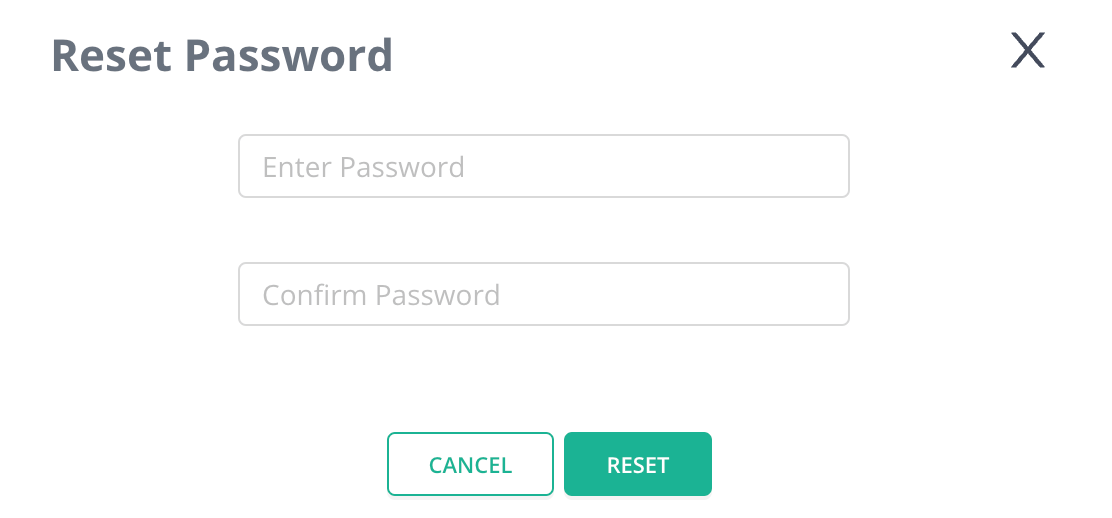
5. Enter the new password.
6. Re-enter the new password to confirm.
7. Click **Reset**.
## Reset a Student's Password as a Teacher
Teachers can set a new password for any student in their class, as long as the student belongs to only one district.
1. Select **Manage Class** in the navigation menu.
2. Click a class name.
3. Select the checkbox next to the student's name.
4. Select **Actions** > **Reset Password**.
5. Enter the new password.
6. Re-enter the new password to confirm.
7. Click **Reset**.

 ## Change Your Password in Your Profile
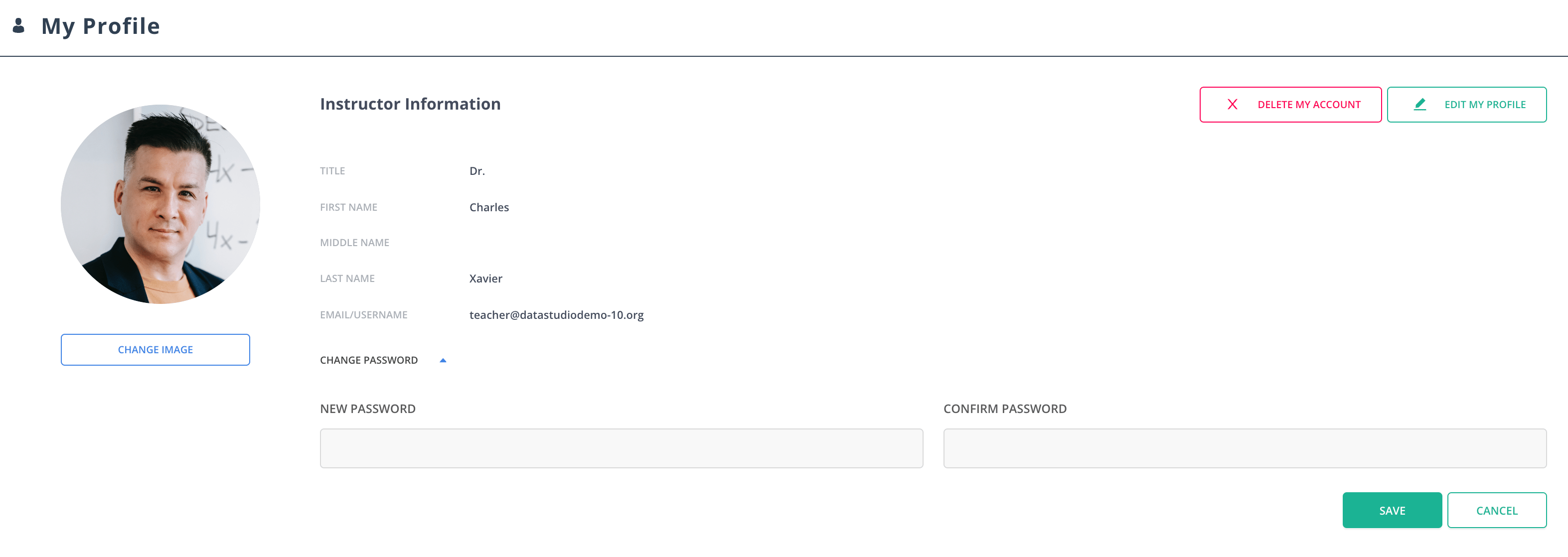
Any user can update their password at any time from their account profile.
1. Sign in to Pear Assessment.
2. Select **My Profile** > **Change Password**.
3. Enter and confirm your new password, then save.
## Change Your Password in Your Profile
Any user can update their password at any time from their account profile.
1. Sign in to Pear Assessment.
2. Select **My Profile** > **Change Password**.
3. Enter and confirm your new password, then save.
 ## Resources
Learn about Pear Assessment features and how to get started.
Add students, organize rosters, and manage class settings.
## Resources
Learn about Pear Assessment features and how to get started.
Add students, organize rosters, and manage class settings.