> ## Documentation Index
> Fetch the complete documentation index at: https://docs.goguardian.com/llms.txt
> Use this file to discover all available pages before exploring further.
# Restrict Assessment Access to Absent Students
> Mark absent students to block home access during a live assessment, then use the Redirect feature to reassign it when they return.
In Pear Assessment, teachers can prevent absent students from accessing an assessment from home to reduce cheating. Once students return to school, teachers can use the Redirect feature to reassign the assessment.
## Restrict Assessment Access to Absent Students
In Pear Assessment, teachers can prevent absent students from accessing an assessment from home to reduce cheating. Once students return to school, teachers can use the Redirect feature to reassign the assessment.
## Mark Absent Students and Manually Open Assessments
1. Click **Assignments** in the navigation menu.
2. Click on an assessment's name that is not yet open to students.
3. Select absent students by clicking the checkbox next to their names > click **More** > **Mark as Absent**. This prevents absent students from accessing the assessment.
4. Click **Open** next to the ellipsis menu to let students start the assessment.
 ## Redirect Assessment to Absent Students
1. Click **Assignments** in the navigation menu.
2. Click on an assessment's name that is not yet open to students.
3. Select the students who were absent by checking the box next to their name and click **Redirect** from the menu options.
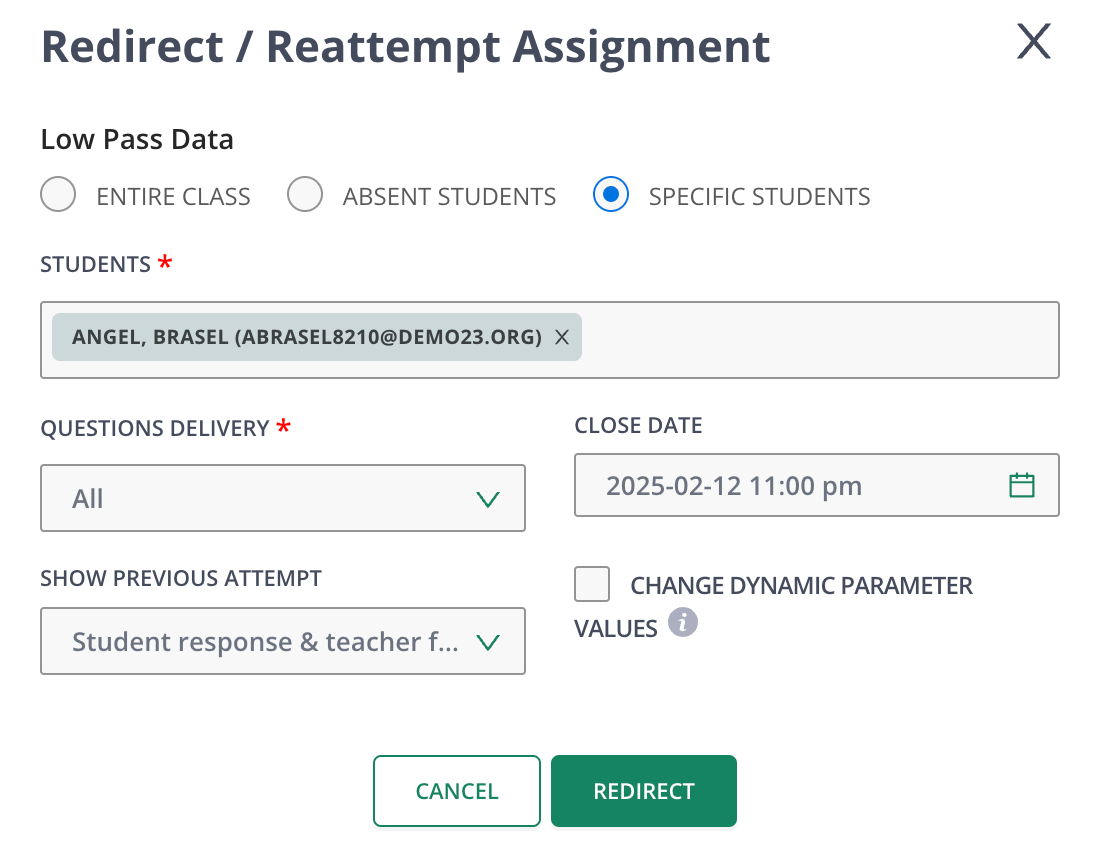
4. Complete the **Redirect/Re-Attempt Assignment** modal and click **Redirect**. Previously absent students can now complete the assessment.
## Redirect Assessment to Absent Students
1. Click **Assignments** in the navigation menu.
2. Click on an assessment's name that is not yet open to students.
3. Select the students who were absent by checking the box next to their name and click **Redirect** from the menu options.
4. Complete the **Redirect/Re-Attempt Assignment** modal and click **Redirect**. Previously absent students can now complete the assessment.