> ## Documentation Index
> Fetch the complete documentation index at: https://docs.goguardian.com/llms.txt
> Use this file to discover all available pages before exploring further.
# Search and Enroll Students in Pear Assessment
> Search for existing students by name or email and add them to a Pear Assessment class, and how to remove a student from the wrong class.
In Pear Assessment, you can search for existing students and add them to your classes.
1. Click **Manage Class** in the navigation menu.
2. Click the class you want to enroll students into.
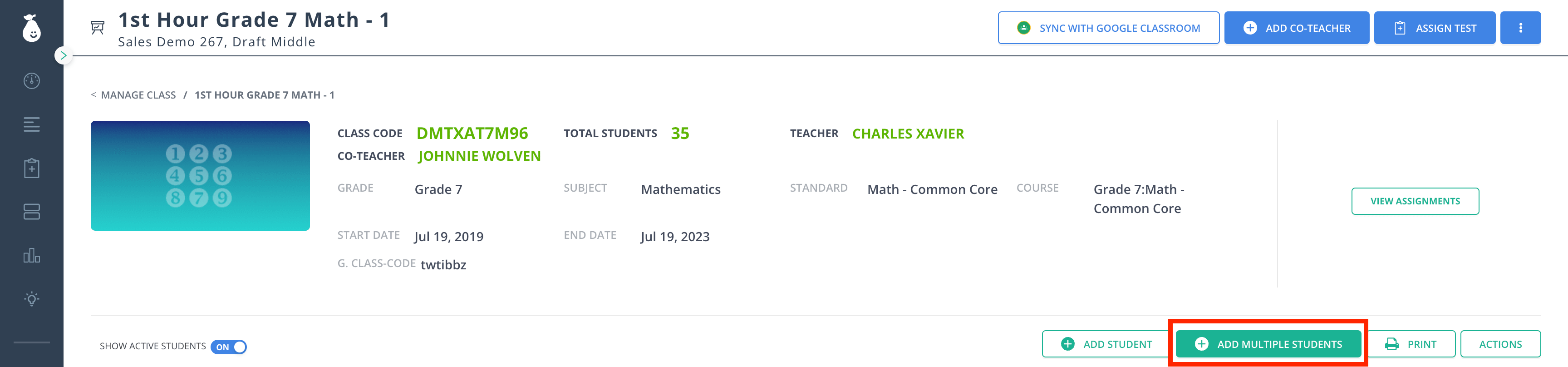
3. Click **Add Multiple Students**.
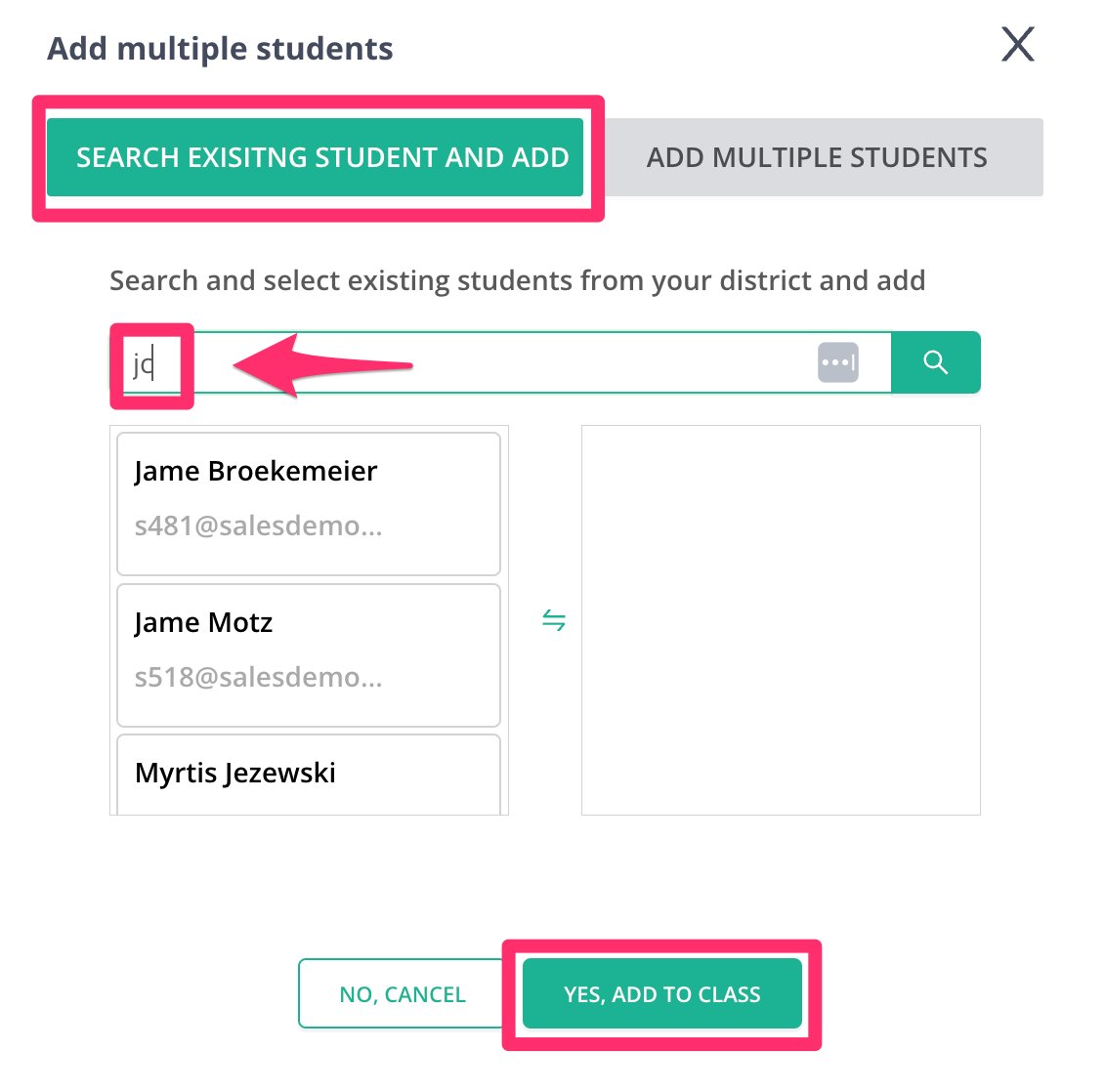
 4. Click **Search Existing Student and Add**, then search for a student by name or email.
5. Click the students you want to add.
6. Click **Yes, Add to Class**.
4. Click **Search Existing Student and Add**, then search for a student by name or email.
5. Click the students you want to add.
6. Click **Yes, Add to Class**.
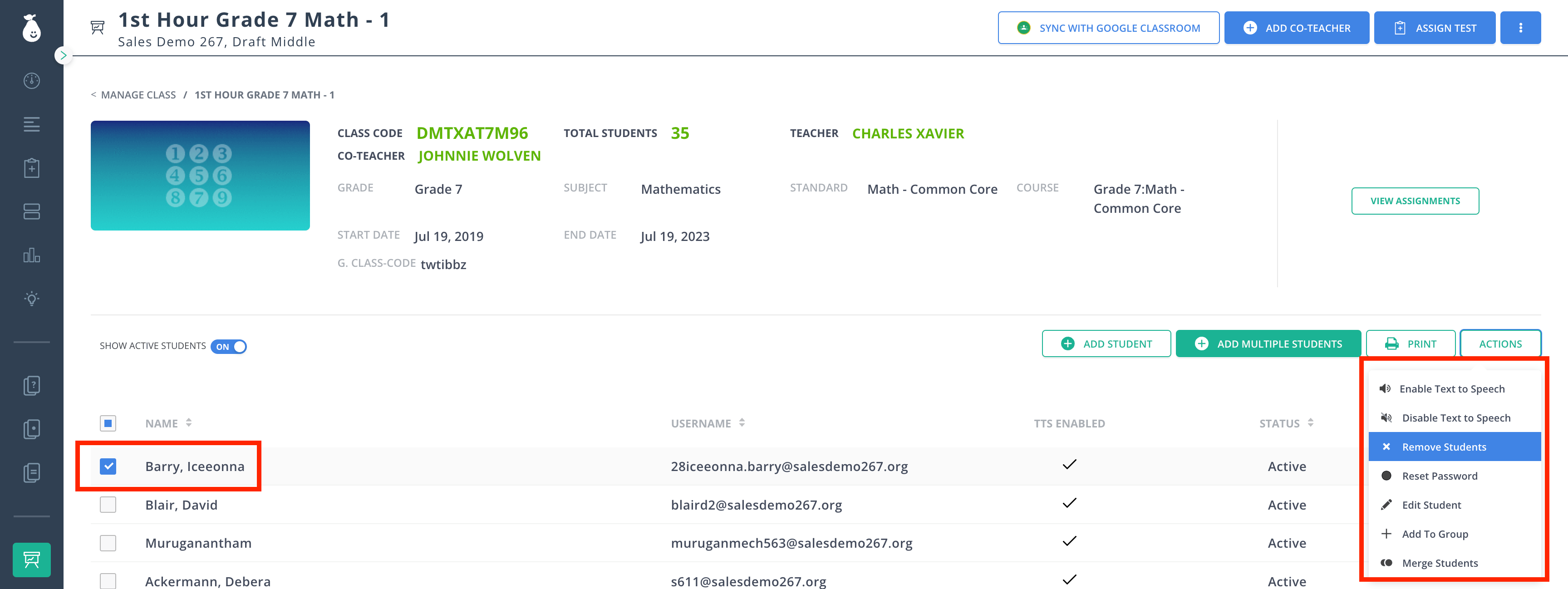
 If a student was in the wrong class, they remain in the original class until the teacher removes them. To remove a student, open the class, select the student, and click **Actions** → **Remove Student**.