> ## Documentation Index
> Fetch the complete documentation index at: https://docs.goguardian.com/llms.txt
> Use this file to discover all available pages before exploring further.

# Canvas Integration

> Connect Pear Assessment to Canvas to enable single sign-on, roster sync, assignment sync, and grade sync

The Pear Assessment–Canvas integration connects your Canvas courses directly to Pear Assessment. Once set up, four features work automatically: single sign-on (SSO), rostering, assignment sync, and grade sync.

## Sign in with Single Sign-On

From your Canvas course navigation bar, click the Pear Assessment link to sign in.

<img src="https://mintcdn.com/goguardian/aEDDL1SK1waBtbUG/images/screenshots/set-up-canvas-integration/step-01.png?fit=max&auto=format&n=aEDDL1SK1waBtbUG&q=85&s=0d3c9d08bb30a6e3719d3ae6989190cf" alt="Finding Pear Assessment from the Canvas's point of view." width="1020" height="496" data-path="images/screenshots/set-up-canvas-integration/step-01.png" />

<img src="https://mintcdn.com/goguardian/aEDDL1SK1waBtbUG/images/screenshots/set-up-canvas-integration/step-02.png?fit=max&auto=format&n=aEDDL1SK1waBtbUG&q=85&s=cbb9111bcdc17823469ebb98286e76c4" alt="Sign in with Single Sign-On" width="1024" height="498" data-path="images/screenshots/set-up-canvas-integration/step-02.png" />

<img src="https://mintcdn.com/goguardian/aEDDL1SK1waBtbUG/images/screenshots/set-up-canvas-integration/step-07.png?fit=max&auto=format&n=aEDDL1SK1waBtbUG&q=85&s=0e5887145929a2ea81533d2b1da3290d" alt="Sign in with Single Sign-On" width="325" height="200" data-path="images/screenshots/set-up-canvas-integration/step-07.png" />

## Sync Your Roster

Students who are active in your Canvas sections are rostered when you sync. The section and course name from Canvas carry over automatically.

<img src="https://mintcdn.com/goguardian/aEDDL1SK1waBtbUG/images/screenshots/set-up-canvas-integration/step-03.png?fit=max&auto=format&n=aEDDL1SK1waBtbUG&q=85&s=54868e06204c5f9fb4b1e31a81507687" alt="Finding the Canvas section and course name." width="1020" height="239" data-path="images/screenshots/set-up-canvas-integration/step-03.png" />

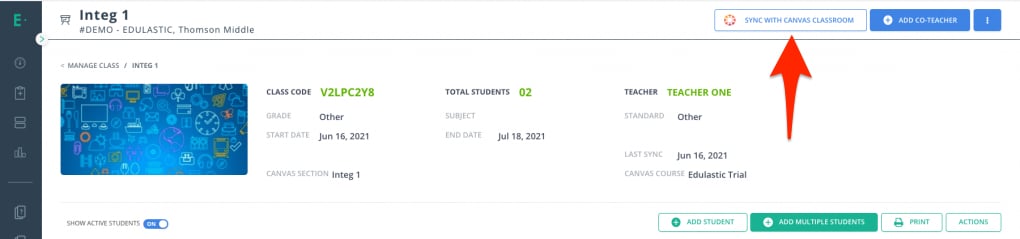
You can also create a class in Pear Assessment first and then sync it with Canvas, or change the associated Canvas section or course at any time.

<img src="https://mintcdn.com/goguardian/aEDDL1SK1waBtbUG/images/screenshots/set-up-canvas-integration/step-04.png?fit=max&auto=format&n=aEDDL1SK1waBtbUG&q=85&s=46402d5d2eb8e79793bd1f2977b32140" alt="To sync with Canvas via Pear Assessment's end, click on the sync with Canvas classroom button." width="1020" height="239" data-path="images/screenshots/set-up-canvas-integration/step-04.png" />

## Sync Assignments

Any test assigned in Pear Assessment appears automatically in Canvas for you and your students: no manual steps required.

<img src="https://mintcdn.com/goguardian/aEDDL1SK1waBtbUG/images/screenshots/set-up-canvas-integration/step-05.png?fit=max&auto=format&n=aEDDL1SK1waBtbUG&q=85&s=41d7af1000d471d43657a89551d84895" alt="Assigned test from the Pear Assessment assignments tab." width="1020" height="278" data-path="images/screenshots/set-up-canvas-integration/step-05.png" />

<img src="https://mintcdn.com/goguardian/aEDDL1SK1waBtbUG/images/screenshots/set-up-canvas-integration/step-06.png?fit=max&auto=format&n=aEDDL1SK1waBtbUG&q=85&s=161ee218f4aea9a4dab7e84d9e74172f" alt="View from Canvas in how the same assigmment in Pear Assessment appears in Canvas's assignmnet tab." width="1024" height="266" data-path="images/screenshots/set-up-canvas-integration/step-06.png" />

## Sync Grades

Grades sync automatically when you release scores using the second, third, or fourth release scores option.

<img src="https://mintcdn.com/goguardian/aEDDL1SK1waBtbUG/images/screenshots/set-up-canvas-integration/step-10.png?fit=max&auto=format&n=aEDDL1SK1waBtbUG&q=85&s=6ff54d0a503ddbfdcf88a22670fcbfed" alt="Release scores of the assignment that you want to release to Canvas." width="1024" height="305" data-path="images/screenshots/set-up-canvas-integration/step-10.png" />

<img src="https://mintcdn.com/goguardian/aEDDL1SK1waBtbUG/images/screenshots/set-up-canvas-integration/step-08.png?fit=max&auto=format&n=aEDDL1SK1waBtbUG&q=85&s=f224d624332192b79dc41bcb8a9949ba" alt="Students score in Pear Assessment" width="332" height="233" data-path="images/screenshots/set-up-canvas-integration/step-08.png" />

<img src="https://mintcdn.com/goguardian/aEDDL1SK1waBtbUG/images/screenshots/set-up-canvas-integration/step-09.png?fit=max&auto=format&n=aEDDL1SK1waBtbUG&q=85&s=eb5d2ce7ad64a5f9aa7e4b8e33fec787" alt="View of students score in Canvas" width="469" height="614" data-path="images/screenshots/set-up-canvas-integration/step-09.png" />

## Resolve Sync Issues

If grades or assignments are not appearing in Canvas as expected, you can trigger a manual resync in two ways:

* Release the scores for the assignment you want to push to Canvas.
* Click **Sync with Canvas Classroom** to resync scores directly.
<img src="https://mintcdn.com/goguardian/aEDDL1SK1waBtbUG/images/screenshots/set-up-canvas-integration/step-11.png?fit=max&auto=format&n=aEDDL1SK1waBtbUG&q=85&s=e7c51c190a55ef31ec877571103e6011" alt="Clicking the Sync with Canvas Classroom Button to sync the scores." width="1020" height="239" data-path="images/screenshots/set-up-canvas-integration/step-11.png" />
