> ## Documentation Index
> Fetch the complete documentation index at: https://docs.goguardian.com/llms.txt
> Use this file to discover all available pages before exploring further.
# Set Up Kiosk Mode on Managed Chromebooks
> Install and configure the Pear Assessment Kiosk Mode PWA on school-managed Chromebooks via Google Admin
Kiosk Mode locks a school-managed Chromebook to the Pear Assessment app, preventing students from accessing the address bar or leaving the secured session during an assessment. This article covers how to install the Kiosk Mode progressive web app (PWA) on managed Chromebooks, configure a custom district URL, and remove the legacy Kiosk Mode extension that the PWA replaced.
## Install Kiosk Mode on Managed Chromebooks
These steps apply to Chromebooks running Chrome OS version 81 and later. Install the PWA only on school-owned and managed devices.
1. Sign in to Google Admin.
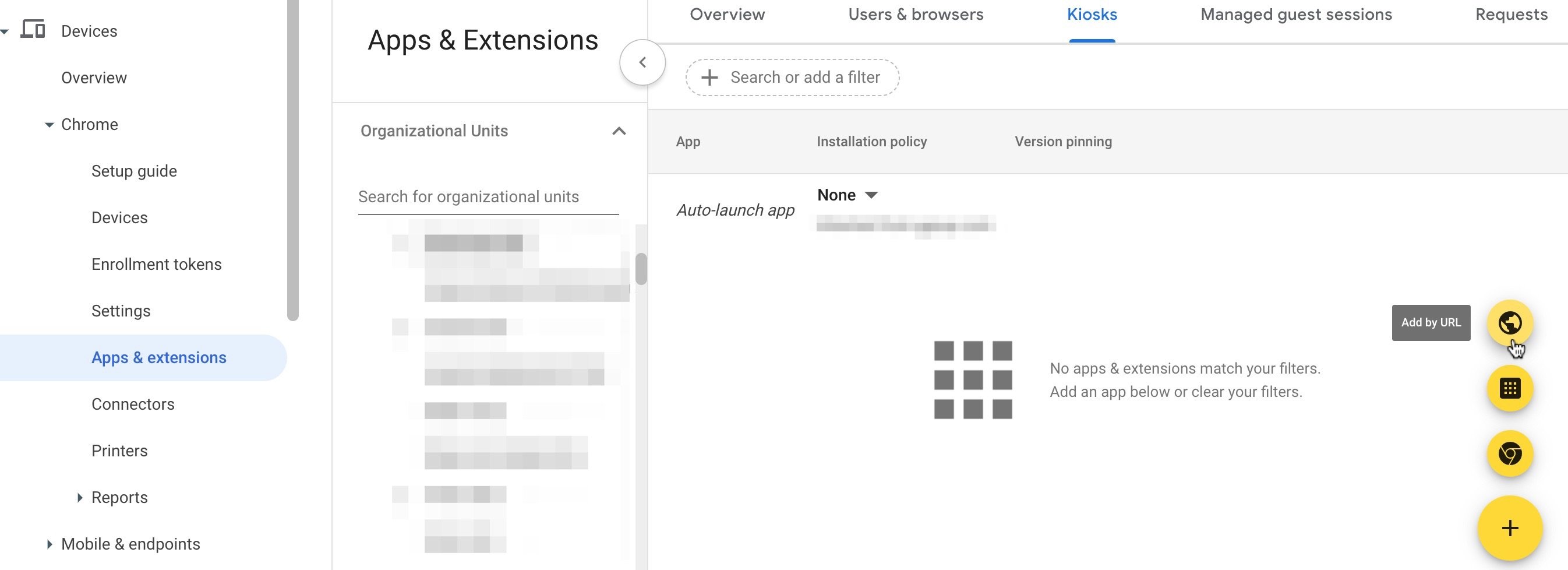
2. In the left-hand menu, click **Devices** > **Chrome** > **Apps & Extensions**.
3. Click the organizational unit (OU) where the Pear Assessment Kiosk Mode PWA will be deployed.
4. In the lower-right corner of the window, click the plus button, then click the globe button (labeled **Add by URL** when hovered).
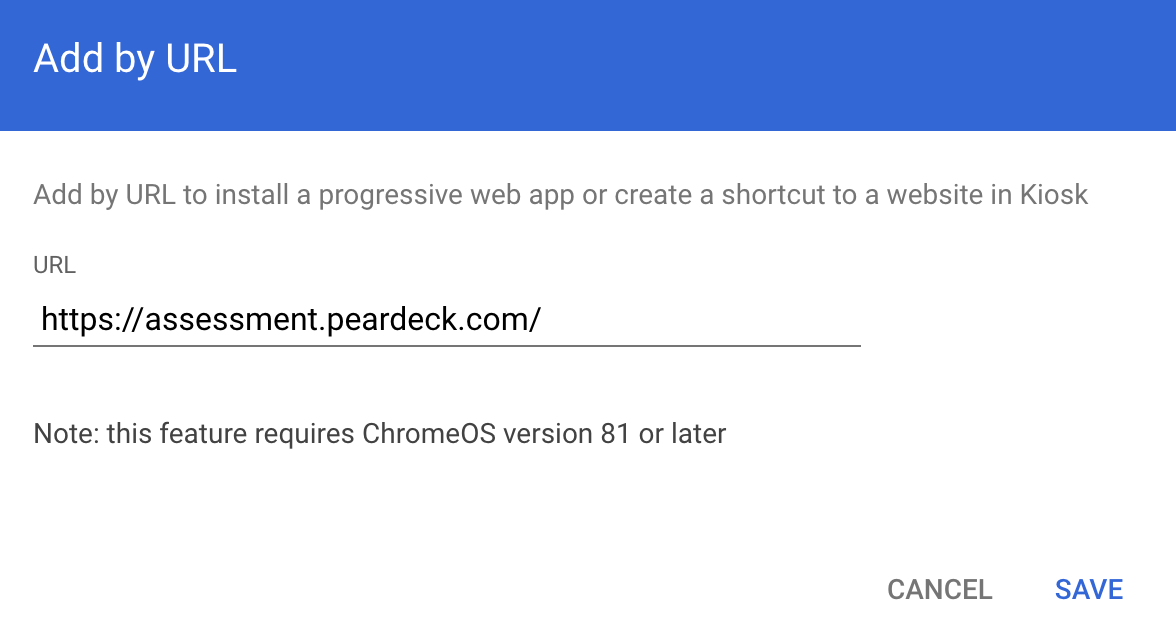
 5. Enter `https://assessment.peardeck.com/` or your district's Pear Assessment URL found in **Manage District** > **Profile** > **District URL**.
 6. Review the terms as required by Google.
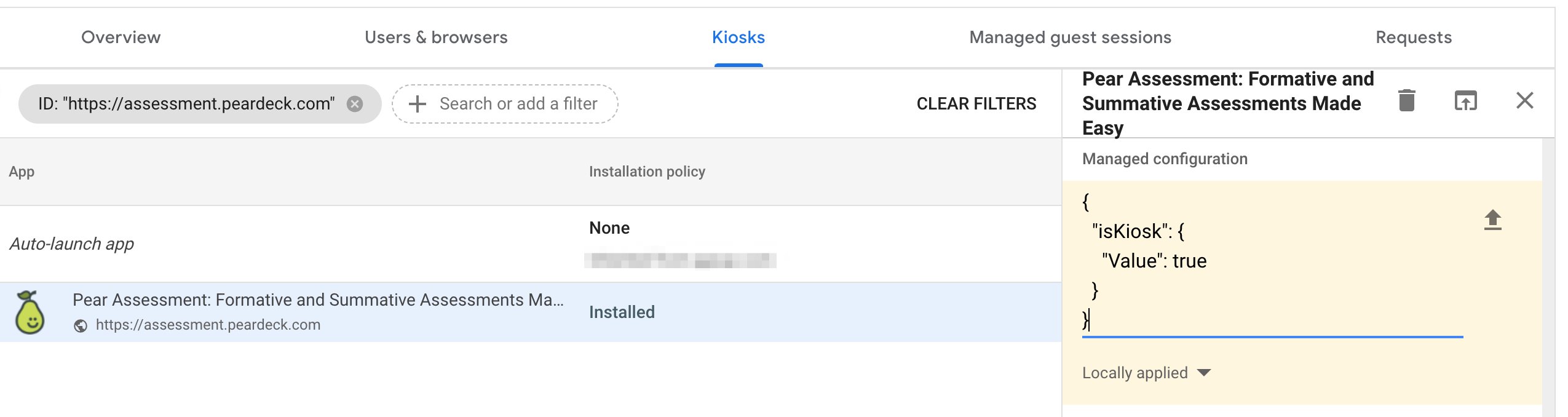
7. Under **Kiosk Settings** > **Managed Configuration**, enter the following:
6. Review the terms as required by Google.
7. Under **Kiosk Settings** > **Managed Configuration**, enter the following:
 ```json theme={null}
{
"isKiosk": {
"Value": true
}
}
```
8. Click **Save**. The kiosk app appears in Google Admin as **Pear Assessment: Formative and Summative Assessments Made Easy**.
9. On the student Chromebook sign-in screen, click **Apps** > **Pear Assessment (Formerly Pear Assessment)** if the kiosk does not load automatically.
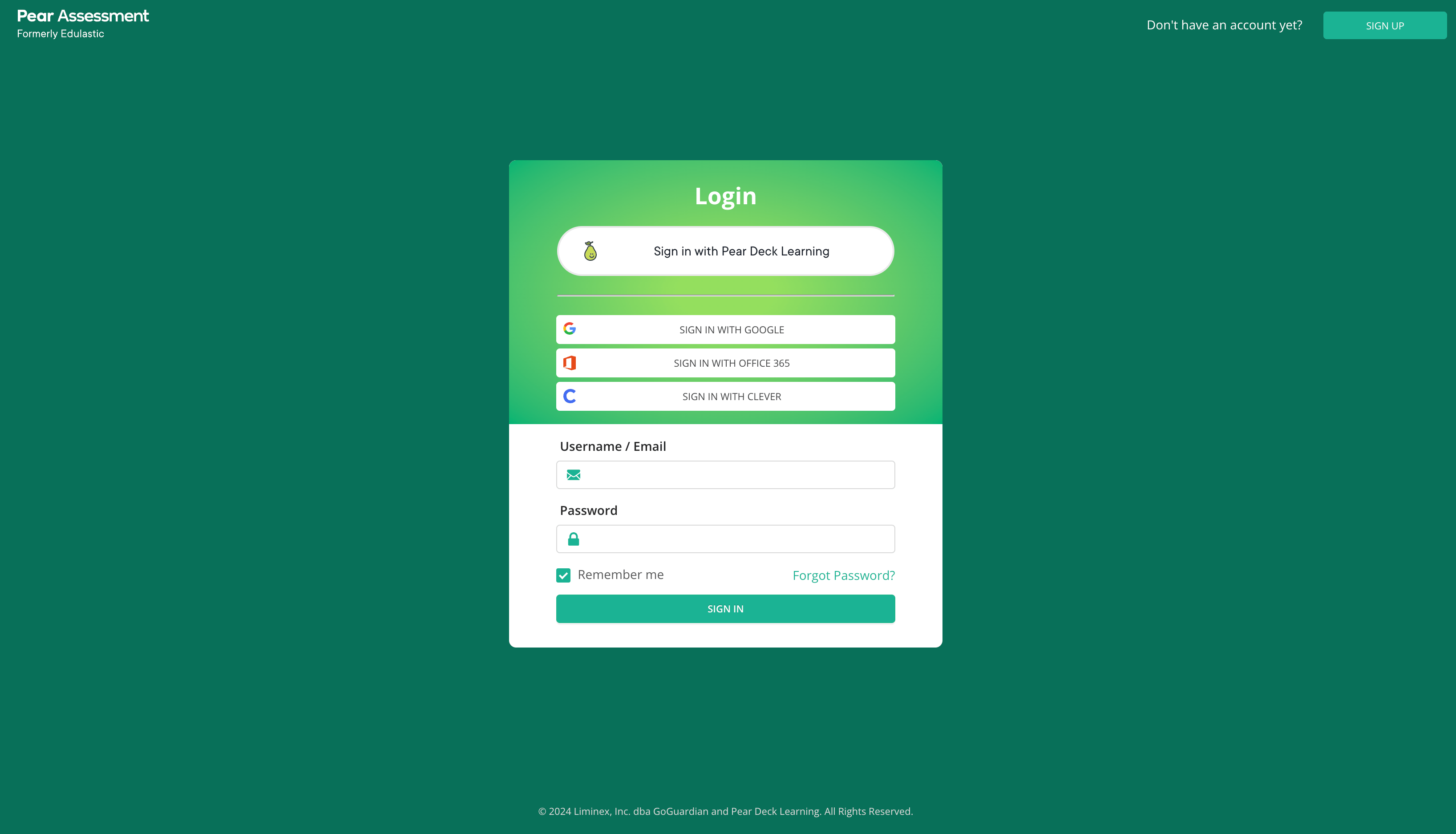
10. Confirm the **Pear Assessment (Formerly Pear Assessment)** kiosk appears on the student Chromebooks.
11. Confirm students can sign in using third-party single sign-on (SSO) or their Pear Assessment username and password, depending on your environment's setup.
```json theme={null}
{
"isKiosk": {
"Value": true
}
}
```
8. Click **Save**. The kiosk app appears in Google Admin as **Pear Assessment: Formative and Summative Assessments Made Easy**.
9. On the student Chromebook sign-in screen, click **Apps** > **Pear Assessment (Formerly Pear Assessment)** if the kiosk does not load automatically.
10. Confirm the **Pear Assessment (Formerly Pear Assessment)** kiosk appears on the student Chromebooks.
11. Confirm students can sign in using third-party single sign-on (SSO) or their Pear Assessment username and password, depending on your environment's setup.
 To deploy to additional organizational units, repeat the steps above for each root or sub-OU. To sign out of Kiosk Mode, press the power button on the keyboard and click **Sign Out**.
## Configure a Custom District URL for Kiosk Mode
1. Sign in to the Google Admin console using an administrator account.
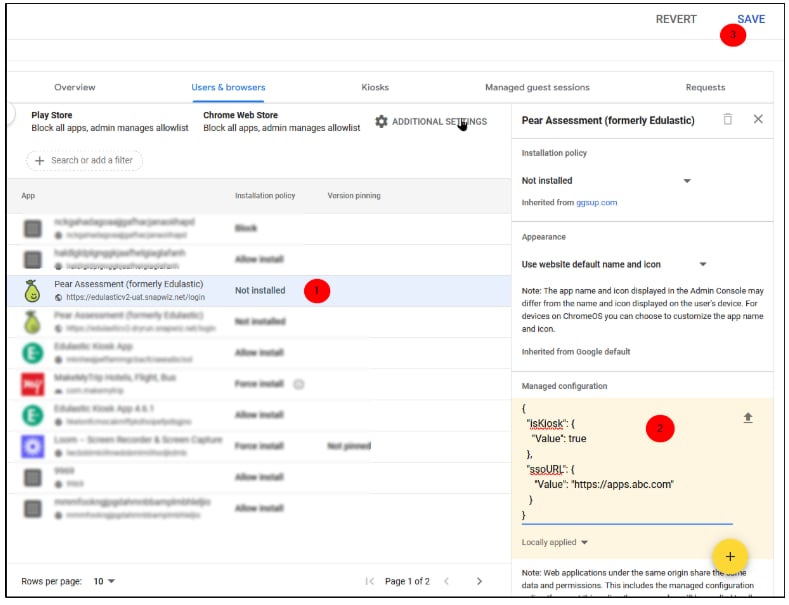
2. Navigate to **Devices** > **Apps & Extensions** > **Kiosks**.
3. Select the OU where the app is installed.
4. Click the app name to open the side panel with policy details.
5. In the **Managed Configuration** section, paste the following JSON:
```json theme={null}
{
"isKiosk": {
"Value": true
},
"ssoURL": {
"Value": "https://apps.abc.com"
}
}
```
Replace `https://apps.abc.com` with your district's custom URL.
6. Click **Save** in the upper-right corner.
To deploy to additional organizational units, repeat the steps above for each root or sub-OU. To sign out of Kiosk Mode, press the power button on the keyboard and click **Sign Out**.
## Configure a Custom District URL for Kiosk Mode
1. Sign in to the Google Admin console using an administrator account.
2. Navigate to **Devices** > **Apps & Extensions** > **Kiosks**.
3. Select the OU where the app is installed.
4. Click the app name to open the side panel with policy details.
5. In the **Managed Configuration** section, paste the following JSON:
```json theme={null}
{
"isKiosk": {
"Value": true
},
"ssoURL": {
"Value": "https://apps.abc.com"
}
}
```
Replace `https://apps.abc.com` with your district's custom URL.
6. Click **Save** in the upper-right corner.
 ## Uninstall the Legacy Kiosk Mode Extension
The legacy Kiosk Mode extension (Pear Assessment Kiosk App) is no longer a recommended deployment method. Use the following steps to remove it after deploying the PWA.
1. Sign in to Google Admin.
2. In the left-hand menu, click **Devices** > **Chrome** > **Apps & Extensions**.
3. Click the OU where the legacy Pear Assessment Kiosk Mode app was deployed.
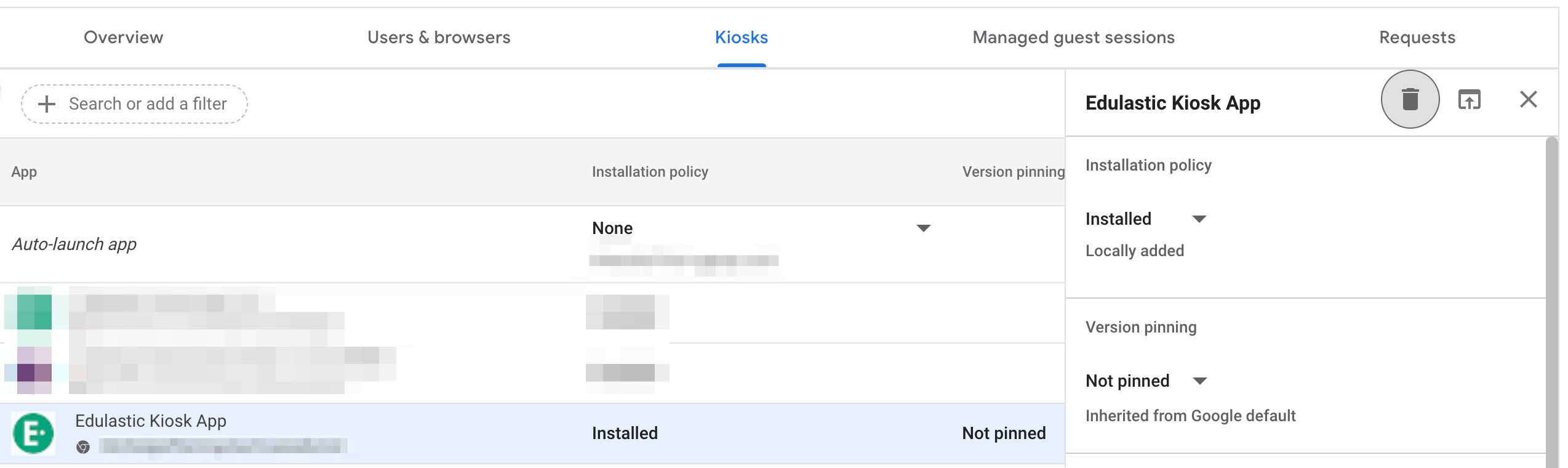
4. Click the **Kiosks** tab.
5. Click the **Pear Assessment Kiosk App** name.
6. Click the trash button in the upper-right corner of the panel.
## Uninstall the Legacy Kiosk Mode Extension
The legacy Kiosk Mode extension (Pear Assessment Kiosk App) is no longer a recommended deployment method. Use the following steps to remove it after deploying the PWA.
1. Sign in to Google Admin.
2. In the left-hand menu, click **Devices** > **Chrome** > **Apps & Extensions**.
3. Click the OU where the legacy Pear Assessment Kiosk Mode app was deployed.
4. Click the **Kiosks** tab.
5. Click the **Pear Assessment Kiosk App** name.
6. Click the trash button in the upper-right corner of the panel.
 Repeat these steps for any sub-OUs that are not inheriting settings from the root OU.
## Frequently Asked Questions
### Does the Kiosk App Work with Safe Exam Browser (SEB) Settings?
Yes. A single test setting controls all supported devices, including Windows, Mac, and Chromebook.
### Can Students Quit an Assignment While It Is in Progress in the Kiosk App?
No. The Kiosk app does not allow students to exit an exam while it is in progress.
### How Do Students Exit the Kiosk App on a Chromebook?
When students sign out of Pear Assessment within the Kiosk app, the app closes automatically on Chromebooks.
### Does a Teacher Pausing or Closing a Test Still Work in Kiosk Mode and Safe Exam Browser?
Yes. Pausing or closing the test removes the student from the assessment.
### Does "Take Test in One Sitting" Work in Kiosk Mode and Safe Exam Browser?
Yes. In Kiosk Mode, students must completely shut down their Chromebook to exit the test. In Safe Exam Browser, the quit password can be used to exit.
### Does the Quit Password Apply to Both Safe Exam Browser and Kiosk Mode?
No. The Quit Password applies only to Safe Exam Browser.
### Will Students Be Signed Out After Submitting an Assignment?
Yes. Students are signed out after submitting if the Release Score policy is set to **Do not release score**.
## Resources
Repeat these steps for any sub-OUs that are not inheriting settings from the root OU.
## Frequently Asked Questions
### Does the Kiosk App Work with Safe Exam Browser (SEB) Settings?
Yes. A single test setting controls all supported devices, including Windows, Mac, and Chromebook.
### Can Students Quit an Assignment While It Is in Progress in the Kiosk App?
No. The Kiosk app does not allow students to exit an exam while it is in progress.
### How Do Students Exit the Kiosk App on a Chromebook?
When students sign out of Pear Assessment within the Kiosk app, the app closes automatically on Chromebooks.
### Does a Teacher Pausing or Closing a Test Still Work in Kiosk Mode and Safe Exam Browser?
Yes. Pausing or closing the test removes the student from the assessment.
### Does "Take Test in One Sitting" Work in Kiosk Mode and Safe Exam Browser?
Yes. In Kiosk Mode, students must completely shut down their Chromebook to exit the test. In Safe Exam Browser, the quit password can be used to exit.
### Does the Quit Password Apply to Both Safe Exam Browser and Kiosk Mode?
No. The Quit Password applies only to Safe Exam Browser.
### Will Students Be Signed Out After Submitting an Assignment?
Yes. Students are signed out after submitting if the Release Score policy is set to **Do not release score**.
## Resources