> ## Documentation Index
> Fetch the complete documentation index at: https://docs.goguardian.com/llms.txt
> Use this file to discover all available pages before exploring further.
# Sync Scores to Google Classroom
> Sync Pear Assessment scores to Google Classroom using auto-share or manual grade sync
Teachers can sync assessment scores to Google Classroom by signing in with their Google account via single sign-on (SSO) and enabling auto-sharing or manually sending grades to Google Classroom. If you have previously synced a roster from Google Classroom to Pear Assessment, scores sync automatically.
## Auto-Share Scores with Google Classroom
1. Sign in with your Google account via SSO on the Pear Assessment homepage.
2. Click your avatar, then select **My Profile** in the navigation menu.
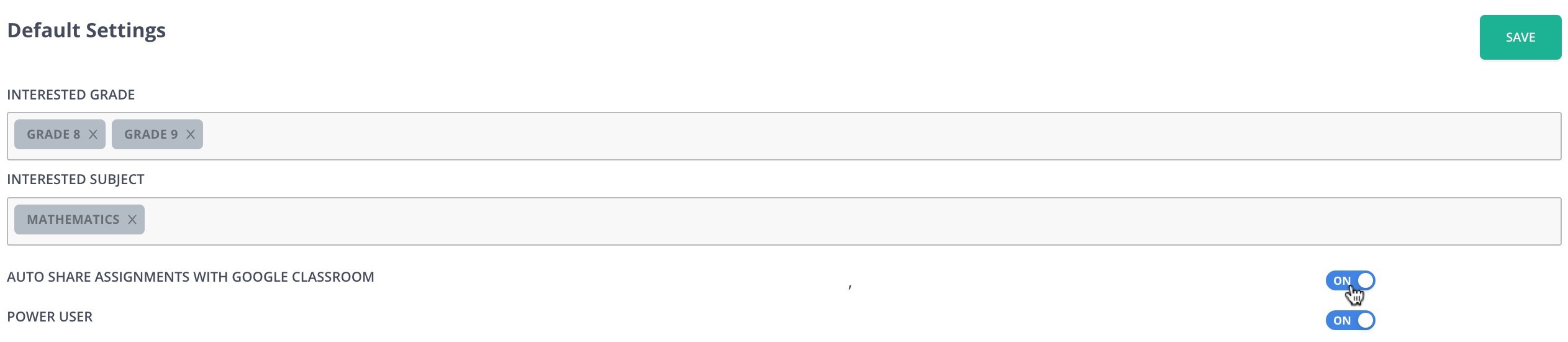
3. Under **Default Settings**, toggle on **Auto Share Assignments with Google Classroom**.
4. Click **Save**.
 ## Sync Scores to Google Classroom Manually
1. Click **Assignments** in the navigation menu.
2. Click the name of an assignment.
3. Click the hamburger menu, then select **Sync Grades to Google Classroom**.
4. Ask students to open the assessment from their Google Classroom dashboard, complete the assessment, and review their scores on the dashboard.
## Sync Scores to Google Classroom Manually
1. Click **Assignments** in the navigation menu.
2. Click the name of an assignment.
3. Click the hamburger menu, then select **Sync Grades to Google Classroom**.
4. Ask students to open the assessment from their Google Classroom dashboard, complete the assessment, and review their scores on the dashboard.
