> ## Documentation Index
> Fetch the complete documentation index at: https://docs.goguardian.com/llms.txt
> Use this file to discover all available pages before exploring further.
# Troubleshoot Google Classroom Sync
> Resolve issues with the Sync with Google Classroom button by updating browser permissions and cookie settings
If the **Sync with Google Classroom** button in Pear Assessment behaves unexpectedly, the most common cause is a browser setting that blocks pop-ups, redirects, automatic downloads, or third-party cookies. Updating these settings resolves the issue in most cases.
The steps below use Google Chrome as an example. The location of these settings varies by browser.
## Fix Google Classroom Sync
1. Open Pear Assessment and select the lock icon to the left of the URL in your browser's address bar.
2. Select **Site settings**.
3. Enable **Pop-ups and redirects**.
4. Enable **Automatic downloads**.
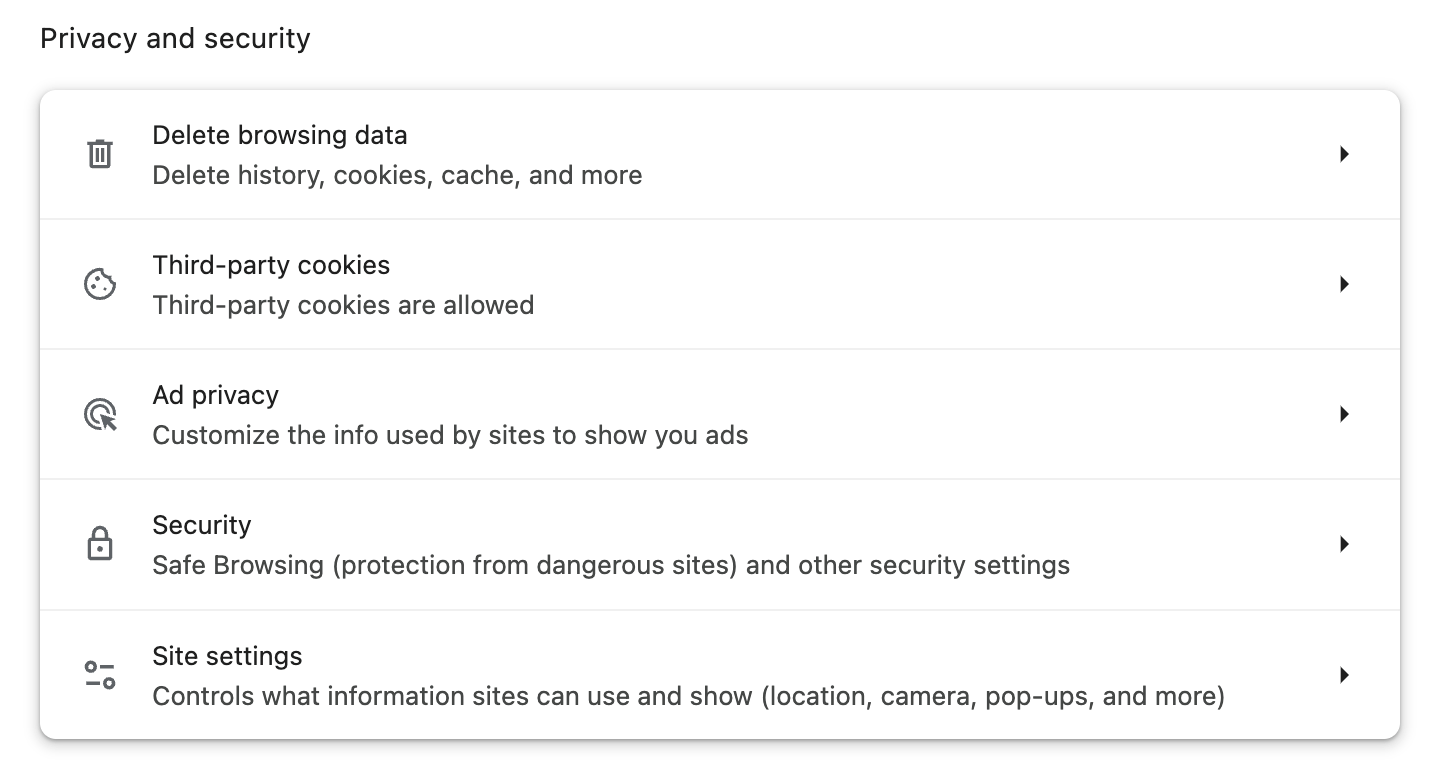
5. Enable third-party cookies. In Google Chrome, this setting is on the **Privacy and security** page rather than the per-site settings panel.
 6. Refresh the page.
7. Select **Manage Class**.
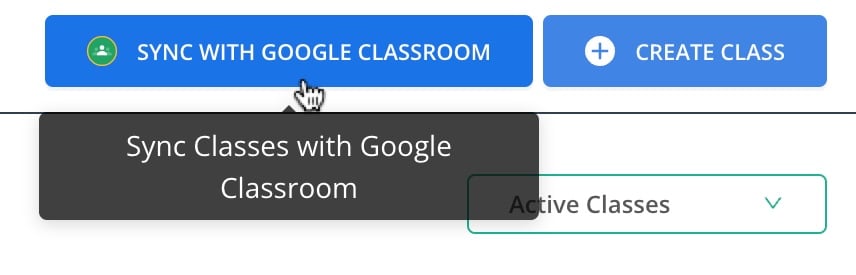
8. Select **Sync with Google Classroom** and confirm the sync completes as expected.
6. Refresh the page.
7. Select **Manage Class**.
8. Select **Sync with Google Classroom** and confirm the sync completes as expected.

 ## Resources
Send assessment scores directly to Google Classroom from Pear Assessment.
Answers to common questions about syncing scores to Google Classroom.
## Resources
Send assessment scores directly to Google Classroom from Pear Assessment.
Answers to common questions about syncing scores to Google Classroom.