> ## Documentation Index
> Fetch the complete documentation index at: https://docs.goguardian.com/llms.txt
> Use this file to discover all available pages before exploring further.
# Common Assessment: Importance of Status Tracking
> Understand the four assignment status types in Pear Assessment and how to track progress at the district, school, and class levels
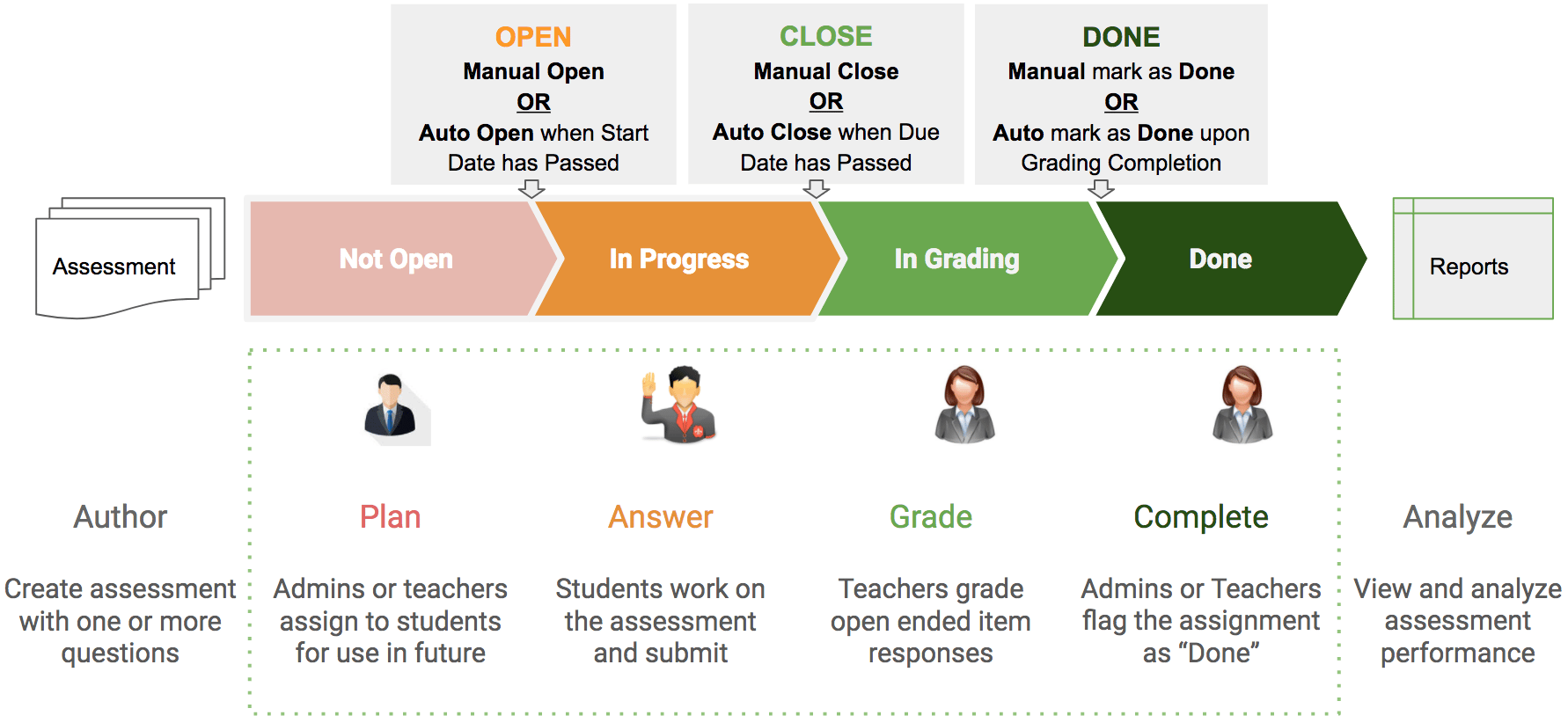
Status tracking in Pear Assessment is available at the district, school, and class levels. Four status types are supported: Not Open, In Progress, In Grading, and Done. Understanding these statuses helps administrators and teachers monitor assignment progress and ensure all students have completed and been graded on their work.
## Status Tracking at the District and School Level
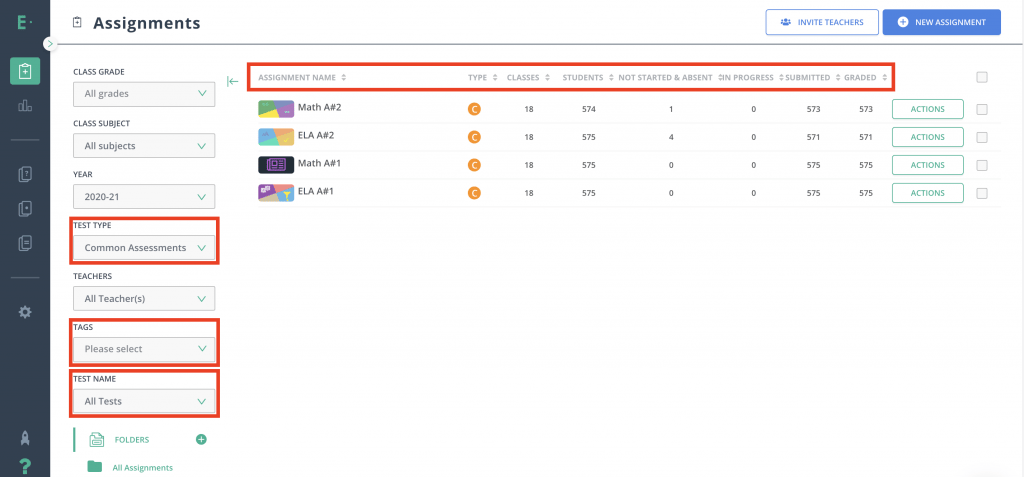
An administrator's landing page is the **Assignments** tab, where you can track the progress of an assignment to completion. Keep the following in mind:
* Grade and subject are important to large districts because they help coaches filter assessments within their area.
* The **Test Type** setting defaults to **Common Assessment**. This is an admin-created or assigned assessment filtered from the rest of the teacher-created and assigned formatives called Class Assessments. To see all assessments in your district or school, change the **Test Type** filter to **All**.
* Tags can be manually added when creating or assigning assessments to find data quickly when other filters are too broadly scoped. For example, you can filter by Q1 benchmarks, ACT practice, or IEP-modified assessment. See [Tags in Pear Assessment Help Admins and Teachers](/products/pear-assessment/tags-help-admins-and-teachers) for details.
* Searching by test name helps locate a specific assessment.
The column headers above the assessment list are the first level of status tracking, showing how many classes and students are assigned the test and how many students fall into each status. A student's results appear when they are marked absent (0%) or graded: confirm that the graded count matches the assigned count.
 ## Status Tracking at the Class Level
Another level of status tracking is the **Live Class Board** (LCB). Teachers can watch student progress live from the LCB by reviewing results or grading questions. The LCB gives teachers the ability to manage students and their statuses. See [Common Assessment: Managing Students on a Live Assessment](/products/pear-assessment/common-assessment-managing-students-live) for details on managing students during an active assessment.
There are four assignment statuses:
* **Not Open**: The assignment is not available for students to work on (for example, it has a future start date or has not been opened manually). Use this status while still in the planning phase.
* **In Progress**: The assignment is available for students to work on. An assignment can remain In Progress after the due date has passed when [Redirect](/products/pear-assessment/quick-start-redo-reassign-reopen-redirect) is used: for example, when asking a student to redo the assignment. If Redirect is used, the status can transition back to In Progress from In Grading.
* **In Grading**: The teacher needs to finalize student scores after the testing window closes or all students have submitted answers. Assessments with write-in questions such as Essay or Drawing Response that require manual grading will show as In Grading.
* **Done**: All submitted answers were graded or the assessment window closed. The Done status indicates the testing window has closed, not that every student has taken or submitted the test.
## Status Tracking at the Class Level
Another level of status tracking is the **Live Class Board** (LCB). Teachers can watch student progress live from the LCB by reviewing results or grading questions. The LCB gives teachers the ability to manage students and their statuses. See [Common Assessment: Managing Students on a Live Assessment](/products/pear-assessment/common-assessment-managing-students-live) for details on managing students during an active assessment.
There are four assignment statuses:
* **Not Open**: The assignment is not available for students to work on (for example, it has a future start date or has not been opened manually). Use this status while still in the planning phase.
* **In Progress**: The assignment is available for students to work on. An assignment can remain In Progress after the due date has passed when [Redirect](/products/pear-assessment/quick-start-redo-reassign-reopen-redirect) is used: for example, when asking a student to redo the assignment. If Redirect is used, the status can transition back to In Progress from In Grading.
* **In Grading**: The teacher needs to finalize student scores after the testing window closes or all students have submitted answers. Assessments with write-in questions such as Essay or Drawing Response that require manual grading will show as In Grading.
* **Done**: All submitted answers were graded or the assessment window closed. The Done status indicates the testing window has closed, not that every student has taken or submitted the test.
 ## Resources
Learn how to use tags to filter and organize assessments across your district or school.
Manage student statuses and progress in real time from the Live Class Board.
Understand how to use Redirect to transition an assignment back to In Progress.
## Resources
Learn how to use tags to filter and organize assessments across your district or school.
Manage student statuses and progress in real time from the Live Class Board.
Understand how to use Redirect to transition an assignment back to In Progress.