> ## Documentation Index
> Fetch the complete documentation index at: https://docs.goguardian.com/llms.txt
> Use this file to discover all available pages before exploring further.
# AI-Powered Pre-Populated Prompts for Item Authoring
> Use Pear Assessment's built-in AI prompts to generate, rewrite, and translate assessment items faster
Pear Assessment offers multiple pre-populated AI prompts to streamline item creation. Clicking any of these prompts opens a side panel where you can input content and receive AI-generated results.
## Generate Full Item
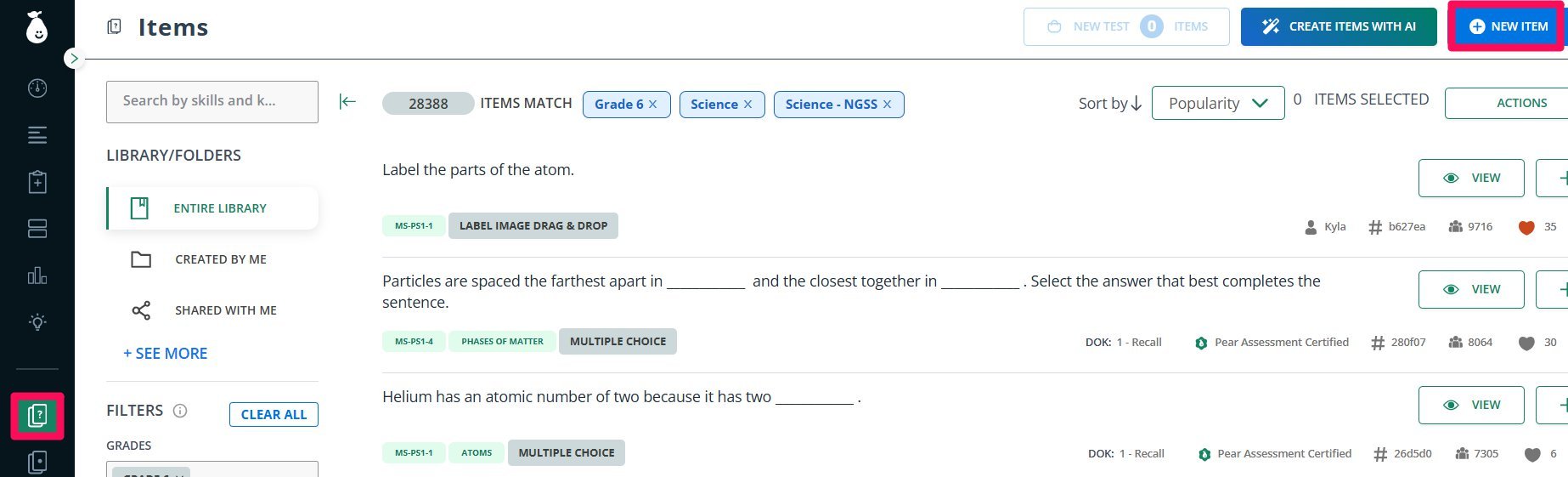
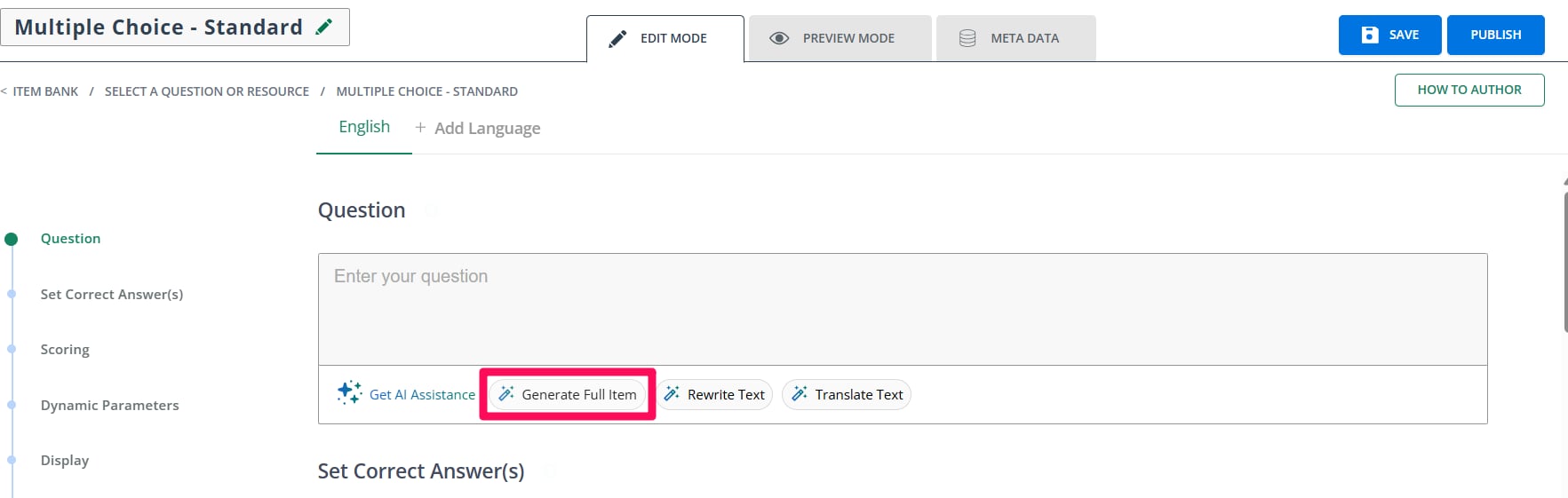
The **Generate Full Item** feature helps you create a complete question: including answer options and the correct response: using AI. This tool allows you to author one item at a time.
1. In the item bank, select **New Item**.
2. After selecting the item type, click **Generate Full Item** below the question box to open the side panel.
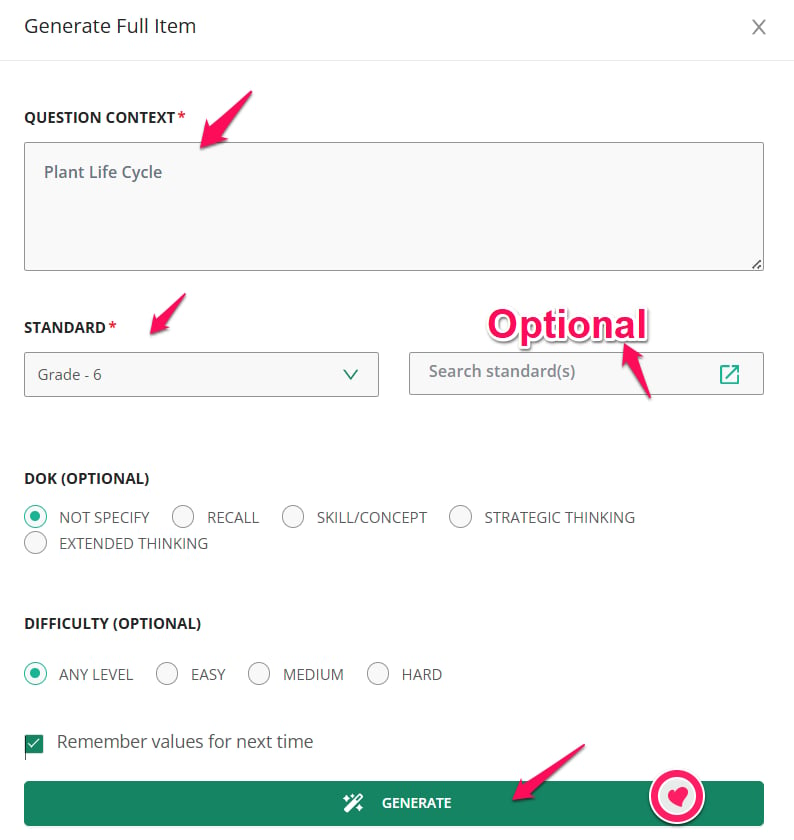
3. In the side panel, fill in the following fields:
* **Question Context**: Provide any relevant context for the question.
* **Standards** (optional): Enter the standards you want the question to align with.
* **Depth of Knowledge (DOK) level**: Select the appropriate DOK level for the question.
* **Difficulty Level**: Choose the difficulty level for the question.
Once you have entered the necessary details, click **Generate**.
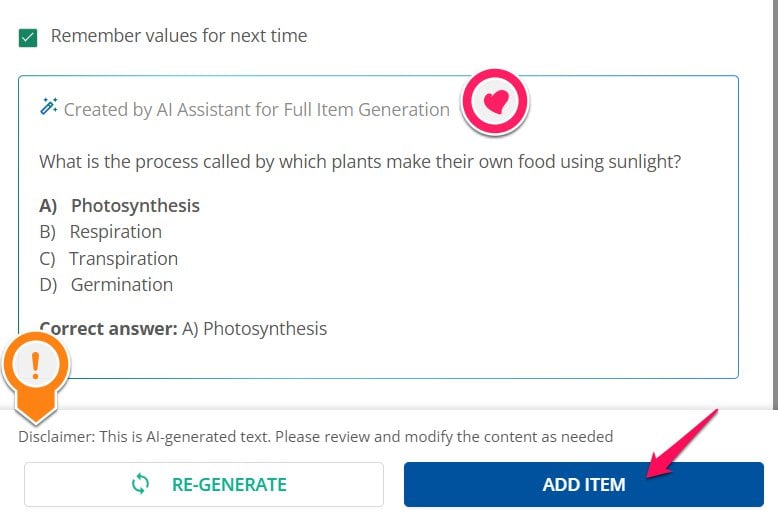
4. Review the AI-generated question, answer options, and correct answer. If everything looks good, click **Add Item** to populate the respective fields with the generated content.
If you have already entered text in the question body, it will be pre-populated in the input field when you open the side panel. You can also select **Remember values for next time** to retain your settings for future items.
 ## Rewrite Text
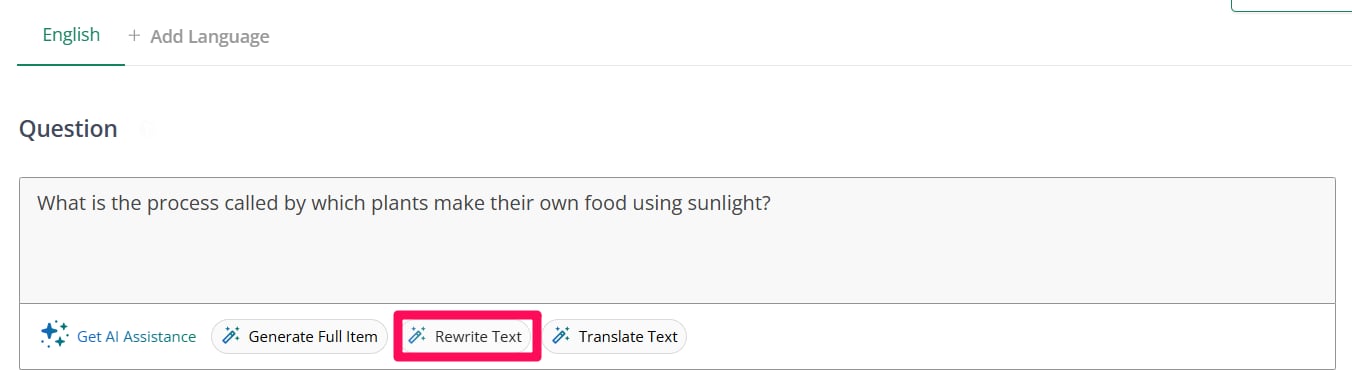
The **Rewrite Text** feature allows you to refine or adjust question text based on specific needs.
1. Click **Rewrite Text** below the question box to open the side panel.
2. If a question already exists, the **Original Text** field will be pre-filled with the current question. If no text appears, enter the question you want to rewrite manually. In the **Rewrite so that** field, describe how you want to modify the question (maximum 500 characters): for example, "Simplify for younger students." Optionally, select a suggested tag:
## Rewrite Text
The **Rewrite Text** feature allows you to refine or adjust question text based on specific needs.
1. Click **Rewrite Text** below the question box to open the side panel.
2. If a question already exists, the **Original Text** field will be pre-filled with the current question. If no text appears, enter the question you want to rewrite manually. In the **Rewrite so that** field, describe how you want to modify the question (maximum 500 characters): for example, "Simplify for younger students." Optionally, select a suggested tag:
 * **Simplify Language**
* **Increase Complexity**
* **Improve Clarity**
* **Enhance Readability**
* **Expand Details**
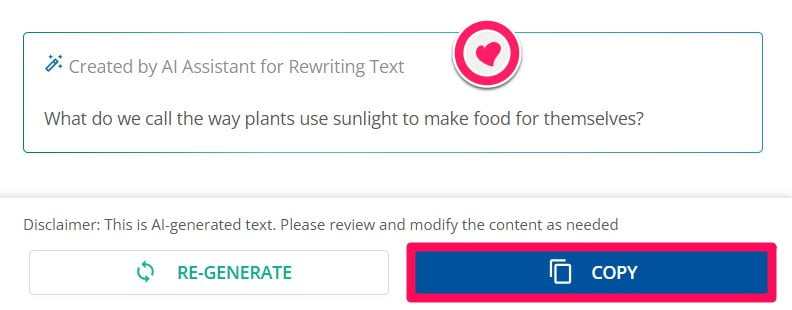
Click **Generate** to receive the revised question.
3. Click **Copy** to copy the rewritten text, then paste it into the question box to replace the original version.
## Translate Text
The **Translate Text** feature provides AI-powered translation for question text, allowing you to convert content from English into Spanish, French, German, Mandarin, Arabic, or Korean.
1. Click **Translate Text** below the question box to open the side panel.
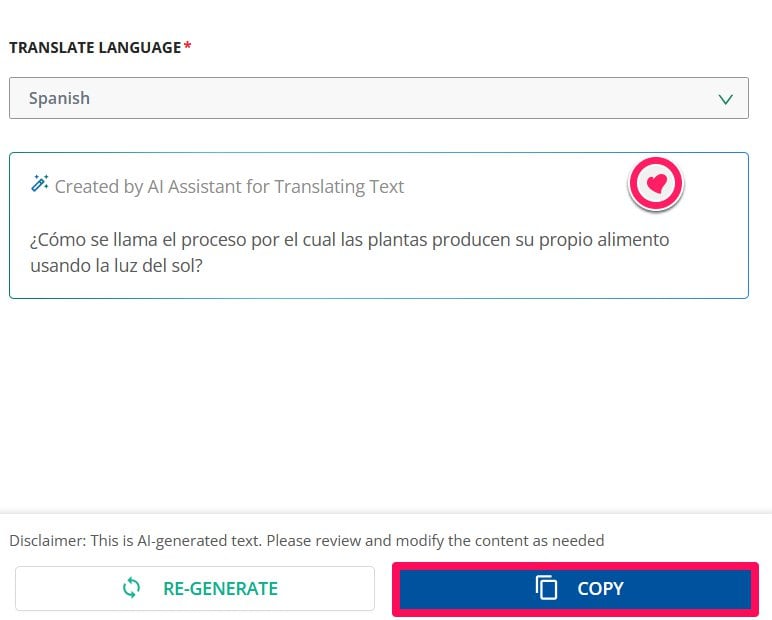
2. The **Original Text** field will automatically populate with the existing question. If no text appears, enter the content you want to translate manually. Use the **Translate Language** dropdown to select the target language, then click **Generate**.
3. Review the translated text for accuracy and clarity, then copy it and paste it into the question box to replace the original.
* **Simplify Language**
* **Increase Complexity**
* **Improve Clarity**
* **Enhance Readability**
* **Expand Details**
Click **Generate** to receive the revised question.
3. Click **Copy** to copy the rewritten text, then paste it into the question box to replace the original version.
## Translate Text
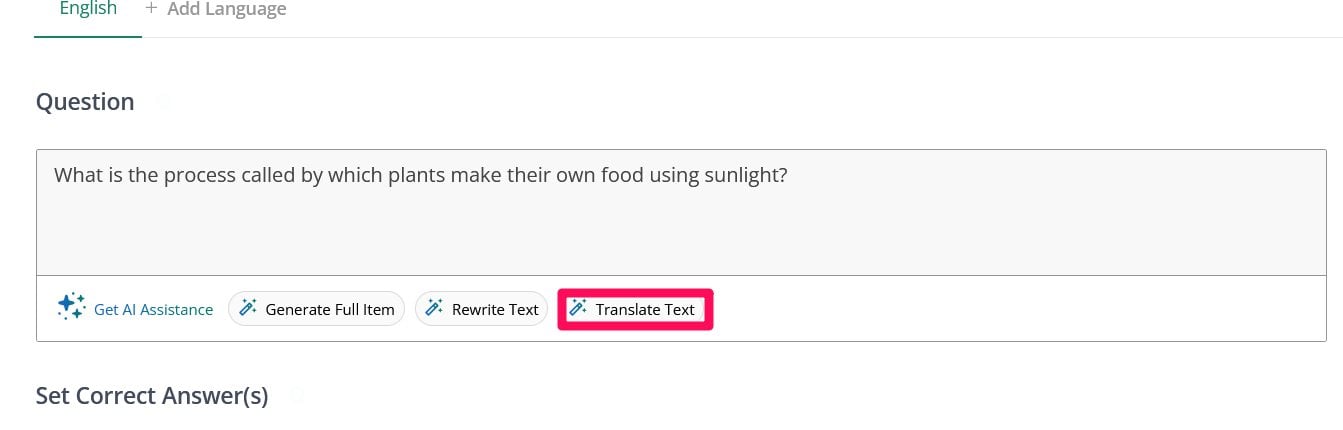
The **Translate Text** feature provides AI-powered translation for question text, allowing you to convert content from English into Spanish, French, German, Mandarin, Arabic, or Korean.
1. Click **Translate Text** below the question box to open the side panel.
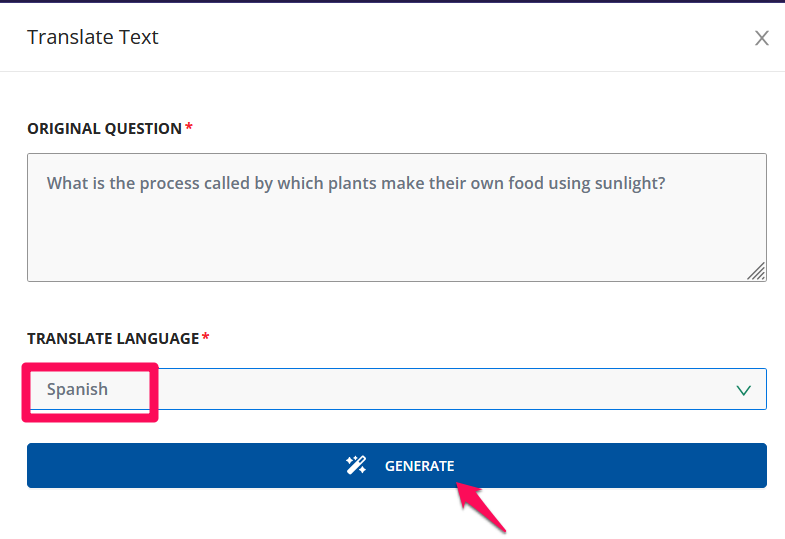
2. The **Original Text** field will automatically populate with the existing question. If no text appears, enter the content you want to translate manually. Use the **Translate Language** dropdown to select the target language, then click **Generate**.
3. Review the translated text for accuracy and clarity, then copy it and paste it into the question box to replace the original.
 Answer choices cannot be translated or automatically populated into their respective fields at this time. This functionality is planned for a future update.
## Frequently Asked Questions
### What Are AI-Powered Pre-Populated Prompts in Pear Assessment?
AI-powered prompts are built-in tools designed to help educators quickly generate assessment content. They include features to generate full items, rewrite existing text, and translate questions into multiple languages.
### Can I Reuse My Settings When Generating Multiple Items?
Yes. Select **Remember values for next time** in the side panel to retain your settings for future item creation.
### What Languages Does the Translate Text Feature Support?
The feature supports translation from English to:
* Spanish
* French
* German
* Mandarin
* Arabic
* Korean
### Can Answer Choices Be Translated Automatically?
Not at this time. Only the question text is translated. Automatic translation of answer choices is planned for a future update.
### Are These AI Features Available for All Item Types?
No. Generate Full Item, Rewrite Text, and Translate Text are not supported for all item types. Support is being expanded gradually.
### Do I Need to Manually Copy the AI-Generated Content into My Item?
Yes. After reviewing the generated content, click **Add Item** for full items, or copy and paste rewritten or translated text into the appropriate fields.
Answer choices cannot be translated or automatically populated into their respective fields at this time. This functionality is planned for a future update.
## Frequently Asked Questions
### What Are AI-Powered Pre-Populated Prompts in Pear Assessment?
AI-powered prompts are built-in tools designed to help educators quickly generate assessment content. They include features to generate full items, rewrite existing text, and translate questions into multiple languages.
### Can I Reuse My Settings When Generating Multiple Items?
Yes. Select **Remember values for next time** in the side panel to retain your settings for future item creation.
### What Languages Does the Translate Text Feature Support?
The feature supports translation from English to:
* Spanish
* French
* German
* Mandarin
* Arabic
* Korean
### Can Answer Choices Be Translated Automatically?
Not at this time. Only the question text is translated. Automatic translation of answer choices is planned for a future update.
### Are These AI Features Available for All Item Types?
No. Generate Full Item, Rewrite Text, and Translate Text are not supported for all item types. Support is being expanded gradually.
### Do I Need to Manually Copy the AI-Generated Content into My Item?
Yes. After reviewing the generated content, click **Add Item** for full items, or copy and paste rewritten or translated text into the appropriate fields.