> ## Documentation Index
> Fetch the complete documentation index at: https://docs.goguardian.com/llms.txt
> Use this file to discover all available pages before exploring further.
# Use Office 365 or Google SSO with Clever
> Configure Google or Office 365 single sign-on for a Clever-synced district in Pear Assessment
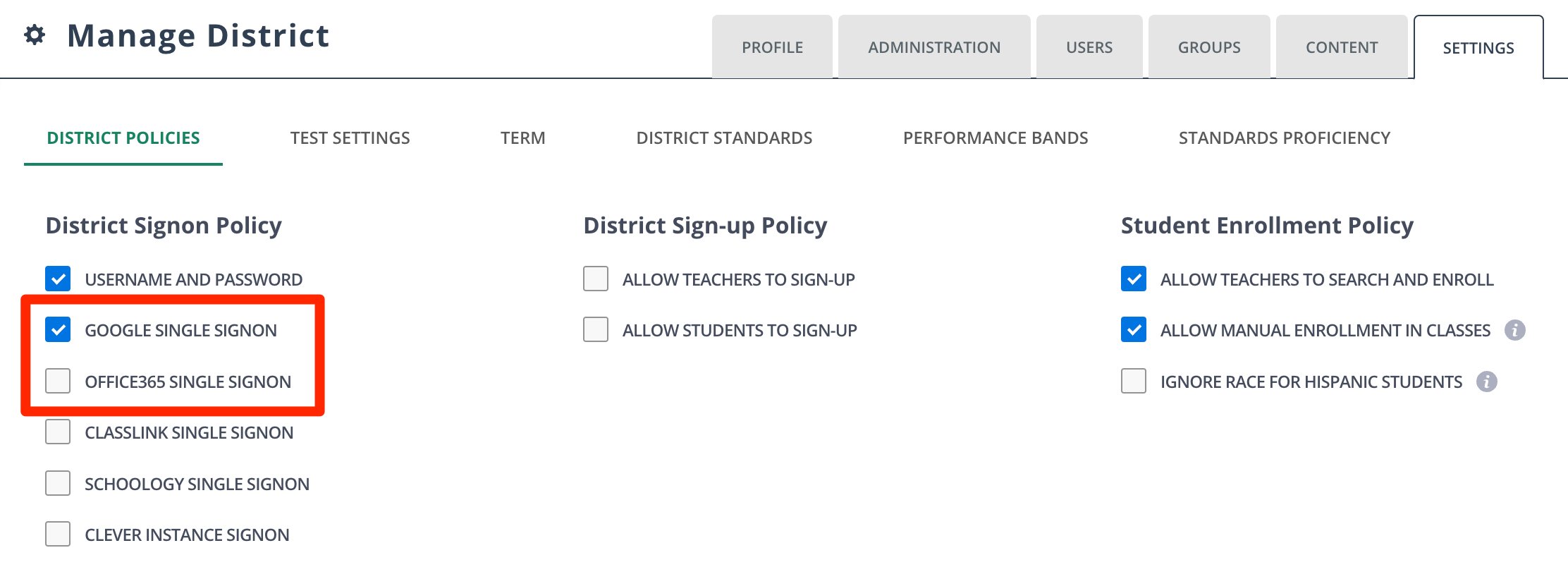
A Clever-synced district can use Google or Office 365 single sign-on (SSO). A District Administrator can set up SSO by navigating to **Pear Assessment** → **Manage District** → **Settings** → **District Policies** → **District Signon Policy**.
Do not use Clever Sync or Clever Library alongside Google Classroom sync. Running two syncs simultaneously can interfere with the Clever push: which updates your Pear Assessment account every 24 hours: and risk creating duplicate student accounts.
## Rostering Options with Clever Sync
The table below summarizes the rostering and sign-on options available depending on your Clever Sync and SSO configuration.
| Single Sign-On Method | Clever Sync Disabled | Clever Sync Enabled |
| -------------------------------- | ------------------------------------------------------------------------ | ------------------------------------------------------------------------------------------------------------------------- |
| **No Google or Office 365 SSO** | - Pear Assessment creates usernames
- Teachers manage class rosters | - Clever SSO
- Sync rosters with SIS using Clever |
| **Google SSO or Office 365 SSO** | - Google or Office 365 SSO
- Teachers manage class rosters | - Clever, Google, or Office 365 SSO
- Sync rosters with SIS using Clever
- Post assignments on Google Classroom |
| **Google Classroom Sync** | - Google SSO
- Teachers import rosters from Google Classroom | - Not recommended |
 ## Resources
Learn how Clever syncs your district's SIS data with Pear Assessment.
## Resources
Learn how Clever syncs your district's SIS data with Pear Assessment.