> ## Documentation Index
> Fetch the complete documentation index at: https://docs.goguardian.com/llms.txt
> Use this file to discover all available pages before exploring further.
# Use the Student Progress Report
> Review each student's performance across multiple assessments, change how results are analyzed, and add selected students to a student group.
Use the **Student Progress** report in Pear Assessment to review each student's performance across multiple assessments. You can filter the results, compare score measures, download the table as a CSV file, and add selected students to a student group.
## Confirm Access and Report Data
The Student Progress report is part of the **Multiple Assessment Report**, which is available with Teacher Premium or Enterprise subscriptions.
Report data can take about 1 hour to appear. The report includes students who submitted an assessment or were marked absent. Students with ungraded constructed responses also appear.
## Open the Student Progress Report
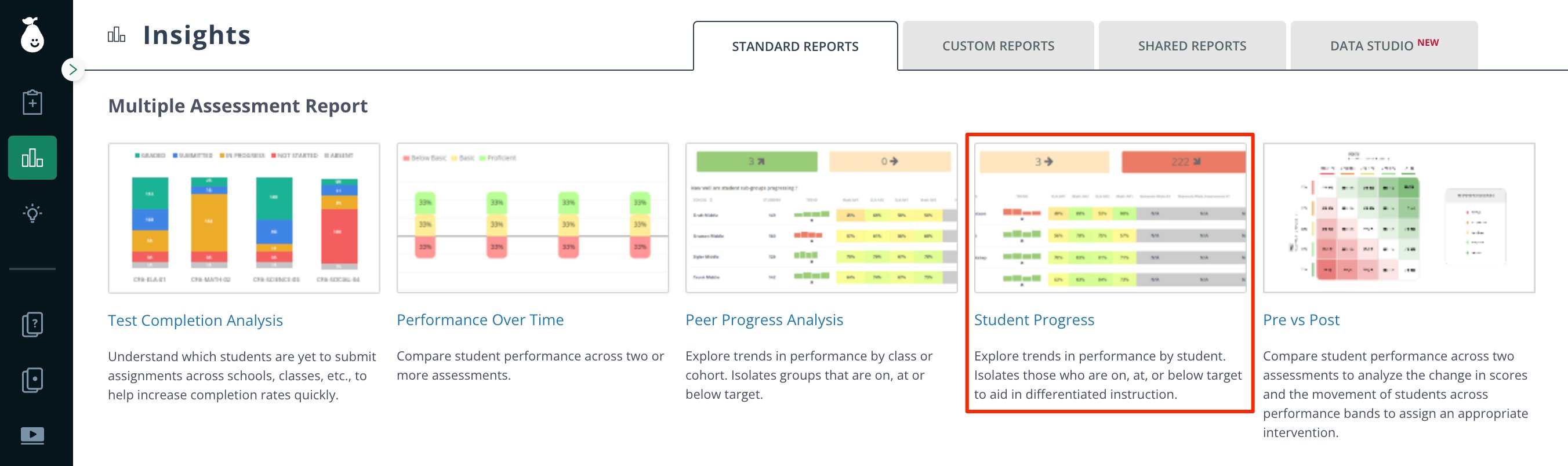
1. Select **Insights** in the navigation menu.
2. Select **Student Progress** under **Multiple Assessment Report**.
 ## Filter and Review Student Progress
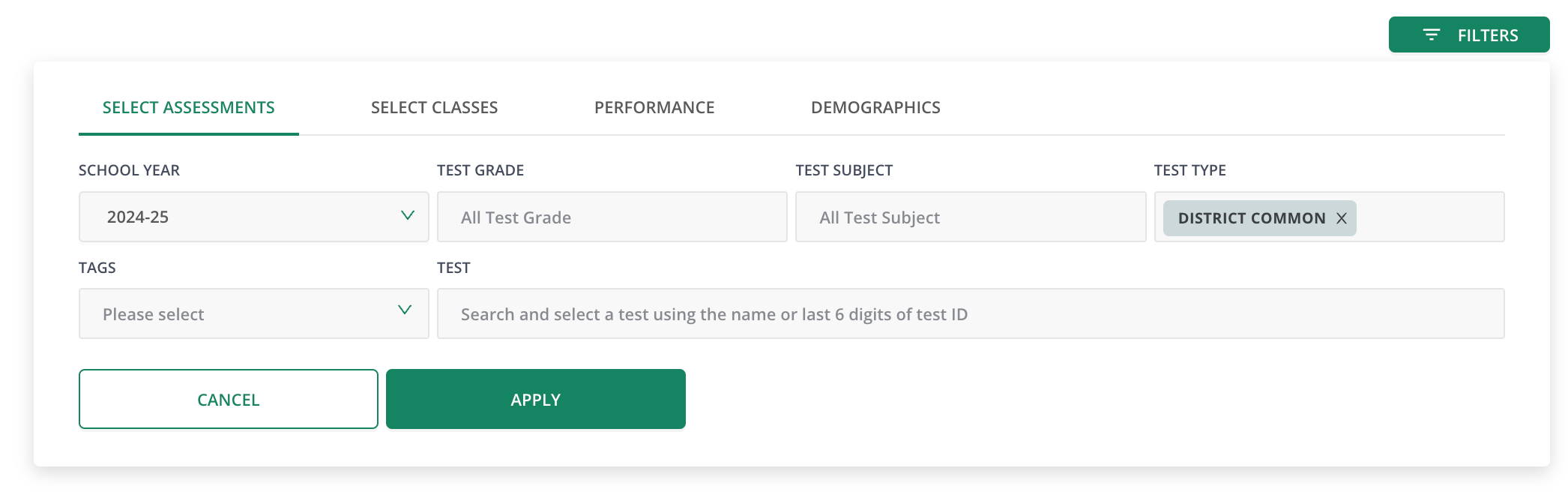
1. Click **Filters** in the upper-right corner.
2. Choose the school year, test grade, test subject, test type, tags, and assessments that define the results you want to review.
## Filter and Review Student Progress
1. Click **Filters** in the upper-right corner.
2. Choose the school year, test grade, test subject, test type, tags, and assessments that define the results you want to review.
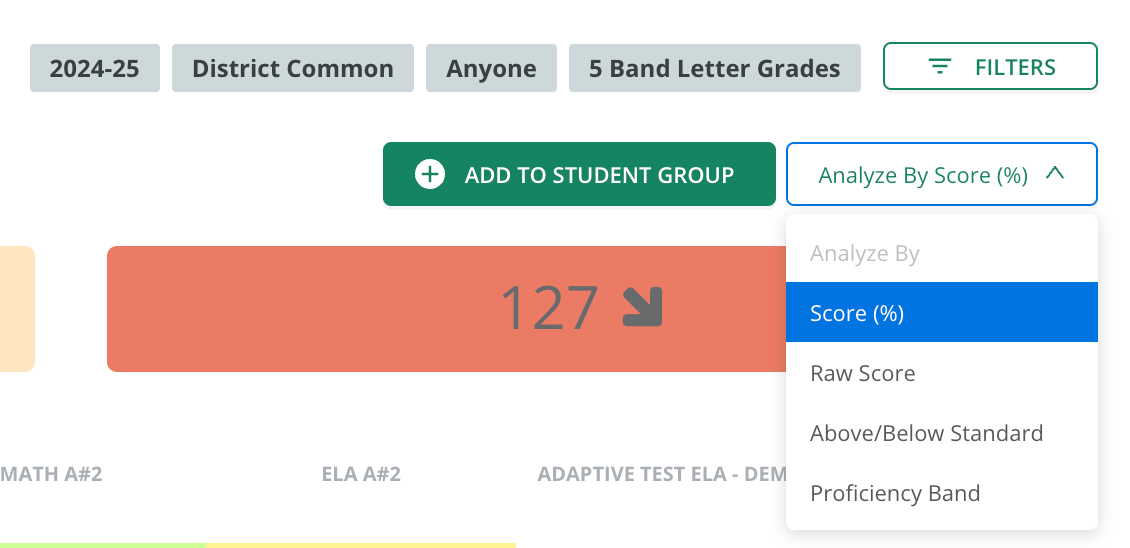
 3. Choose an option from **Analyze By** to change how the report presents results:
* **Score (%)**
* **Raw Score**
* **Above/Below Standard**
* **Proficiency Band**
3. Choose an option from **Analyze By** to change how the report presents results:
* **Score (%)**
* **Raw Score**
* **Above/Below Standard**
* **Proficiency Band**
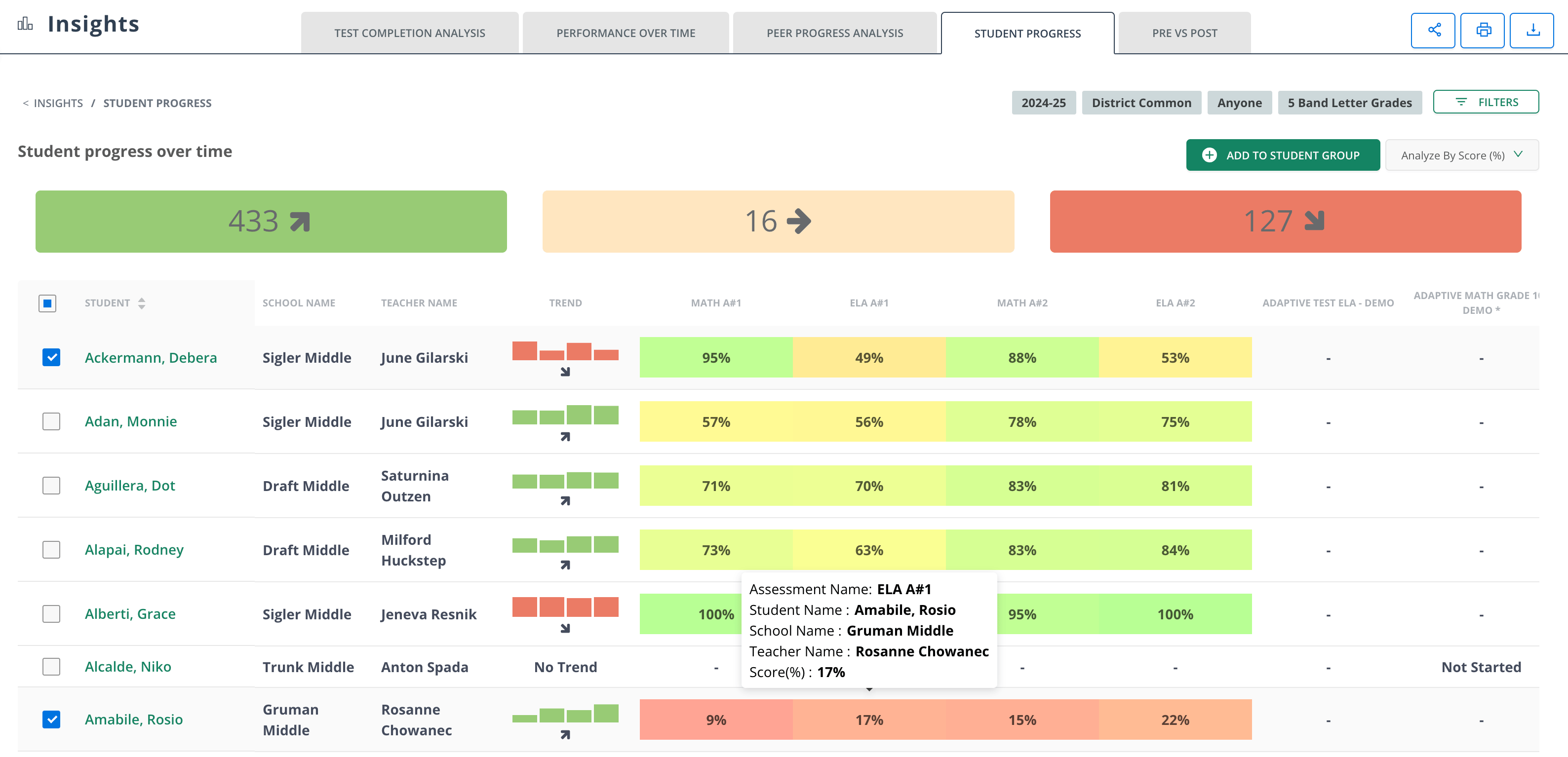
 4. Review student performance across the selected assessments. Hover over a result to view its assessment, school, teacher, trend, and score details.
 5. Download the table as a CSV file when you need to work with the report data outside Pear Assessment.
## Add Students to a Student Group
1. Select the checkbox next to each student you want to add.
2. Click **Add to Student Group**.
3. Choose an existing group, or click **Add New** to create a group.
5. Download the table as a CSV file when you need to work with the report data outside Pear Assessment.
## Add Students to a Student Group
1. Select the checkbox next to each student you want to add.
2. Click **Add to Student Group**.
3. Choose an existing group, or click **Add New** to create a group.
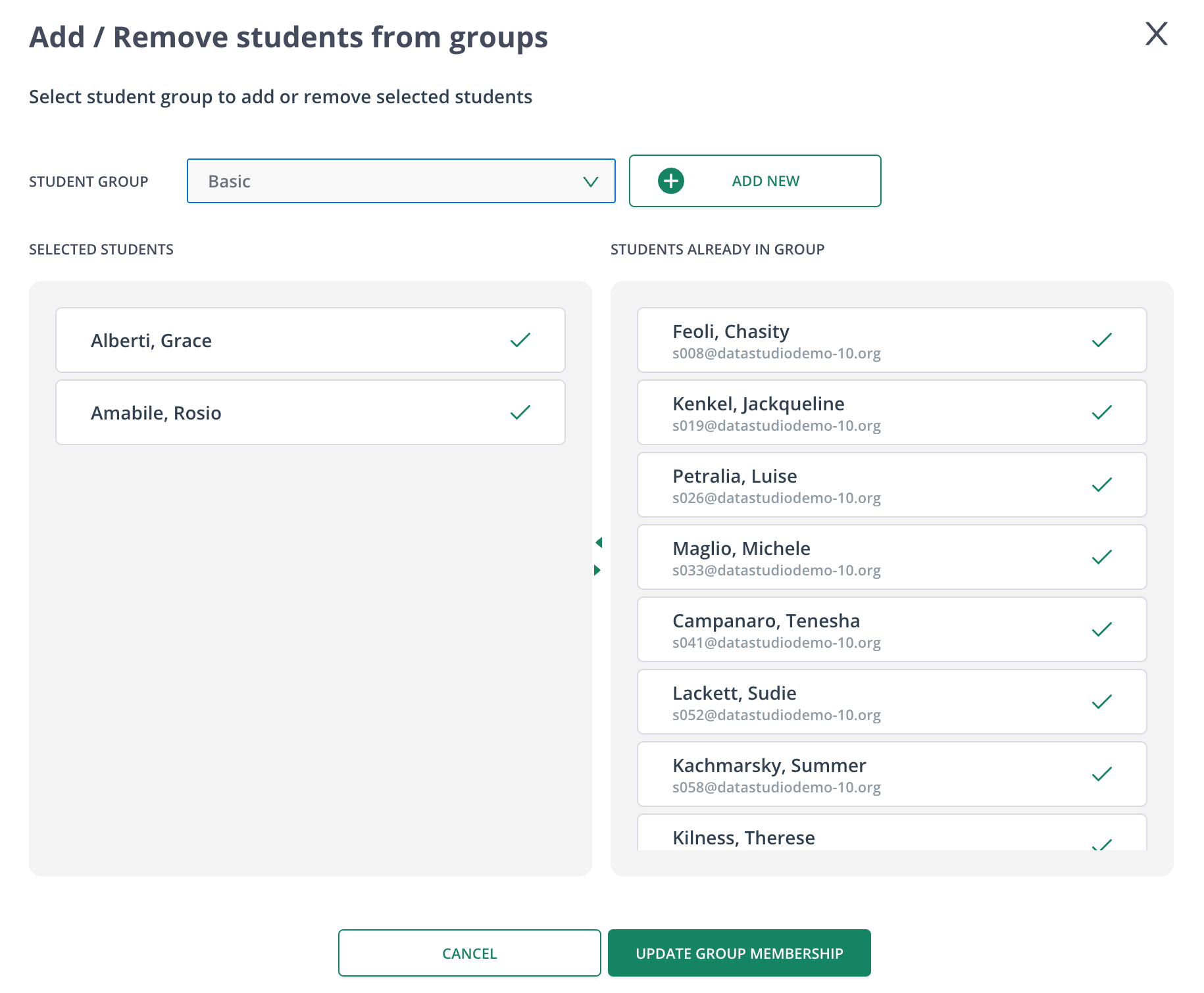 4. Click **Update Group Membership**.
## Verify the Results
Confirm that the report displays the selected assessments and classes using your chosen **Analyze By** measure. If you updated a student group, open that group and confirm that the selected students appear as members.
## Explore Related Reports
* [Interpret the Multiple Assessment Report](/products/pear-assessment/interpret-multiple-assessment-report)
* [Review Performance Over Time](/products/pear-assessment/insights-performance-over-time)
* [Review Peer Progress Analysis](/products/pear-assessment/insights-peer-progress-analysis)
4. Click **Update Group Membership**.
## Verify the Results
Confirm that the report displays the selected assessments and classes using your chosen **Analyze By** measure. If you updated a student group, open that group and confirm that the selected students appear as members.
## Explore Related Reports
* [Interpret the Multiple Assessment Report](/products/pear-assessment/interpret-multiple-assessment-report)
* [Review Performance Over Time](/products/pear-assessment/insights-performance-over-time)
* [Review Peer Progress Analysis](/products/pear-assessment/insights-peer-progress-analysis)