> ## Documentation Index
> Fetch the complete documentation index at: https://docs.goguardian.com/llms.txt
> Use this file to discover all available pages before exploring further.
# Pear Deck Certified Content
> Browse, filter, and copy standards-aligned Certified Content lessons from the Pear Deck Content Orchard to your Google Drive or OneDrive
Certified Content is a curated library of ready-to-use, standards-aligned interactive lessons available to school and district-level GoGuardian Pear Deck accounts. Built with research-based instructional strategies, these lessons promote higher-order thinking, mirror state assessment depth-of-knowledge requirements, and save teachers one to two hours of lesson development time per session. Certified Content is available as [Certified ELA](https://app.peardeck.com/home/content-orchard/public-library/featured/65312eebe7fe0b22ff2a38eb) and [Certified Math](https://app.peardeck.com/home/content-orchard/public-library/featured/65245e3089304b40efbaccc3) lessons, and each deck can be copied to your Google Drive or OneDrive and customized before presenting.
## Access Certified Content
1. Sign in to your [Pear Deck account](https://app.peardeck.com/home?action=signin) and click the **Content Orchard** tab, or navigate directly to [Certified ELA](https://app.peardeck.com/home/content-orchard/public-library/featured/65312eebe7fe0b22ff2a38eb) or [Certified Math](https://app.peardeck.com/home/content-orchard/public-library/featured/65245e3089304b40efbaccc3) lessons.
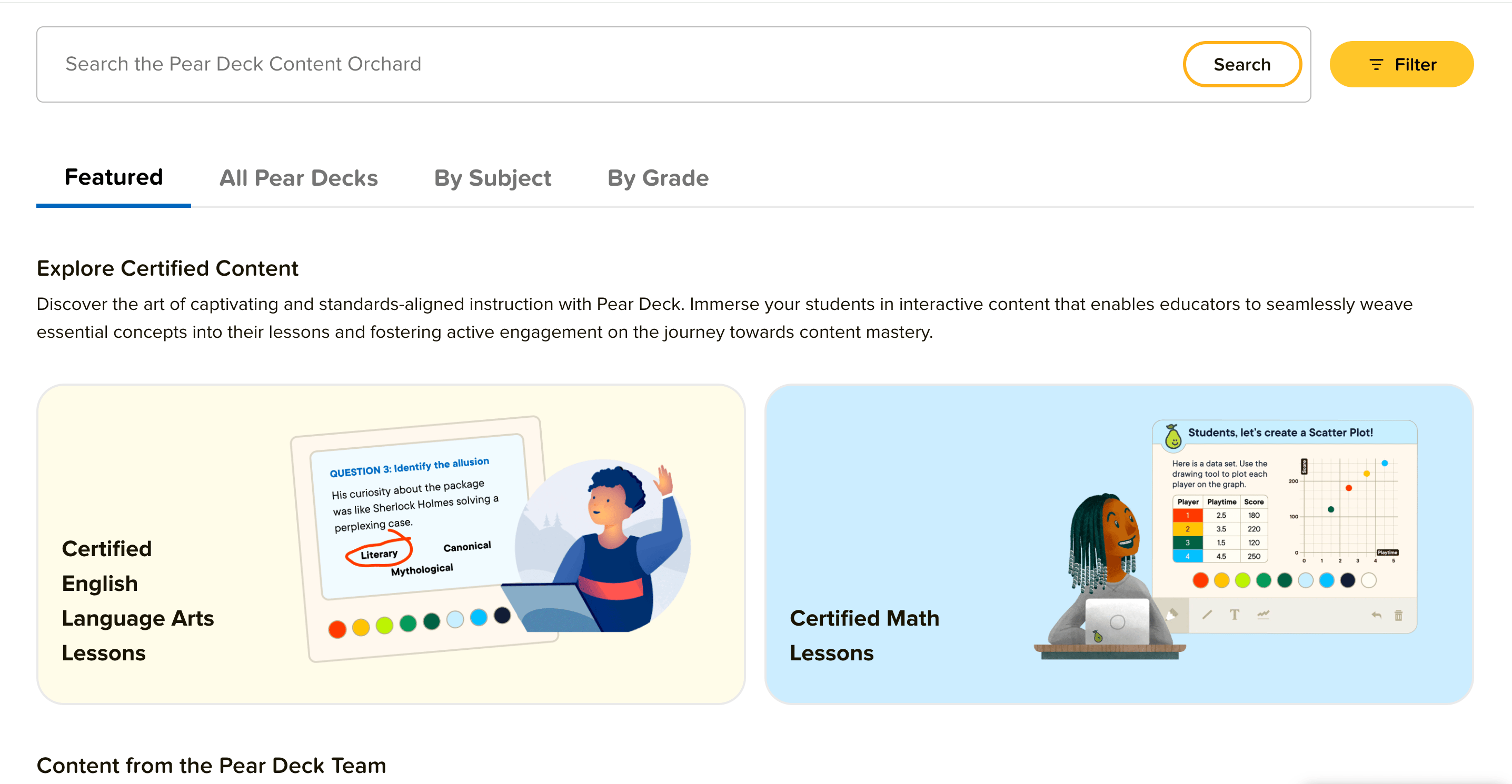
2. Browse the available decks. Decks with the **Certified** badge are part of the Certified Content library.
 ## Find a Lesson
1. To find a specific topic, enter a keyword in the search field.
2. Click **Filter** and use the menu options to narrow results by Standard(s), Grade, and Subject.
3. Click **Select Standards** and use the dropdown menus to choose your preferred standards.
4. When you are satisfied with your selections, click **Save and Close**.
5. Click **Apply Filters** to see the matching lessons.
## Copy a Lesson to Your Drive
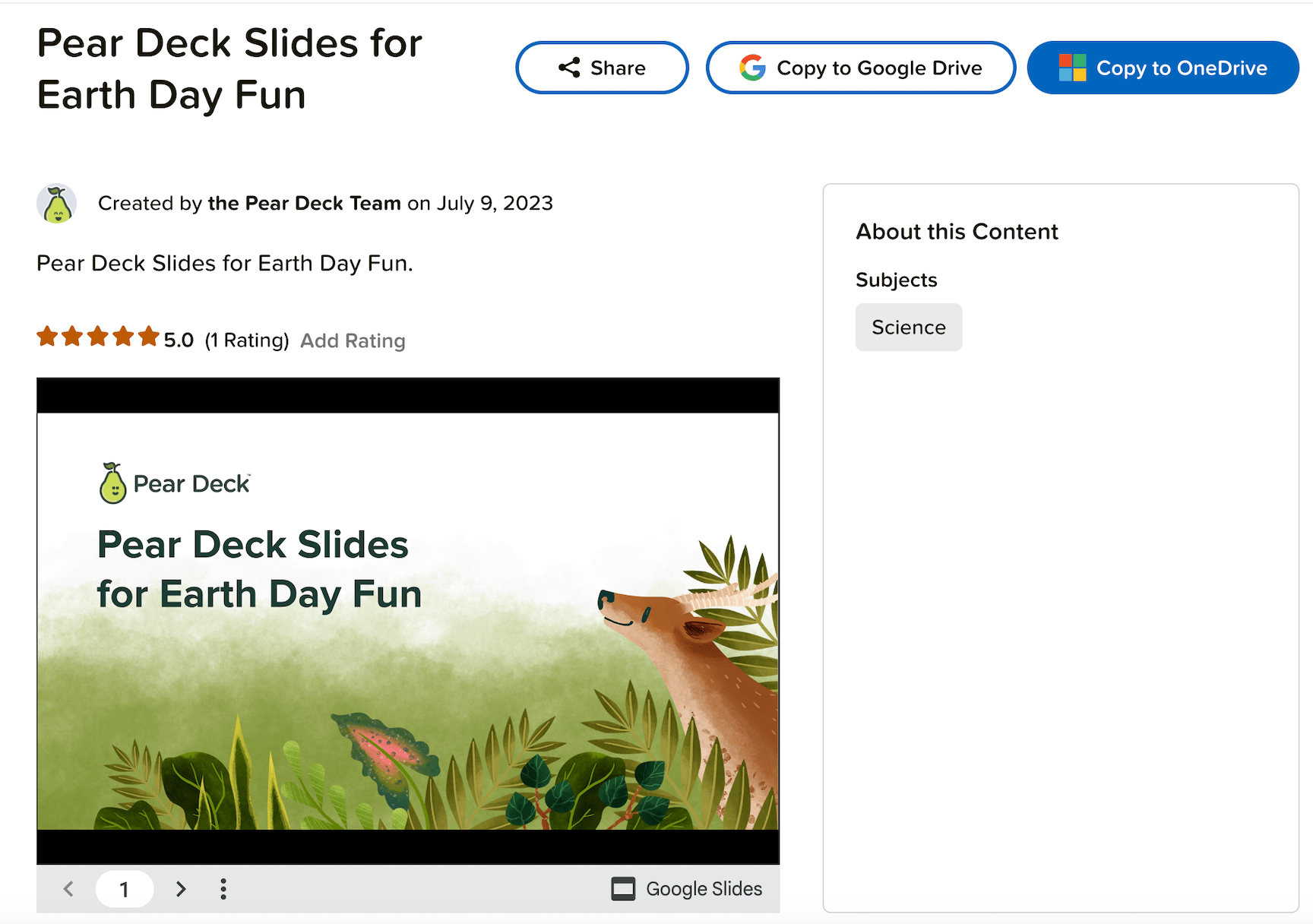
1. Click a lesson to view its description, rating, and deck preview. Use the navigation arrows in the preview window to explore the slides.
Users who are not part of a school or district account can preview only the first two slides.
2. Click **Copy to Google Drive** or **Copy to OneDrive**.
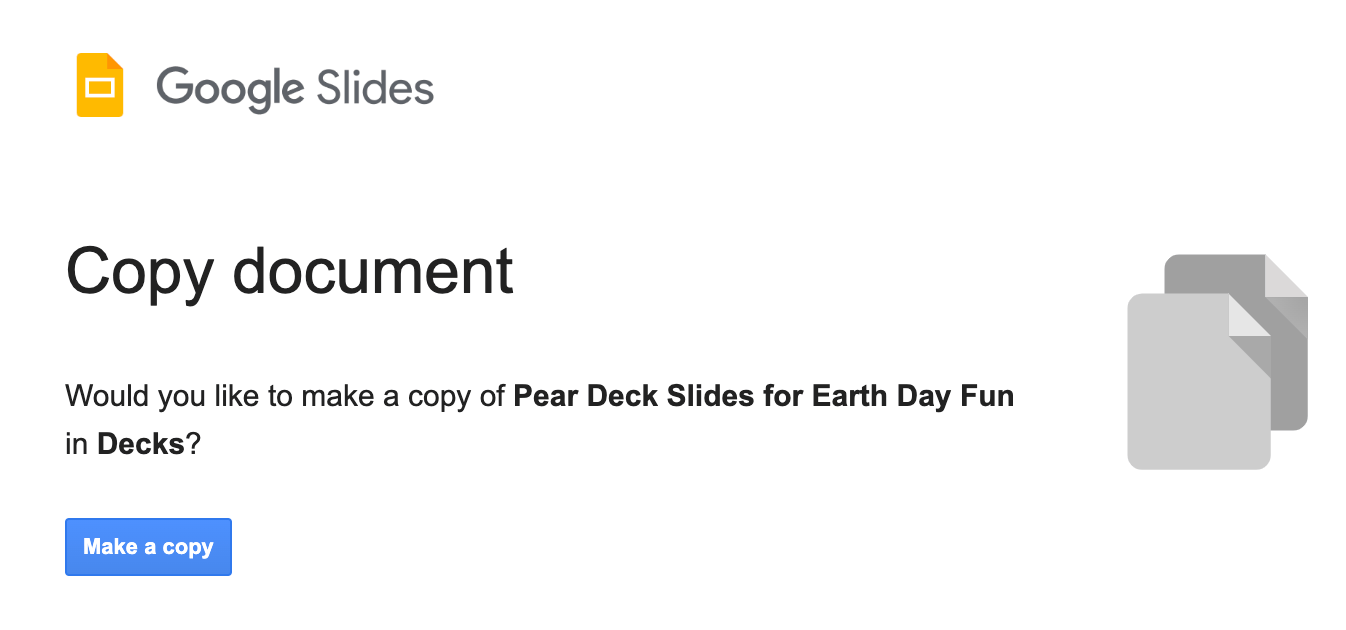
3. For Google users, in the next tab, click **Make a copy**.
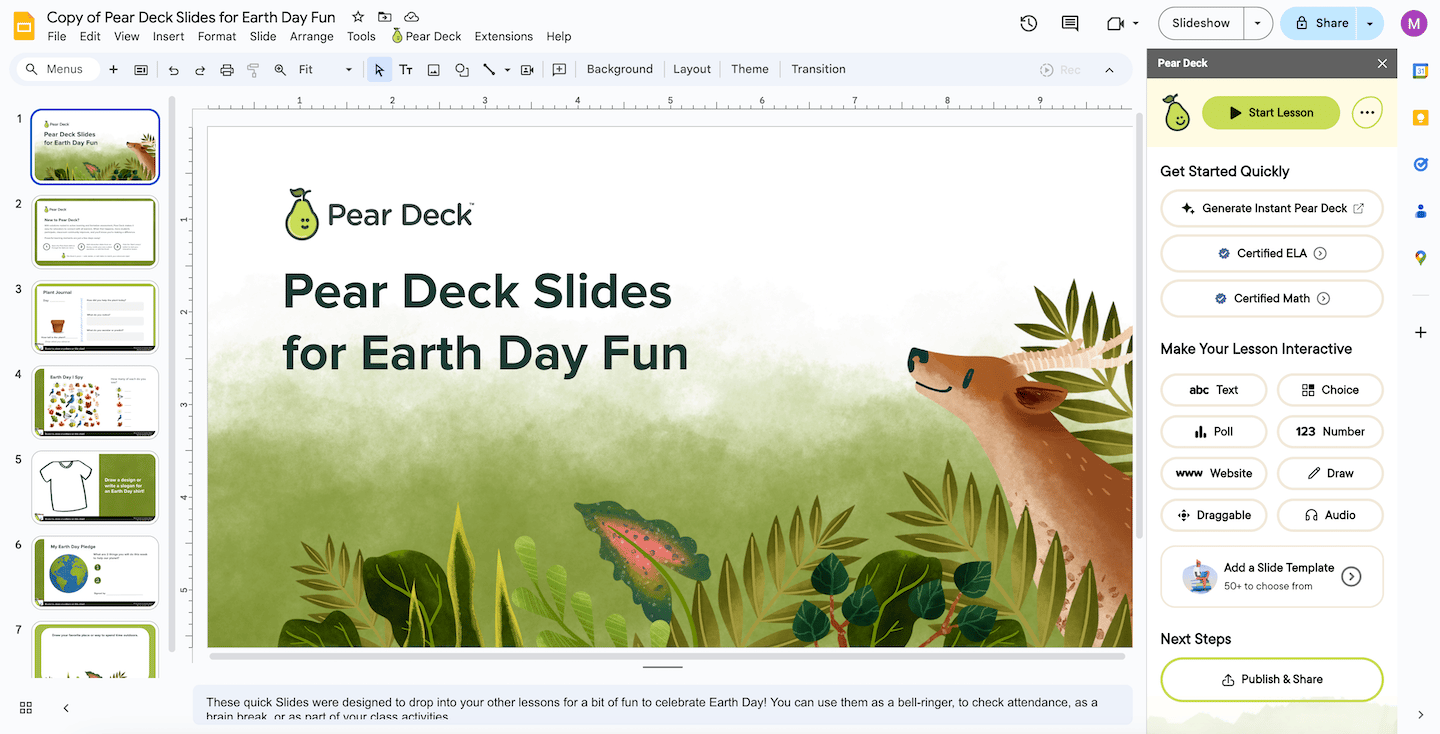
4. Your copy of the deck opens automatically in Google Slides or PowerPoint Online. Open the Pear Deck Sidebar to edit the deck or present it to your students immediately.
## Resources
Learn how to browse and use shared community lessons in the Pear Deck Content Orchard.
Start an interactive session and present your deck to students in real time.
## Find a Lesson
1. To find a specific topic, enter a keyword in the search field.
2. Click **Filter** and use the menu options to narrow results by Standard(s), Grade, and Subject.
3. Click **Select Standards** and use the dropdown menus to choose your preferred standards.
4. When you are satisfied with your selections, click **Save and Close**.
5. Click **Apply Filters** to see the matching lessons.
## Copy a Lesson to Your Drive
1. Click a lesson to view its description, rating, and deck preview. Use the navigation arrows in the preview window to explore the slides.
Users who are not part of a school or district account can preview only the first two slides.
2. Click **Copy to Google Drive** or **Copy to OneDrive**.
3. For Google users, in the next tab, click **Make a copy**.
4. Your copy of the deck opens automatically in Google Slides or PowerPoint Online. Open the Pear Deck Sidebar to edit the deck or present it to your students immediately.
## Resources
Learn how to browse and use shared community lessons in the Pear Deck Content Orchard.
Start an interactive session and present your deck to students in real time.