> ## Documentation Index
> Fetch the complete documentation index at: https://docs.goguardian.com/llms.txt
> Use this file to discover all available pages before exploring further.
# Add Premade Slide Templates to Your Presentation
> Add premade interactive slide templates to your Google Slides or PowerPoint Online presentation using Pear Deck
GoGuardian Pear Deck includes a library of premade slide templates, decks, and lessons designed to support formative assessment and critical thinking across subjects. You can add these templates directly to your existing presentation in Google Slides or PowerPoint Online.
## Add a Slide Template to Your Presentation
1. Install the [Pear Deck for Google Slides add-on](https://chrome.google.com/webstore/detail/pear-deck) or the [Pear Deck for PowerPoint Online Add-in](/products/pear-deck/get-pear-deck-for-powerpoint-online).
2. Open a presentation.
3. Open the Pear Deck sidebar.
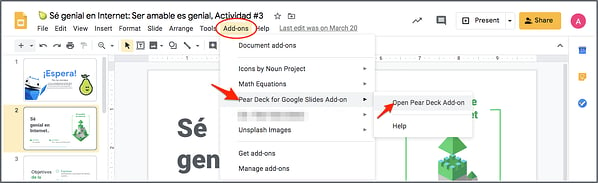
4. In Google Slides, click **Add-ons** → **Pear Deck for Google Slides Add-on** → **Open Pear Deck Add-on**.
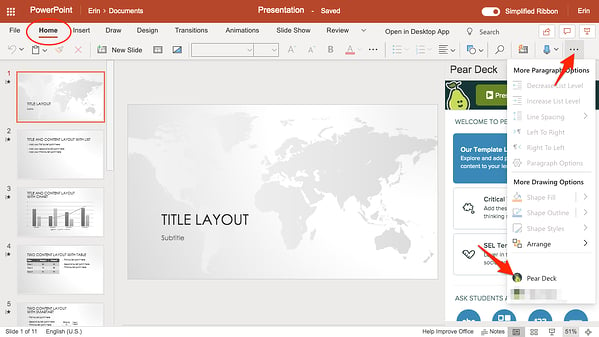
 5. In PowerPoint Online, click **Home** → **More Options** → **Pear Deck**.
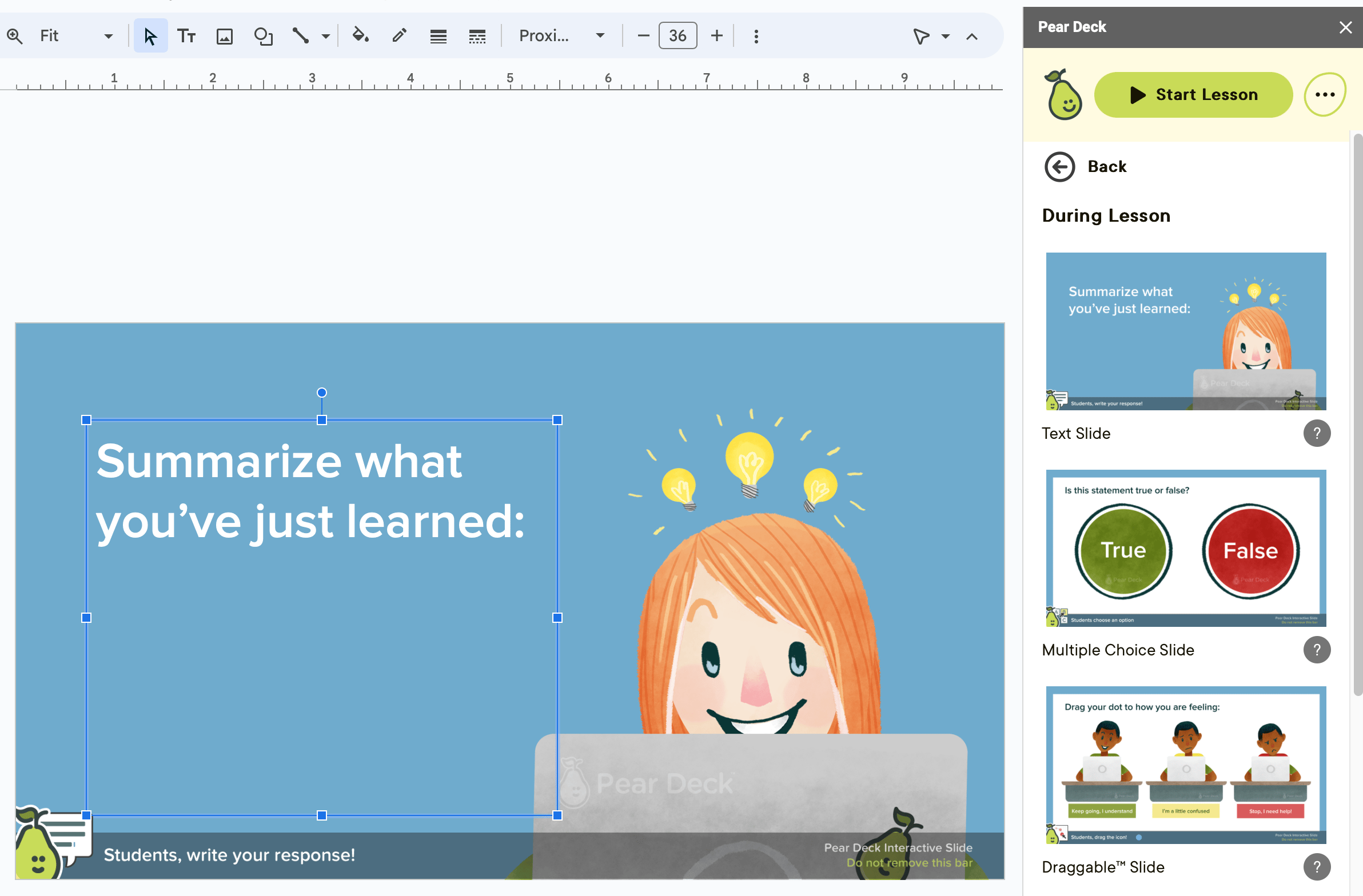
 6. In the Pear Deck sidebar, click **Add a Slide Template**.
 ## In Google Slides
1. Click a category in the template library.
2. Click a template to add it to your presentation.
## In Google Slides
1. Click a category in the template library.
2. Click a template to add it to your presentation.
 ## In PowerPoint Online
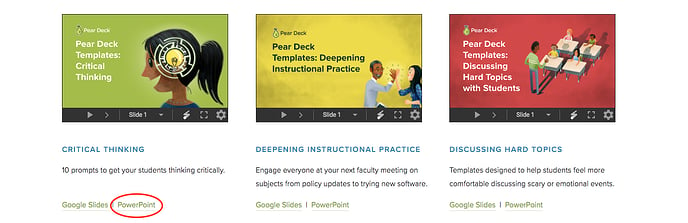
1. When you click **Add a Slide Template**, the [Pear Deck templates page](https://www.peardeck.com/templates/) opens. Preview templates by clicking the arrows underneath them.
2. Click the **PowerPoint** link under the template you want.
3. The read-only file opens in PowerPoint Online.
4. Click **File** → **Download As** → **Download a Copy** to save a copy of the file.
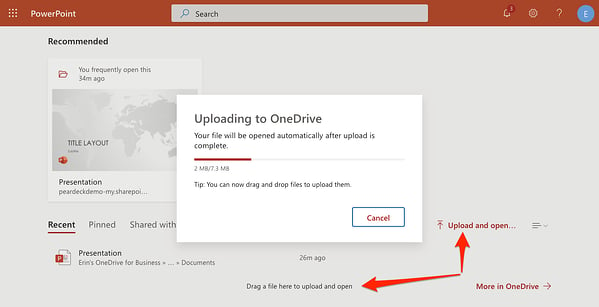
5. Open PowerPoint Online again and click **Upload** to locate the file you downloaded, or drag it from your desktop.
6. Once uploaded, copy and paste individual slides into any of your other PowerPoint Online presentations by selecting the slide, right-clicking, and choosing **Copy** or **Paste**.
7. Customize the slide template by changing the text, font, images, background, and other elements.
8. When you are ready, click **Start Lesson / Present with Pear Deck** in the Pear Deck sidebar to begin a session. See [Present a Pear Deck Lesson](/products/pear-deck/present-a-pear-deck-lesson) for details.
There is no limit to the number of sessions you can present with Pear Deck. You can also join any session as a student by clicking the Join Link or entering the Join Code at [joinpd.com](https://joinpd.com).
## In PowerPoint Online
1. When you click **Add a Slide Template**, the [Pear Deck templates page](https://www.peardeck.com/templates/) opens. Preview templates by clicking the arrows underneath them.
2. Click the **PowerPoint** link under the template you want.
3. The read-only file opens in PowerPoint Online.
4. Click **File** → **Download As** → **Download a Copy** to save a copy of the file.
5. Open PowerPoint Online again and click **Upload** to locate the file you downloaded, or drag it from your desktop.
6. Once uploaded, copy and paste individual slides into any of your other PowerPoint Online presentations by selecting the slide, right-clicking, and choosing **Copy** or **Paste**.
7. Customize the slide template by changing the text, font, images, background, and other elements.
8. When you are ready, click **Start Lesson / Present with Pear Deck** in the Pear Deck sidebar to begin a session. See [Present a Pear Deck Lesson](/products/pear-deck/present-a-pear-deck-lesson) for details.
There is no limit to the number of sessions you can present with Pear Deck. You can also join any session as a student by clicking the Join Link or entering the Join Code at [joinpd.com](https://joinpd.com).

 ## Get a Premade Pear Deck Lesson
The [Pear Deck Orchard](https://www.peardeck.com/orchard) features complete, premade, interactive lessons with built-in activities created by experienced educators.
Some content in the Orchard, such as Certified Content, is available with Premium School or District subscriptions only.
1. Open the Pear Deck Orchard.
2. Click the deck title.
3. Copy the presentation (Google Slides) or download it (PowerPoint Online).
4. Present the deck as-is, or copy and paste slides into your existing files.
## Resources
Install the Pear Deck Add-in for PowerPoint Online to access interactive slide features.
Learn how to start a session and present an interactive Pear Deck lesson to students.
## Get a Premade Pear Deck Lesson
The [Pear Deck Orchard](https://www.peardeck.com/orchard) features complete, premade, interactive lessons with built-in activities created by experienced educators.
Some content in the Orchard, such as Certified Content, is available with Premium School or District subscriptions only.
1. Open the Pear Deck Orchard.
2. Click the deck title.
3. Copy the presentation (Google Slides) or download it (PowerPoint Online).
4. Present the deck as-is, or copy and paste slides into your existing files.
## Resources
Install the Pear Deck Add-in for PowerPoint Online to access interactive slide features.
Learn how to start a session and present an interactive Pear Deck lesson to students.