> ## Documentation Index
> Fetch the complete documentation index at: https://docs.goguardian.com/llms.txt
> Use this file to discover all available pages before exploring further.
# Block a Student From Your Session
> Learn how to block and unblock individual students from participating in an active Pear Deck Session using the Teacher Dashboard
If you want to keep an individual student from participating in your Session, you can block them from the Teacher Dashboard. Blocking a student is a [Premium](https://www.peardeck.com/pricing/comparison/) feature. When you block a student, they can no longer:
* Rejoin your Session with the same account, unless you unblock them
* See or respond to any slides, whether Normal or Interactive, on the Student View
* Receive a Takeaway (a Premium feature, available to students who sign in with a Google account)
## Block a Student From Your Session
1. Open the Teacher Dashboard.
2. Go to the top right corner of the screen and click the **Session Roster** button.
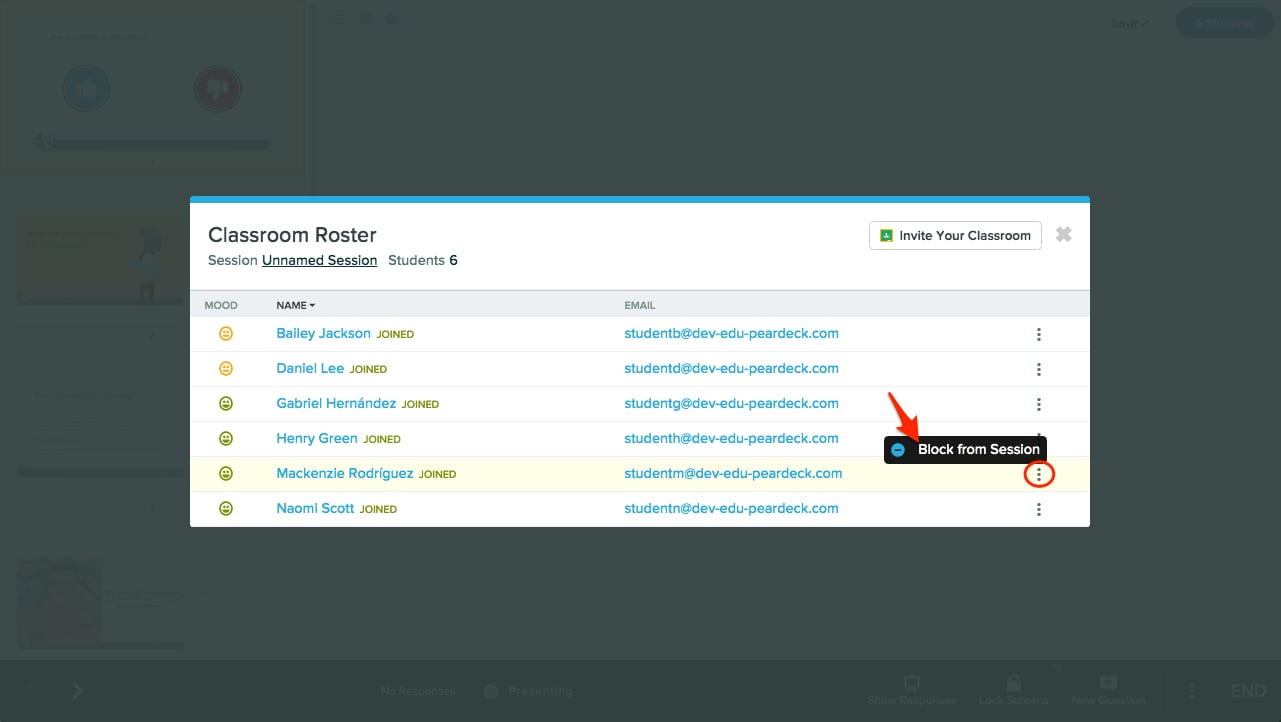
3. Find the student, then click the **More Actions** (three-dots) button next to their email address. Select **Block from Session**.
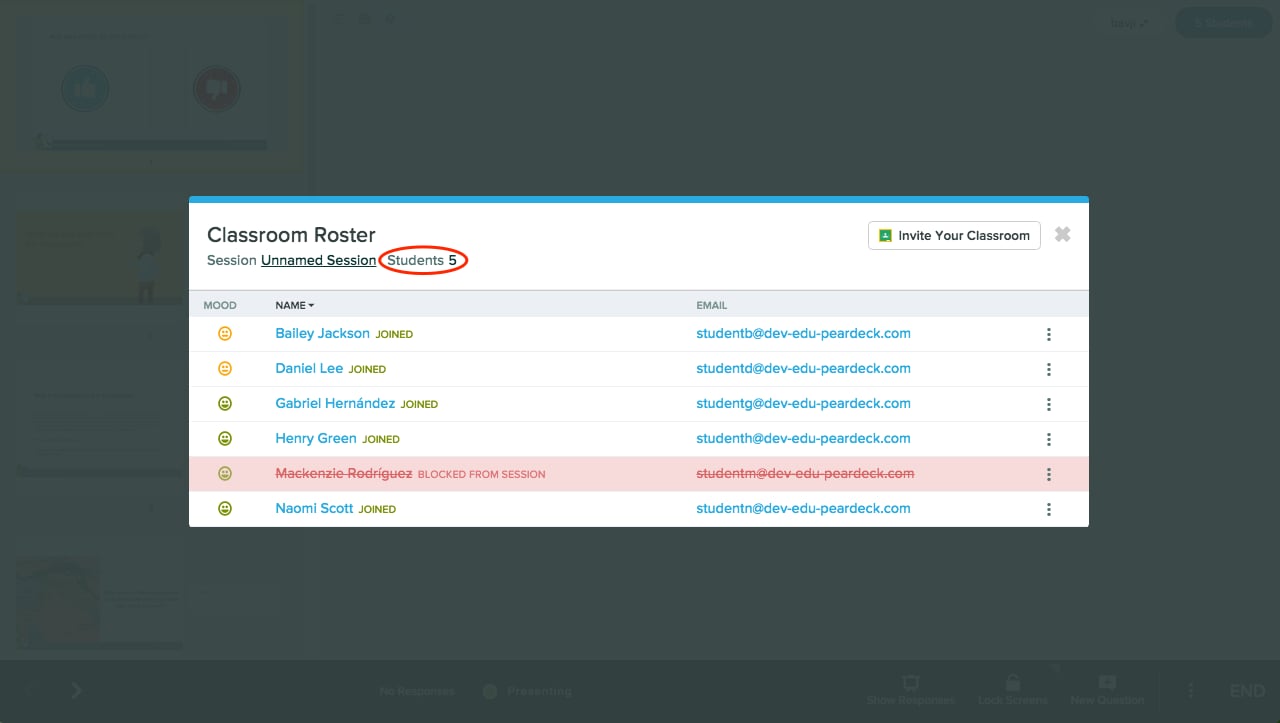
4. The blocked student appears in red in your Roster and is removed from the student total.

 ## Allow a Student Back Into Your Session
1. Open the Session Roster again.
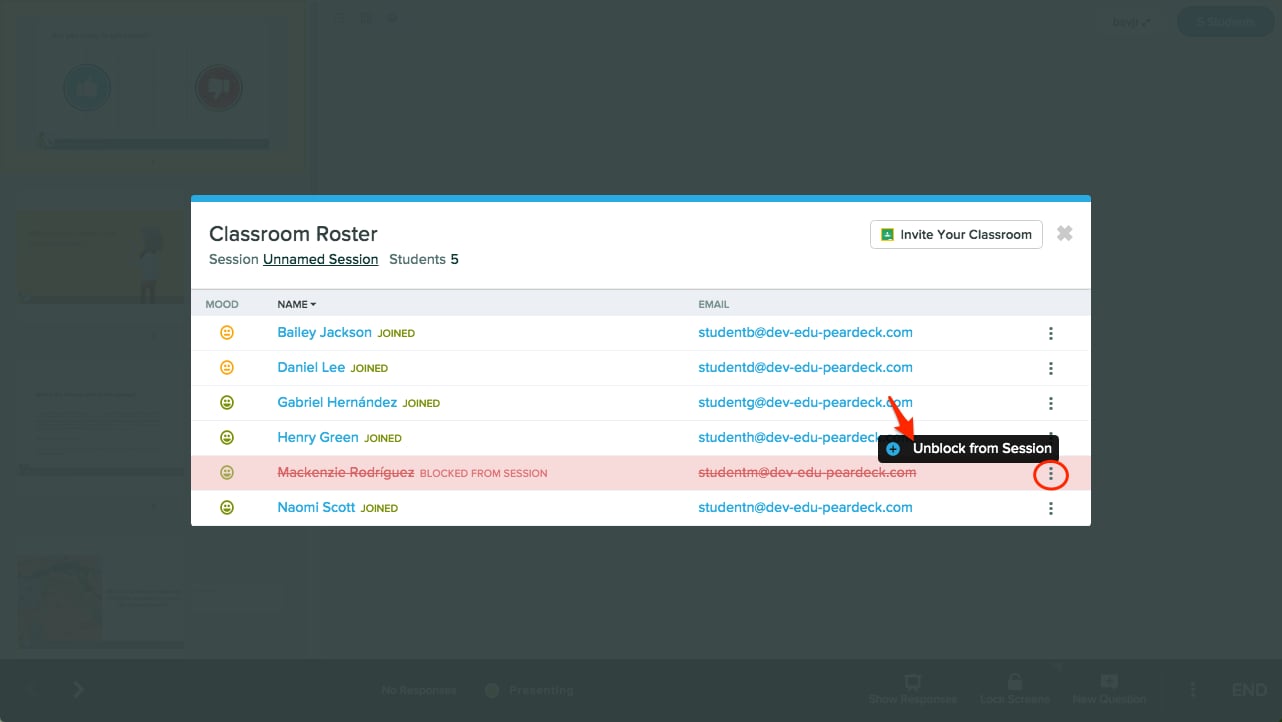
2. Click the **More Actions** button next to the blocked student and select **Unblock from Session**.
3. The student can rejoin the Session at [joinpd.com](https://joinpd.com/) using the same Session Join Code.
## Allow a Student Back Into Your Session
1. Open the Session Roster again.
2. Click the **More Actions** button next to the blocked student and select **Unblock from Session**.
3. The student can rejoin the Session at [joinpd.com](https://joinpd.com/) using the same Session Join Code.
 ## What the Blocked Student Sees
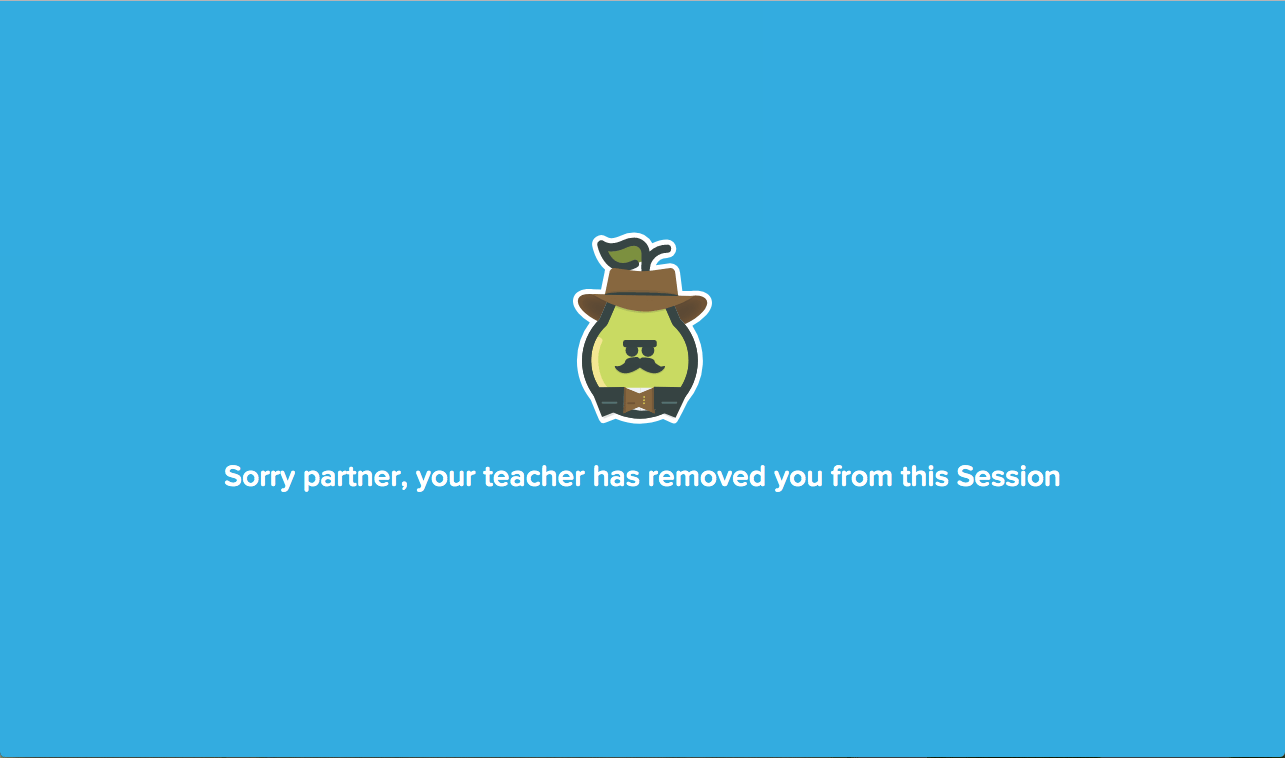
When a student loses access to your Session, they see a screen indicating they have been removed.
## What the Blocked Student Sees
When a student loses access to your Session, they see a screen indicating they have been removed.
 ## Resources
Learn how to launch a new Session from the Teacher Dashboard.
View and manage student participation during a live Session.
## Resources
Learn how to launch a new Session from the Teacher Dashboard.
View and manage student participation during a live Session.